Can iPod Play FLAC? Lossless Options for iPod Classic

Can iPod Play FLAC? Quick Takeaways
TL;DR: Can iPod play FLAC? An iPod Classic running Apple's firmware cannot play FLAC directly. Convert a copy to Apple Lossless (ALAC) for native playback, or consider Rockbox on a compatible model for direct FLAC playback.
Before we begin
Download WALTR PRO for Mac or Windows if you want to convert and transfer local music to an iPod without iTunes syncing. Softorino documents FLAC input and iPod Classic support. Try the free trial with a small sample before transferring your library; verify the output if lossless audio is essential.
Keep the original FLAC files backed up; convert copies for the iPod.
Choose Apple Lossless, not AAC, when you need lossless output.
Check the exact iPod model before choosing a firmware or transfer method.
Play a sample on the iPod before processing a full library.
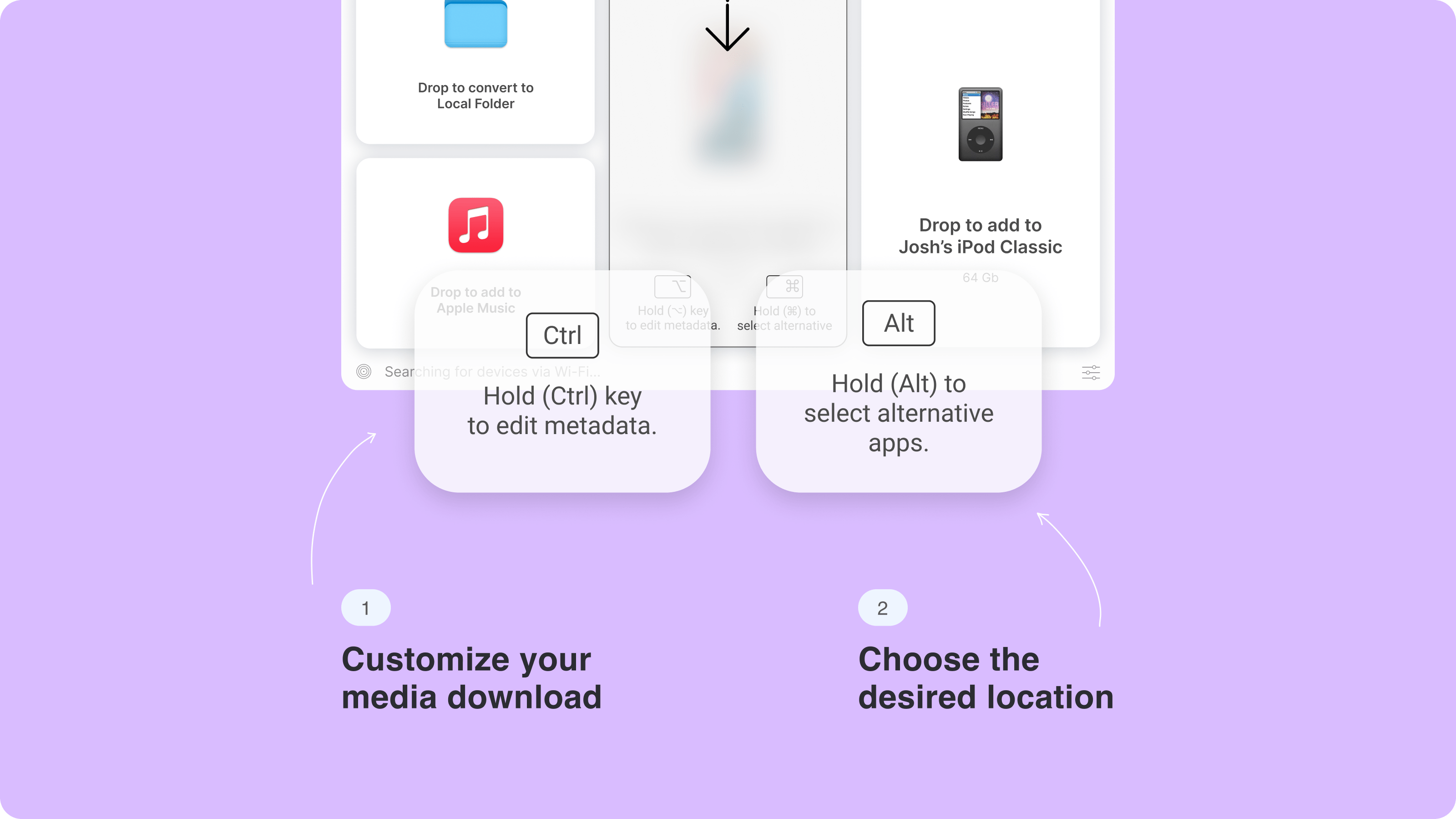
The WALTR PRO video below introduces the transfer workflow. Classic owners should use a cable and the connected-device destination, rather than follow iPhone-specific options.
Can iPod Play FLAC With Apple's Firmware?
No, not on an iPod Classic. Apple's iPod Classic specifications list AAC, MP3, Apple Lossless, AIFF and WAV. FLAC is absent from that list.
Your FLAC library can still supply the music. Convert the files before native playback, or use a transfer app that converts unsupported input for the device.
ALAC means Apple Lossless Audio Codec. It offers a lossless format the Classic supports, so you can keep Apple's firmware and its familiar Music menu.
The iPod touch is a different device family. App-based playback advice for an iPod touch does not apply to a click-wheel Classic. Check the model before following a tutorial.
This guide uses Apple, Softorino and Rockbox documentation. No new on-device testing took place for this update; the existing illustrations are not a new compatibility test.
Format support is only the first check. A lossless codec's capabilities do not prove that every high-resolution file will play on an old iPod. Check a sample on your exact model.
Why Convert FLAC to ALAC for iPod Classic?
ALAC gives you lossless audio with native iPod Classic support. MP3 and AAC are lossy alternatives: choose them for smaller files, rather than to preserve a lossless copy.
Xiph describes FLAC as lossless compression. Converting between FLAC and ALAC can preserve the decoded audio when sample rate, bit depth and channels stay unchanged. Changing those settings is a separate operation, even if the output codec is lossless.
Use ALAC when you want:
- Lossless music on an iPod Classic running Apple's firmware.
- Local files for an Apple Music or iTunes library.
- A separate portable copy while keeping your FLAC archive.
Use MP3 or AAC when fitting more albums matters more than keeping lossless audio on the device. Compare a sample album's size before converting a whole collection. Keep the original FLAC files either way.
M4A vs ALAC: Check the Codec Before You Sync
An .m4a extension does not prove a file is lossless. M4A can contain ALAC or AAC. ALAC is lossless; AAC is lossy.
A converter preset labeled only “M4A” needs a closer look. Inspect the audio codec before starting the batch, then check the output file's audio information. Renaming a FLAC file to .m4a does not convert it.
Choose Apple Lossless or ALAC in the converter's codec settings. If you use ffmpeg, the audio codec in the example below is alac, not aac. Do not use an AAC preset and expect to recover the original lossless audio later.
For the broader conversion workflow, see how to convert FLAC to ALAC. This guide keeps the next step in view: getting playable music into the iPod Classic library.
FLAC to iPod Methods Compared
Choose between conversion, transfer and firmware changes. A converter creates a file on your computer; a transfer or sync tool adds music to the iPod library. Rockbox changes the playback environment instead.
Method | Useful when | Tradeoff |
|---|---|---|
WALTR PRO | You want conversion and connected-iPod transfer without iTunes syncing | Paid app with a trial; verify output for strict lossless requirements |
Local ALAC conversion, then sync | You want to choose the codec and manage a music library | Separate conversion, library import and device sync steps |
ffmpeg, then transfer | You are comfortable choosing conversion settings in a command | No iPod library transfer in the conversion command |
Online converter, then transfer | You have a small file you are willing to upload | Check service limits and privacy terms; transfer is still separate |
Rockbox | You want direct FLAC playback on a compatible model | Model-specific firmware installation and a different interface |
An online converter can produce a file, but it cannot make stock iPod firmware understand FLAC. Check the output codec and consider whether you want to upload personal recordings to that service.
Local conversion gives you control over the output folder and codec settings. You still need to transfer or sync the resulting ALAC files. Copying them to the iPod's disk storage is not the same as adding them to its music library.
WALTR PRO combines conversion and device transfer. Its official product page documents FLAC input, iPod Classic support and a drag-and-drop destination workflow. It does not establish a universal bit-perfect output guarantee for every Classic and source file.
How to Transfer FLAC to iPod With WALTR PRO
Use WALTR PRO when you want to send local music to the iPod without managing an iTunes sync. Start with files you own or have permission to use, rather than subscription-service downloads.
Connect the iPod Classic to your Mac or Windows PC with its USB cable. Wait for the device to appear before choosing it as the transfer destination. The Classic instructions here do not use Wi-Fi or an iOS app.
- Install and open WALTR PRO on your computer.
- Connect the iPod Classic with its USB cable and confirm the app recognizes it.
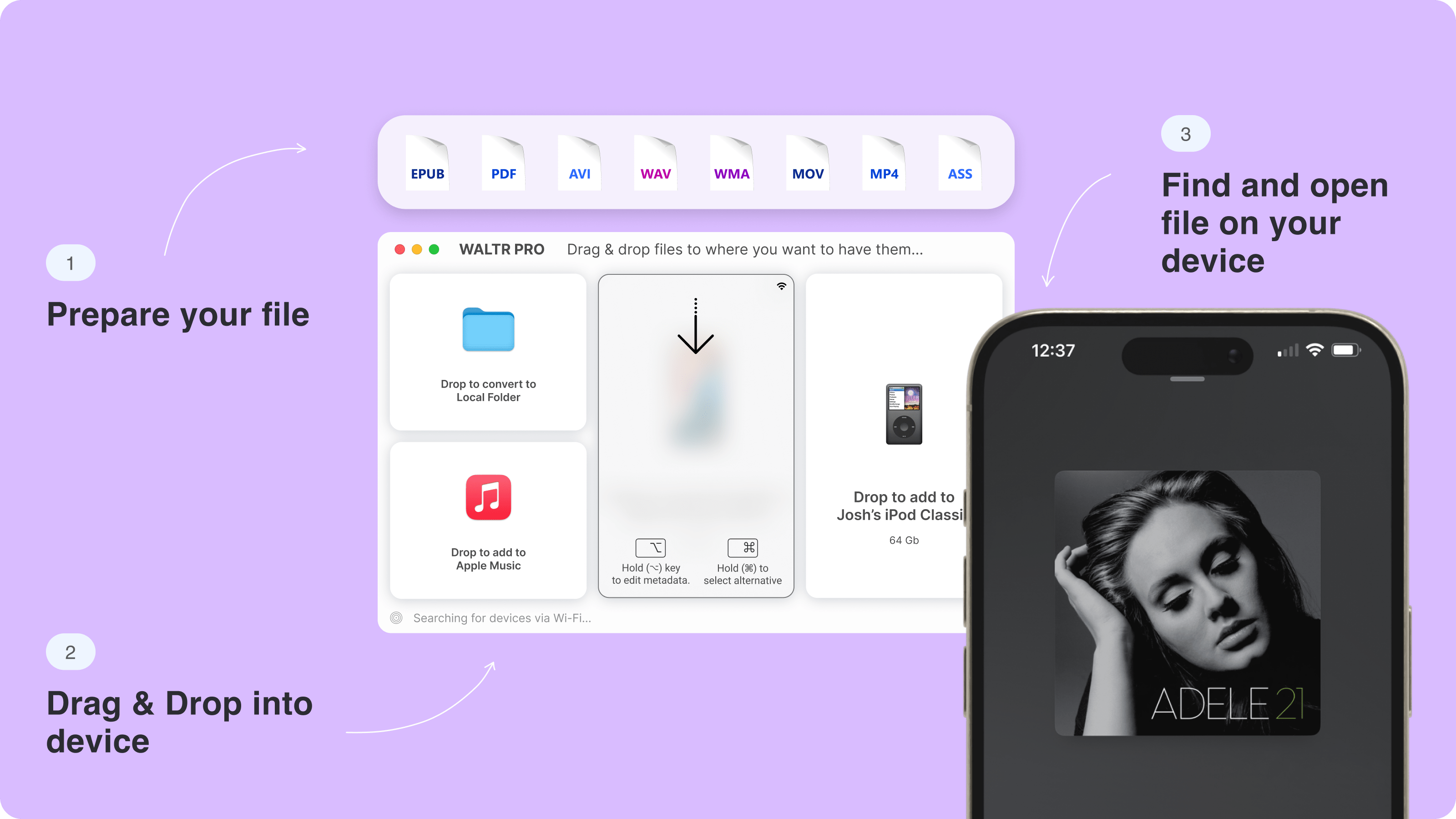
- Drag a small sample of your FLAC files into WALTR PRO.
- Select the connected iPod as the destination and let the transfer finish.
- Check the iPod's Music menu and play the tracks before sending more albums.
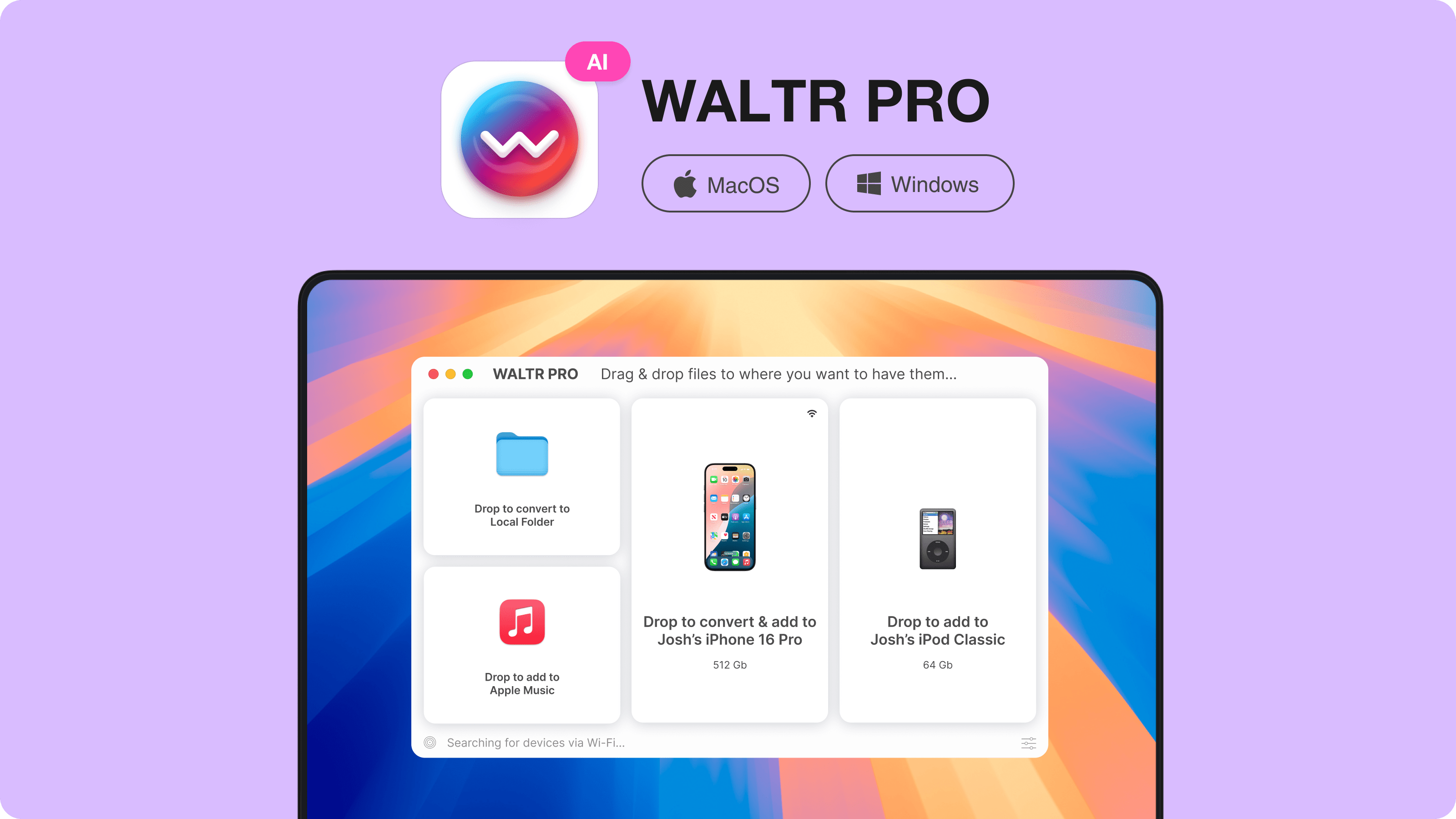
Choose the connected device when your goal is iPod playback. WALTR PRO also documents a Local Folder destination for Apple-ready files on the computer. That option is a separate local-conversion workflow, not proof that music has reached the iPod.
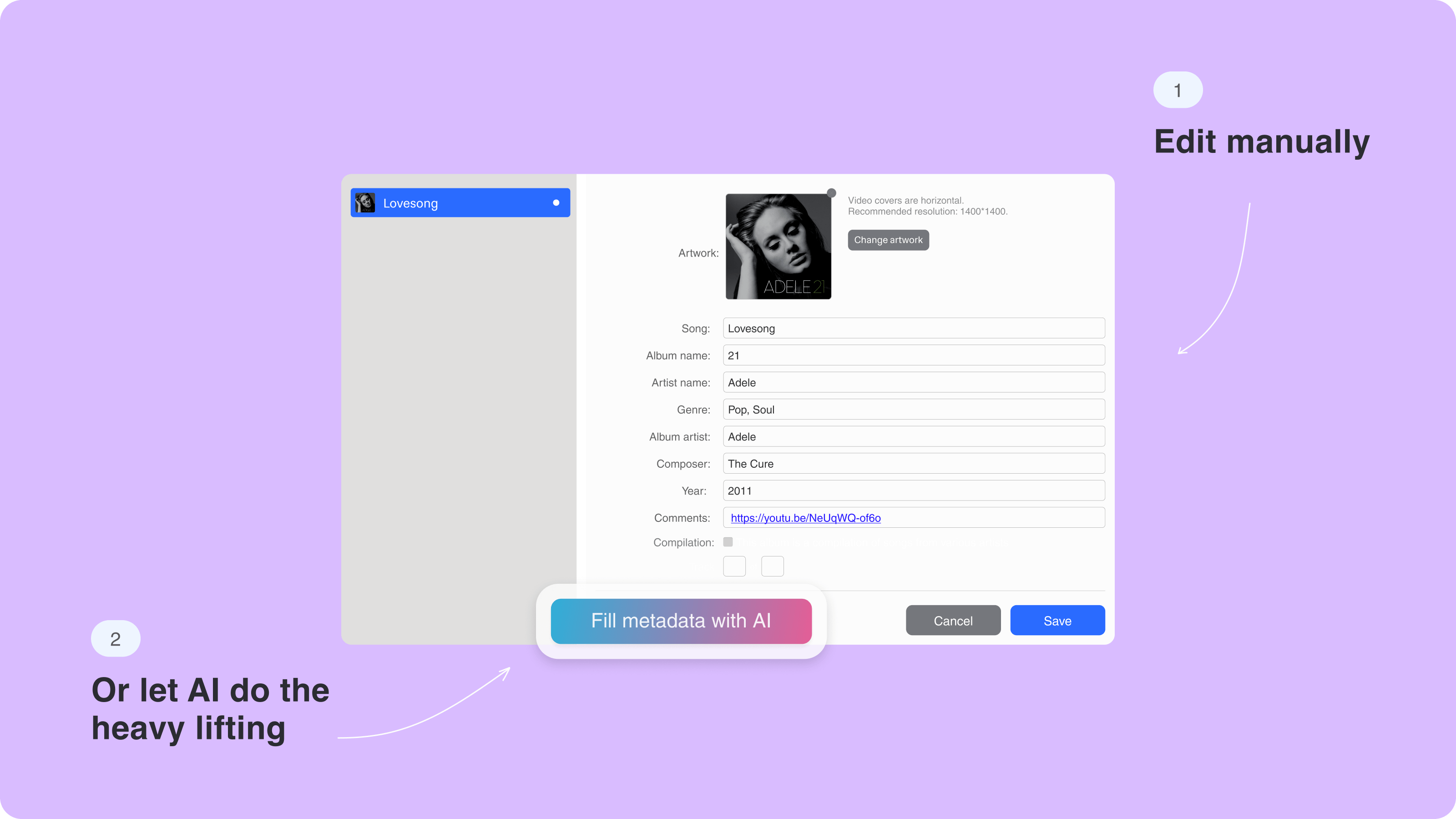
Check artist, album and track names after the sample transfer. Clean tags help you find the music, but tags alone do not prove lossless output. If exact codec and resolution matter, use an explicitly configured ALAC conversion and verify the files before transfer.
Manual Method: Convert FLAC to ALAC and Sync
Convert FLAC locally, import the ALAC copies into your music library, then sync selected music to the iPod Classic. Use this route if you want to inspect the output codec before sending files to the device.
- Choose a local converter with an explicit Apple Lossless or ALAC output setting.
- Convert a sample and check its codec, sample rate, bit depth and channels.
- Import the converted files into your Apple Music or iTunes library.
- Connect the iPod Classic and use the sync software appropriate to your computer and model.
- Review the selected music and any replacement warning before applying the sync.
- Check the iPod's Music menu and play the sample tracks.
Library import and device sync are different steps. On a Mac, the relevant device controls depend on your macOS version; older setups use iTunes. Do not assume an instruction for an iPhone or the Windows Apple Devices app also covers your Classic.
This route gives you separate control over conversion and library management. Keep backups before changing a sync setup, especially when connecting an iPod to a different computer or library.
ffmpeg Method: Convert FLAC to ALAC Locally
Use ffmpeg if you prefer a local command with an explicit audio codec. The command creates an output file; it does not add that file to the iPod library.
The existing conversion example is:
ffmpeg -i input.flac -c:a alac output.m4a
The command selects ALAC audio inside an M4A file. Replace the filenames with your own. It does not set a Classic-specific resolution profile, so successful conversion alone does not establish hardware compatibility.
The example was not executed for this update. Before using it for a batch, inspect the output and transfer a sample to your iPod. Keep your original files and avoid overwriting your only copy.
Rockbox: Direct FLAC Playback on Compatible iPods
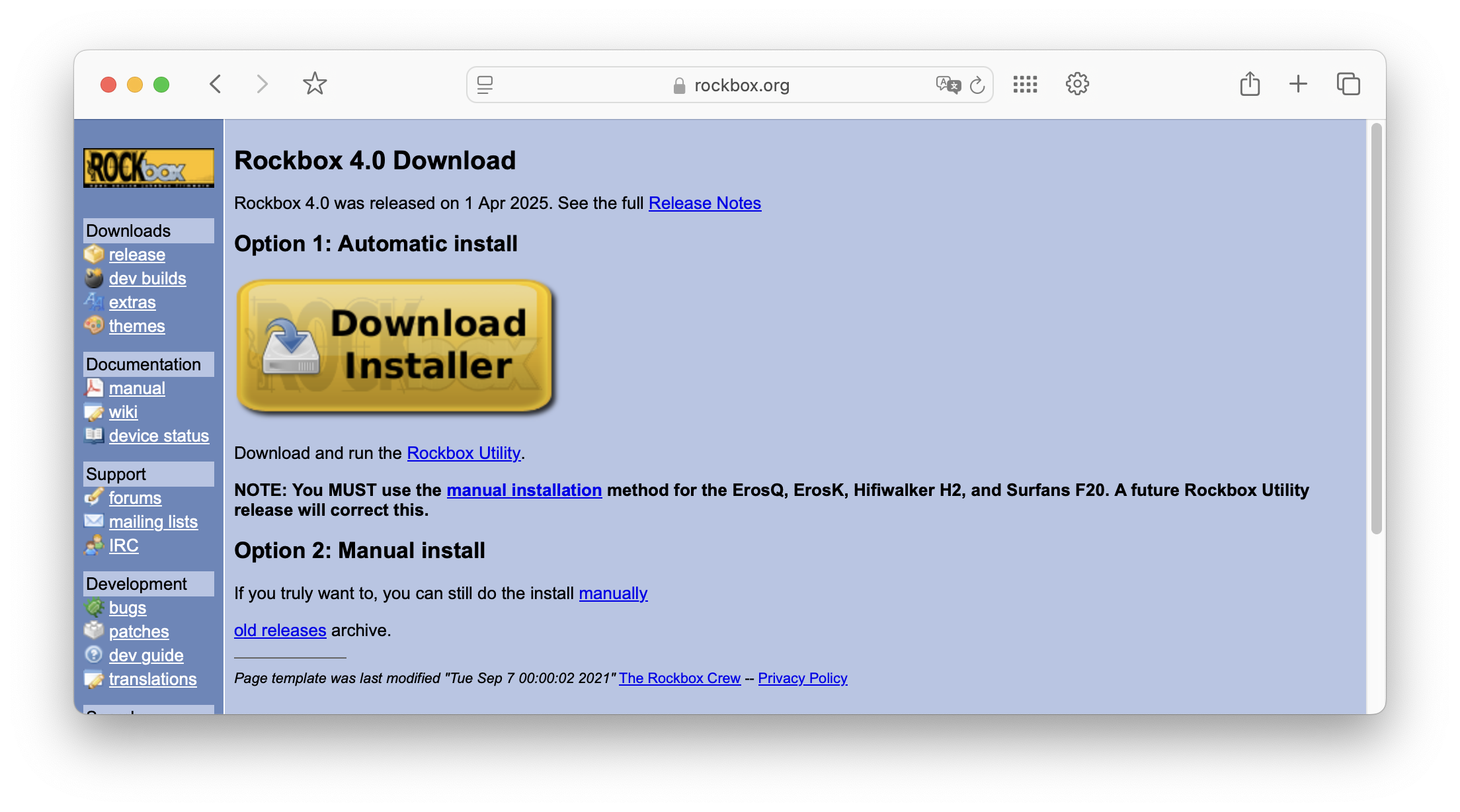
Rockbox can play FLAC on compatible iPods without converting it to ALAC. Rockbox's official manual source lists FLAC support and includes an iPod Classic target. Check the exact model and current installation documentation before choosing this route.
Rockbox replaces the usual playback environment with different firmware and controls. Treat installation as a separate project, not a file-transfer step. A converter tutorial is not enough guidance for changing firmware.
Choose Rockbox if keeping FLAC files on the player matters enough to accept that setup. Choose ALAC with Apple's firmware if you want to keep the existing interface. Neither choice requires deleting your FLAC archive.
The official Rockbox format documentation also warns that high-resolution and multichannel FLAC is downmixed to 16-bit stereo. FLAC support is not a promise of unchanged high-resolution output.
FLAC vs ALAC vs MP3 vs AAC on iPod
For the stock iPod Classic, start with Apple's supported format list. The table compares format support, not a guarantee for every sample rate, bitrate or channel configuration.
Format | Audio type | Native Classic support | Useful for |
|---|---|---|---|
FLAC | Lossless | No | Keeping a source archive; compatible Rockbox playback |
ALAC | Lossless | Yes | Compressed lossless music with Apple's firmware |
MP3 | Lossy | Yes | Smaller files and broad player compatibility |
AAC | Lossy | Yes | Smaller Apple-compatible music files |
WAV | Uncompressed audio | Yes | Uncompressed copies where file size is acceptable |
AIFF | Uncompressed audio | Yes | Uncompressed copies in an Apple library |
Apple Lossless is the native compressed-lossless choice. MP3 and AAC trade some audio information for smaller files. Our ALAC vs FLAC comparison covers the codecs beyond this iPod-specific decision.
The Rockbox illustration below belongs to the alternative-firmware route. It does not mean Apple's original firmware gained FLAC support, and it is not evidence of a new test on your model.
Which FLAC to iPod Method Should You Choose?
Choose based on the part of the job you need to control. You may want a playable album now, an explicitly lossless portable library, or FLAC playback without conversion.
- Conversion plus transfer: WALTR PRO, with a sample check on the connected Classic.
- Explicit output settings: local ALAC conversion, followed by library import and sync.
- Command-line conversion: ffmpeg, with a separate transfer step.
- Direct FLAC playback: Rockbox, after checking model support and installation requirements.
- Storage-first playback: AAC or MP3 copies, while keeping the FLAC originals.
WALTR PRO is relevant when the transfer step is the obstacle. The manual ALAC route is useful when inspecting the output codec matters more than combining steps in one app.
For a broader device-transfer walkthrough, see how to transfer music from a computer to an iPod. Follow the instructions for your exact iPod family rather than treating Classic and touch as interchangeable.
Troubleshooting: Music Not Showing on iPod Classic
If the tracks are missing, separate connection problems from format problems. A file that plays on your computer may still be unsupported by the Classic or absent from its music library.
- Confirm the computer and transfer app recognize the iPod; check the cable and connection if they do not.
- Play the source file on your computer to check for an obvious file problem.
- Inspect the converted file's codec rather than relying on its extension.
- Confirm you completed a music transfer or sync, not only a disk-storage copy.
- Look in the iPod's Music menu and check artist and album names.
- Retry a small sample before sending the remaining albums.
Apple distinguishes iPod disk storage from synced music. Putting a FLAC file on the disk does not make it playable through stock firmware. Check that your chosen workflow adds music to the library.
If WALTR PRO recognizes the iPod but a transfer fails, note the file format and error message before contacting support. Avoid converting the entire archive again until you know whether the failure concerns the source file, conversion or device connection.
Can iPod Touch Play FLAC?
The iPod touch runs iOS and has app-based playback options that a Classic does not. Whether a particular FLAC player works depends on the touch model, iOS version and app requirements.
Do not assume that installing a FLAC player puts those files into Apple's Music library. App playback and native-library transfer are separate workflows. ALAC remains the relevant lossless format for the library-based route described here.
No current third-party player compatibility was verified for this update. If you own an iPod touch, check the app's current requirements before downloading it; skip app-installation instructions if your device is a Classic.
Frequently Asked Questions About iPod FLAC Playback
How do I convert FLAC to ALAC for iPod Classic?
Choose Apple Lossless or ALAC in a local converter, inspect the output, then sync or transfer the files to your iPod Classic. Start with a sample rather than a full library.
Is ALAC as good as FLAC?
FLAC and ALAC are both lossless codecs. With unchanged sample rate, bit depth and channels, conversion can preserve the decoded audio. ALAC has the native iPod Classic support FLAC lacks.
Does converting FLAC to ALAC reduce quality?
Lossless-to-lossless conversion can preserve the audio, but changing resolution or choosing AAC or MP3 is different. Inspect the conversion settings instead of treating an M4A filename as proof of lossless output.
Can I put FLAC files into Apple Music?
For the local-library route in this guide, convert FLAC to ALAC before importing and syncing. An Apple Music subscription download is not the same as an ordinary local audio file you can transfer.
Which converter should I use for iPod Classic?
WALTR PRO fits conversion plus iPod transfer without iTunes syncing. A local ALAC converter fits explicit codec control. Neither choice removes the need to check a sample on your device.
Can Rockbox play FLAC on iPod Classic?
Rockbox supports FLAC and has an iPod Classic target. Verify your exact model and installation instructions first. Do not assume direct FLAC support also guarantees unchanged high-resolution playback.
Should I use an online converter?
An online converter adds an upload step and still leaves iPod transfer to you. Check its privacy terms and output codec before submitting a file. Prefer local conversion for recordings you do not want to upload.
What is the best lossless format for iPod Classic?
ALAC is the native compressed-lossless option for an iPod Classic running Apple's firmware. Keep your FLAC originals and convert copies. AAC or MP3 may suit you better when storage is the priority.
Bottom Line: Choose ALAC for Native Classic Playback
An iPod Classic cannot play FLAC through Apple's firmware. Use ALAC copies for native lossless playback, or investigate Rockbox if direct FLAC support matters more than keeping the original firmware.
For conversion and device transfer in one workflow, try WALTR PRO. Connect the Classic by cable, select it as the destination, and check a small sample first.
Keep your archive separate from the portable library. Once the sample plays and the output meets your needs, continue with the albums you want on the iPod.

WALTR PRO
Convert & Push Any File into Any Apple Device
