How to Download MP3 on iPhone in 2026

TL;DR
• iPhones cannot download MP3 files directly into the Music app
• Safari downloads usually go to the Files app
• The easiest way to add MP3 files to iPhone is transferring them from a computer
• WALTR lets you drag MP3 files to iPhone and they appear in the Music app
Intro
Downloading MP3 files on an iPhone is not as simple as it used to be on older devices.
You can download files from the internet, but they usually end up inside the Files app, not the Music app where most people want to play them.
Because of this limitation, many users transfer MP3 files from their computer instead. This method is faster and puts songs directly into the iPhone Music library.
Quick Answer: Can You Download MP3 on iPhone?
Yes, but not directly into the Music app.
When you download an MP3 file using Safari, it usually saves inside the Files app.
If you want the MP3 to appear in the Music app, the easiest way is transferring it from your computer using WALTR. The app automatically converts and sends the file to the correct location.
Why MP3 Files Do Not Go to the Music App
Apple separates downloaded files from the Music library.
This means:
• downloaded MP3 files stay in the Files app
• they do not appear in Apple Music automatically
• importing them normally requires syncing
Because of this, many users prefer direct transfer tools instead of traditional syncing.
If you want to understand how Apple syncing works between devices, this guide explains it clearly.
The Easiest Way to Add MP3 to iPhone
Instead of syncing libraries, many people simply drag MP3 files from their computer to the iPhone.
This is where the WALTR PRO app becomes useful.

WALTR PRO
Convert & Push Any File into Any Apple Device
You drop the MP3 file into the app and it automatically sends it to your iPhone. The song appears instantly inside the Music app, just like a normal track.
There is no syncing and no complicated setup.
Step-by-Step: Add MP3 to iPhone
WALTR PRO
Convert & Push Any File into Any Apple Device
1. Download & Connect your iPhone
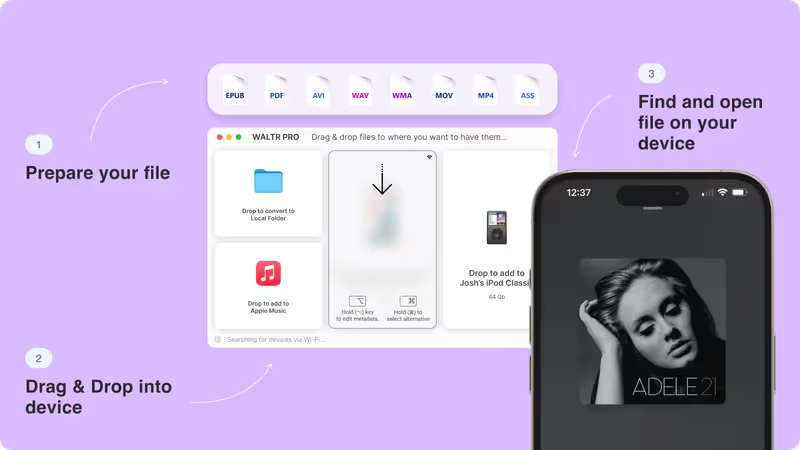
Connect your iPhone to your computer using a USB cable.
Open WALTR and wait for the device to appear.
2. Drag the MP3 file
Drag the MP3 file into the WALTR window.
The app transfers the file and prepares it for the Music app automatically.
3. Play your music and Enjoy!
Once the transfer finishes, the song appears in the Music app on your iPhone.
You can play it just like any other track in your library.
Why Many Users Prefer WALTR PRO
Traditional syncing methods were built around full music libraries.
Most people today simply want to add a few songs quickly.
WALTR focuses on this simple workflow. You drag files into the app and they appear on the device without syncing or extra steps.
Key Takeaways
MP3 files downloaded on iPhone usually stay in the Files app
the Music app does not import them automatically
transferring MP3 files from a computer is easier
WALTR lets you drag songs directly to your iPhone
Related Guides
If you manage music and files on your iPhone, these guides may help.
How to sync music to iPod without iTunes.
How to sync iPhone to computer.
How to add music to iPhone.
Next Step
If you want the simplest way to add MP3 files to your iPhone, try WALTR.
You can drag music files directly into the app and they appear instantly in the iPhone Music app. No syncing, no complicated settings.
FAQs
Can I download MP3 directly to the iPhone Music app?
No. MP3 files downloaded from Safari are stored in the Files app. They must be transferred to the Music app from a computer.
Where do downloaded MP3 files go on iPhone?
Most downloaded audio files are saved inside the Files app unless they are imported into the Music library.
Can I play MP3 files on iPhone?
Yes. Once the file is added to the Music library or opened in a compatible app, it can be played normally.
What is the easiest way to add MP3 files to iPhone?
Many users transfer MP3 files from their computer because it places the songs directly into the Music app.
WALTR PRO
Convert & Push Any File into Any Apple Device
