Apple Music Smart Playlists: How They Work and Sync

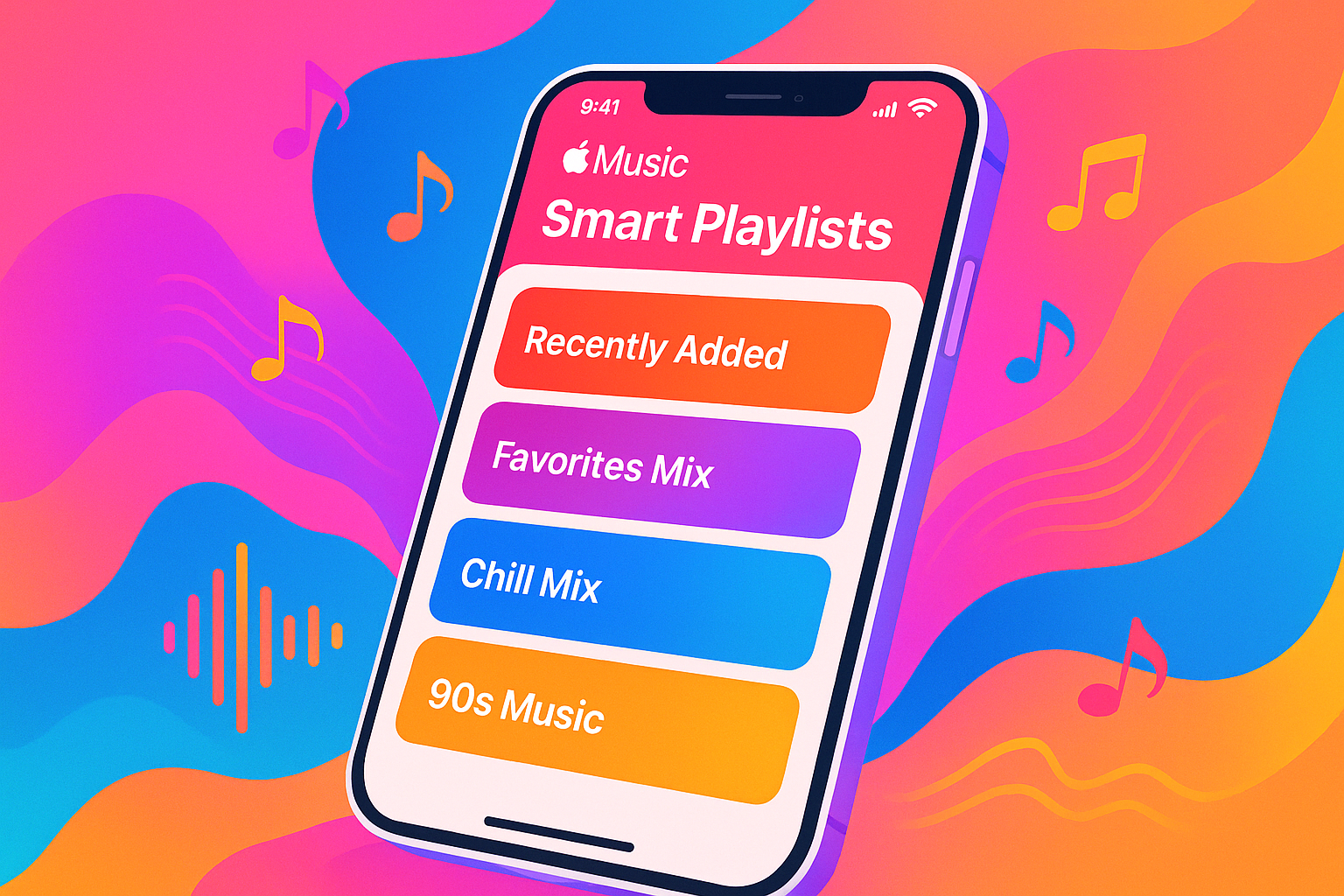
Apple Music smart playlists are automatic playlists built from rules. You choose the rules once -- artist, genre, rating, play count, date added, file type, or other library data -- and the Music app keeps the playlist updated for you.
The catch is classic Apple: the feature is powerful, but the limits are easy to miss. You create and edit native Smart Playlists on Mac or Windows. Your iPhone or iPad can play synced Smart Playlists, but it cannot create or edit them inside the Apple Music app.
This guide shows how Apple Music smart playlists work, how to create one, which rules are worth using, and what to check when a playlist is empty or missing from your iPhone.
Before we begin
Download WALTR PRO on Mac or Windows to transfer local music files to an iPhone, iPad, or iPod without iTunes. WALTR PRO handles the separate file transfer; create and manage Smart Playlists with the Apple Music steps below.
Apple Music Smart Playlists: The Fast Answer
Apple Music smart playlists are rule-based playlists. A normal playlist contains songs you add by hand. A Smart Playlist contains songs that match conditions you set.
For example, you can make a Smart Playlist that includes:
- Songs added in the last 30 days
- Rock songs from 2000 to 2009
- Tracks with a rating of 4 stars or higher
- Songs you have played fewer than 3 times
- Local FLAC or MP3 files in your music library
When Live Updating is turned on, Apple Music updates the playlist when your library changes. Add a new matching song, change a rating, or play a track enough times, and the Smart Playlist changes by itself.
Smart Playlists are best for managing a real music library. If your library is mostly streaming-only Apple Music catalog tracks, some rules may behave differently than they do with uploaded, matched, purchased, or imported files.
The main platform rule is simple: use the Music app on Mac or the Apple Music/iTunes app on Windows to create and edit Smart Playlists. Use iPhone and iPad to listen to the synced results.
How to Create a Smart Playlist on Mac
To create an Apple Music Smart Playlist on Mac, open the Music app and use the menu path Apple hides in plain sight. Apple documents the same path in its Music app Smart Playlist guide.
- Open the Music app on your Mac.
- Choose File > New > Smart Playlist.
- Or press Option + Command + N.
- Pick a rule from the first dropdown, such as Artist, Genre, Year, Rating, Play Count, Date Added, Kind, or BPM.
- Pick a condition, such as is, contains, is not, is greater than, or is in the range.
- Enter the value for the rule.
- Add more rules with the plus (+) button if you need them.
- Choose Match all or Match any at the top.
- Turn Live Updating on if you want the playlist to change automatically.
- Click OK, then name the playlist.
A simple starter playlist could be: Genre contains Rock + Year is in the range 2000 to 2009. A better library-cleanup playlist could be: Play Count is 0 + Date Added is not in the last 90 days.
Use Match all when every rule must be true. Use Match any when a song can match one rule from the group. If a playlist looks empty, this is the first setting to check. Most broken Smart Playlists are not broken -- their rules are too strict.
How to Create a Smart Playlist on Windows
On Windows, Smart Playlist support depends on the app version you use. Apple has been moving Windows users from iTunes to the Apple Music app, but older iTunes on PC still appears in Apple support docs and in many user workflows.
In the Apple Music app for Windows, start from the playlist creation controls and choose Smart Playlist when the option is available. In older iTunes for Windows, use File > New > Smart Playlist. Apple still has an iTunes for PC Smart Playlist guide for that older workflow.
If your bigger issue is Windows music management, Softorino also has a separate guide to the iTunes alternative workflow for iPhone users.
The rule setup works the same way:
- Open Apple Music for Windows or iTunes for Windows.
- Create a new Smart Playlist.
- Choose the first rule, condition, and value.
- Add more rules if needed.
- Set Match all or Match any.
- Choose whether to limit the playlist by song count, time, or file size.
- Keep Live Updating enabled unless you want a fixed snapshot.
- Save and name the playlist.
If you cannot find Smart Playlist in the Windows app, check whether you are using the new Apple Music app or legacy iTunes. Apple has split media features across newer Windows apps, so the exact menu labels can differ by version.
Can You Create Apple Music Smart Playlists on iPhone or iPad?
You cannot create or edit native Apple Music smart playlists directly on iPhone or iPad. The iOS and iPadOS Music app can play Smart Playlists that were created on a computer, but it does not include the Smart Playlist rule editor.
That matters because many people search for this feature from their phone. The answer is annoying but clear: create the Smart Playlist on Mac or Windows first, enable Sync Library, then open the playlist on your iPhone after it syncs.
Third-party iPhone music apps may offer smart filtering or playlist-like rules. That is not the same as editing Apple Music's native Smart Playlist rules inside the Music app. Use those apps if you want a phone-first workaround, but use Mac or Windows if you want Apple's real Smart Playlist feature.
The Smart Playlist Rules That Actually Matter
Apple gives you a long list of criteria. You do not need most of them. Start with rules that solve a real library job.
Playlist idea | Smart Playlist rules to try | Why it helps |
|---|---|---|
Recently Added | Date Added is in the last 30 days | Keeps new music easy to find |
Forgotten Favorites | Rating is greater than 3 stars + Play Count is less than 3 | Finds good songs you barely play |
Workout Mix | BPM is in the range 120 to 150 + Genre is not Ballad | Keeps the energy up |
Need Ratings | Rating is not set + Play Count is greater than 5 | Finds songs worth rating |
Skip Cleanup | Skip Count is greater than 3 + Last Skipped is in the last 30 days | Flags songs you probably do not want |
High-Quality Audio | Bit Rate is greater than 256 kbps or Kind contains Lossless | Groups better-quality files |
Local Files | Kind contains MPEG audio file, AAC audio file, or Apple Lossless | Helps manage imported music |
Use specific rules. “Genre contains Rock” is useful. “Genre is not empty” is usually noise. If a rule does not change what you do next, skip it.
For large libraries, Smart Playlists are best when they expose decisions: what to replay, what to rate, what to delete, what to sync, and what to keep offline.
How Live Updating, Limits, and Match Rules Work
Live Updating makes an Apple Music Smart Playlist dynamic. If Live Updating is on, the playlist refreshes when a song starts or stops matching your rules.
Turn Live Updating on for playlists like Recently Added, Most Played, Need Ratings, or Workout Mix. Turn it off when you want a frozen snapshot, such as Best of 2026 or Road Trip Mix.
Limits help keep Smart Playlists usable. You can limit by:
- Number of songs
- Total time
- File size
- Random selection
- Most recently added
- Most often played
- Highest rated
A 50-song limit sorted by most recently added makes a clean new-music playlist. A 60-minute limit sorted by most often played makes a fast commute playlist. A file-size limit can help if you sync local music to a device with limited storage.
The Match all / Match any setting changes everything. Match all means every rule must be true. Match any means one matching rule is enough. If you mix both ideas, build carefully and test the playlist with a few known songs.
Why Your Smart Playlist Is Empty or Not Syncing
If an Apple Music Smart Playlist is empty, missing songs, or not showing on iPhone, check the boring stuff first. It is usually a rule, sync, or library-eligibility problem.
Try this checklist:
- Make sure Sync Library is enabled on every device that uses Apple Music.
- Confirm every device uses the same Apple ID.
- Check Match all vs Match any. Match all can accidentally exclude everything.
- Temporarily remove one rule at a time to find the rule that empties the playlist.
- Make sure the songs are in your library, not only visible in Apple Music search.
- Check whether local-only files have uploaded, matched, or synced correctly.
- Open the Smart Playlist on Mac or Windows, edit a rule, save it again, then wait for sync.
- Restart the Music app if the playlist appears stale.
- Give Apple Music time. Sync Library is not instant.
If the playlist syncs but some songs are missing, look at the rule type. Rules based on local file data, comments, file kind, bit rate, or custom metadata may not behave the same across every device as basic rules like artist, album, title, rating, or date added.
Important: Do not delete and rebuild a complex Smart Playlist before saving the rules somewhere. Deleting the playlist does not delete the songs, but the rule setup is gone.
Where WALTR PRO Fits with Apple Music Libraries
Smart Playlists organize music already in your library. WALTR PRO handles a different problem: getting local music files onto your iPhone without iTunes friction.
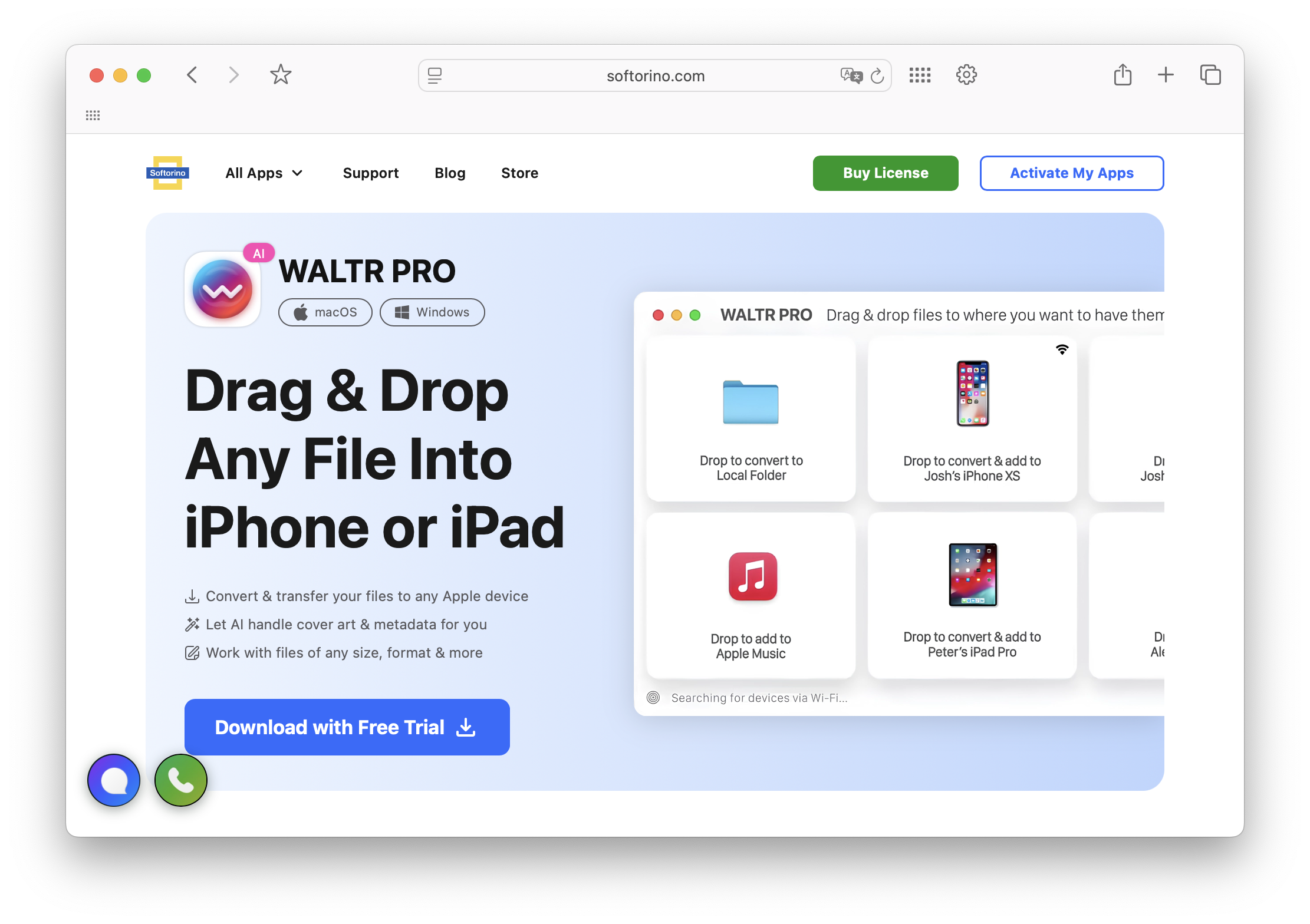
If your Apple Music smart playlists depend on imported files, WALTR PRO helps move MP3, FLAC, AAC, and other music files to your iPhone or iPad. Apple Music still controls the Smart Playlist rules. WALTR handles the file transfer headache.
That distinction matters. WALTR PRO does not create Apple Music Smart Playlist rules. It does not edit your Match all / Match any logic. It is useful when your music library includes files Apple does not make pleasant to move. If you are turning an older device into a music player, the old iPhone as iPod guide covers that adjacent setup.
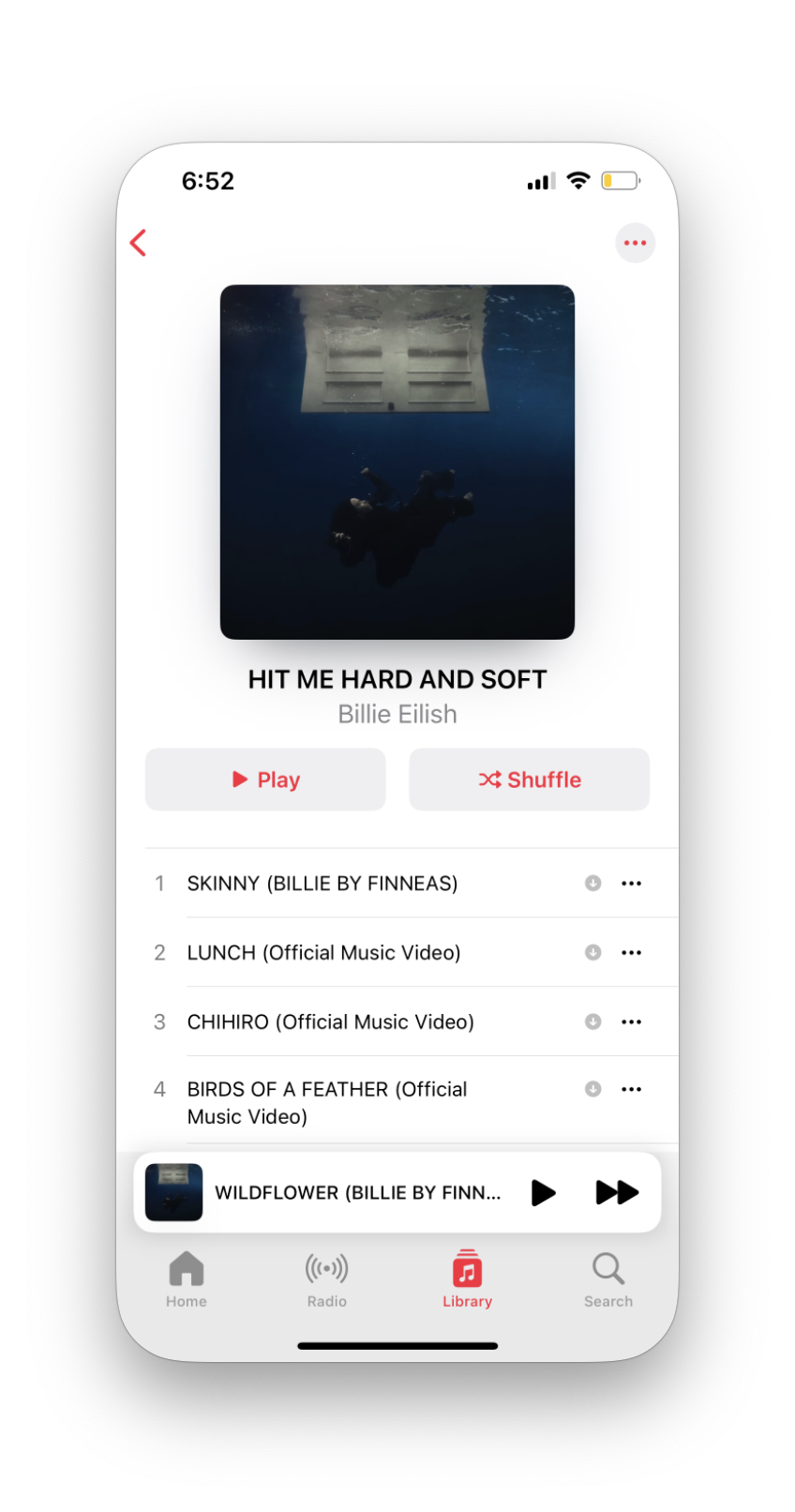
A practical workflow looks like this:
- Use the Music app on Mac or Apple Music/iTunes on Windows to manage your library and Smart Playlist rules.
- Use WALTR PRO when you need to transfer local music files to iPhone without wrestling with iTunes sync.
- Use Apple Music Sync Library when you want supported playlists and library items to appear across devices.
That is the honest setup. Apple Music is the playlist brain. WALTR PRO is the file-transfer shortcut.
Best Smart Playlist Examples to Copy
If you are not sure where to start, use these Apple Music smart playlist recipes and adjust them to your library.
Recently Added, But Smaller
Rules:
- Date Added is in the last 30 days
- Limit to 40 songs selected by most recently added
- Live Updating on
This keeps new music visible without dumping your entire recent library into one huge playlist.
Hidden Gems
Rules:
- Rating is greater than 3 stars
- Play Count is less than 3
- Date Added is not in the last 30 days
- Live Updating on
This finds songs you liked once and forgot. It is better than another “Most Played” playlist because it surfaces tracks your habits buried.
Library Cleanup
Rules:
- Play Count is 0
- Date Added is not in the last 180 days
- Skip Count is greater than 1
Use this as a review queue, not an automatic delete list. A song can have bad metadata, a weird import date, or a reason to stay.
High-Quality Local Files
Rules:
- Kind contains Lossless, FLAC, AAC, or MPEG audio file
- Bit Rate is greater than 256 kbps
- Limit only if you plan to sync it to a smaller device
This helps if you keep a mix of purchased, ripped, imported, and streaming tracks.
FAQ
Can I make an Apple Music Smart Playlist on iPhone?
No. You cannot create or edit native Apple Music Smart Playlists in the iPhone Music app. Create the Smart Playlist on Mac or Windows, then sync it to iPhone with Sync Library.
Do Apple Music smart playlists sync to iPhone?
Yes, Smart Playlists can sync to iPhone when Sync Library is enabled and the playlist contains eligible library items. If a synced Smart Playlist is empty, check the rules, Apple ID, Sync Library setting, and local-file status.
Why is my Apple Music Smart Playlist empty?
The most common reason is a rule mismatch. Match all may be too strict, a date range may exclude everything, or the songs may not have the metadata your rule expects. Remove one rule at a time until the playlist fills again.
What is Live Updating in a Smart Playlist?
Live Updating tells Apple Music to refresh the Smart Playlist when your library changes. Keep it on for dynamic playlists like Recently Added or Need Ratings. Turn it off when you want a fixed playlist snapshot.
Can Smart Playlists include Apple Music streaming songs?
They can include songs that are part of your library, but rule behavior can vary depending on whether tracks are streamed, matched, uploaded, purchased, or imported. For the most predictable results, build rules around songs saved to your library.
Can WALTR PRO create Smart Playlists?
No. WALTR PRO does not create or edit Apple Music Smart Playlist rules. Use Apple Music on Mac or Windows for rules. Use WALTR PRO to transfer local music files like MP3, FLAC, and AAC to iPhone without iTunes.
Final Take
Apple Music smart playlists are worth using if you have a real library to manage. They save time, surface forgotten tracks, and make large collections easier to clean up.
Create them on Mac or Windows. Sync them to iPhone or iPad. Keep rules simple enough to debug.
And if your library includes local music files, use WALTR PRO to move those files to your iPhone without the old iTunes dance. Apple handles the rules. WALTR handles the transfer.

AltTunes
Seamlessly Browse, Manage & Export iOS Data
