How to Enable iMessage on iPhone in 2026

To enable iMessage on iPhone, open Settings > Apps > Messages, turn on iMessage, then open Send & Receive and check your phone number or Apple Account email. Messages to other Apple users should turn blue after activation finishes.
If your iPhone says Waiting for activation, do not panic-toggle the switch all afternoon. iMessage activation depends on Apple, your Apple Account, your internet connection, and sometimes carrier SMS verification. Most fixes are boring. That is good. Boring fixes do not wreck your phone.
Quick Answer: How to Enable iMessage on iPhone
Open Settings, tap Apps, tap Messages, turn on iMessage, then tap Send & Receive. Make sure your phone number or Apple Account email has a checkmark. Under Start New Conversations From, choose the number or email you want people to see.
Apple documents the current path in its Messages setup guide. On older iOS versions, Messages may appear directly on the main Settings screen instead of under Apps.
Your situation | Use this path | What to check |
|---|---|---|
You only need to turn on iMessage | Settings > Apps > Messages > iMessage | Toggle is green |
iMessage is on but messages stay green | Settings > Apps > Messages > Send & Receive | Phone number or email is checked |
Phone number is stuck activating | Send & Receive | Use Apple Account email for now |
You added or changed an eSIM | Settings > Apps > Messages | Toggle iMessage off, then on again |
Quick Takeaways Before You Enable iMessage
- iMessage works between Apple devices through Wi-Fi or cellular data.
- Blue bubbles mean iMessage. Green bubbles mean SMS, MMS, or RCS.
- Phone-number activation may need carrier SMS support.
- Apple says phone-number verification can take up to 24 hours.
- Send & Receive controls which phone number or email sends your iMessages.
- No third-party app can activate iMessage for your phone number.
How to Enable iMessage on iPhone Step by Step
Use these steps when you want the exact tap path. Keep your iPhone connected to Wi-Fi or cellular data while you do it.
Step 1: Open Settings
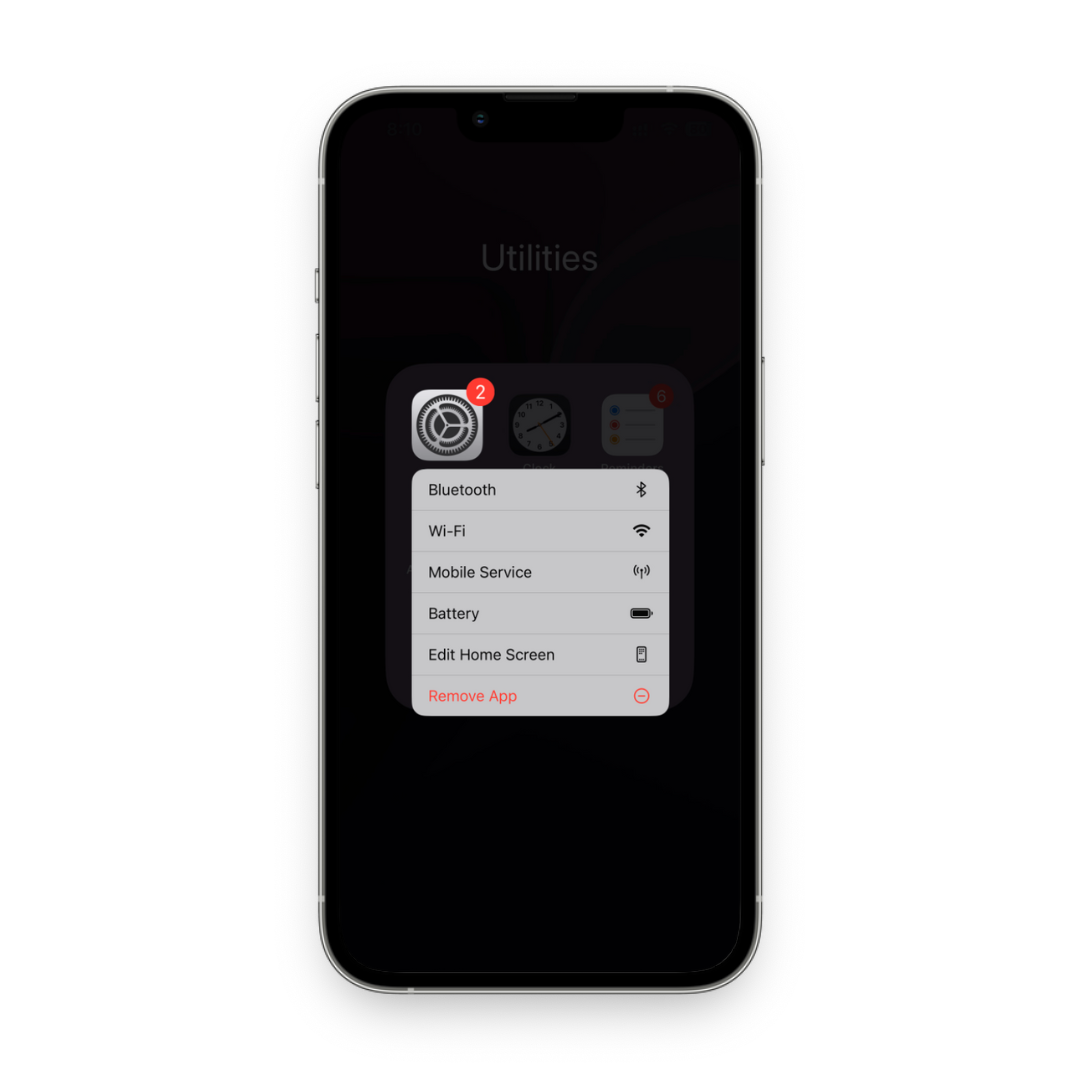
Open the Settings app on your iPhone. It is the gray gear icon on your Home Screen, App Library, or Search.
Step 2: Go to Apps, then Messages
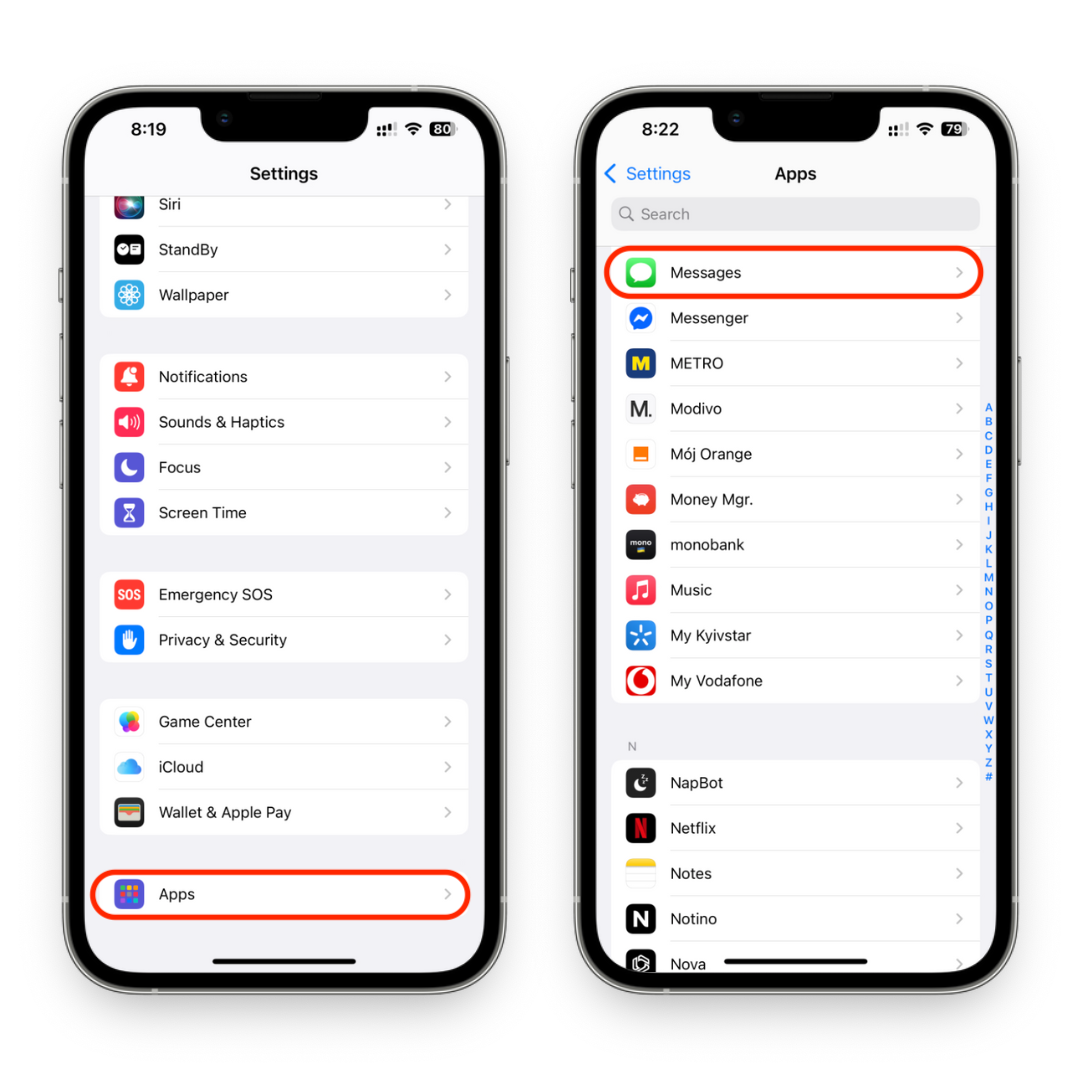
Scroll down, tap Apps, then tap Messages. If your iPhone runs an older iOS version, you may see Messages directly on the main Settings screen.
Step 3: Turn on iMessage
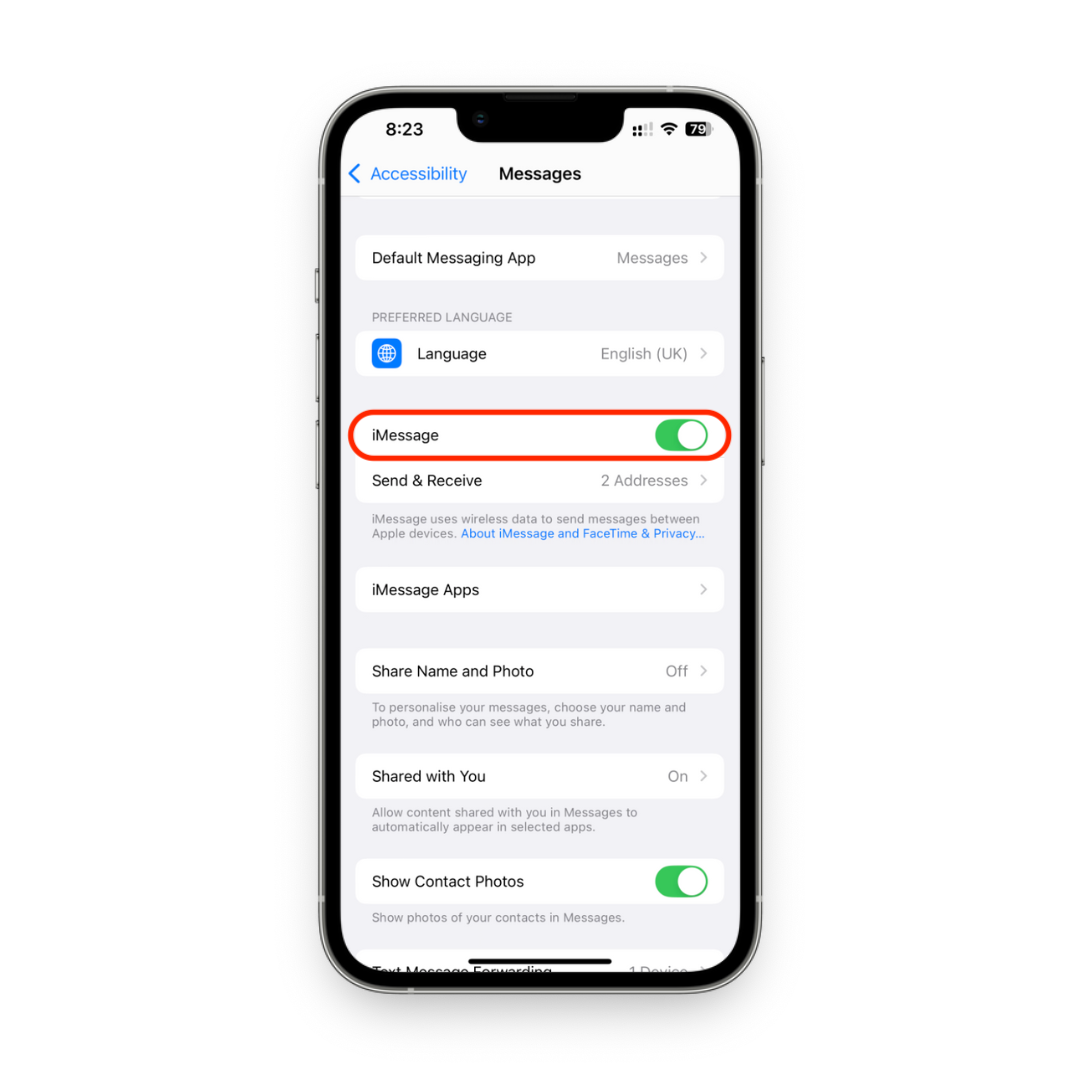
Turn on the iMessage switch. The toggle turns green when iMessage is enabled. Your iPhone may show Waiting for activation while Apple checks your number, Apple Account, and carrier connection.
Step 4: Wait for activation
Keep Wi-Fi or cellular data on while activation runs. Apple says phone-number verification can take up to 24 hours, even though many activations finish in a few minutes.
Do not keep switching iMessage on and off every minute. That gives you noise, not progress.
Step 5: Check Send & Receive
Tap Send & Receive. Check the phone number and email address you want to use with iMessage.
Under Start New Conversations From, choose your phone number if it is available. If your phone number is still activating, choose your Apple Account email so you can send iMessages while the number catches up.
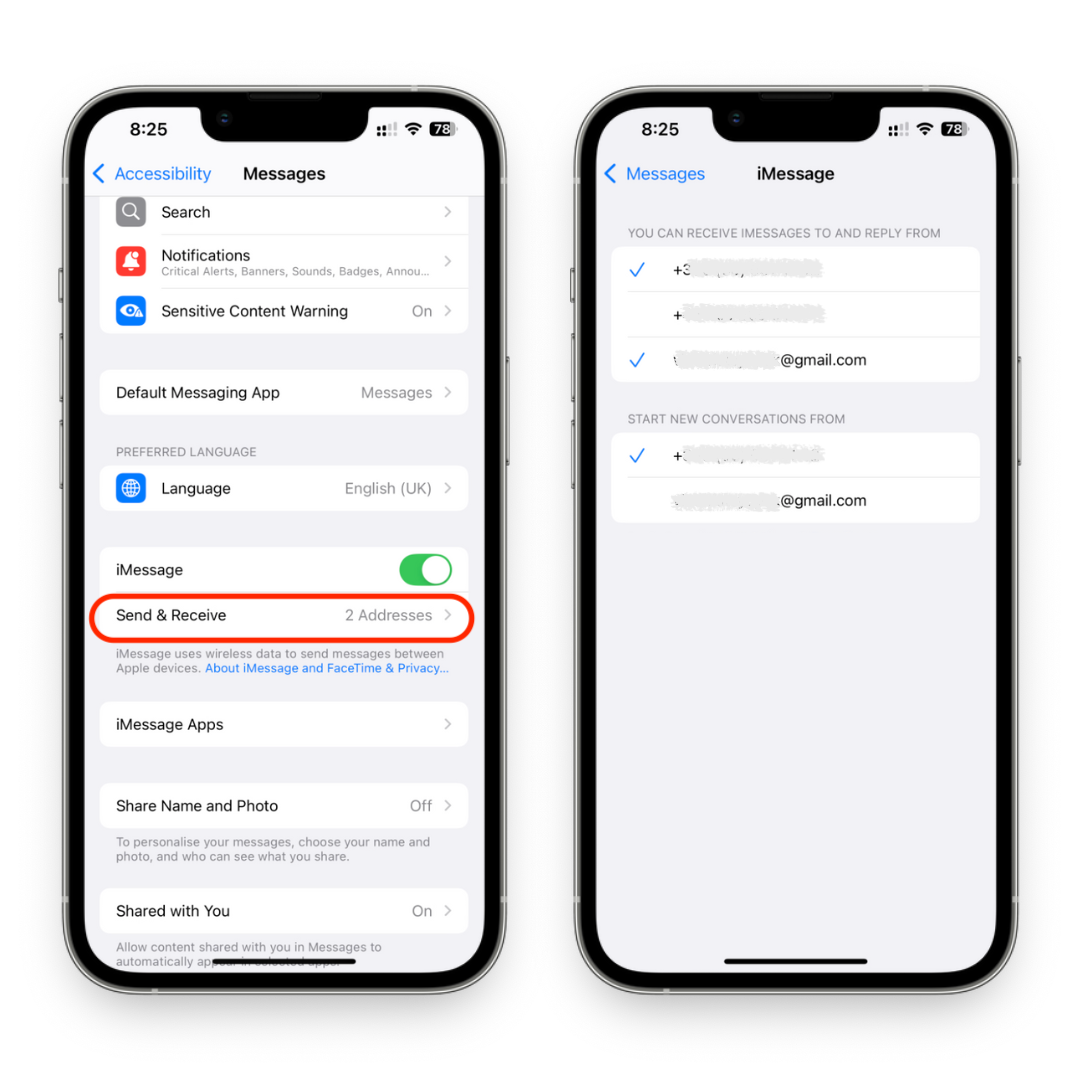
Quick path: Settings > Apps > Messages > iMessage, then Send & Receive. If activation fails, check internet, Date & Time, iOS updates, Apple Account sign-in, and carrier support before you reset anything.
Before we begin
Windows users can download AltTunes to export iPhone messages and attachments to a PC after iMessage is working. AltTunes handles the separate archive step; enable and troubleshoot iMessage with the Apple settings below.
iMessage activation works best when your iPhone can reach Apple and your carrier can verify your number. Check the basics first, especially if this is a new iPhone, a new SIM, or a fresh eSIM setup.
- Connect to stable Wi-Fi or working cellular data.
- Sign in with your Apple Account under Settings if your iPhone asks.
- Install the latest iOS update from Settings > General > Software Update.
- Set time automatically under Settings > General > Date & Time.
- Make sure your SIM or eSIM can send and receive carrier messages.
- Keep FaceTime in mind, because Apple often activates iMessage and FaceTime through the same checks.
Apple's iMessage and FaceTime activation guide says phone-number activation may use SMS messaging. Your carrier may charge for that SMS where applicable. That sounds old-school because it is, but the carrier check still matters.
Check Send & Receive After You Enable iMessage
Send & Receive decides which identity your iPhone uses for iMessage. This screen matters when iMessage turns on but your phone number is missing, unchecked, or stuck on activation.
Open Settings > Apps > Messages > Send & Receive. You may see your phone number, Apple Account email, or both.
- A checkmark means iMessage can use that phone number or email.
- Start New Conversations From controls the identity new chats see.
- You can receive iMessages at more than one address.
- Use your email temporarily if your phone number is still activating.
Pick the phone number if you want normal phone-number conversations. Pick your Apple Account email if you want privacy or if carrier verification is still pending.
If you also use an iPad or Mac, keep the same Send & Receive choices across devices. Apple explains phone-number and email setup in its Messages and FaceTime phone number guide.
How to Know iMessage Is Working
iMessage is working when messages to other Apple users send as blue bubbles. You can also confirm it in Send & Receive.
- Open Settings > Apps > Messages > Send & Receive.
- Look for a checkmark beside your phone number or Apple Account email.
- Open Messages and send a test message to someone with an iPhone, iPad, or Mac.
- Check the bubble color. Blue means iMessage. Green means SMS, MMS, or RCS.
Green bubbles do not always mean your setup failed. If the other person uses Android, turned off iMessage, lost data connection, or cannot receive iMessage at that moment, your iPhone may use carrier messaging instead.
How to Fix iMessage Waiting for Activation
If iMessage does not activate, work through the safe fixes first. Do not install random iMessage activator apps. They cannot verify your Apple phone number.
Apple lists several activation messages you may see: Waiting for activation, Activation unsuccessful, An error occurred during activation, Could not sign in, or Unable to contact the iMessage server. The same checklist helps with most of them.
- Confirm Wi-Fi or cellular data works in Safari.
- Switch from Wi-Fi to cellular data, or from cellular data to Wi-Fi.
- Check Settings > General > Date & Time and turn on Set Automatically.
- Update iOS from Settings > General > Software Update.
- Turn iMessage and FaceTime off.
- Restart your iPhone.
- Turn iMessage and FaceTime back on.
- Open Send & Receive and use your Apple Account email temporarily if your phone number is still unavailable.
- Wait up to 24 hours if Apple says activation is still processing.
- Contact your carrier if your phone number still will not activate after the Apple checks.
Use Reset Network Settings only after the normal checks fail. It can help network problems, but it also clears saved Wi-Fi networks, VPN settings, and other network preferences. That is annoying enough to make it a later move, not step 1.
Fix iMessage After eSIM Setup on iOS 26
If you added an eSIM and iMessage did not activate automatically, turn iMessage off and back on. Apple calls out this specific eSIM activation case for iOS 26.
Use this short path:
- Open Settings > Apps > Messages.
- Turn iMessage off.
- Wait a few seconds.
- Turn iMessage back on.
- Open Send & Receive and check your phone number.
If your iPhone shows a duplicate inactive SIM after moving to iOS 26, update iOS first. Then follow Apple's guidance for removing the inactive duplicate SIM if that exact issue appears. Do not delete a working SIM or eSIM because a blog told you to. Check the label and carrier state first.
Apple's support article on duplicate inactive SIMs and phone-number activation covers the iOS 26 case.
Why iMessage Says Not Enabled
The message usually means your iPhone cannot use iMessage for that conversation or attachment right now. It does not always mean the iMessage switch is off.
Common causes include:
- iMessage is off in Settings > Apps > Messages.
- Your phone number or email is not checked in Send & Receive.
- Activation is still pending.
- Your internet connection is down.
- The recipient is not using iMessage.
- Apple or your carrier has not finished phone-number verification.
Start with Settings > Apps > Messages. If iMessage is green, open Send & Receive next. That screen tells you whether your iPhone has a usable phone number or email for iMessage.
iMessage vs SMS, MMS, and RCS
iMessage is Apple's internet-based messaging service. SMS, MMS, and RCS are carrier messaging services. Your iPhone chooses the message type based on the recipient, connection, carrier support, and settings.
Message type | Bubble color | Works with | Uses |
|---|---|---|---|
iMessage | Blue | Apple users with iMessage on | Wi-Fi or cellular data |
SMS/MMS | Green | Any phone number | Carrier text or picture messaging |
RCS | Green | Supported carriers and devices | Carrier messaging with richer features where available |
This is why one conversation can be blue and another can be green. If you want adjacent iPhone message help, read Softorino's guide to seeing text messages on iCloud or recovering deleted text messages. Those guides do not activate iMessage. They solve different message problems.
Set Up iMessage on iPad and Mac
To use iMessage on iPad or Mac, sign in with the same Apple Account and choose matching Send & Receive addresses. That keeps your conversations tied to the same identity.
On iPad
- Open Settings.
- Tap Apps > Messages.
- Turn on iMessage.
- Tap Send & Receive and choose the same phone number or email you use on iPhone.
On Mac
- Open the Messages app.
- Choose Messages > Settings from the menu bar.
- Sign in with the same Apple Account.
- Select the phone number and email addresses you want to use for iMessage.
- Start a test message to another Apple user and check for a blue bubble.
If your Mac sends from email while your iPhone sends from your phone number, conversations can feel split. Match Send & Receive before you blame sync.
Messages in iCloud Is Not the Same as iMessage Activation
Messages in iCloud syncs your messages across Apple devices. It does not activate your phone number for iMessage.
Use Messages in iCloud after iMessage works if you want conversations to stay synced across iPhone, iPad, and Mac. If you are trying to read messages in a browser, Softorino's guide to iCloud text messages explains the limits.
Keep the order simple: enable iMessage first, confirm Send & Receive second, then decide whether you want iCloud syncing.
Turn Off or Deregister iMessage Before Switching to Android
Turn off iMessage before moving your phone number to Android. If you skip this, some iPhone users may keep sending iMessages to your old Apple registration instead of normal text messages.
- On your iPhone, open Settings > Apps > Messages.
- Turn off iMessage.
- Open FaceTime settings and turn off FaceTime too if you are leaving Apple devices.
- Move your SIM or eSIM after iMessage is off.
Already switched phones? Use Apple's Deregister iMessage page to remove your phone number from iMessage.
Useful Messages Settings After iMessage Works
Once iMessage works, review a few Messages settings before you forget they exist. Apple keeps useful controls near the same place where you enabled iMessage.
Read receipts
Turn off Send Read Receipts if you do not want people to see when you read their messages. You can also manage read receipts per conversation in Messages.
Filter Unknown Senders
Turn on Filter Unknown Senders if spam texts keep interrupting you. Messages separates unknown senders from people in your contacts, which makes cleanup less annoying.
Name and Photo Sharing
Use Share Name and Photo if you want your chosen name and image to appear when you message people. Set it to contacts only if you want tighter control.
If you are cleaning up old threads after setup, Softorino has a separate guide on deleting messages on iPhone. Use that for cleanup, not activation.
Common iMessage Problems and Fixes
Use this table when the toggle is on but Messages still acts weird.
Problem | Likely cause | What to try |
|---|---|---|
Messages stay green | Recipient uses Android, iMessage is off, or data is unavailable | Check Send & Receive, test another Apple contact, then check your network |
Phone number will not activate | Carrier or Apple verification is not complete | Use email temporarily, wait up to 24 hours, then contact carrier |
iMessage works on iPhone but not Mac | Different Apple Account or Send & Receive settings | Sign in with the same Apple Account and match addresses |
Photos send as low quality | Message went through SMS/MMS instead of iMessage | Check bubble color and data connection before resending |
New iPhone with eSIM will not activate | iOS or carrier activation is still settling | Update iOS, toggle iMessage off and on, then check Send & Receive |
What to Avoid When iMessage Will Not Activate
The worst move is to chase a shortcut. iMessage activation belongs to Apple, your Apple Account, and your carrier. A third-party app can explain the steps, but it cannot verify your phone number with Apple for you.
- Do not enter your Apple Account password into unofficial iMessage tools.
- Do not reset your whole iPhone before trying network, Date & Time, and iOS update checks.
- Do not assume the recipient blocked you because one thread turned green.
- Do not keep toggling iMessage every minute. Give activation time to finish.
- Do not delete a SIM or eSIM unless Apple support guidance matches your exact issue.
If you need to keep texting while activation is pending, use your Apple Account email for iMessage or let the conversation send as SMS, MMS, or RCS. You can return to Send & Receive later and switch back to your phone number after activation completes.
For broader setup work, use Softorino's guide to adding email to iPhone or backing up iPhone. Neither guide fixes iMessage activation. They help with adjacent setup chores.
FAQ
Why is my iPhone saying iMessage is not enabled?
Your iPhone may say iMessage is not enabled because iMessage is off, activation is still pending, Send & Receive has no checked phone number or email, your internet connection failed, or the recipient cannot receive iMessage.
How do I activate iMessage again?
Open Settings > Apps > Messages, turn iMessage off, restart your iPhone, then turn iMessage back on. After that, open Send & Receive and check your phone number or Apple Account email.
How do I turn Messages back to iMessage?
Turn on iMessage in Settings > Apps > Messages, then send a new message to an Apple user with iMessage enabled. If the bubble stays green, check Send & Receive and your internet connection.
Why is my iMessage not coming on?
iMessage may not come on because your iPhone has no working internet connection, Date & Time is wrong, iOS needs an update, Apple Account sign-in failed, or carrier phone-number verification is still pending.
Why is my phone number not checked in Send & Receive?
Your phone number may still be activating with Apple and your carrier. Use your Apple Account email temporarily, keep data on, wait up to 24 hours, then contact your carrier if the number still will not activate.
Can I use iMessage on Windows or Android?
Apple does not offer a normal iMessage app for Windows or Android. Remote desktop and bridge tools do not activate your phone number, and you should not enter Apple Account credentials into random iMessage tools.
Does iMessage need Wi-Fi?
iMessage needs an internet connection. Wi-Fi works, and cellular data works too. If neither is available, your iPhone may fall back to SMS, MMS, or RCS when possible.
Bottom Line
To enable iMessage on iPhone, go to Settings > Apps > Messages, turn on iMessage, then confirm your number or email in Send & Receive. If activation fails, fix the basics first: internet, Apple Account, Date & Time, iOS updates, and carrier support.
No Softorino app, Apple competitor, or mystery web tool can activate iMessage for your phone number. For this job, the best tool is still the boring one inside Settings.

AltTunes
Seamlessly Browse, Manage & Export iOS Data
