How to Turn Off Flashlight on iPhone: 6 Fast Fixes

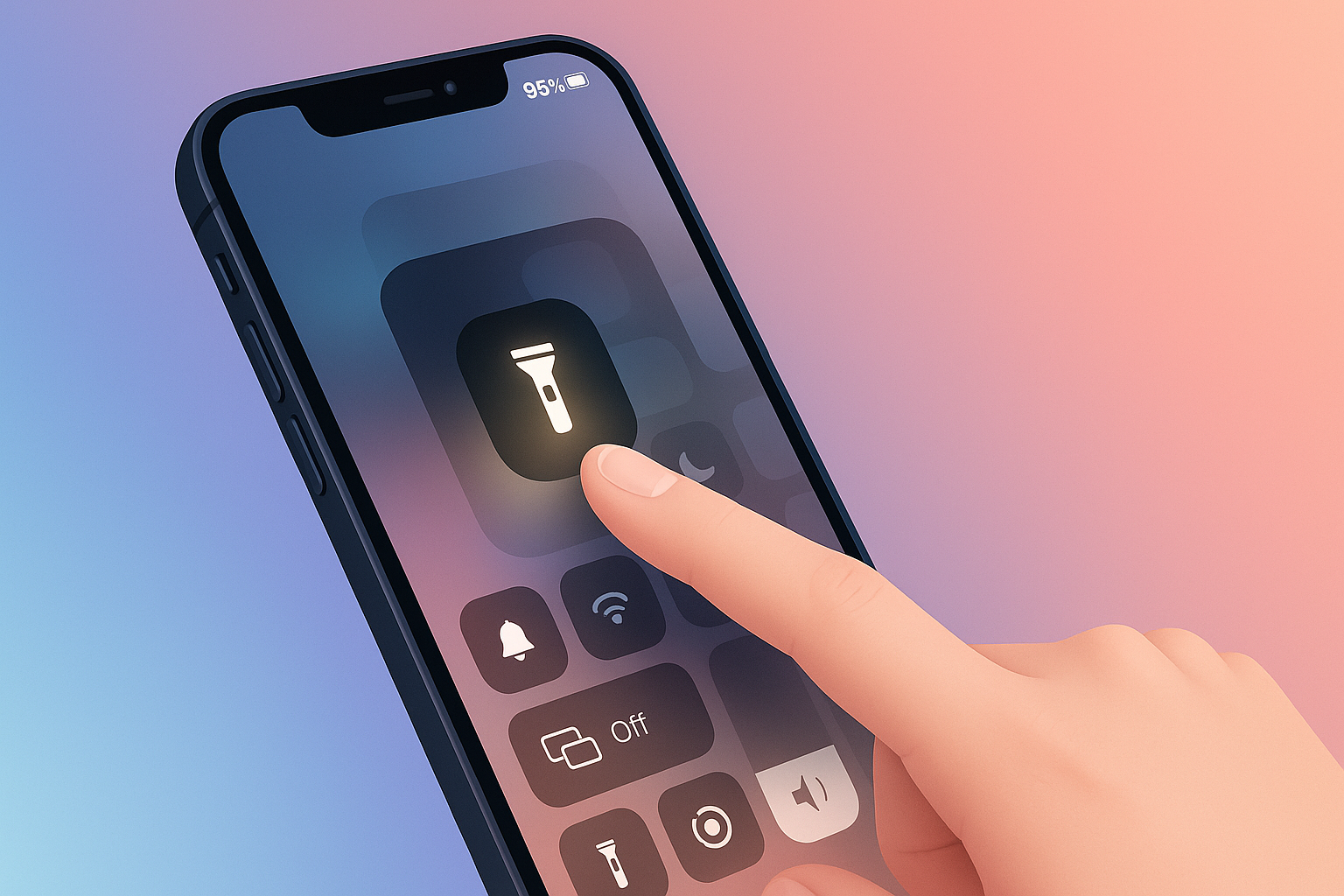
Need to turn the flashlight off right now? On iPhone, long-press the flashlight button on the Lock Screen, tap the flashlight in Control Center, ask Siri, or use the Action Button if your model has one. That is the fast answer. Use the stuck-light fixes below if the usual button does not respond.
The iPhone flashlight is useful until it becomes a tiny pocket lighthouse. Apple keeps the control close for speed, which also makes it easy to hit by accident. Pick the method that matches what is on your screen.
Quick Answer: Turn Off Flashlight on iPhone Fast
To turn off flashlight on iPhone fast, use the Lock Screen when the phone is locked, Control Center when it is unlocked, Siri when your hands are busy, or the Action Button on supported Pro models. If the iPhone flashlight won't turn off after those controls, close Camera and restart the phone before trying reset settings.
Fast method | What to do | Best for |
|---|---|---|
Lock Screen | Wake the screen, then long-press the flashlight button | Phone is locked |
Control Center | Open Control Center, then tap the flashlight button once | Phone is unlocked or the Lock Screen button is not visible |
Siri | Say "Siri, turn off the flashlight" or "Hey Siri, turn off the flashlight" | Hands-free control |
Action Button | Press the Action Button after assigning it to Flashlight | iPhone 15 Pro, iPhone 15 Pro Max, and later supported models |
Restart path | Close Camera, then restart iPhone if the controls fail | Stuck flashlight or greyed-out button |
Apple documents iPhone flashlight controls for Lock Screen, Control Center, Siri, Action Button, brightness, and supported Dynamic Island controls. Use Apple Support's flashlight guide as the official source when iOS behavior changes.
Before we begin
Windows users can download AltTunes to make a local iPhone backup before a reset if basic flashlight fixes fail. AltTunes handles only the separate backup step; use Control Center, the Lock Screen, Siri, or the troubleshooting steps below to turn off the flashlight.
Quick Takeaways Before You Start
- The fastest way to turn off flashlight on iPhone is the Lock Screen button if the phone is locked.
- Control Center is the safest fallback when the Lock Screen button is missing, greyed out, or slow to respond.
- Siri can turn the flashlight off with the command "Hey Siri, turn off the flashlight."
- The Action Button works only after you assign Flashlight on supported iPhone models.
- If the flashlight stays on, close Camera, lock and unlock the iPhone, then restart.
- No Softorino app, iTunes tool, or third-party utility can control the iPhone flashlight. This is an iOS control fix.
Turn Off Flashlight on iPhone from the Lock Screen
To turn off flashlight on iPhone from the Lock Screen, wake your iPhone and long-press the flashlight button in the lower-left corner. Release when the light turns off.
- Press the Side button or tap the screen to wake your iPhone.
- Find the flashlight icon in the bottom-left corner of the Lock Screen.
- Press and hold the flashlight icon until you feel the tap and the light turns off.
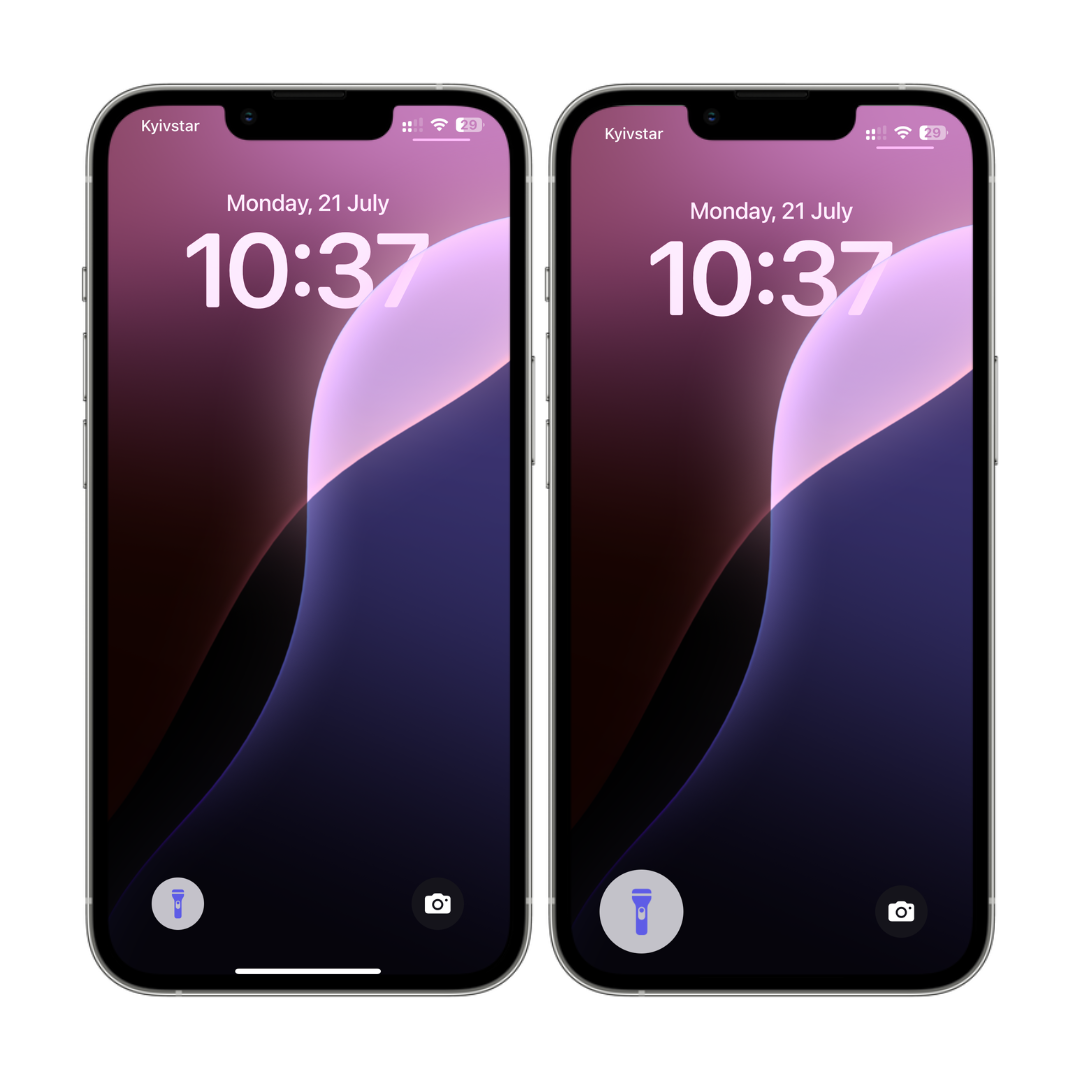
The Lock Screen icon lights up when the flashlight is active. If the icon does not respond, open Control Center and tap the flashlight button there.
Some iPhone models and iOS setups let you customize Lock Screen controls. If yours does, replace Flashlight with a control you are less likely to hit. If that option is not available, reduce accidental taps with Tap to Wake, Raise to Wake, and Back Tap settings.
How to Turn Off Flashlight on iPhone from Control Center
To turn off flashlight on iPhone from Control Center, open Control Center and tap the flashlight button once. This works from the Lock Screen on many iPhones and from inside apps.
- Face ID iPhones: swipe down from the top-right corner of the screen.
- Home Button iPhones: swipe up from the bottom edge of the screen.
- Tap the flashlight button once to turn it off.
- If the button is missing, add Flashlight in Control Center settings or customize Control Center on newer iOS versions.
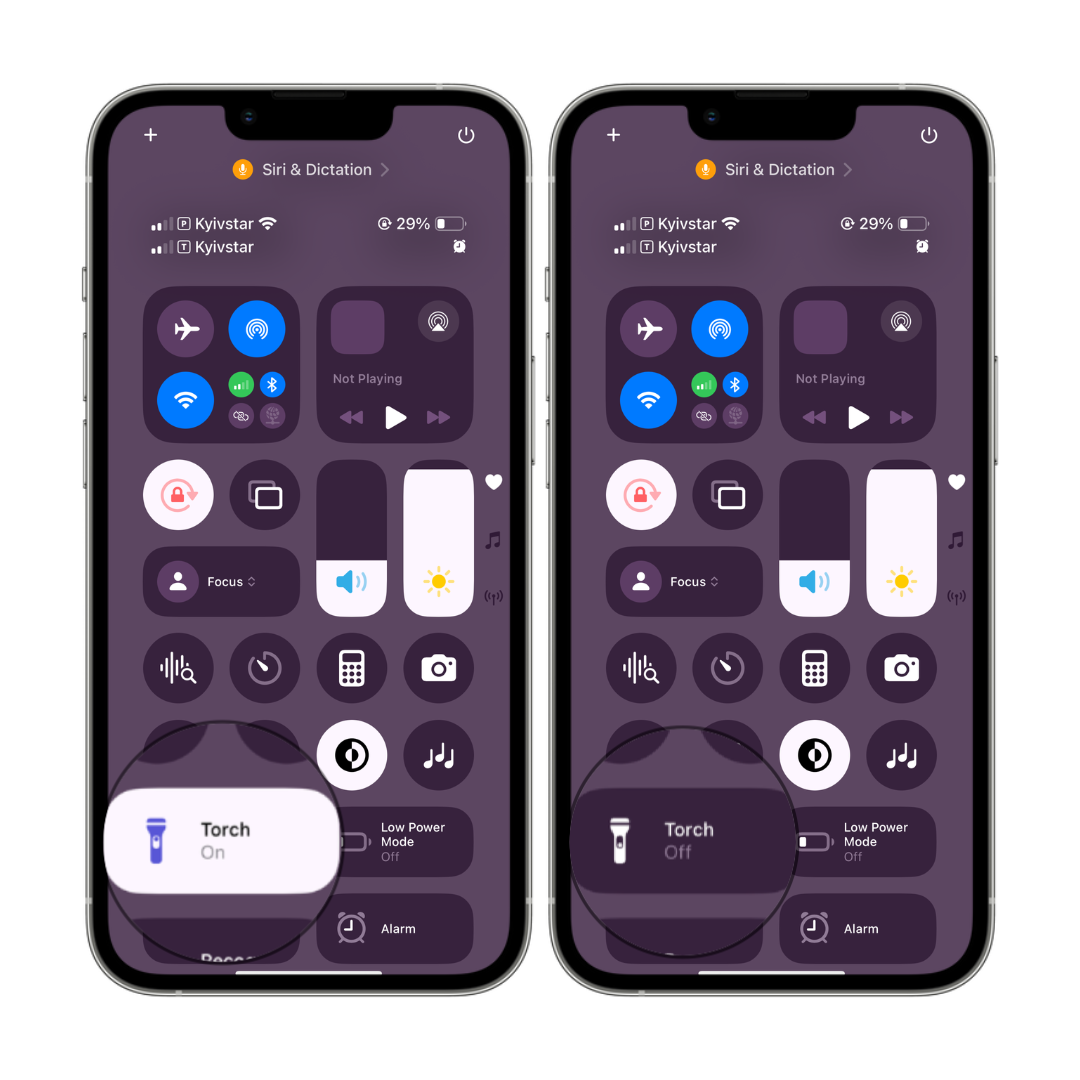
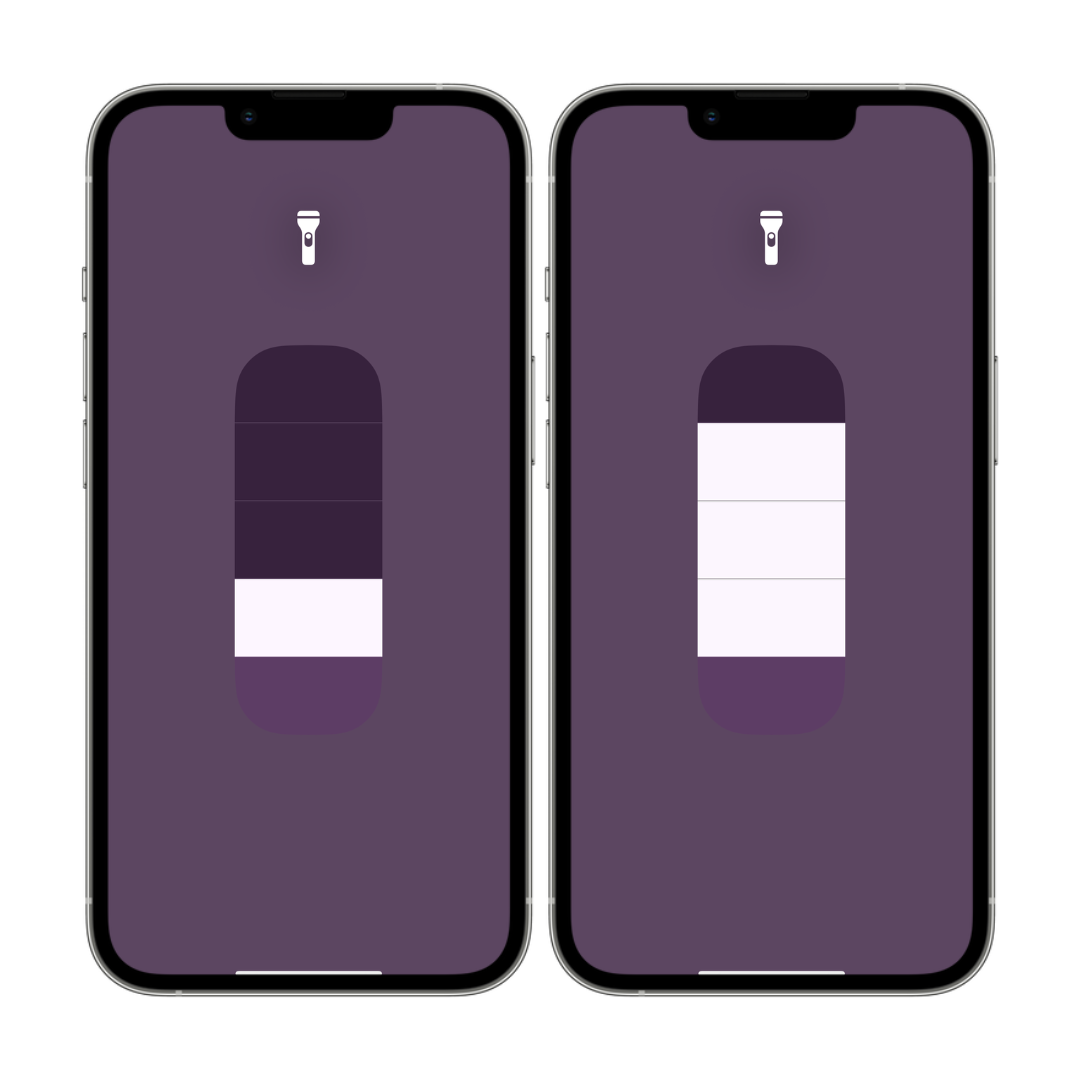
Press and hold the flashlight button in Control Center to change brightness. Lower brightness helps when you need a small light without lighting up the whole room.
Control Center also holds other iPhone shortcuts. If you are adjusting controls after an iOS update, Softorino's screen recording on iPhone guide covers another Control Center tool people often lose after settings changes.
Use Siri, Action Button, or Dynamic Island
Siri can turn the flashlight off without you touching the screen. Say "Siri, turn off the flashlight" or "Hey Siri, turn off the flashlight." You can also press and hold the Side button, then say the command.
This helps when the screen is wet, gloves block touch input, or the phone is across the room. Siri also works through AirPods if Siri is active for your setup.
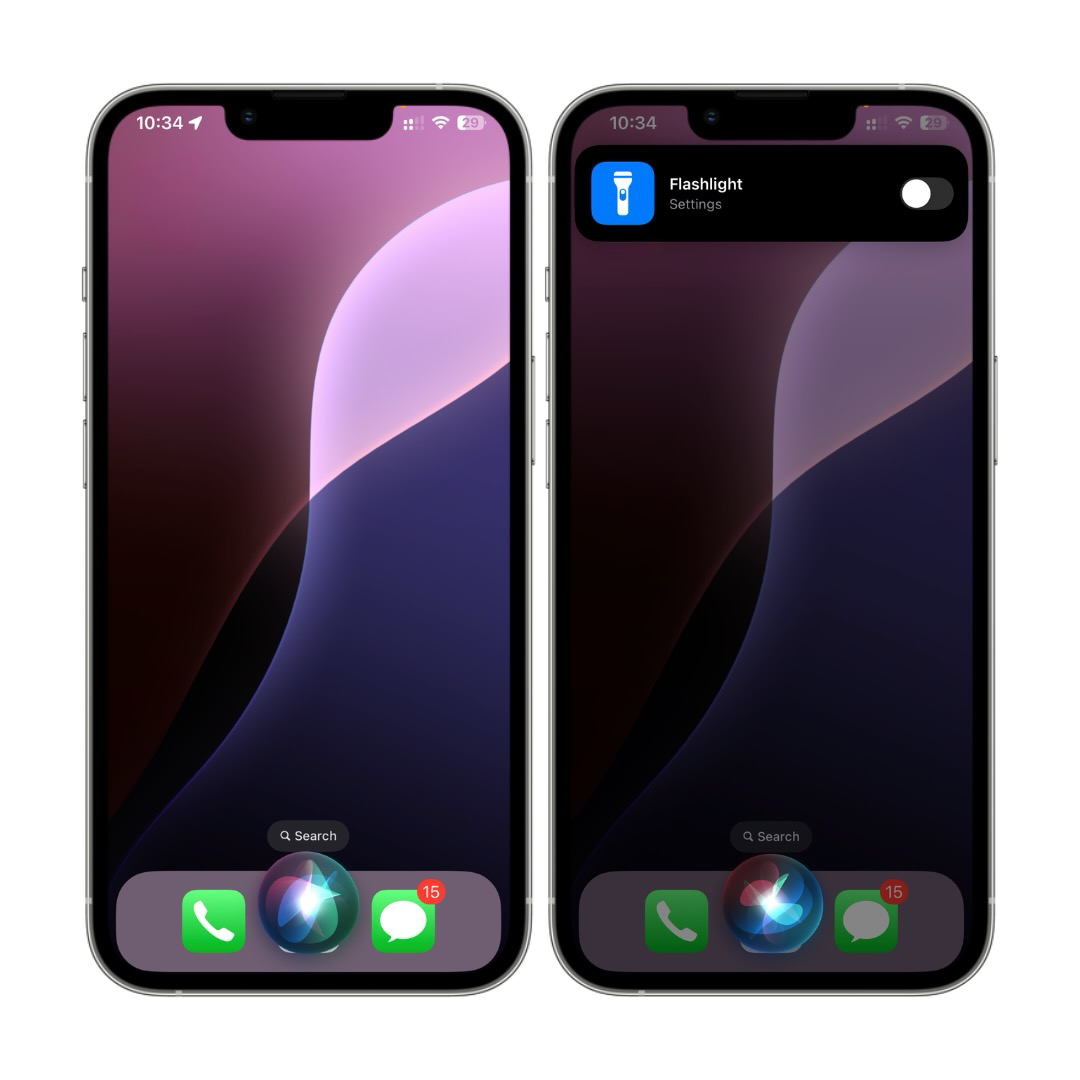
On supported iPhones, the Action Button can control the flashlight too. Apple lists Action Button flashlight control for iPhone 15 Pro, iPhone 15 Pro Max, and later supported models.
- Open Settings.
- Tap Action Button.
- Swipe to Flashlight.
- Press and hold the Action Button to turn the flashlight on or off.
Supported Dynamic Island models can show a flashlight indicator and beam controls. Treat that as a useful extra, not the main off switch. Control Center remains the reliable fallback when you need to turn off flashlight on iPhone quickly.
What to Do If Your iPhone Flashlight Won't Turn Off
If your iPhone flashlight won't turn off, start with the control that failed, then check Camera, then restart the phone. Most stuck flashlight cases come from a temporary iOS state or camera conflict.
- Open Control Center and tap the flashlight button again. Wait 2 seconds, then tap it once more if needed.
- Close the Camera app. Camera and flashlight use the same LED, so Camera can block or confuse flashlight behavior.
- Lock and unlock the iPhone. This refreshes Lock Screen controls without a full restart.
- Restart your iPhone. Apple's force restart iPhone guide covers the official button sequence by model.
- Update iOS if the issue keeps happening after restart.
- Reset settings only as a last resort: Settings > General > Transfer or Reset iPhone > Reset > Reset All Settings. This does not erase your photos, but it resets Wi-Fi, privacy, keyboard, and other system settings.
Important: If the flashlight stays on after a restart, treat it like a system issue, not a flashlight trick. Back up the iPhone before deeper recovery steps. Softorino's DFU mode guide is for advanced recovery only, not the first fix.
Why the Flashlight Turns On by Accident
The flashlight turns on by accident because Apple puts the control where your hand, pocket, or bag can reach it. Lock Screen controls, Tap to Wake, Raise to Wake, Back Tap, and tight cases can all trigger it.
- Tap to Wake: go to Settings > Accessibility > Touch, then turn off Tap to Wake if accidental screen taps are the problem.
- Raise to Wake: go to Settings > Display & Brightness, then turn off Raise to Wake if the screen wakes inside a bag.
- Back Tap: go to Settings > Accessibility > Touch > Back Tap and remove Flashlight if double taps keep triggering it.
- Case fit: check whether the case presses the screen edge or makes the Lock Screen button easier to hit.
- Lock Screen controls: if your iOS version lets you customize controls, replace Flashlight with a control you use less by accident.
If your bigger issue is the iPhone screen staying awake too long, use Softorino's iPhone screen timeout guide to check Auto-Lock and related display settings.
Where Are Flashlight Settings on iPhone?
Flashlight settings on iPhone live in a few different places, depending on what you want to change. Control Center handles the on/off switch and brightness. Settings handles Action Button, Back Tap, Tap to Wake, Raise to Wake, and some control customization.
Setting or control | Where to find it | Use it for |
|---|---|---|
Flashlight on/off | Lock Screen or Control Center | Turn the light on or off |
Flashlight brightness | Press and hold Flashlight in Control Center | Make the light dimmer or brighter |
Action Button flashlight | Settings > Action Button | Assign Flashlight on supported models |
Back Tap flashlight | Settings > Accessibility > Touch > Back Tap | Remove accidental double-tap triggers |
Tap to Wake | Settings > Accessibility > Touch | Stop pocket taps from waking the screen |
Raise to Wake | Settings > Display & Brightness | Stop the screen waking in a bag or pocket |
Apple also documents flashlight controls in the iPhone User Guide. Use that page for current Apple wording if iOS moves a control again.
Flashlight Controls by iPhone Model
Flashlight controls vary by iPhone model. The main split is Face ID, Home Button, and Action Button support.
iPhone model type | How to turn the flashlight off | Notes |
|---|---|---|
Face ID iPhones | Lock Screen button or Control Center swipe down from the top-right corner | Most modern iPhones use this path |
Home Button iPhones | Control Center swipe up from the bottom edge | The Lock Screen flashlight button may not appear |
iPhone SE models | Control Center or Siri | Do not expect the same Lock Screen layout as Face ID models |
iPhone 15 Pro, 15 Pro Max, and later supported models | Action Button, Control Center, Lock Screen, or Siri | Action Button must be assigned to Flashlight first |
Supported newer iPhones with Dynamic Island controls | Use the Dynamic Island flashlight indicator and Control Center brightness controls where available | Not every Face ID iPhone has this |
If your iPhone does not match a screenshot in this article, use the model rule above. Apple changes control placement over time, but Control Center and Siri remain the safest fallback paths.
Quick Recap: Turning Off Flashlight on iPhone
Use this checklist when the flashlight is on and you want the shortest path.
Long-press the flashlight on the Lock Screen.
Tap the flashlight button in Control Center.
Ask Siri to turn the flashlight off.
Use the Action Button if your supported iPhone has it assigned to Flashlight.
Close Camera and restart iPhone if the flashlight is stuck.
Turn off Tap to Wake, Raise to Wake, or Back Tap if the flashlight keeps turning on by accident.
FAQs
How do I shut off my flashlight on my iPhone?
Long-press the flashlight button on the iPhone Lock Screen, or open Control Center and tap the flashlight button once. If you cannot touch the screen, say "Hey Siri, turn off the flashlight." On supported models, the Action Button works after you assign it to Flashlight.
Where are flashlight settings on iPhone?
The main flashlight controls are on the Lock Screen and in Control Center. Brightness lives behind a long-press on the Control Center flashlight button. Related settings live in Settings > Action Button, Settings > Accessibility > Touch, and Settings > Display & Brightness.
Can I remove the flashlight from the iPhone Lock Screen?
Sometimes. Some iOS versions and iPhone setups let you replace Lock Screen controls. Older versions or unsupported setups may not. If you cannot remove the flashlight button, turn off Tap to Wake, Raise to Wake, or Back Tap to reduce accidental triggers.
Why won't my iPhone flashlight turn off?
Your iPhone flashlight may stay on because Camera or iOS is holding the LED state. Open Control Center and toggle the flashlight once, close Camera, lock and unlock the iPhone, then restart if the light stays on.
Why is the flashlight button greyed out?
The flashlight button can be greyed out when Camera or another app is using the LED flash. Close Camera, wait a few seconds, and try Control Center again. Restart the iPhone if the button remains unavailable.
Can Siri turn off the flashlight?
Yes. Say "Hey Siri, turn off the flashlight" or "Siri, turn off the flashlight." Siri is useful when your screen is wet, gloves block touch input, or your iPhone is not in your hand.
Final Take
Now you know how to turn off flashlight on iPhone from every normal control: Lock Screen, Control Center, Siri, Action Button, and supported Dynamic Island controls. If the flashlight gets stuck, close Camera, restart, and update iOS before touching reset settings. No product pitch needed. This one is an iPhone settings fix.

AltTunes
Seamlessly Browse, Manage & Export iOS Data
