Folder Painter Mac: Does It Work? Better Alternatives


Folder Painter Mac quick answer: does it work?
Folder Painter is a Windows folder customization utility. It is not the Mac app you are looking for if you want to change folder color on Mac.
That does not mean Mac users are stuck with plain blue folders forever. You have 2 practical choices: use Apple's built-in Finder method for one-off icon changes, or use Folder Colorizer for Mac when you want fast visual folder organization with colors, emojis, decals, images, and multiple folders at once.
If you searched for folder painter mac, the real question is simple: "How do I make Mac folders easier to scan?" This guide answers that without fake stories, stale claims, or pretending Windows software belongs on macOS.
Before we begin
Mac users can download Folder Colorizer for Mac to change folder colors and add emojis, decals, or custom backgrounds in Finder. Test one folder first, then reuse a simple visual system across the folders you scan most often.
Does Folder Painter work on Mac?
No. Folder Painter is listed by Sordum as a Windows folder customization app. The official Folder Painter download page describes a portable tool for customizing folders on Windows. It does not present Folder Painter as a Mac app.
So the safe answer is this: Folder Painter is not a Mac folder color tool. If you use macOS, do not waste time looking for a compatibility mode, Wine workaround, or a sketchy third-party download. Use a Mac-native method instead.
That matters because folder customization is not the same on Windows and Mac. Windows tools often work through File Explorer and icon resources. Mac folder customization works through Finder, pasted icons, image assets, and apps built for macOS.
Folder Painter can still be useful for Windows users with basic folder-color needs. It is simply the wrong tool for a Mac user trying to organize folders in Finder.
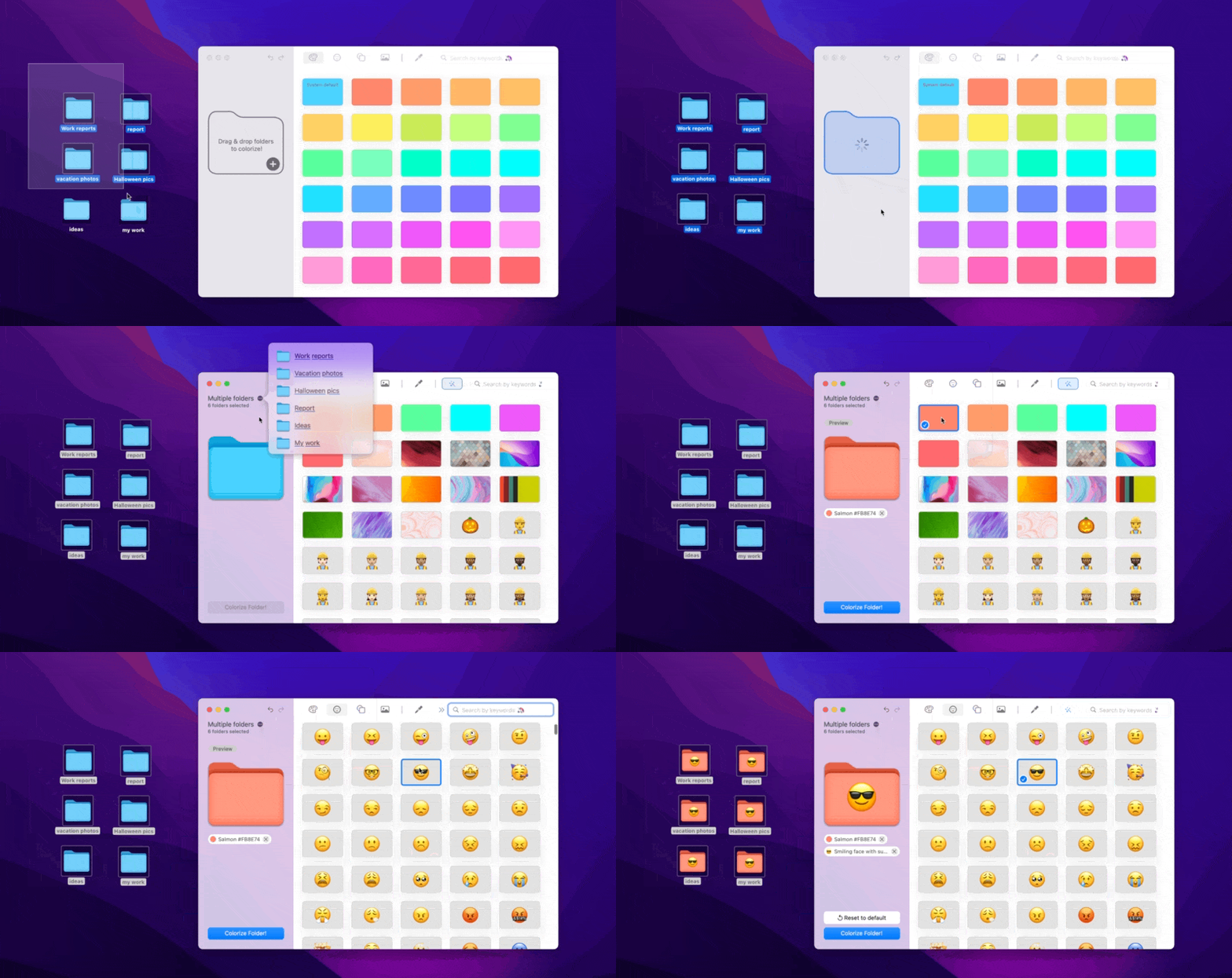
How to change folder color on Mac without Folder Painter
You can change folder color on Mac without Folder Painter by using Finder's built-in icon customization. Apple documents this in its support guide for how to customize the look of folders and files on Mac.
The manual route is best when you only need to customize one or two folders. It works, but it is not built for a repeatable folder color system.
Manual Finder method
- Create or download the image or icon you want to use.
- Open the image in Preview.
- Copy the image.
- Select the folder in Finder.
- Press Command + I to open Get Info.
- Click the small folder icon in the top-left corner of the info window.
- Paste the new icon.
That changes the folder's icon. You can use a colored image, emoji-style graphic, or custom symbol. For a one-off folder, it is fine.
For 30 project folders, it gets old fast.
Why the built-in Mac method gets annoying
The built-in Mac method is manual. Every folder needs the same copy, Get Info, click icon, paste routine. That is okay if you are making one special folder for taxes or vacation photos. It is painful if you manage folders by client, status, class, content type, or research topic.
The problem is not that Finder cannot customize folders. The problem is that Finder does not give you a fast folder color workflow.
You do not get a quick picker for colors. You do not get a saved visual system. You do not get a simple way to apply the same style to many folders. You also need to keep your source images and icons organized if you want a consistent look later.
This is where a Mac-native folder color app makes sense. Not because Apple's method is broken. Because Apple's method is slow when folder organization becomes part of your daily work.
Folder Painter alternatives for Mac
The best Folder Painter alternative for Mac depends on what you want to do. Some people only need one custom folder icon. Others want a full visual system for work, school, clients, downloads, or creative assets.
Option | Best for | Main limit |
|---|---|---|
Apple's Finder method | One-off folder icon changes | Manual and repetitive |
FolderMarker | Mac App Store folder marking and icon styling | More app-store style than Softorino workflow |
Folder Designer | Custom folder icons, patterns, and appearance | Better for icon design than fast organization |
Folder Colorizer for Mac | Color folders Mac users manage every day | Paid app after trial terms apply |

Do not overthink this. If you need one custom icon, use Finder. If you want to color folders Mac users use every day, use a dedicated Mac app.
Why Folder Colorizer for Mac fits the job
Folder Colorizer for Mac is the Softorino app built for this exact Mac problem. It lets you change Mac folder colors and personalize folders with emojis, decals, images, and background styles.
It also handles the part Apple's manual method makes tedious: repeated folder styling. You can style multiple folders instead of doing the same Finder ritual again and again.
What you can do with Folder Colorizer for Mac
- Change Mac folder colors without building your own icon file each time.
- Add emojis when a color is not enough.
- Add decals for clearer visual categories.
- Use images or backgrounds for folders that need a stronger visual cue.
- Apply styles to multiple folders.
- Work with Finder-oriented folder organization.
- Reset or revert a folder style when your system changes.
- Use iCloud and shared-folder styling based on the product page copy.
- Use AI-based style suggestions based on folder names, without treating AI like magic dust.
That last point needs a normal human explanation. The app can suggest a visual style from a folder name. It is useful when you want a starting point, not when you want software to organize your entire life while you make coffee.
How to organize Mac folders visually
A good folder color system should make Finder easier to scan. It should not turn your desktop into a bag of Skittles.
Start with a boring system you can remember:
- Client folders: one color per client or account.
- Project status: red for urgent, yellow for waiting, green for finished.
- Work type: blue for documents, purple for creative assets, orange for exports.
- School or research: one color per topic, class, or study area.
- Personal files: green for finance, teal for travel, gray for archives.
- Shared folders: decals or emojis to show team, client, or external access.
Keep the meaning stable. If red means urgent this week and finance next week, your system is not a system. It is decoration.
The real win is visual scanning. You should be able to open Finder and spot the folder category before reading every name. That is why colors, emojis, and decals work well together. Color gives the broad category. Emoji or decal gives the specific cue.
How to use Folder Colorizer for Mac
The workflow is simple because it should be. Folder organization should not need a manual.
- Download Folder Colorizer for Mac from Softorino.
- Choose the folder or folders you want to customize.
- Pick a color, emoji, decal, or image style.
- Apply the style.
- Reset or change it later if your folder system changes.
This is the reason Folder Colorizer is a better folder painter mac answer than trying to force a Windows app into macOS. You are not trying to run Folder Painter on Mac. You are solving the job Folder Painter made you search for in the first place: make folders easier to recognize.
When Folder Painter still makes sense
Folder Painter still makes sense for the audience it was built for: Windows users who want a lightweight folder color utility. If you are on Windows and only need basic color customization, it may be enough.
Mac users should not treat that as a loss. A Windows app being Windows-only is not a scandal. It is a routing issue. Use the tool built for your operating system.
If you use both platforms, keep the products separate:
- Folder Painter: Windows folder customization utility from Sordum.
- Folder Colorizer 2: Softorino's Windows folder color tool.
- Folder Colorizer for Mac: Softorino's Mac folder color and visual organization app.
For Windows users: Folder Painter vs Folder Colorizer 2
If you landed here from a Windows search, Folder Painter and Folder Colorizer 2 are closer alternatives. Folder Painter is useful when you want a simple Windows folder paint tool. Folder Colorizer 2 is Softorino's Windows app for right-click folder coloring, custom colors, HEX codes, and a repeatable Windows folder color workflow.
That is a different article. For this page, the important thing is not to confuse Folder Colorizer 2 with Folder Colorizer for Mac. Folder Colorizer 2 is Windows-only. Folder Colorizer for Mac is the Mac product.
If you want the Windows guide, use Softorino's article on how to change folder color in Windows. If you want the Mac tool, stay with Folder Colorizer for Mac.
Common Folder Painter Mac mistakes
The old version of this article made the same mistake many comparison pages make: it tried too hard to attack Folder Painter. That is unnecessary.
Here is the cleaner way to think about it:
- Do not claim macOS has no folder customization. It does.
- Do not claim Folder Painter is abandoned unless you verify that claim from a reliable source.
- Do not use fake user stories, fake quotes, or exact productivity numbers.
- Do not describe Folder Colorizer 2 as the Mac app.
- Do not link readers to random third-party Folder Painter downloads.
- Do not install a Windows utility when the job is Mac folder organization.
The factual point is enough: Folder Painter is a Windows utility. Mac users need a Mac-native workflow.
Bottom line: the best Folder Painter Mac alternative
Folder Painter does not work as a Mac folder color app. If you only need one custom folder, use Apple's manual Finder method. If you want to color folders Mac users manage every day, use Folder Colorizer for Mac.
It gives you the practical tools missing from the manual route: colors, emojis, decals, image styles, multiple-folder styling, reset, and a workflow built for Mac folders.
You do not need a workaround for Folder Painter. You need the right tool for macOS.
Try Folder Colorizer for Mac if you want Finder to stop looking like one endless wall of blue folders.
FAQ
Does Folder Painter have a Mac version?
No. Folder Painter is presented as a Windows folder customization utility, not a Mac app. If you want folder painter mac functionality, use Apple's manual Finder method or a Mac-native app like Folder Colorizer for Mac.
Can you change folder color on Mac without an app?
Yes, but it is manual. Apple lets you customize folder icons in Finder by copying an image or icon, opening Get Info, selecting the folder icon, and pasting the replacement. It works best for one-off folder changes.
What is the best Folder Painter alternative for Mac?
The best Folder Painter alternative for Mac is the one that matches your job. Use Finder for one folder. Use Folder Colorizer for Mac when you want colors, emojis, decals, images, multiple-folder styling, and reset/revert for ongoing folder organization.
Is Folder Colorizer for Mac the same as Folder Colorizer 2?
No. Folder Colorizer for Mac is the macOS product. Folder Colorizer 2 is the Windows product. Keep them separate when comparing folder color tools.
Can I color many folders at once on Mac?
Folder Colorizer for Mac supports styling multiple folders, based on Softorino product context. Apple's built-in Finder method is more manual and better for one folder at a time.
Do folder styles work with iCloud or shared folders?
Softorino's product context says Folder Colorizer for Mac supports iCloud and shared folders. If your Mac is managed by work or school IT, test with one folder first because sync and permission rules can vary.
Should I use Folder Painter through a workaround on Mac?
No. It is not worth it. If you need to customize folders on macOS, use Finder's built-in method or a native Mac folder color app. A Windows workaround adds complexity without solving the real Mac workflow.

AltTunes
Seamlessly Browse, Manage & Export iOS Data
