How to Export iPhone Contacts to PC or Mac in 2026


TL;DR: Need the fast answer? This guide separates those jobs, then shows the best method for each one.
How to Export iPhone Contacts to PC or Mac in 2026
Need the fast answer? If you want live contact syncing, use iCloud or Google Contacts. If you want a real backup file, export iPhone contacts to PC or Mac as vCard or CSV. Windows users can do the local export with AltTunes, without wrestling with iTunes or pretending iCloud is a backup.
Quick takeaways
- Sync keeps contacts mirrored across devices. Delete one contact in the wrong place and the change can sync everywhere.
- Export creates a separate file on your computer. You can store it, import it, edit it, or move it later.
- AltTunes is the clean Windows path for saving iPhone contacts as vCard or CSV files.
This guide separates those jobs, then shows the best method for each one. You will see when to use iCloud, when to use iCloud.com, what Mac users should do, and how to export contacts locally on a Windows PC with AltTunes.
Before we begin
Windows users can download AltTunes to export all iPhone contacts or selected entries to a PC. Review the destination and open the exported contact file before deleting or changing anything on the phone.
Quick answer: export iPhone contacts to PC or sync them?
Use sync when you want the same contact list on every device. Use export when you want a backup you control. That distinction matters because most Apple contact tools mirror data. They do not always give you a portable file you can keep outside the Apple account.
Goal | Best method | Why it fits |
|---|---|---|
Keep contacts updated across iPhone, Mac, and browser | iCloud Contacts | Good for live syncing across Apple devices and iCloud.com. |
Save a portable contact file from iCloud | iCloud.com export | Exports selected contacts as a vCard file from a browser. |
Export iPhone contacts to PC locally | AltTunes on Windows | Saves contacts to your PC as vCard or CSV through USB. |
Share one or two contacts to a Mac | AirDrop or Contacts app | Fine for small transfers, not ideal for full backups. |
Think of sync as a mirror and export as a spare key. A mirror is convenient. A spare key saves you when something goes wrong.
Best methods to move iPhone contacts to a computer
There is no single best method for everyone. The right choice depends on whether you use Windows or Mac, whether you trust cloud sync, and what you want to do with the contacts after the transfer.
1. Use iCloud Contacts for live syncing
iCloud Contacts is the Apple-native answer for keeping contacts synced. Turn on Contacts in iCloud settings on your iPhone, then open iCloud.com or the Contacts app on your Mac to see the same list. Apple documents iCloud contact import and export on its support site, which makes it a safe first option for Apple-account syncing.
- Best for: live syncing across Apple devices.
- Not best for: a separate offline backup file on a Windows PC.
- Watch out: iCloud sync can mirror deletions, duplicates, and bad edits.
2. Export contacts from iCloud.com as vCard
If your contacts already sync to iCloud, iCloud.com can export them as a vCard file. This works from a browser on Mac or Windows. It is useful when you want one portable VCF file for Apple Contacts, Google Contacts, Outlook, or another address book.
- Go to iCloud.com and sign in with your Apple ID.
- Open Contacts and select the contacts you want to save.
- Choose the export option to download a vCard file.
- Store the file somewhere safe, not only in your Downloads folder.
3. Use the Mac Contacts app for Mac export
Mac users do not need AltTunes for contacts. If the contacts are already visible in the macOS Contacts app, select the contacts and export a vCard from the File menu. Apple also supports exporting contact archives on Mac, but vCard is the more portable format for moving contacts into another app.
4. Use Finder or Apple Devices for device sync
Finder on Mac and Apple Devices or iTunes on Windows can help with device management, but treat those tools as sync and backup utilities, not the easiest way to create a contact file you can open in a spreadsheet. If your goal is local contact export on Windows, use a tool built for that job.
If you came here because iTunes on Windows made this harder than it should be, you are not the problem. iTunes on Windows has been testing people for years.
How to Export iPhone Contacts to PC: Video Tutorial
The video below shows the AltTunes workflow for Windows users who want to export iPhone contacts to PC as files. Keep using the written steps if you prefer a checklist.
How to export iPhone contacts to PC with AltTunes
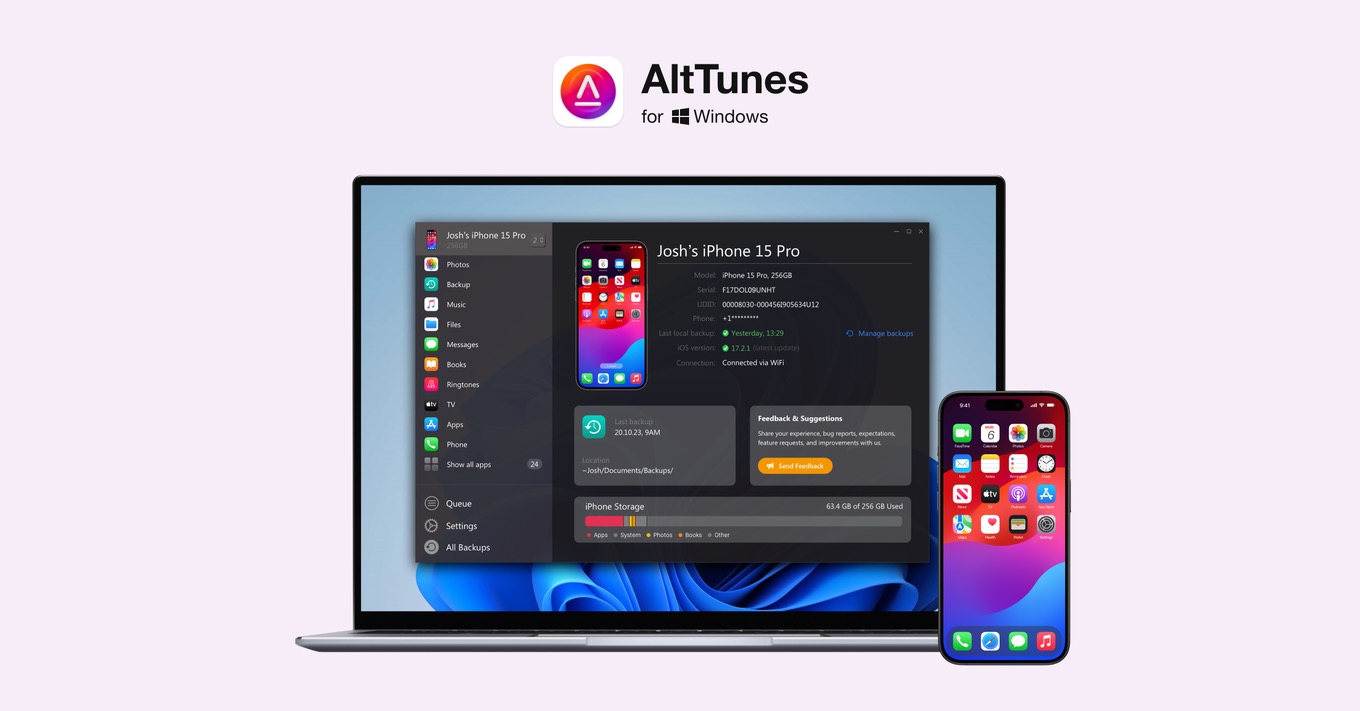
AltTunes is for Windows. That part matters. It exports iPhone and iPad contacts to a Windows PC as vCard or CSV files through a USB connection. Use this method when you want a local copy instead of relying only on iCloud sync.
1. Download AltTunes and connect your iPhone
- Install AltTunes on your Windows PC.
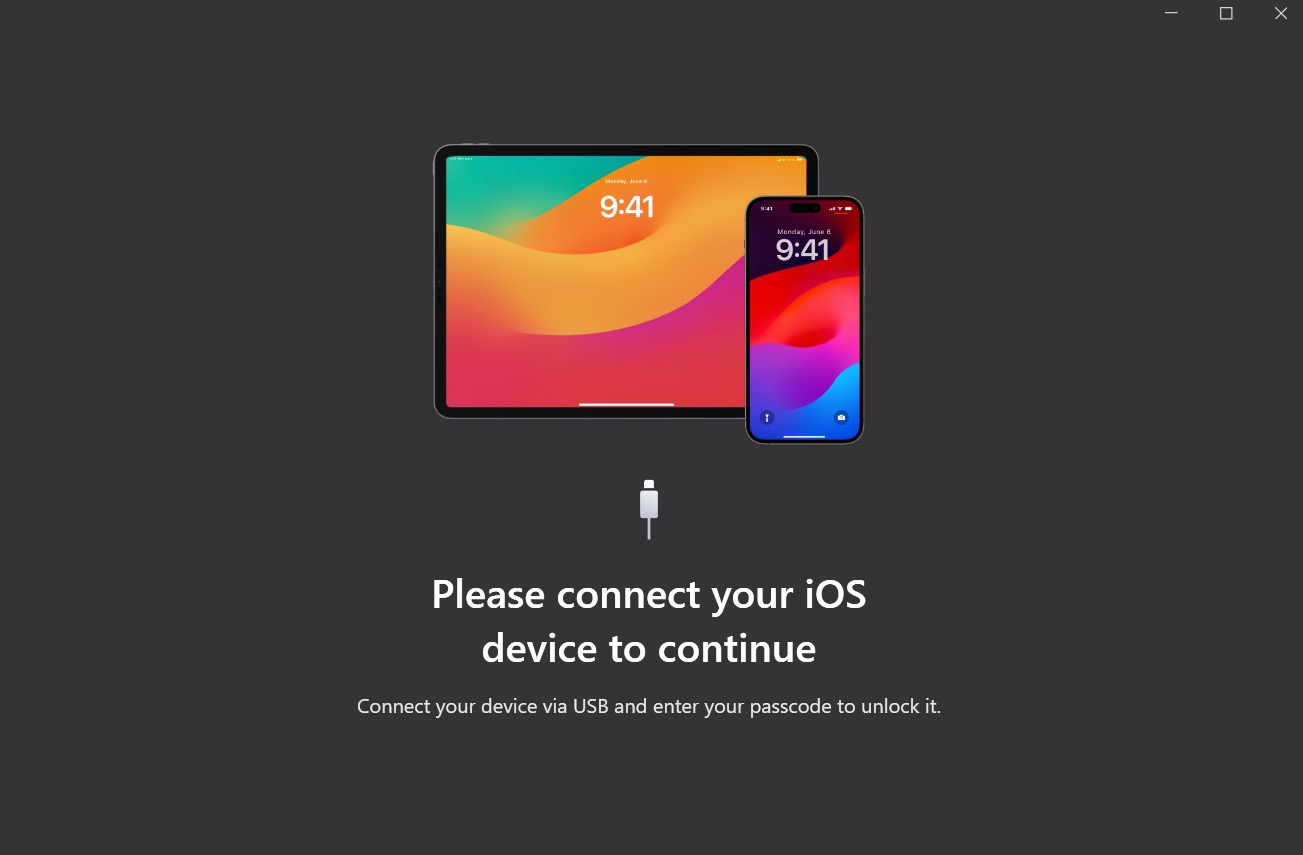
- Connect your iPhone with a USB cable.
- Unlock the iPhone and trust the computer if iOS asks.
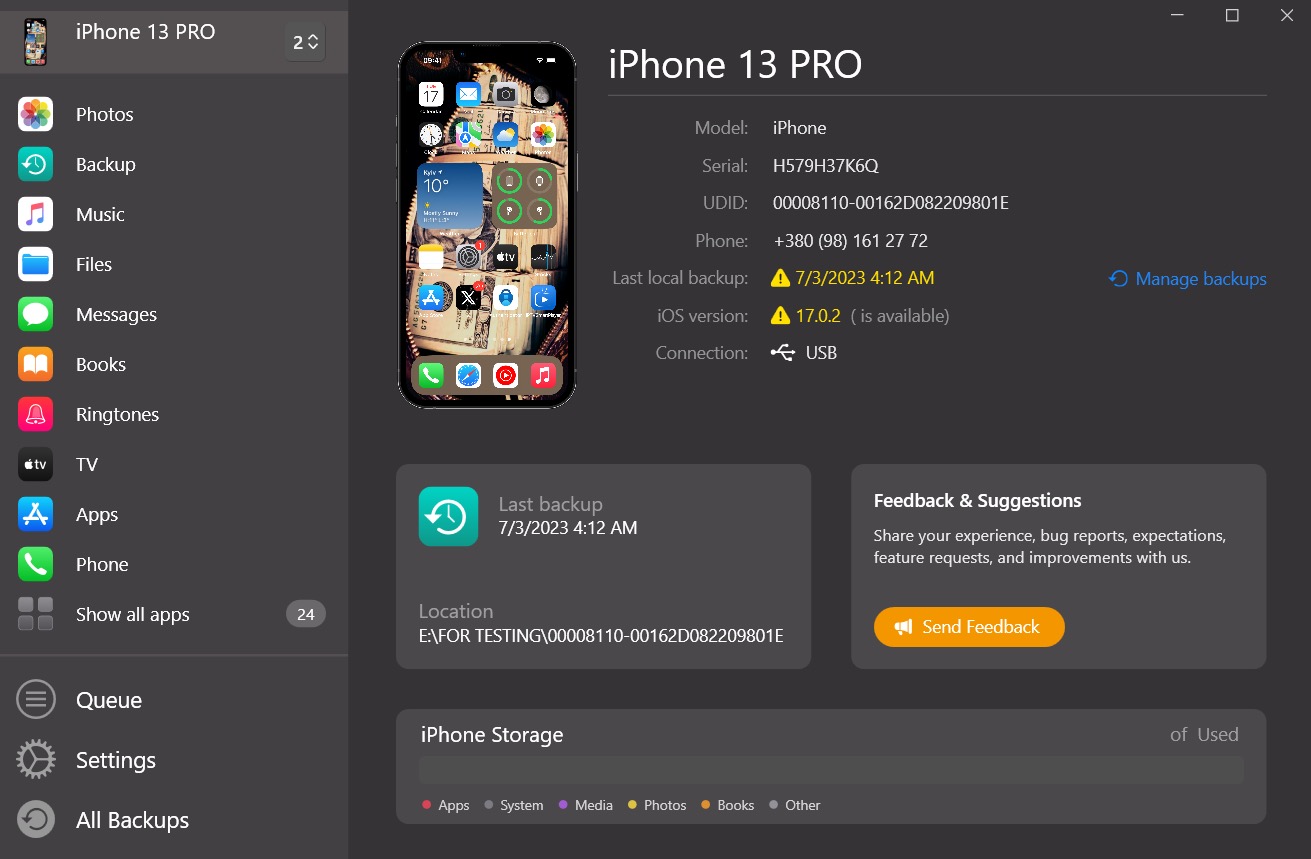
- Open AltTunes and wait for the device to appear.
For the first connection, use the cable. After AltTunes sees the device, you can continue with the workflow inside the app.
2. Select Contacts and choose an export format
Open the Contacts section in AltTunes. Select all contacts if you want a full backup, or choose only the contacts you need for a work handoff, migration, or cleanup.
- Choose vCard if you want a portable backup with complete contact details.
- Choose CSV if you want to sort, clean, or bulk-edit contacts in a spreadsheet.
- Pick a folder on your PC where you will remember to find the export later.
Use vCard for backup. Use CSV for cleanup. If you are not sure, export both.
AltTunes saves the contact files to your computer. Exporting creates a copy. It should not delete contacts from your iPhone.
3. Store the backup and test the file
Do not stop after the export finishes. Open the folder, check the file name, and make a second copy on an external drive or trusted cloud folder. If the contact list matters, one copy is a wish, not a backup.
Format | Best for | Tradeoff |
|---|---|---|
vCard or VCF | Backups, Apple Contacts, Google Contacts, Outlook imports | Harder to edit in a spreadsheet. |
CSV | Spreadsheet cleanup, bulk edits, audits, simple exports | May not preserve every photo, note, or custom field. |
vCard vs CSV: which contact format should you use?
Use vCard when you want the safest contact backup. vCard files are built for contact apps, so they handle names, phone numbers, emails, addresses, notes, and other contact fields better than a spreadsheet export.
CSV is useful when the next step is editing. vCard is better when the next step is restoring, importing, or keeping a proper address book backup.
Use CSV when you need to clean duplicates, check company contacts, sort by domain, or hand a simple list to someone who works in Excel or Google Sheets. Google Contacts supports importing existing CSV or vCard files, so either format can work if your final destination is Google.
- Pick vCard for personal backups and contact-app imports.
- Pick CSV for spreadsheet cleanup and bulk review.
- Export both if you are moving contacts for a work project or device migration.
What most people get wrong about iPhone contact backup
The biggest mistake is treating iCloud sync as a full backup. iCloud is useful, but it mirrors changes. If you delete contacts, merge the wrong list, or sync a messy account, that mistake can travel across devices.
- Do not assume Finder or iTunes gives you a clean contacts file. Those tools focus on device sync and backup, not simple contact export.
- Do not export once and forget it forever. Back up again after major changes to your contact list.
- Do not use random online converters for private contact files. Contacts contain names, phone numbers, emails, and company details.
Where to import the exported contacts next
After you export iPhone contacts to PC or Mac, the next step depends on your destination. Import vCard into Apple Contacts, Google Contacts, or Outlook when you want a normal address book. Use CSV when you want to review the list before importing it anywhere.
If you use Windows and want one app for more than contacts, AltTunes also handles photos, messages, music, videos, notes, call history, files, app data, and local backups. For broader Softorino tools, the Universal License covers the core apps for about $3/month.
FAQs
Can I sync contacts from iPhone to computer without iCloud?
Yes. If you want a local file instead of cloud sync, export the contacts as vCard or CSV. Windows users can use AltTunes to save contacts directly to a PC.
Will exporting contacts delete them from my iPhone?
No. Exporting creates a copy of the contacts. It does not remove the contacts from your iPhone.
Does AltTunes work on Mac?
No. AltTunes is for Windows. Mac users should use iCloud.com, the macOS Contacts app, Finder sync, or AirDrop depending on the job.
Should I use vCard or CSV for iPhone contacts?
Use vCard for a proper contact backup or address book import. Use CSV when you need spreadsheet cleanup, sorting, or bulk editing.
How often should I back up iPhone contacts?
Back up contacts before iOS updates, phone upgrades, account changes, work handoffs, or major contact cleanup. If your contact list changes often, export a fresh copy every month.
For Windows exports, AltTunes can export iPhone photos, music, messages, and other data to a PC without relying on iTunes.

AltTunes
Seamlessly Browse, Manage & Export iOS Data
