How to Sync iPhone to Mac

How to Sync iPhone to Mac
TL;DR
- You can sync iPhone to Mac by sending files directly to your iPhone apps, not by syncing a full library
- WALTR PRO lets you drag and drop files from Mac to iPhone, including formats Apple normally rejects
- After the first cable connection, you can transfer over Wi-Fi on the same network
Intro
If you try to sync iPhone to Mac with Apple’s default tools, you often hit limits. Some formats do not work, and “library sync” can feel risky when you just want to add a few files.
This guide shows a simple way to move files from your Mac to your iPhone using WALTR PRO, with drag and drop and optional Wi-Fi transfer.
What syncing iPhone to Mac means with WALTR PRO
With WALTR PRO, syncing is not “replace my iPhone library with my Mac library”.
- Pick the files you want
- Drop them into WALTR PRO
- They land in the right native iPhone app
Music goes to the Music app. Videos go to the TV app. Books go to the Books app. Your current library stays as it is.
How to sync iPhone to Mac using WALTR PRO
What you need before starting:
You'll only need a Mac, an iPhone or iPad, and a USB or USB-C cable for the first connection. That's it!
Download the WALTR app, too:

WALTR PRO
Convert & Push Any File into Any Apple Device
Step 1, connect your iPhone once
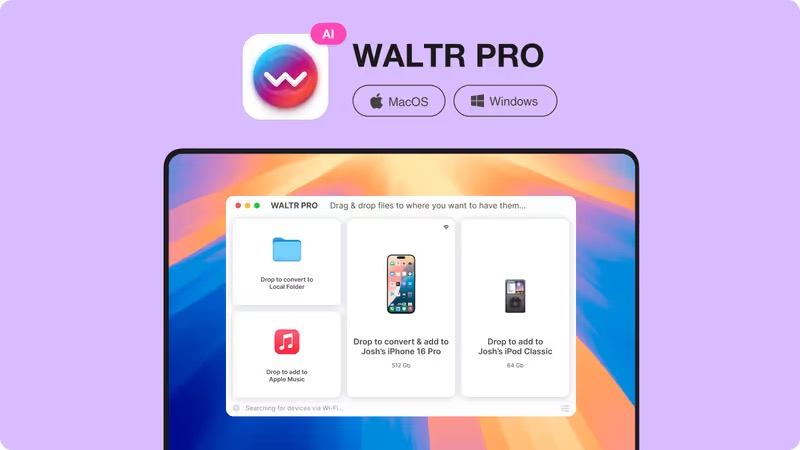
Connect your iPhone to your Mac with a cable. Unlock your iPhone and tap Trust if you see the prompt.
Open WALTR PRO. Your device should appear in the app.
Step 2, drag and drop your files
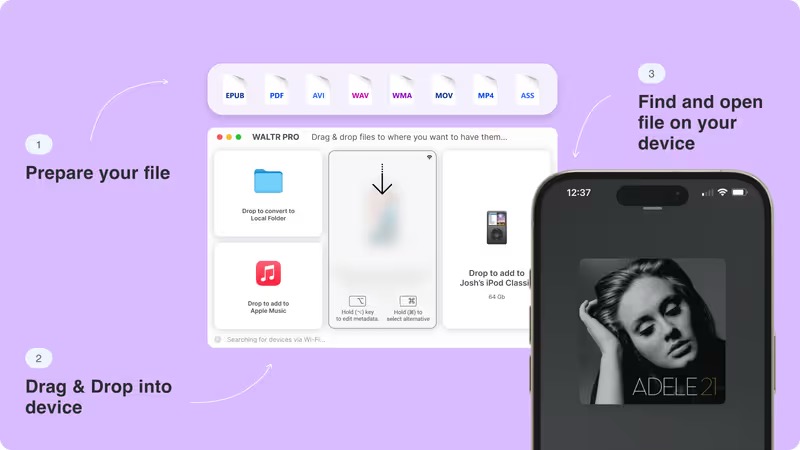
Drag files from Finder into the WALTR PRO window.
Common examples:
- FLAC albums
- MKV or AVI videos
- EPUB or PDF books M4R ringtones
WALTR PRO converts formats when needed and sends the result to the right iPhone app.
Step 3, check where the file landed
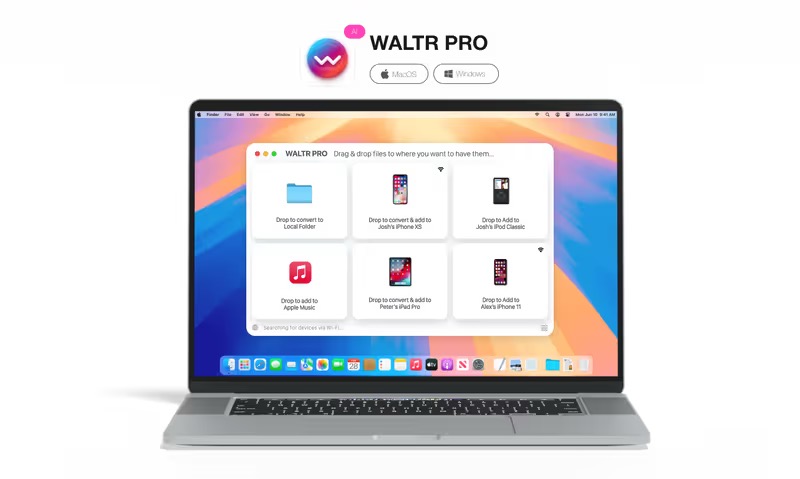
Open the related iPhone app.
- Music app for songs
- TV app for videos
- Books app for books
- Settings for ringtones
If you dropped multiple items, they appear in the library like normal content.
Step 4, switch to Wi-Fi transfers
After the first cable pairing, you can transfer over Wi-Fi.
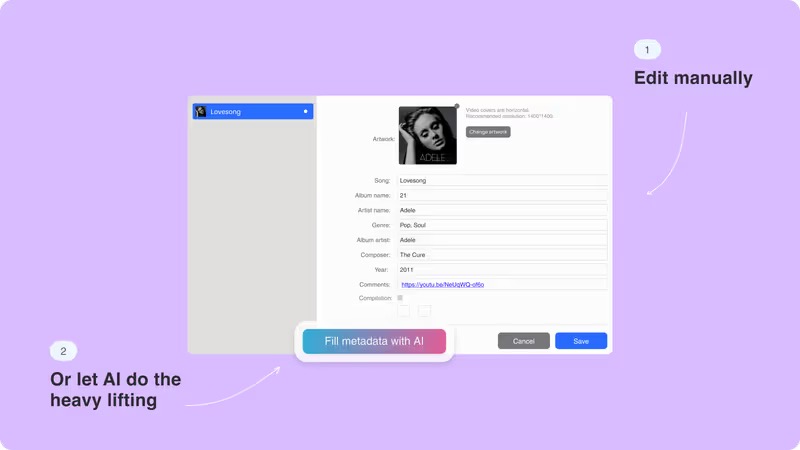
With WALTR PRO, you can also edit your metadata easily by yourself or with AI. This helps you organize your files and escape the chaos!
What most people get wrong
They expect a full “sync”, not a direct transfer
WALTR PRO is for sending files you choose, not for mirroring a whole library.
That is why it feels safer when you only want to add new files.
They drop a file and look in the wrong app
If you drop a video and check Photos, you might think it failed. Videos usually go to the TV app, not Photos.
They try Wi-Fi first
Wi-Fi transfer needs the first cable connection. Do the cable pairing once, then go wireless.
Key takeaways
- WALTR PRO is about adding files, not replacing libraries
- Drag and drop is the core workflow Many “unsupported” formats work because conversion happens during transfer
- After first pairing, Wi-Fi transfer is available on the same network
Convert & Push Any File into Any Apple Device

FAQs
Can WALTR PRO sync iPhone to Mac without Finder
Yes. You can transfer files from Mac to iPhone directly with WALTR PRO.
Can I add FLAC to iPhone from Mac
Yes. Drop FLAC into WALTR PRO and the file is converted for iPhone playback.
Can I transfer MKV video to iPhone from Mac
Yes. Drop the video into WALTR PRO and it is converted to an iPhone-friendly format.
Do I need a cable every time
No. You need a cable once for pairing, then Wi-Fi transfer can work on the same network.
Where do the files appear on iPhone
In the native apps, like Music, TV, and Books, depending on file type.
WALTR PRO
Convert & Push Any File into Any Apple Device
