How to Sync iPhone to Windows PC

How to Sync iPhone to Windows PC
TL;DR
- You can sync iPhone to Windows PC without relying on iTunes
- Local sync gives you more control over your data
- AltTunes lets you manage and copy iPhone content directly on Windows
Intro
Many users want to sync iPhone to Windows PC to manage files, create backups, or move data without dealing with iTunes limits. While Apple offers basic tools, they often restrict what you can access or control.
This guide explains what syncing really means and how to sync your iPhone with a Windows PC using AltTunes.
What syncing iPhone to Windows really means
Syncing an iPhone to a Windows PC can mean different things depending on the method.
- Account syncing mirrors data across devices
- Local syncing copies files directly to your computer
iTunes focuses on library syncing and account rules. Local syncing focuses on file access and storage. With local syncing, your data stays on your PC unless you change it.
This matters if you:
1. Want a local backup
2. Use more than one computer
3. Prefer not to depend on cloud services
How to sync iPhone to Windows PC
The most reliable way to sync iPhone to Windows PC is by copying data directly from the device.
Instead of syncing libraries, you connect your iPhone and manage its content locally. This gives you access to files without replacing existing data.
What you need before starting
You'll only need an iPhone, a Windows PC, and a USB cable. That's it!
AltTunes handles the connection using Apple’s official drivers and works fully on Windows.
Step-by-step using AltTunes

AltTunes
An Alternative to iTunes That We Always Wanted
Connect your iPhone
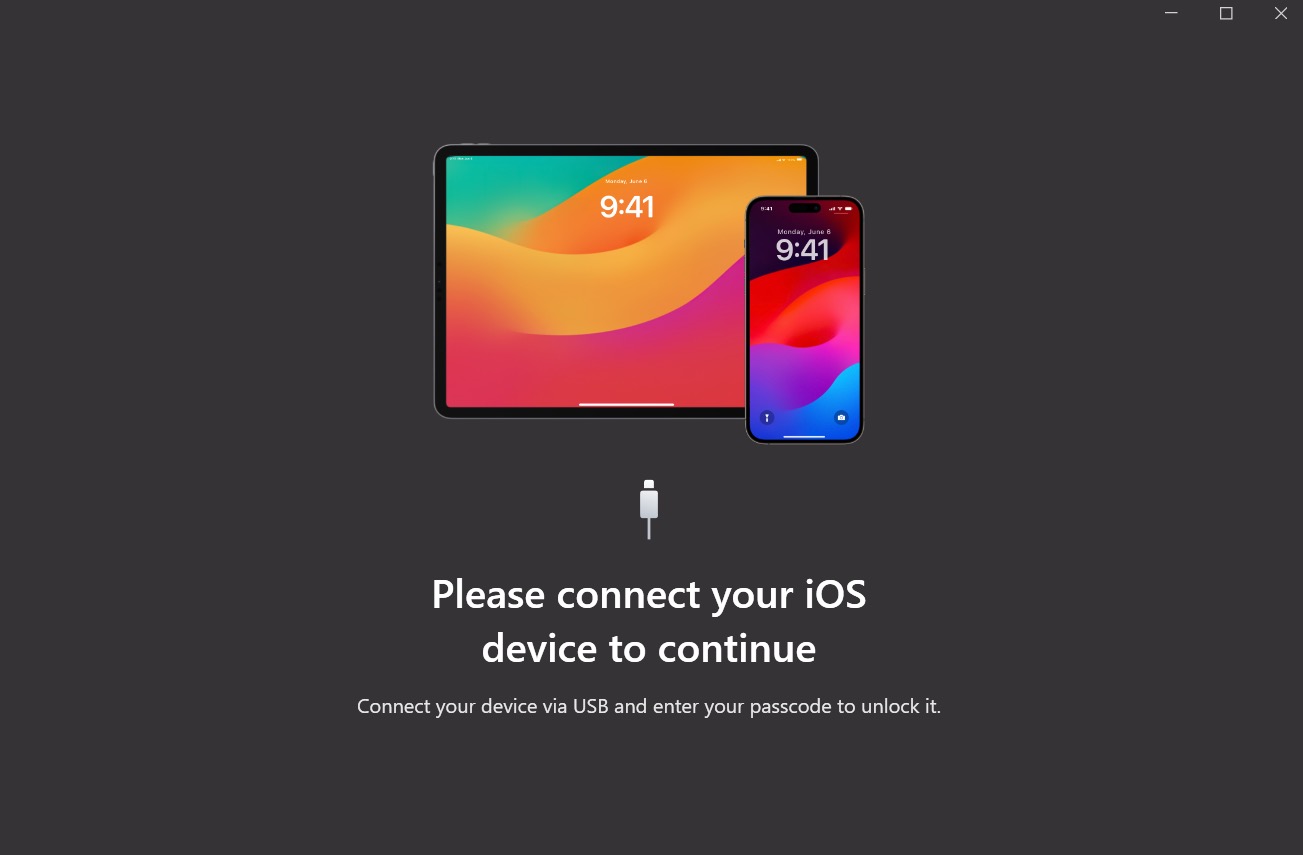
Connect your iPhone to your Windows PC using a USB cable. Unlock your iPhone and tap Trust when prompted.
Open AltTunes and wait for the device to appear.
Access your iPhone data
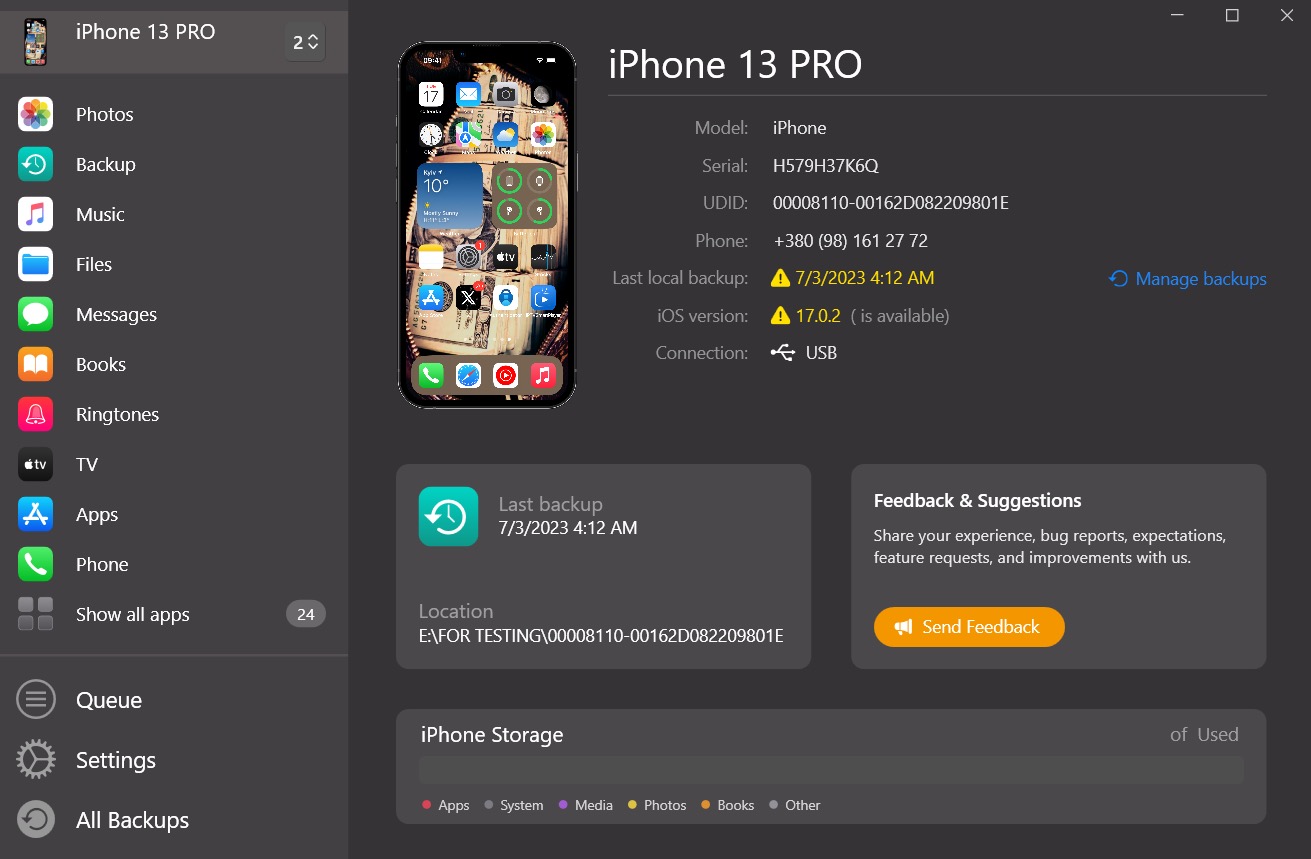
Once connected, AltTunes shows your iPhone content in a clear layout. You can browse supported data types and choose what you want to copy.
The app works locally, so your files stay on your PC.
Copy files to your computer
Select the items you want to sync and export them to a folder on your PC. Files are saved as normal files you can open, move, or back up again later.
Nothing is removed from your iPhone.
What most people get wrong
Many users think iTunes is required to sync iPhone to Windows. It is not.
Another common mistake is assuming syncing always replaces data. Local copying creates an extra copy instead of changing what’s already on the device.
Some users also forget to trust the computer on the iPhone, which blocks access completely.
Key takeaways
- iTunes is not required
- AltTunes works directly on Windows
- Files stay on your PC iPhone data remains untouched
An Alternative to iTunes That We Always Wanted

FAQs
Can I sync iPhone to Windows PC without iTunes
Yes. AltTunes lets you connect and manage iPhone data on Windows.
Will syncing delete data from my iPhone
No. Copying files creates a separate copy only.
Does this work on Windows 10 and 11
Yes. AltTunes supports modern Windows versions.
Do I need an internet connection
No. Syncing works locally using a USB connection.
What type of data can I manage
AltTunes lets you work with supported iPhone content directly on your PC.
AltTunes
Seamlessly Browse, Manage & Export iOS Data
