How to Transfer Music from Computer to iPhone Without Deleting Songs

You can transfer music from computer to iPhone without deleting the songs already on your device. The catch is that Apple sync and direct transfer are not the same thing.
Apple Devices, Finder, and iTunes sync music by matching your iPhone with a computer library. That works when one computer is your source of truth. If you only want to add a few MP3, FLAC, WAV, or ALAC files, WALTR PRO by Softorino is safer because it adds songs directly to the iPhone Music app without replacing the current library.
Quick answer: use Apple Devices on Windows or Finder on Mac when you want official library sync. Use WALTR PRO when you want to add local music files without touching what is already on your iPhone.
Quick answer
TL;DR: Transfer Music from Computer to iPhone Without Losing Songs
Before we begin
Download WALTR PRO on Mac or Windows to transfer local music from a computer to an iPhone without managing an iTunes sync. Test a few tracks first and confirm their artwork and metadata before moving the full library.
Quick takeaways
- Use WALTR PRO when you want drag-and-drop transfer from Mac or Windows into the native iPhone Music app.
- Use Apple Devices, Finder, or iTunes when you want to sync one organized music library to the iPhone.
- Do not click Sync blindly if your iPhone already has songs from another computer. Apple sync can replace or remove synced items.
- Use USB for the first large transfer and Wi-Fi for smaller follow-up transfers after pairing.
- Keep cloud drives as a fallback if you only need to store files, not add songs to the Music app.
Sync vs Transfer: What's the Difference?
Sync mirrors a music library. Transfer adds files. That difference matters because most iPhone music disasters start with the wrong verb.
When you sync music with Apple's tools, the computer library controls what appears on the iPhone. If the library changes, the iPhone can change with it. Apple's own Windows sync guide warns that if you delete an automatically synced item from the computer, the item gets removed from the Apple device the next time you sync.
Direct transfer is different. You choose files or folders, send them to the iPhone, and leave the existing library alone. This is the better path when your music lives in Downloads, an external drive, old iTunes folders, Bandcamp albums, FLAC collections, or random folders from years of collecting music.
Use sync when you want one neat library everywhere. Use direct transfer when you want to add songs without rebuilding your whole setup.
Best Method: Transfer Music from Computer to iPhone Without iTunes
WALTR PRO is built for the moment when you do not want to sync a whole library. You want to add songs to your iPhone and keep what is already there.
WALTR PRO works on Mac and Windows. It transfers music by USB or Wi-Fi, handles common audio formats, and can send songs to the native Music app. It also helps with album art and track metadata, so your library does not become a pile of "Unknown Artist" sadness.
Step 1: Install WALTR PRO on Mac or Windows
Download WALTR PRO from Softorino and open it on your computer. Connect your iPhone with a USB cable for the first setup. Keep the iPhone unlocked and tap Trust if iOS asks whether to trust the computer.
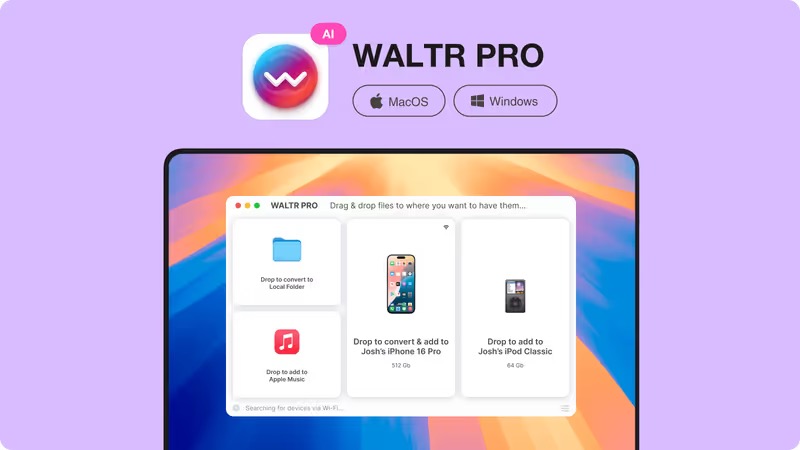
After WALTR PRO sees your iPhone, you can keep using USB or switch to Wi-Fi transfer when both devices are on the same network. USB is better for a large first batch. Wi-Fi is better when you add a few albums later.
Step 2: Drag Your Music Files Into WALTR PRO
Open the folder with your songs. Drag single tracks, albums, or folders into WALTR PRO. The app handles the transfer and deals with iPhone-friendly conversion when needed.
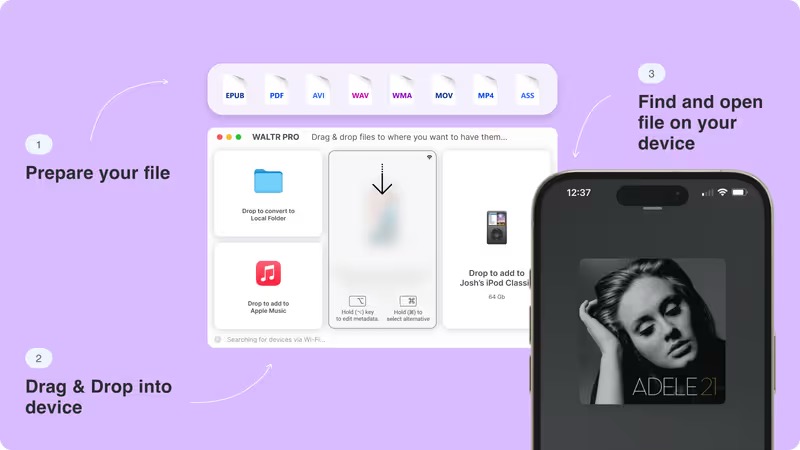
This is where WALTR PRO beats the usual Apple workflow. You do not need to import files into Music, rebuild playlists, or guess which sync box will overwrite something. You drag the files in and let the app send them to the iPhone.
Step 3: Open the Music App on Your iPhone
When the transfer finishes, open the Music app on your iPhone. Your songs should appear beside your other music, not buried inside Files or a third-party player.
If metadata matters, check important albums before moving a giant folder. WALTR PRO can fill or preserve album art, artist names, track titles, and other metadata, but rare files can still need a quick cleanup.
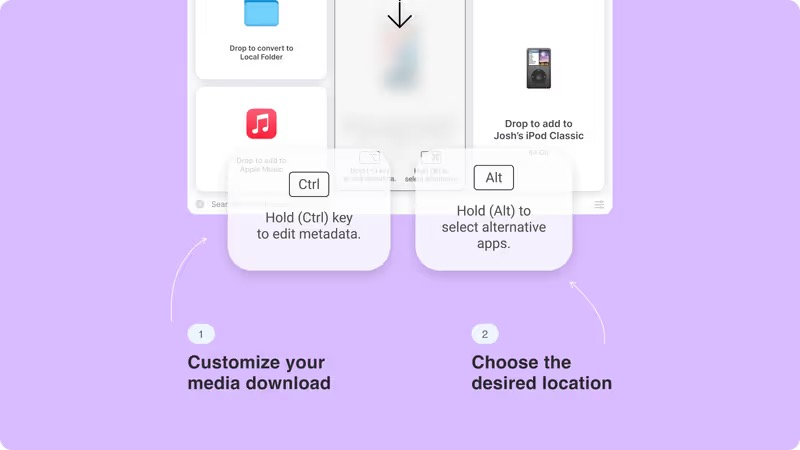
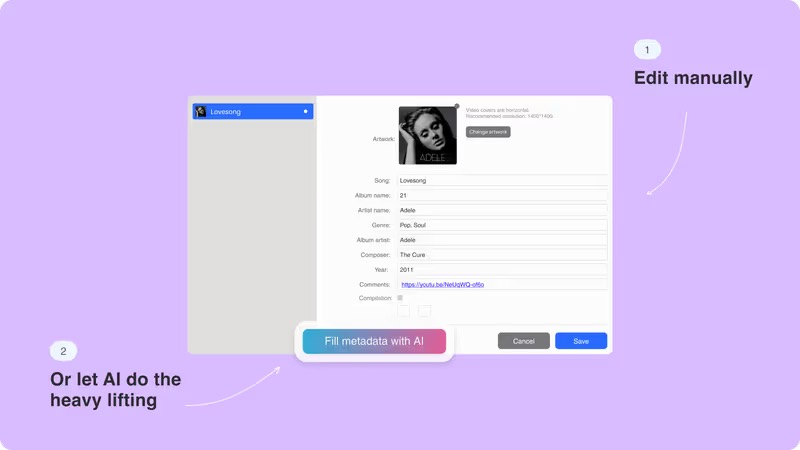
Moving a large FLAC or WAV library? Start with one album. Confirm the songs land where you expect. Then transfer the rest.
Official Apple Method: Sync Music with Apple Devices, Finder, or iTunes
Apple's official method works best when your computer library is already organized and you want your iPhone to match it. In 2026, the exact app depends on your computer.
- Windows 10 or Windows 11: use the Apple Devices app for device sync. You may also need the Apple Music app for library management.
- Modern macOS: use Finder to select the iPhone and the Music app to manage the library.
- Older Windows or older macOS: iTunes may still be the main sync tool.
Apple documents the Windows flow in its Apple Devices sync guide. Apple also explains how Sync Library works with Apple Music if you use a subscription library across devices.
Steps for Apple's Sync Route
- Open Apple Devices on Windows, Finder on Mac, or iTunes on older systems.
- Connect your iPhone with USB and trust the computer if prompted.
- Open the Music sync settings for your iPhone.
- Choose the whole music library or selected artists, albums, genres, and playlists.
- Click Apply or Sync and wait before unplugging the iPhone.
This route is fine for a single-library setup. It is not ideal when you use several computers, have music from different folders, or want to add 20 songs without changing the rest of the iPhone library.
Warning: Apple sync can remove synced music when the computer library changes. Read every sync prompt before you click Apply.
Which Method Should You Use?
Choose the method based on where you want songs to land and how much control you want.
Method | Best for | Where songs land | Main tradeoff |
|---|---|---|---|
WALTR PRO | Adding local files without iTunes sync | Native Music app | Paid app after trial |
Apple Devices / Finder / iTunes | Official full-library sync | Native Music app | Sync can replace or remove synced items |
Apple Music Sync Library | Subscribers who want cloud access | Music app via Apple ID | Subscription and matching behavior can confuse local-file users |
Cloud storage | Quick file storage or playback | Files or cloud app | Usually does not add songs to the Music app |
Broad phone managers | Device management and exports | Depends on app | More menus than you need for simple music transfer |
For this exact job -- transfer music from computer to iPhone without deleting songs -- WALTR PRO is the cleanest Softorino option. If you also move videos, PDFs, ringtones, or other iPhone files, the Softorino Universal License gives you the full app set under one subscription.
Supported Music Formats
WALTR PRO supports common and lossless audio formats, including MP3, FLAC, WAV, ALAC, AAC, WMA, AIFF, OGG, APE, CUE, and more. The practical benefit is simple: you do not have to convert every file by hand before moving it to your iPhone.
Apple's native sync path works best with Apple-friendly library formats such as MP3, AAC, and ALAC. If you have FLAC, WMA, or older format collections, you may need conversion first.
- MP3 and AAC: safe everyday formats for iPhone playback.
- ALAC: Apple's lossless format for higher-quality libraries.
- FLAC and WAV: common for lossless collections, but they may need conversion for the native Music app.
- WMA, APE, OGG, and CUE: more likely to need a transfer app that handles conversion.
If your format problem is video instead of audio, keep this guide focused on music first. Video transfer has different format and app-destination rules.
Troubleshooting Music Transfer Problems
The iPhone does not appear: unlock the iPhone, tap Trust, try another cable, and restart Apple Devices, Finder, iTunes, or WALTR PRO.
Songs do not show in Music: check whether your method adds songs to the Music app. Cloud storage often keeps files inside Files or its own app.
Music disappears after sync: review Apple sync settings. Your iPhone may be matching a different computer library.
FLAC files will not play: convert them to an iPhone-friendly format or use WALTR PRO to handle the transfer and conversion.
Wi-Fi transfer does not show your iPhone: connect once with USB, keep both devices on the same network, and make sure the iPhone is awake.
Metadata looks messy: fix key album, artist, and track fields before moving a huge folder.
If you need to move music in the opposite direction, read Softorino's guide on how to transfer music from iPhone to computer. Same devices, different rules.
Final Recommendation
Use Apple's tools if you want official library sync and trust the computer library. Use WALTR PRO if you want to transfer music from computer to iPhone without iTunes, without Finder sync, and without replacing the songs already on your device.
For most local music files, WALTR PRO is the faster path. Connect the iPhone, drag in your songs, and check the Music app when the transfer finishes. No library rebuild. No "Sync and Delete" panic.
Try WALTR PRO by Softorino with a few of your own songs first. If it puts the music where you want it, move the rest of the library.
Want to customize your iPhone further? See how to set M4R ringtones without iTunes or turn YouTube clips into iPhone ringtones.
If you need to move the finished file to an iPhone or iPad, WALTR PRO transfers files to iPhone without iTunes.
FAQ
Can I transfer music from computer to iPhone without iTunes?
Yes. WALTR PRO can transfer music from Mac or Windows to iPhone without iTunes. Drag your music files into the app, connect your iPhone by USB or Wi-Fi, and send songs to the native Music app.
Will syncing music delete songs already on my iPhone?
It can. Apple sync mirrors a computer library, so synced songs can be removed from the iPhone when the computer library changes or when you sync with a different setup. Read Apple's sync prompts before applying changes.
Can I transfer FLAC to iPhone?
Yes. WALTR PRO can handle FLAC and other lossless files during transfer. Apple's native Music app prefers Apple-friendly formats, so direct transfer with conversion is easier than making separate copies by hand.
Can I transfer music to iPhone over Wi-Fi?
Yes. WALTR PRO supports Wi-Fi transfer after setup, and Apple sync can also work over Wi-Fi when configured. Use USB for large transfers and Wi-Fi for smaller batches.
Where do transferred songs appear on iPhone?
With WALTR PRO or Apple sync, songs can appear in the native Music app. With cloud storage, files usually stay in Files or the cloud app unless another app imports them.

WALTR PRO
Convert & Push Any File into Any Apple Device
