How to Set Ringtone in iPhone Without iTunes or GarageBand

You can set a custom ringtone on iPhone without iTunes by using the right tool for the exact job. Use iRingg when you want to create, trim, and send a new ringtone from a Windows PC. Use WALTR PRO when you already have an M4R ringtone file and need to transfer it to your iPhone without sync.
That is the clean answer to how to set ringtone in iPhone without iTunes. You still finish on the iPhone itself: open Settings > Sounds & Haptics > Ringtone, then choose the custom tone you just added.
Apple’s free fallback is GarageBand on iPhone. It works, but it is not the fastest path if you came here to avoid iTunes, avoid GarageBand, or stop poking at tiny waveforms on a phone screen.
Video: How to Upload a Custom Ringtone to iPhone
The video shows the visual version of the ringtone transfer workflow. The written guide below is more current for 2026 and separates the 3 jobs people usually mix up: create the ringtone, transfer the ringtone, then select it on iPhone.
Quick Answer: How to Set Ringtone in iPhone Without iTunes
To set ringtone in iPhone without iTunes, create or prepare a ringtone file under 30 seconds, send it to your iPhone with iRingg or WALTR PRO, then select it under Settings > Sounds & Haptics > Ringtone. If you want a free iPhone-only method, GarageBand is the official fallback.
Best method: iRingg for creating a ringtone, WALTR PRO for transferring an existing M4R, and GarageBand only when you need a free iPhone-only workaround.
Quick Takeaways Before You Start
- iPhone ringtones should be 30 seconds or shorter.
- M4R is the safest ringtone file format for iPhone.
- iRingg is the best Softorino fit for creating and pushing ringtones from a Windows PC.
- WALTR PRO is the best Softorino fit when you already have a ringtone file and want drag-and-drop transfer from Mac or Windows.
- You still need to choose the tone on the iPhone after transfer.
- Protected Apple Music files may not work as ringtone sources.
Pick the Right No-iTunes Ringtone Method
The best route depends on what you already have. Do not start with a 15-step workaround if all you need is to move one M4R file.
Method | Best for | Platform | Main tradeoff |
|---|---|---|---|
iRingg | Creating, trimming, personalizing, and sending a new ringtone | Windows PC + iPhone | Paid app, but it handles the ringtone job in one place |
WALTR PRO | Transferring an existing M4R or short ringtone-ready audio file | Mac or Windows + iPhone | Not the main ringtone editor |
GarageBand | Free iPhone-only ringtone creation | iPhone | Works, but the editing flow is fiddly |
Apple Music manual conversion | People who want full manual control on Mac | Mac + iPhone | More steps and more room for format mistakes |
Softorino wins when you want the job split clearly. iRingg creates the ringtone. WALTR PRO transfers the prepared ringtone. iOS Settings selects the final tone.
Before You Start: iPhone Ringtone Rules in 2026
A ringtone is not just any song in the Music app. iPhone ringtones usually need a short ringtone-ready file, and Apple’s own GarageBand guide says ringtones can be up to 30 seconds long. Apple also warns that protected songs or files that are not downloaded may be unavailable for ringtone export.
- Length: keep the ringtone 30 seconds or shorter.
- Format: use M4R when you can.
- Rights: use audio you own or have permission to use.
- Final setting: choose the tone under Settings > Sounds & Haptics > Ringtone.
- Contact setting: assign a custom ringtone from the Contacts app if you want one person to have a different tone.
Apple’s official GarageBand ringtone guide is the best source for the 30-second and protected-file rules: Apple Support ringtone guide. Apple’s iPhone sound settings guide explains where ringtone and alert options live: Apple iPhone sound settings.
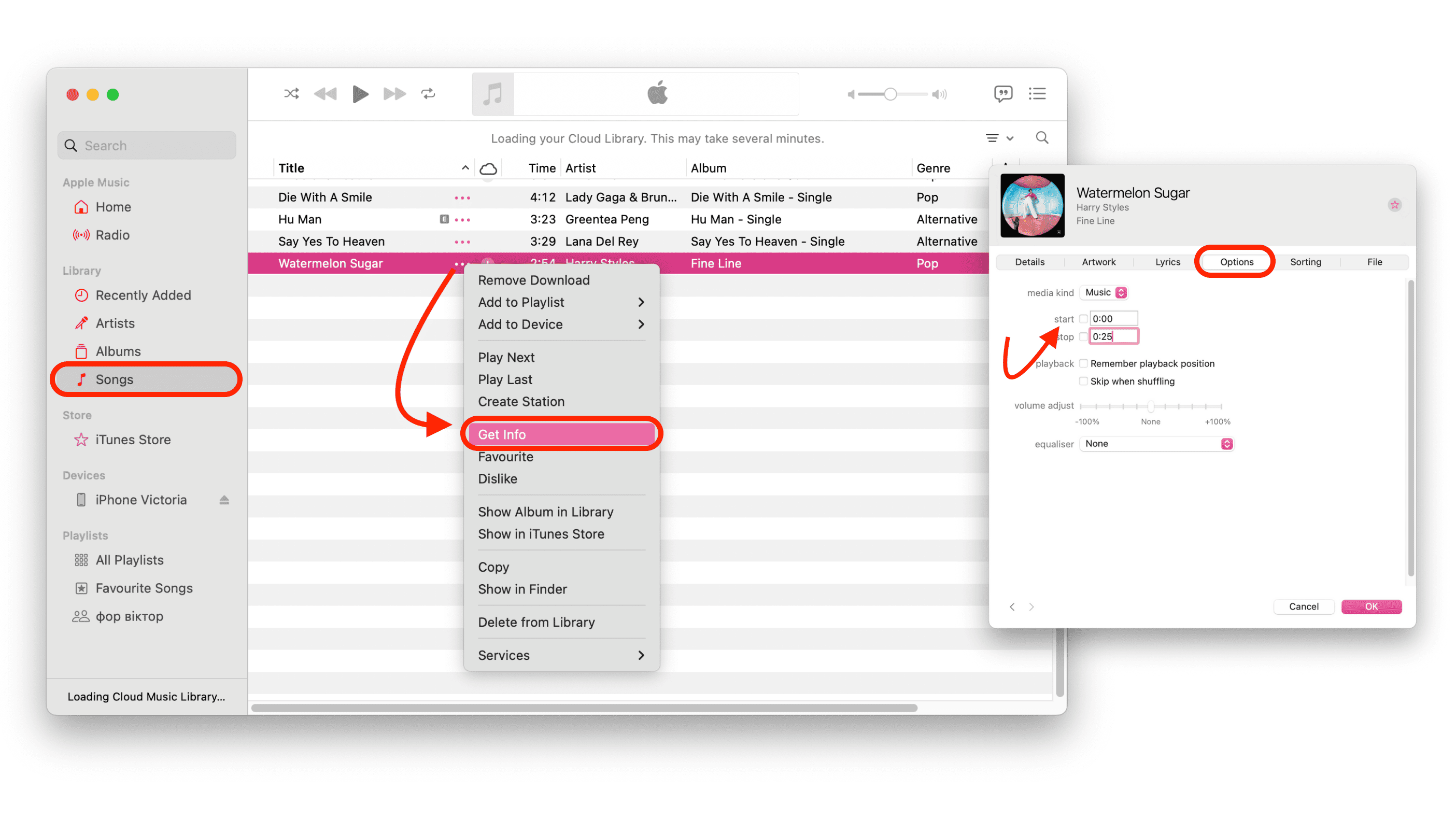
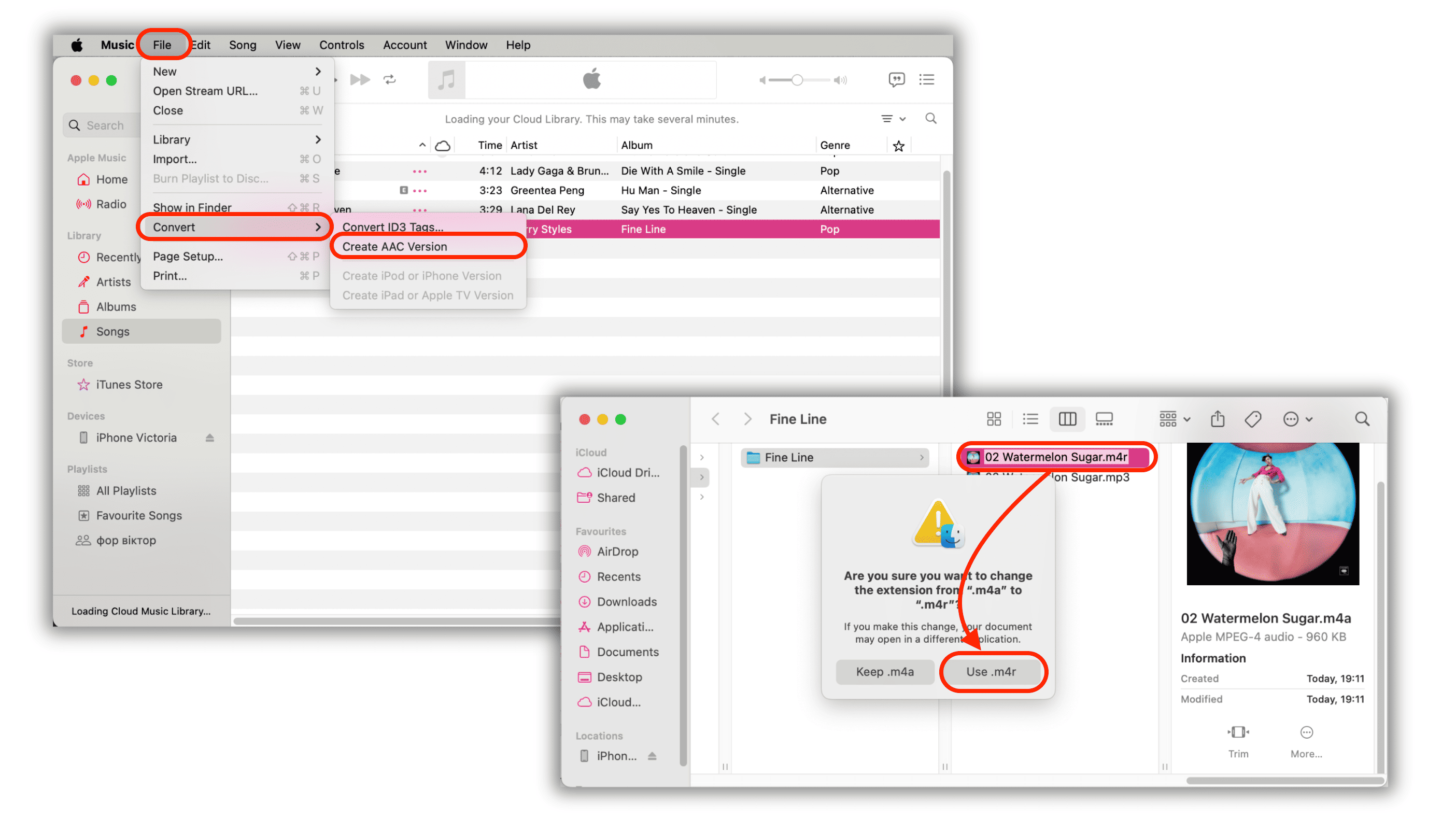
If you already have a local audio file on a Mac, Apple Music can help you trim and convert a short clip before you rename it to M4R. That route is useful for manual control. It is not the simplest route for most people.
Do not ignore the 30-second rule. If the clip is too long, the ringtone may fail to export, fail to transfer, or fail to appear where you expect.
Method 1: How to Set Ringtone in iPhone Without iTunes with WALTR PRO
WALTR PRO is the right pick when the ringtone is already prepared. If you have an M4R file or a short audio file that is ready for iPhone, WALTR PRO handles the transfer without iTunes, Finder sync, or the Apple Devices app.
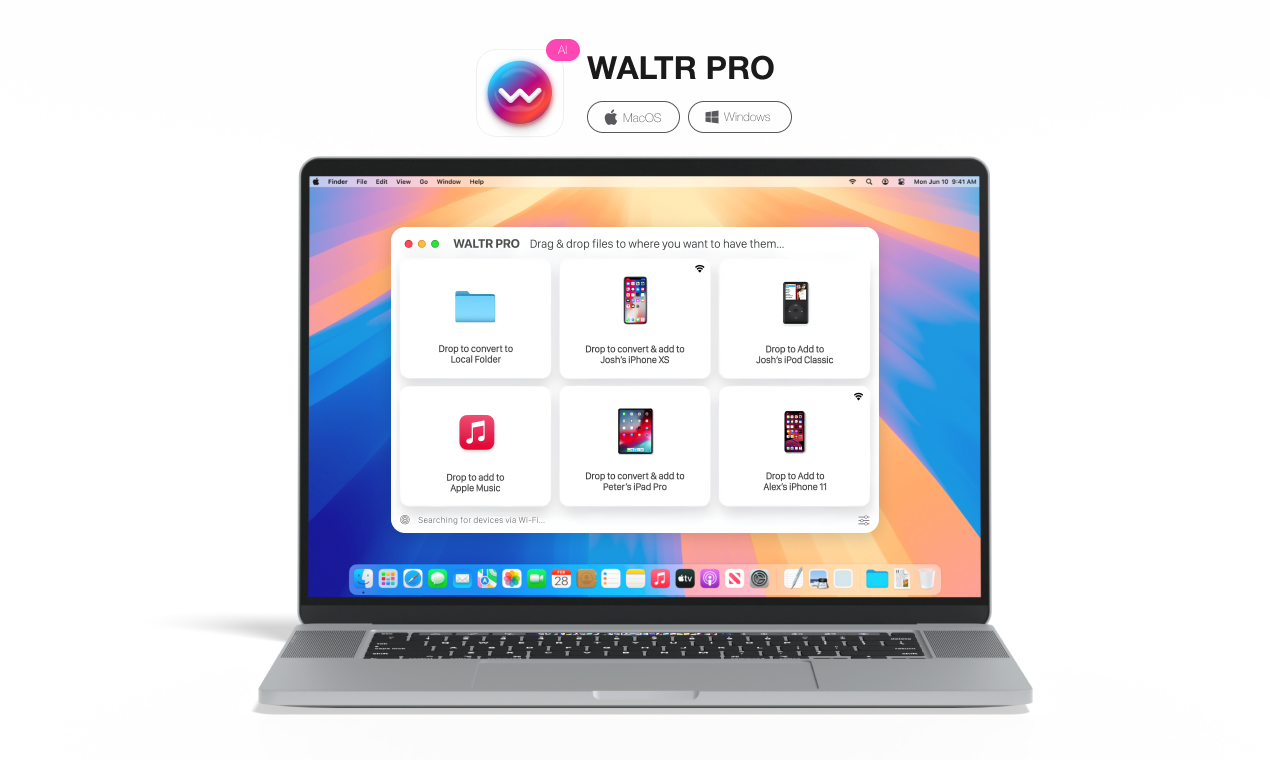
Here is the WALTR PRO route for how to set ringtone in iPhone without iTunes when the file is ready.
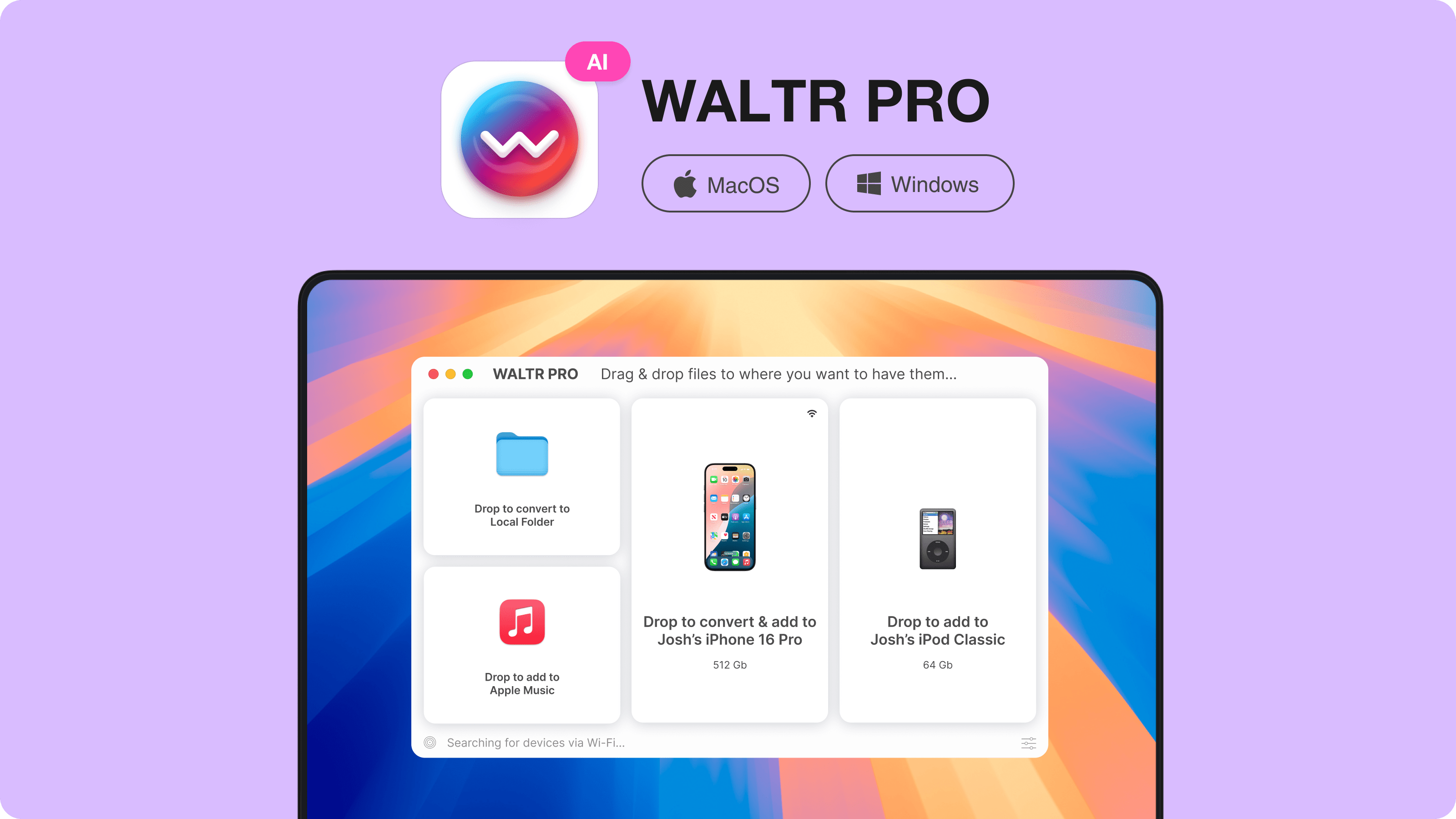
Step 1: Open WALTR PRO
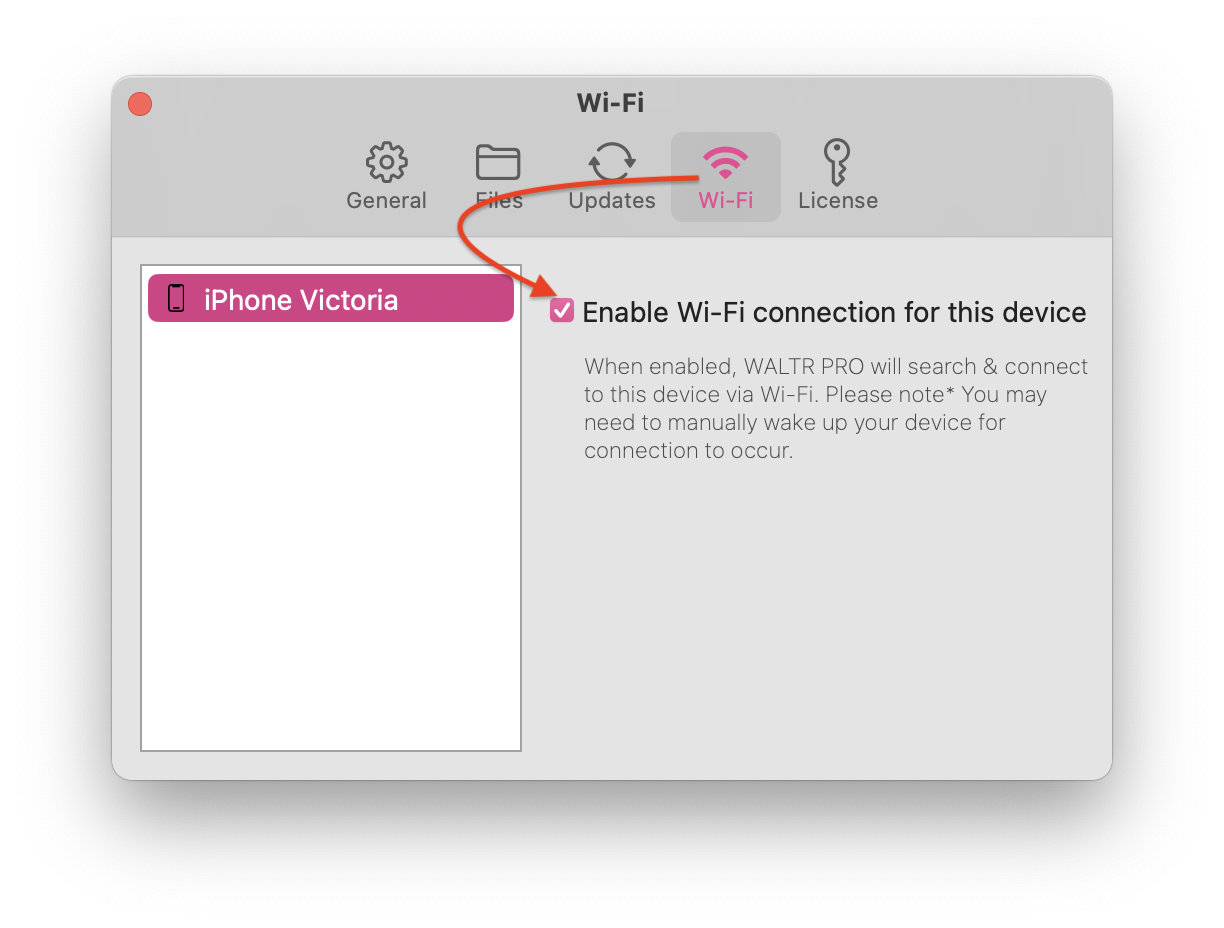
Open WALTR PRO on your Mac or Windows PC. Connect your iPhone with a cable first if this is your first transfer. After the device is trusted, WALTR PRO can also work over Wi-Fi when both devices are on the same network.
Step 2: Connect and Trust Your iPhone
Unlock the iPhone and tap Trust This Computer if iOS asks. This prompt is easy to miss. If you skip it, the transfer app cannot see the device correctly.
Step 3: Drag the M4R File into WALTR PRO
Drag the ringtone file into WALTR PRO. For best results, use an M4R file shorter than 30 seconds. WALTR PRO handles the transfer without forcing you through iTunes sync.
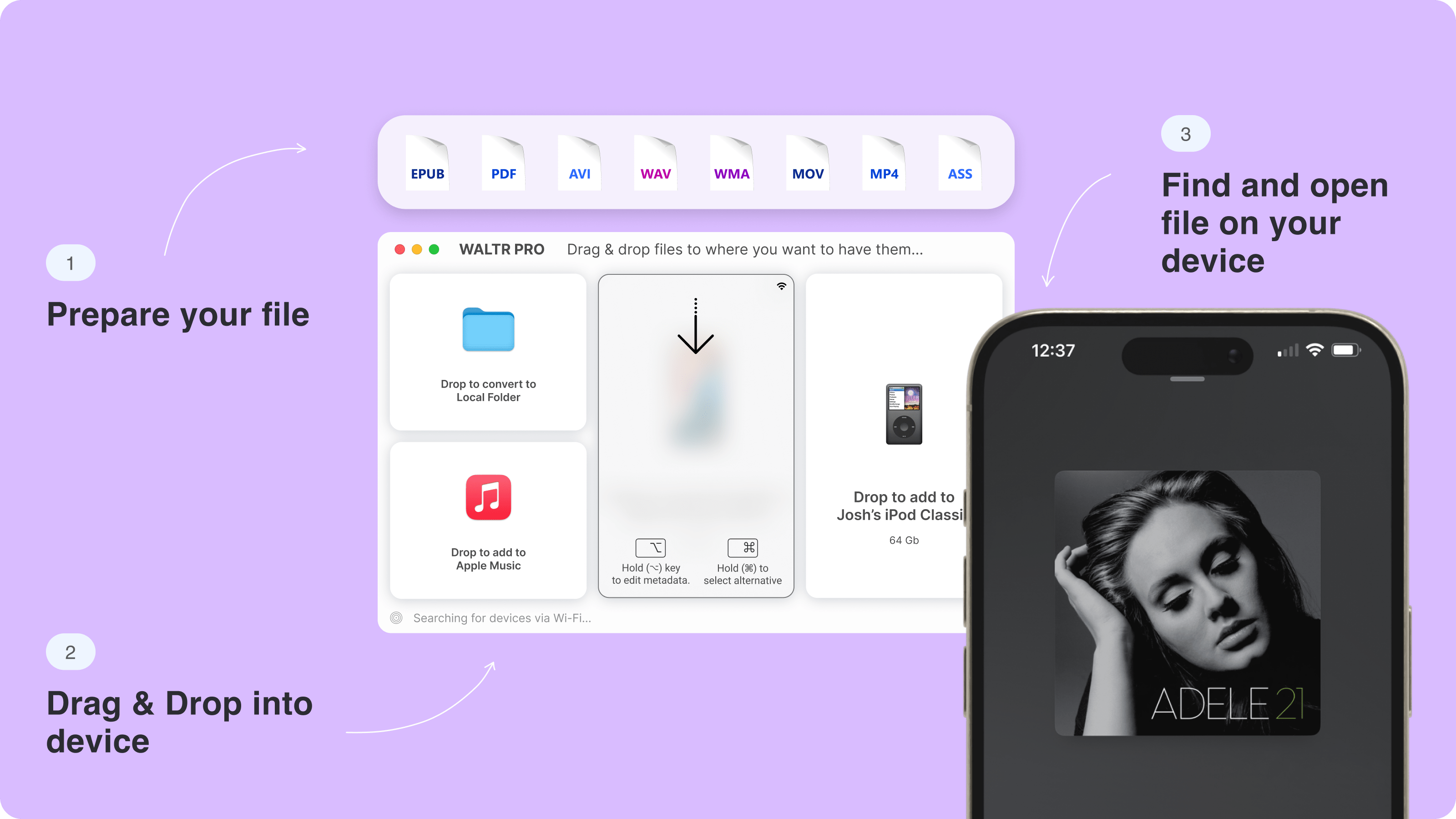
When the transfer finishes, pick up your iPhone and go to Settings > Sounds & Haptics > Ringtone. Select the custom tone from the list.
Optional: Send Audio to Another App
WALTR PRO can also transfer music, videos, PDFs, and other supported files to native iPhone apps. If you are not sending a ringtone, hold Alt while dropping a file to choose a compatible app target.
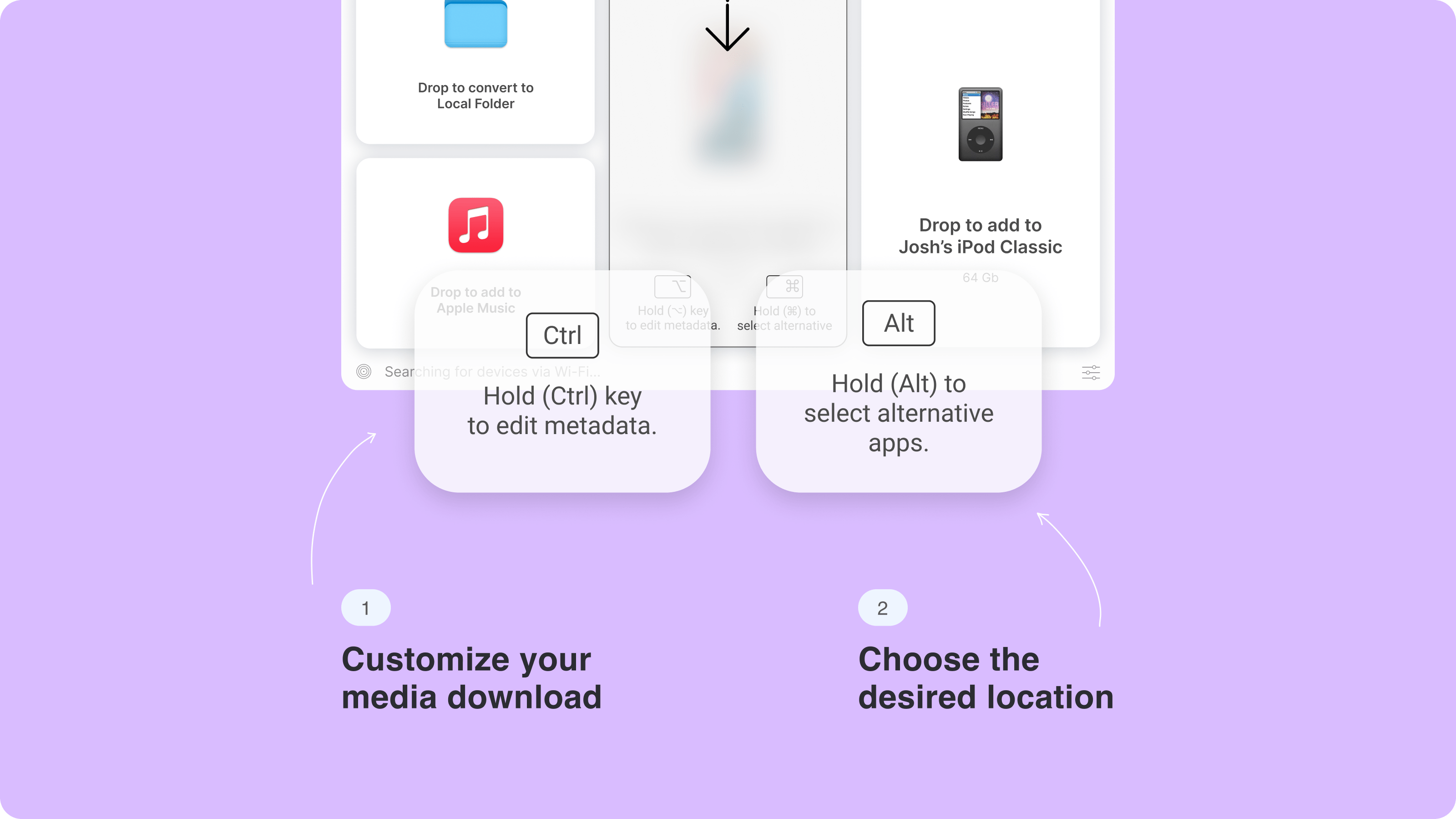
Optional: Edit Metadata Before Transfer
For songs and media files, hold Ctrl during transfer to open the file information panel. Use this for titles, artist names, or cover art. For a ringtone, keep the priority simple: short clip, correct format, clean transfer.
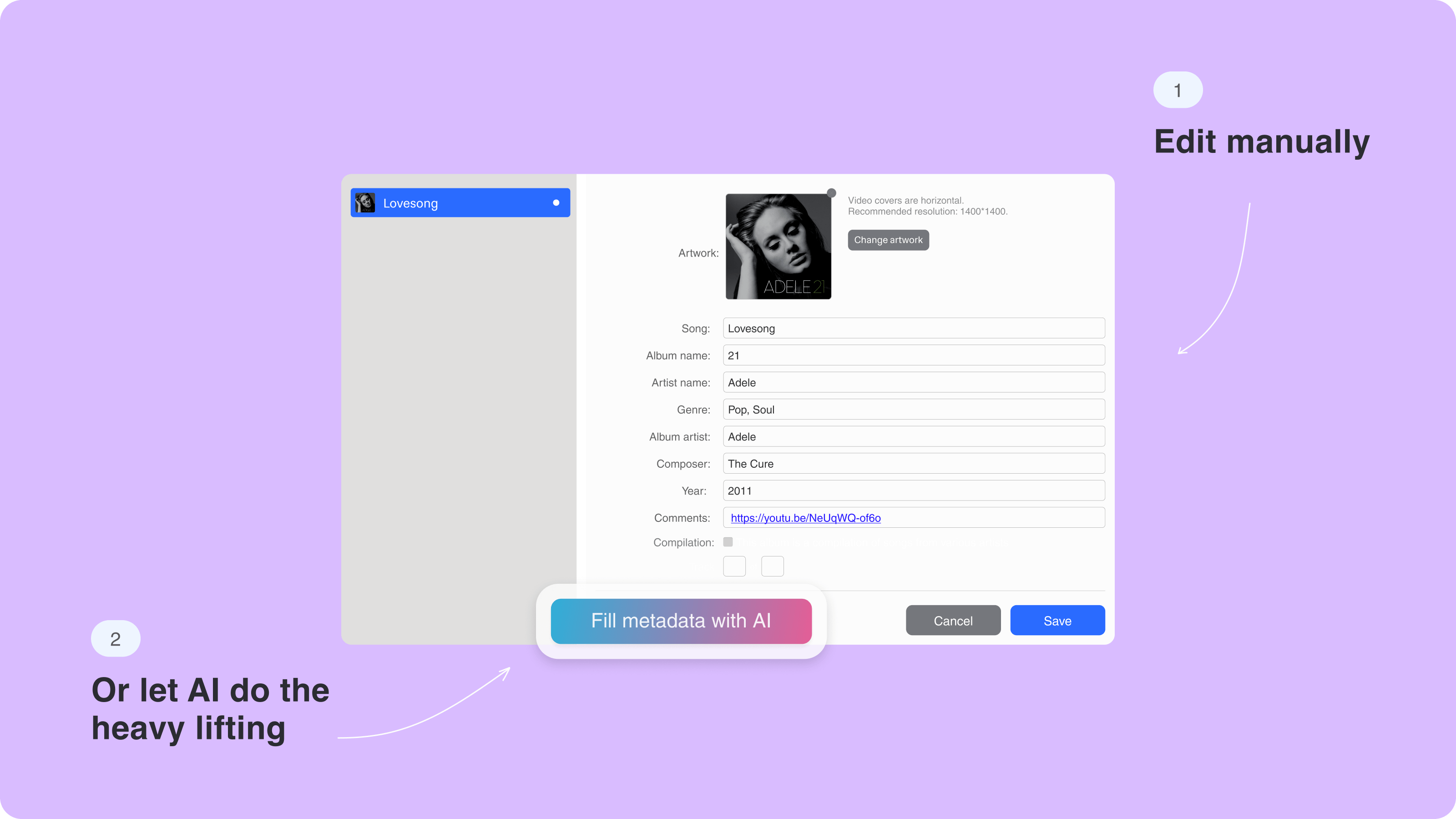
WALTR PRO Works Best When:
You already have an M4R ringtone or short ringtone-ready audio clip.
You want drag-and-drop transfer without iTunes.
You use Mac or Windows.
You also move music, videos, PDFs, or other files to iPhone.
WALTR PRO is not the main ringtone editor in this setup. It is the clean transfer tool. If you need to search for a sound, trim the exact part, add effects, and push a newly created ringtone to iPhone, use iRingg instead.
Method 2: Create and Send a Custom Ringtone with iRingg
iRingg is the best fit when you need to make the ringtone, not just move it. Current Softorino product context positions iRingg as a Windows PC ringtone maker for iPhone. Use it when you want to choose a sound, trim the exact part, add optional fades or SndMoji effects, and push the result to the iPhone ringtone section without iTunes.
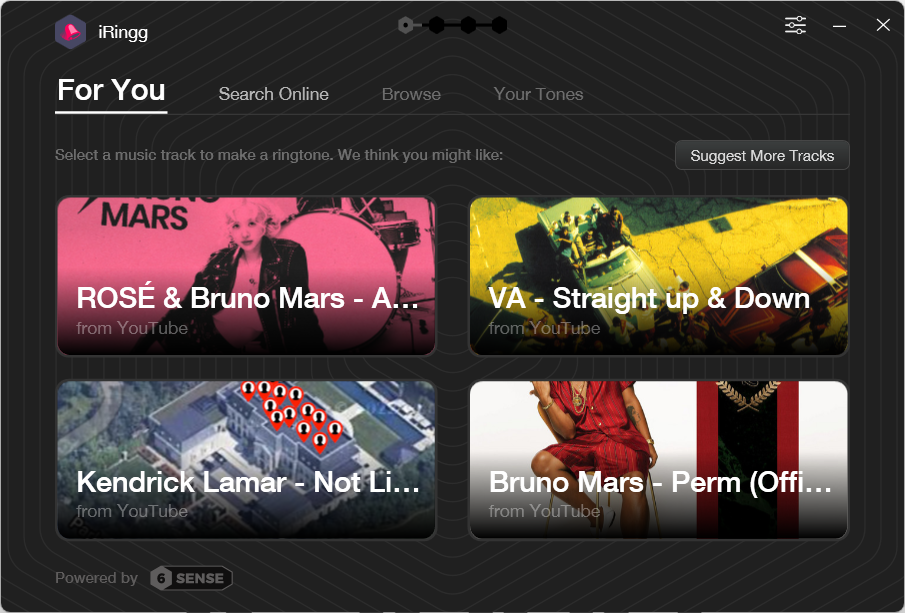
Use audio you own or have permission to use. A ringtone app can simplify the workflow, but it does not change copyright rules for songs, YouTube clips, or SoundCloud audio.
#warning
Step 1: Open iRingg and Choose the Sound
Open iRingg on your Windows PC. Choose the audio source you want to turn into a ringtone. Pick the specific part that should play when someone calls.
Keep the clip short from the start. A good ringtone usually starts fast, has no long intro, and stays under 30 seconds.
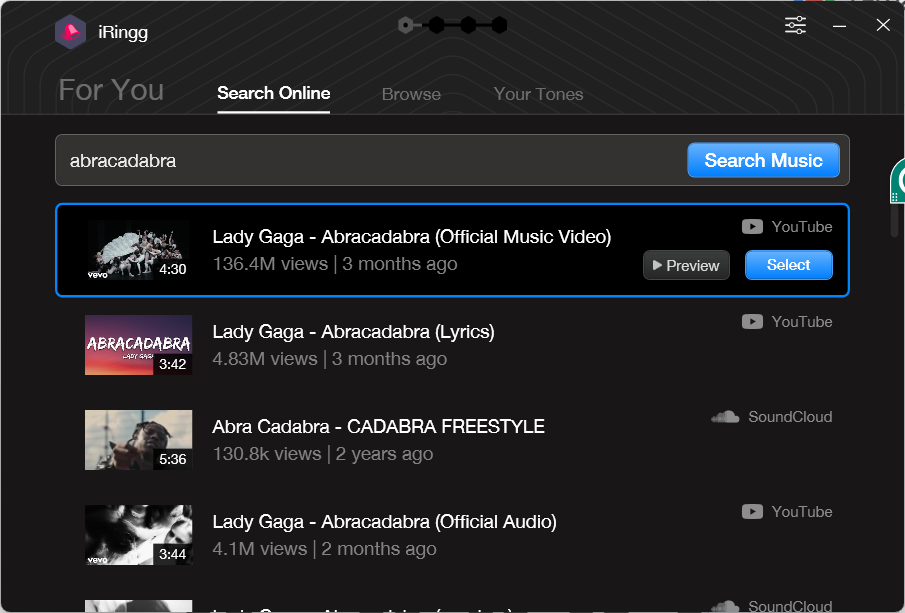
Step 2: Trim the Ringtone Under 30 Seconds
Use the trim handles to set the start and end points. Play the preview before you export. The first second matters because that is what you will hear every time the phone rings.
A quiet ringtone is not subtle. It is missed calls with extra steps. If the source file is too soft, choose a louder part or use a cleaner file.
Step 3: Personalize It Only If It Helps
Add a fade, voice layer, or SndMoji effect if you want the tone to feel personal. Keep it simple for daily use. A clean 15-second clip usually beats a ringtone stuffed with effects.
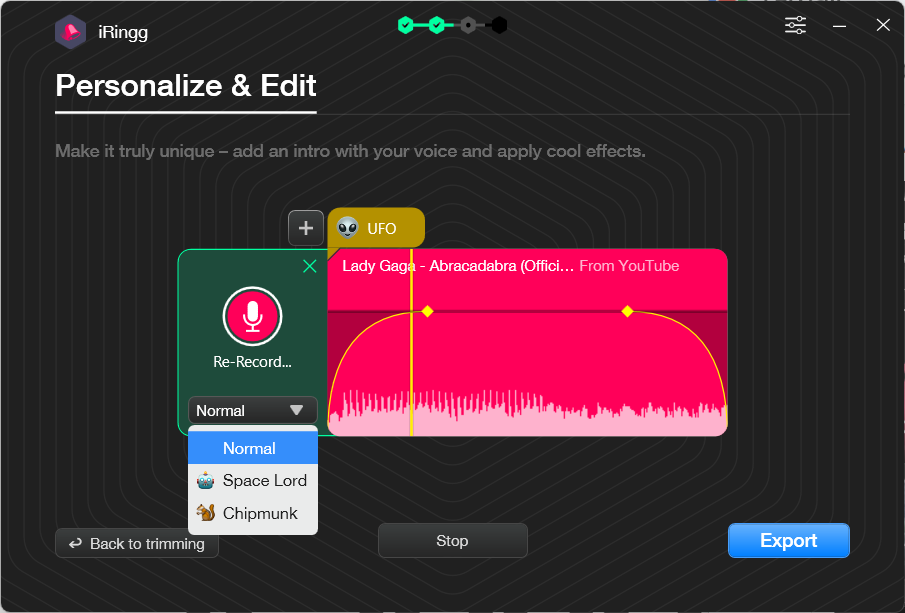
SndMoji works when the ringtone is for friends, family, or a joke tone. Skip it for work calls unless the office already knows what it signed up for.
Step 4: Push the Ringtone to iPhone
Click Export or Push to iPhone, then choose the connected iPhone. If Wi-Fi transfer is available, keep the PC and iPhone on the same network. If the device does not appear, connect by USB first and accept the Trust This Computer prompt on the iPhone.
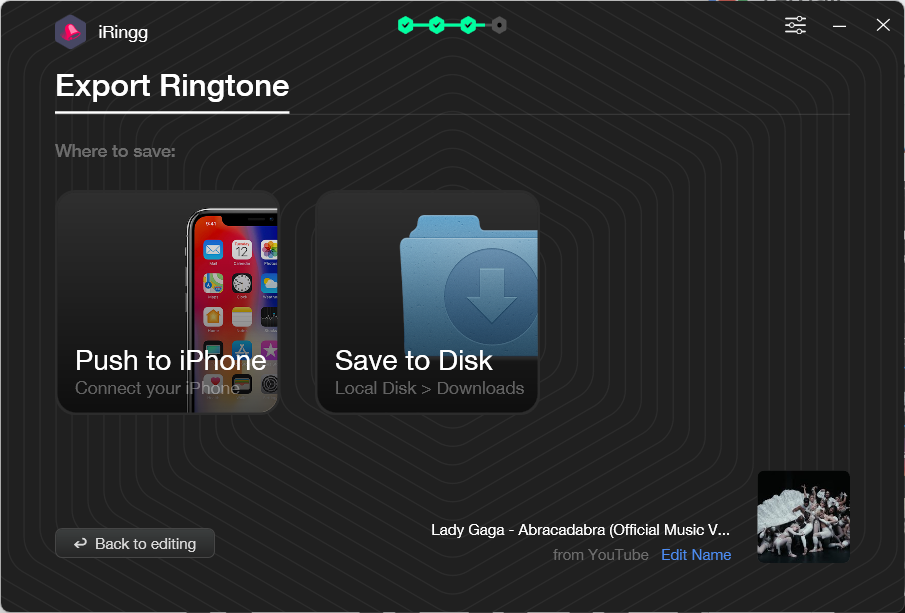
After export, iRingg sends the ringtone to the iPhone ringtone area. iOS may not select it as the default automatically, so do the final step manually.
Step 5: Select the Ringtone on iPhone
On your iPhone, open Settings > Sounds & Haptics > Ringtone. Tap the custom ringtone from the list. Custom tones usually appear above or near Apple’s built-in tones after a successful transfer.
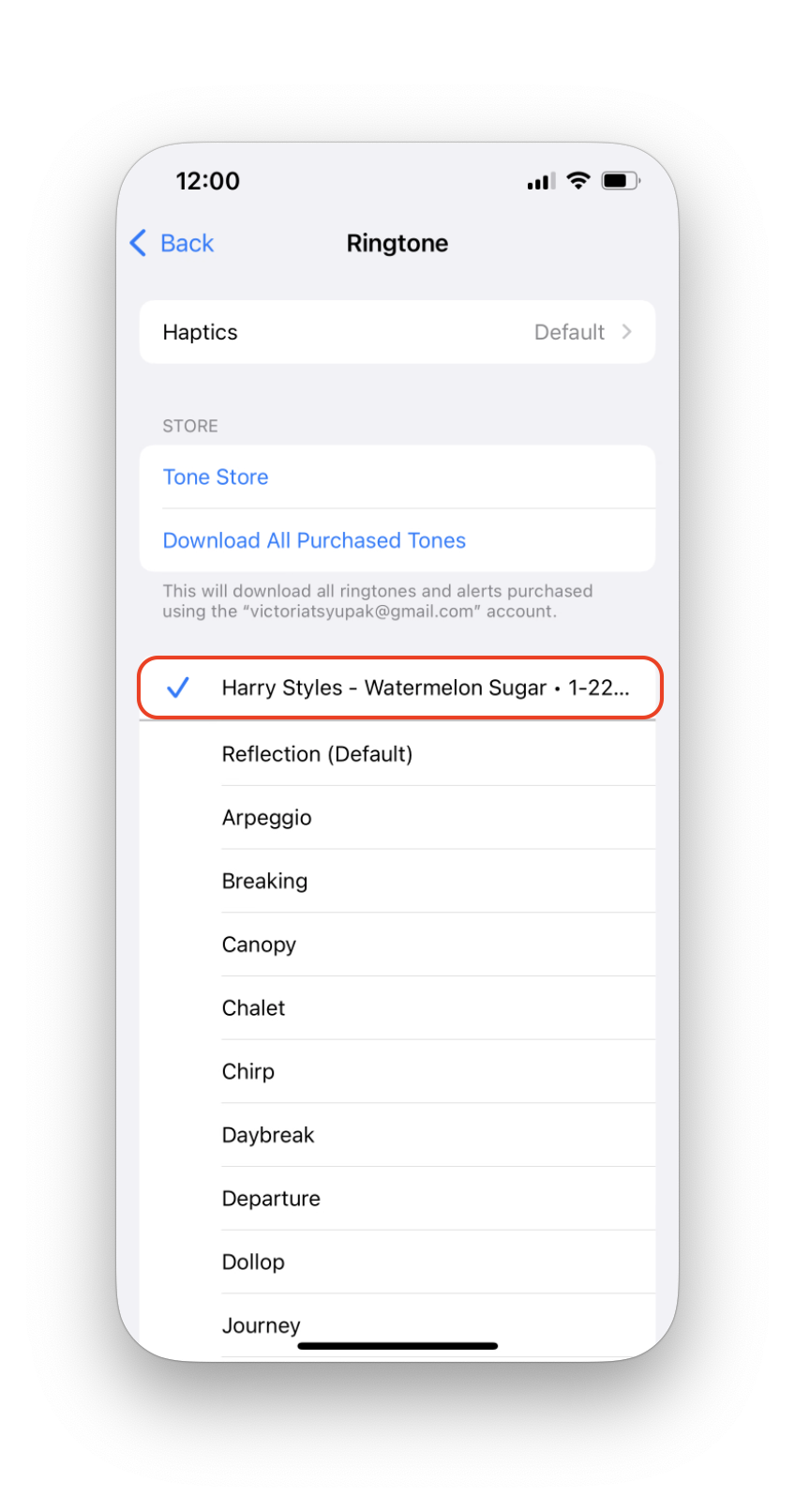
If the tone does not show up, restart the iPhone, reconnect the device, and transfer again. Most failures come from clip length, file format, transfer completion, or the iPhone trust prompt.
Why Use iRingg Instead of GarageBand?
GarageBand is free, official, and useful when you only have an iPhone. It also asks you to import audio, trim a track on a small screen, share it as a ringtone, and know a workflow most people use once a year.
iRingg exists because that process is annoying. The iRingg flow is easier to understand:
- Pick the sound.
- Trim the ringtone.
- Add optional personal effects.
- Send it to the iPhone.
- Select it in Settings.
That makes iRingg the stronger choice when you are on a Windows PC and want a focused iPhone ringtone maker. It is also the better answer when the search is not only “no iTunes,” but “no GarageBand either.”
iRingg works best when:
You want to create a ringtone from a song, clip, or sound you can use legally.
You want trimming and transfer in one workflow.
You want to push the finished tone to iPhone without iTunes sync.
You are using a Windows PC.
Method 3: Use GarageBand as the Free iPhone-Only Fallback
GarageBand is the official fallback if you want to create a ringtone without a computer. It is free from Apple and runs on the iPhone. It is also the most fiddly method here.
Use the GarageBand route when you have the audio file on the iPhone and do not want to use a desktop app:
- Open GarageBand on iPhone.
- Create a new project.
- Import or record the audio you want to use.
- Trim the audio to 30 seconds or less.
- Save the project.
- Share it as a ringtone.
- Choose whether to use it as the standard ringtone or assign it to a contact.
That summary is enough for this guide because the article’s main promise is no iTunes. If your real goal is no iTunes and no GarageBand, use iRingg or WALTR PRO instead.
How to Assign a Custom Ringtone to One Contact
You do not have to make the custom tone your default ringtone. You can assign it to one person.
- Open the Contacts app.
- Choose the contact.
- Tap Edit.
- Tap Ringtone.
- Choose the custom tone.
- Tap Done.
This is useful for family, clients, or anyone you want to recognize without looking at the screen. It also keeps your main ringtone boring enough to survive public places.
Troubleshooting: Custom Ringtone Not Showing on iPhone
If the ringtone does not appear under Settings > Sounds & Haptics > Ringtone, work through this ladder before rebuilding the whole thing.
- Check the length. Keep the ringtone 30 seconds or shorter.
- Check the format. M4R is the safest choice for manual transfers.
- Unlock the iPhone and accept Trust This Computer when using USB.
- Confirm the transfer finished inside iRingg or WALTR PRO.
- Restart the iPhone.
- Transfer the ringtone again.
- Try USB if Wi-Fi transfer failed.
- Avoid protected Apple Music tracks as source audio.
Most failures come from boring causes. The file is too long, the iPhone was not trusted, or the transfer did not finish. Fix those before trying a new app.
Top iRingg Features That Matter for Ringtones
Ringtone Trimming
Choose the exact part of the audio that should become your ringtone. This is the feature that matters most. A ringtone needs a clear start, a useful length, and enough volume to hear in a pocket or bag.
Ringtone Management
Keep created tones organized so you can preview, edit, or remove them later. This matters if you make separate tones for calls, contacts, or FaceTime.
Recommendations and Personalization
iRingg can recommend tracks and let you add voice or sound effects. Treat those as creative options, not requirements. A simple ringtone is often the one you keep using.
SndMoji and Voice Effects
SndMoji effects and voice layers can make a ringtone feel personal. Use them for family, friends, or joke tones. Skip them for professional calls.
Use Your Own Audio Sources
You can make ringtones from audio sources you have rights to use, including local files and supported online sources. Avoid old catalog-size claims. They age badly and do not help the reader finish the ringtone.
Wi-Fi or USB Transfer
Wireless transfer is convenient when it works. USB is the reliable fallback when the iPhone does not appear, the network is weird, or the trust prompt has not been accepted yet.
Bottom Line
If you want to know how to set ringtone in iPhone without iTunes, do not start with a complicated workaround. Use iRingg to create and send a ringtone from a Windows PC. Use WALTR PRO to transfer an existing M4R from Mac or Windows. Use GarageBand only if you want the free iPhone-only path.
The last step is always the same: open Settings > Sounds & Haptics > Ringtone and select the custom tone. If you use both Softorino apps, the Universal License can make sense. If you only need ringtone creation, start with iRingg.
FAQ
How do I set a ringtone on iPhone without iTunes?
Create or prepare a ringtone file, transfer it with iRingg or WALTR PRO, then open Settings > Sounds & Haptics > Ringtone on your iPhone and select the custom tone.
Can I set custom ringtones without GarageBand?
Yes. Use iRingg if you want to create and send the ringtone from a Windows PC. Use WALTR PRO if you already have an M4R or short audio file and want to transfer it without iTunes.
How do I convert an MP3 to an iPhone ringtone?
Trim the MP3 to 30 seconds or less, convert it to M4R, then transfer it to your iPhone. Apple Music can help with manual conversion on Mac, while iRingg is better if you want creation and transfer in one app.
Where do custom ringtones appear on iPhone?
Custom ringtones appear in Settings > Sounds & Haptics > Ringtone. They usually appear above or near Apple’s default ringtone list after a successful transfer.
Can I use a YouTube song as an iPhone ringtone?
Use only audio you own or have permission to use. iRingg can help create ringtones from supported sources, but copyright rules still apply. If you are unsure, use your own recordings or royalty-free audio.
Can I set a different ringtone for one contact?
Yes. Open Contacts, choose the person, tap Edit, tap Ringtone, choose the custom tone, and tap Done. The default ringtone stays the same for everyone else.

iRingg
Create Your Own Ringtone And Push Into iPhone
