How to Play WMV on iPhone or iPad in 2026


TL;DR: Your iPhone can show a WMV file in Files, Mail, or a cloud folder. To play WMV on iPhone, use a WMV-capable player like VLC, or convert the WMV to an iPhone-friendly format such as MP4.
Your iPhone can show a WMV file in Files, Mail, or a cloud folder. That does not mean Apple’s default apps can play it.
To play WMV on iPhone, use a WMV-capable player like VLC, or convert the WMV to an iPhone-friendly format such as MP4. If you want the video to land in the native Apple TV app without iTunes, Finder syncing, codec settings, or a web upload, use WALTR PRO for iPhone video transfer.
This guide shows the 3 sane ways to handle WMV on iPhone or iPad in 2026. Pick the one that fits your file, privacy needs, and patience level.
Before we begin
Download WALTR PRO on Mac or Windows to send a local WMV file to an iPhone in a playable form without setting up a manual conversion workflow. Transfer one file first and confirm that video and audio play correctly.
Can iPhone play WMV files?
No, iPhone and iPad do not reliably play WMV files through Apple’s default media apps. WMV stands for Windows Media Video, and Apple’s native playback path expects Apple-friendly formats such as MP4 or MOV.
Apple’s own guidance for unsupported media files is simple: if the file is not damaged but the device or app cannot open it, use an app that supports that file type. Microsoft gives similar advice for Windows Media clips on iPhone or iPad: install a playback app from the App Store when you need Windows Media support.
That gives you 2 real choices:
Quick takeaways
- Play the WMV inside a third-party video player.
- Convert the WMV to a format your iPhone can play, then transfer it to the right place.
WALTR PRO handles the second path. It converts and transfers the WMV from your Mac or Windows PC so the video is ready in the native Apple TV app.
Best ways to play WMV on iPhone in 2026
The best method depends on what you want after the file opens. “It plays somewhere” and “it lives in my normal iPhone video library” are not the same thing.
Method | Best for | Needs web upload? | Uses native Apple TV app? | iTunes or Finder needed? |
|---|---|---|---|---|
WALTR PRO | Moving a local WMV from Mac/Windows to iPhone or iPad | No | Yes | No |
VLC for Mobile | Fast direct playback in a separate player app | No | No | Sometimes, depending on import path |
Online WMV converter | Small, non-private one-off clips | Yes | Only after manual transfer | Sometimes |
Choose VLC if you need to open one WMV right now and you do not care where the video lives. Choose an online converter only for small clips you would not mind uploading to a website.
Choose WALTR PRO when you want the WMV moved from your computer to iPhone or iPad, converted for Apple playback, and placed in the native Apple TV app without iTunes getting involved. Which is exactly the kind of job iTunes turns into a hobby.
How to play WMV on iPhone with WALTR PRO
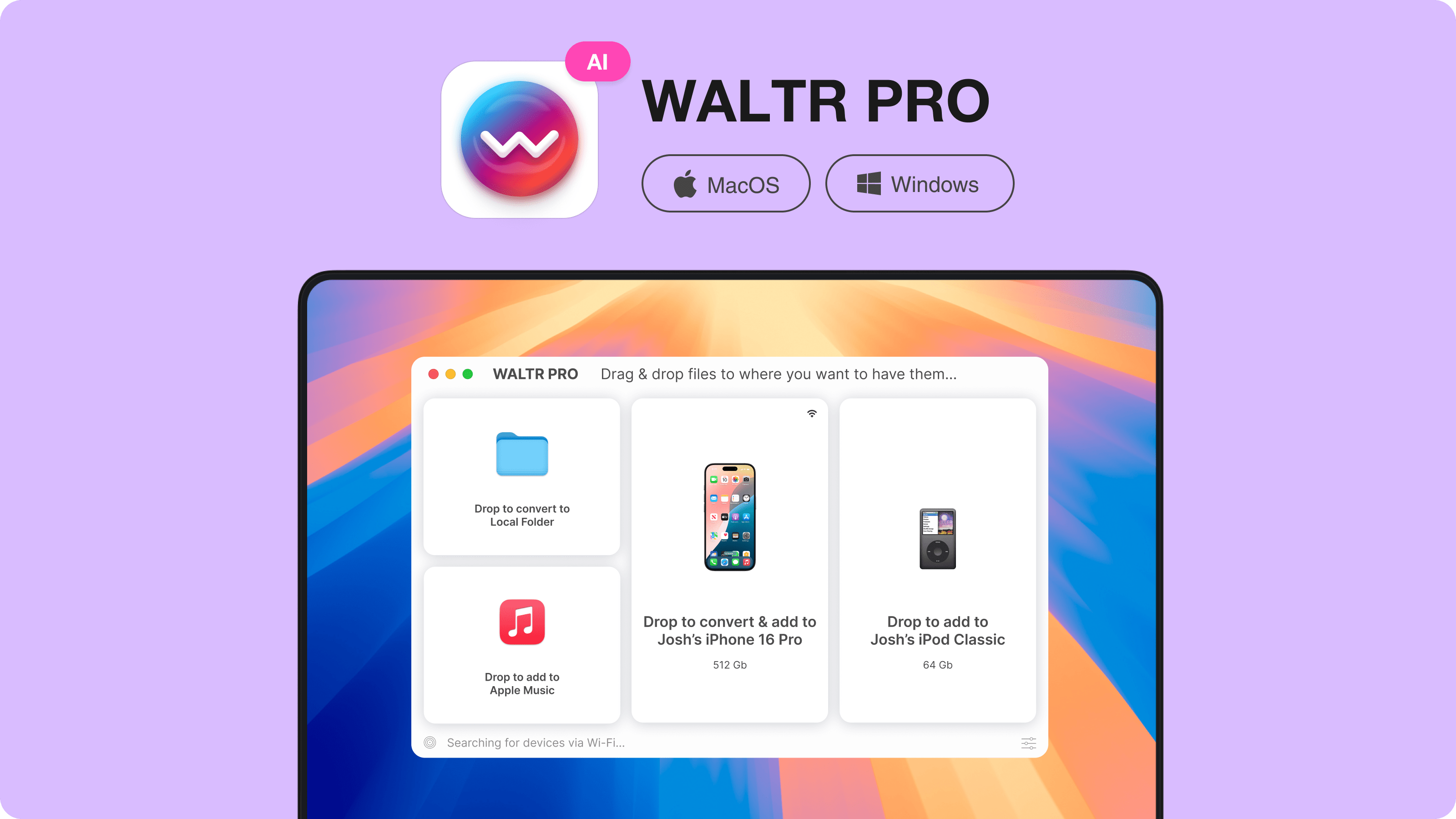
WALTR PRO is the cleanest route when your WMV file is on a Mac or Windows computer and you want it on your iPhone or iPad. You do not need to choose codecs, export presets, or “sync” a library like it is 2009.
WALTR PRO supports WMV and many other video formats, then transfers the final file into Apple-native apps such as Apple TV, Apple Music, or Apple Books depending on the file type.
Step 1. Download and install WALTR PRO
Download WALTR PRO on your Mac or Windows PC. Install it like any normal desktop app.
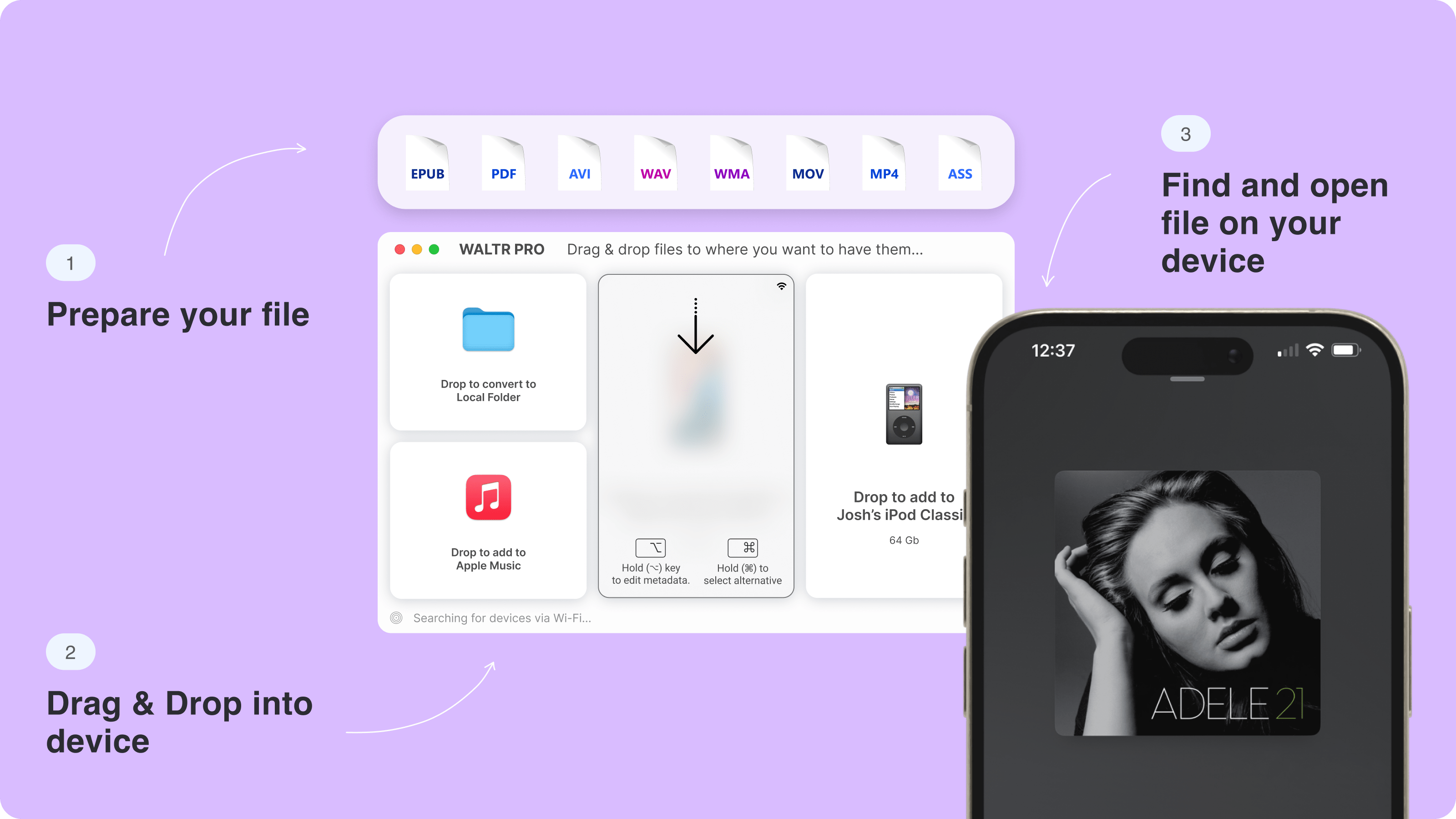
What you need:
- A Mac or Windows computer.
- Your iPhone or iPad.
- A USB cable, or Wi-Fi transfer after setup.
- The WMV file you want to watch.
You do not need iTunes. You do not need an online converter. You do not need to know whether H.264, H.265, or MPEG-4 is the right answer this week.
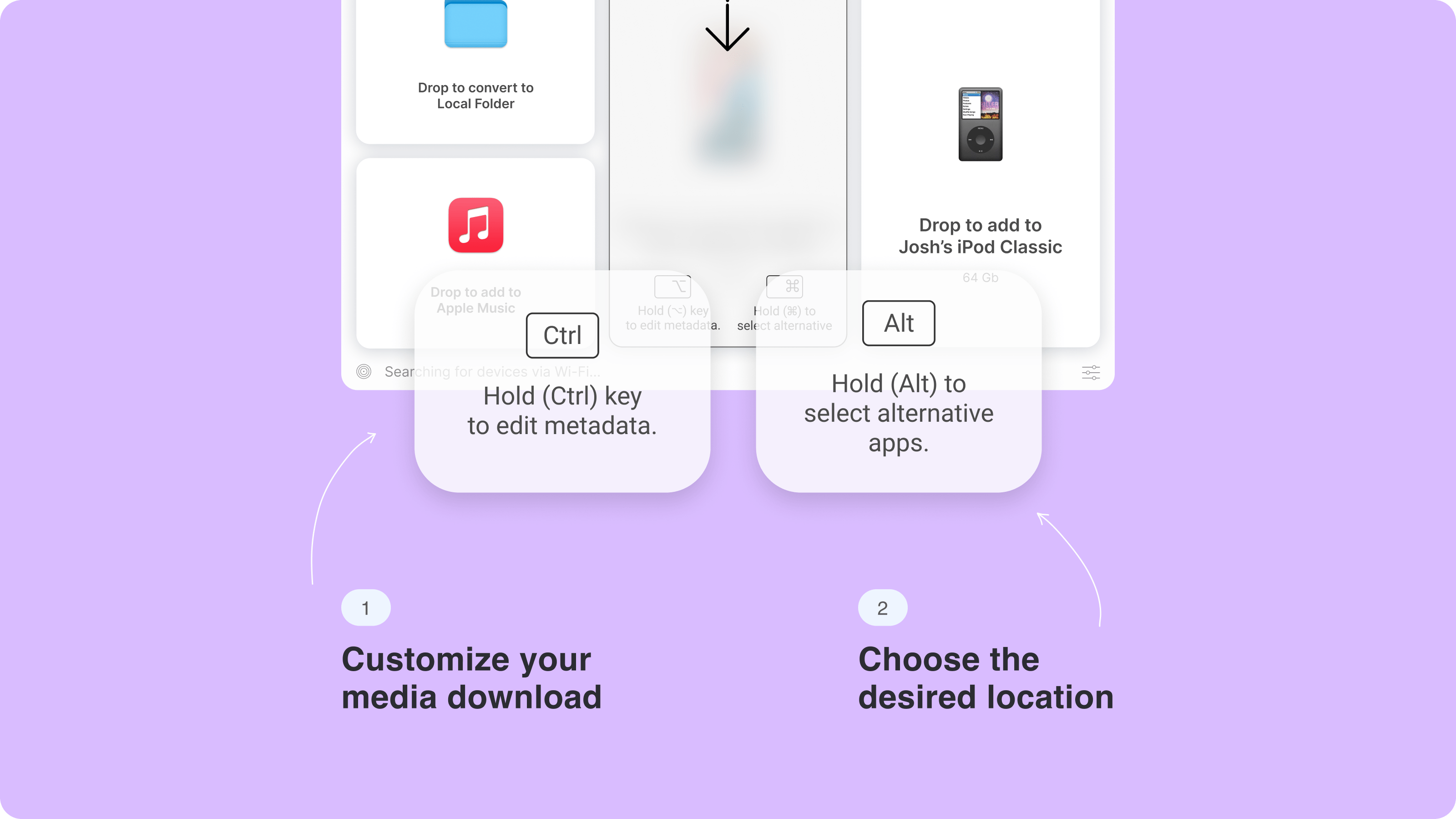
Step 2. Connect your iPhone or iPad
Open WALTR PRO and connect your device over USB. The app should detect the iPhone or iPad and prepare it for transfer.
After the first setup, WALTR PRO can also use Wi-Fi transfer. USB is still the simplest path if you have a large WMV file or a movie-length video.
Step 3. Drop the WMV file into WALTR PRO
Drag the . wmv file into the WALTR PRO window. WALTR PRO converts and transfers the file for iPhone playback behind the scenes.
When the transfer finishes, open the Apple TV app on your iPhone or iPad. Your video should be there, ready to watch.
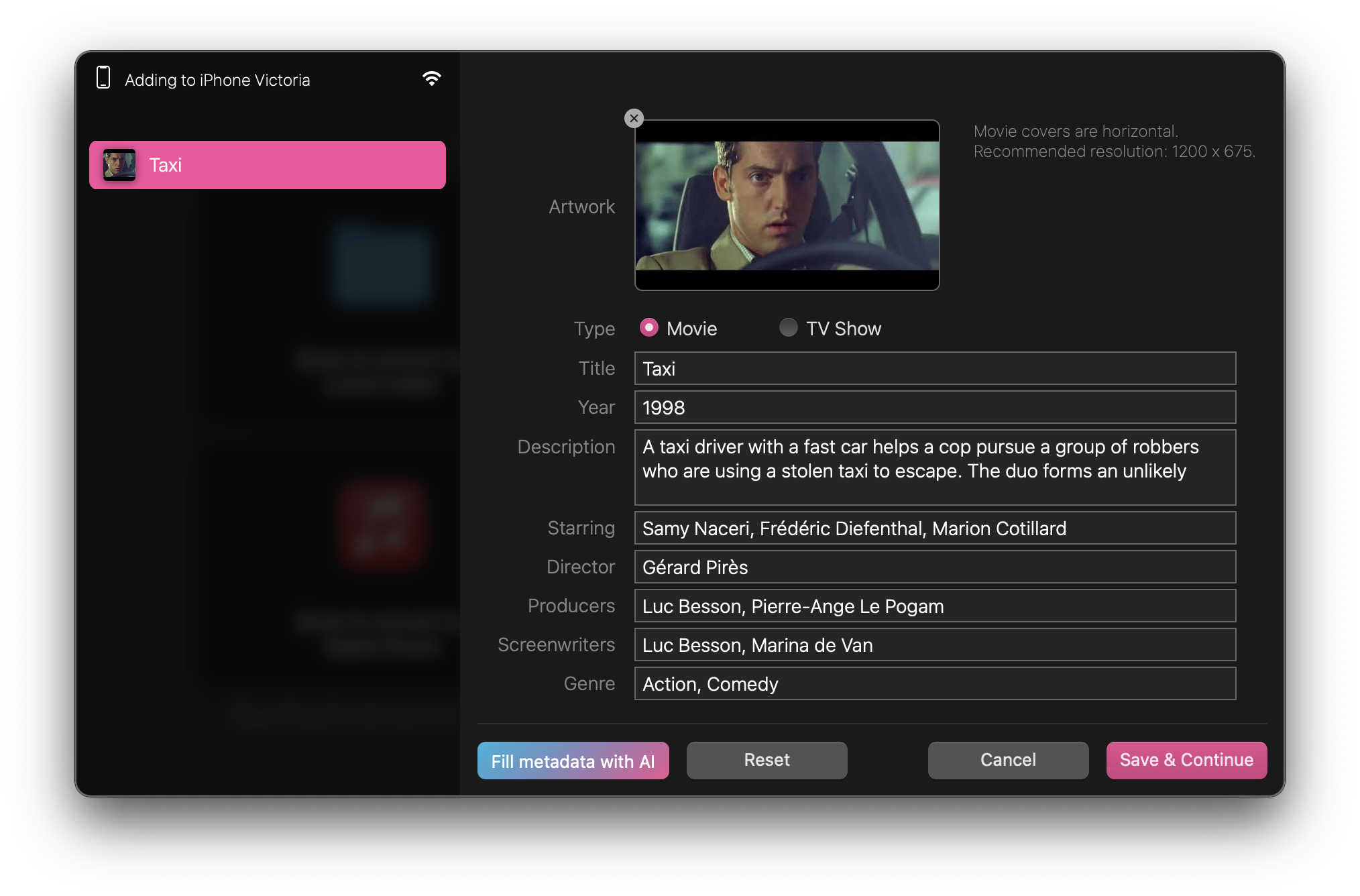
Optional. Edit metadata before transfer
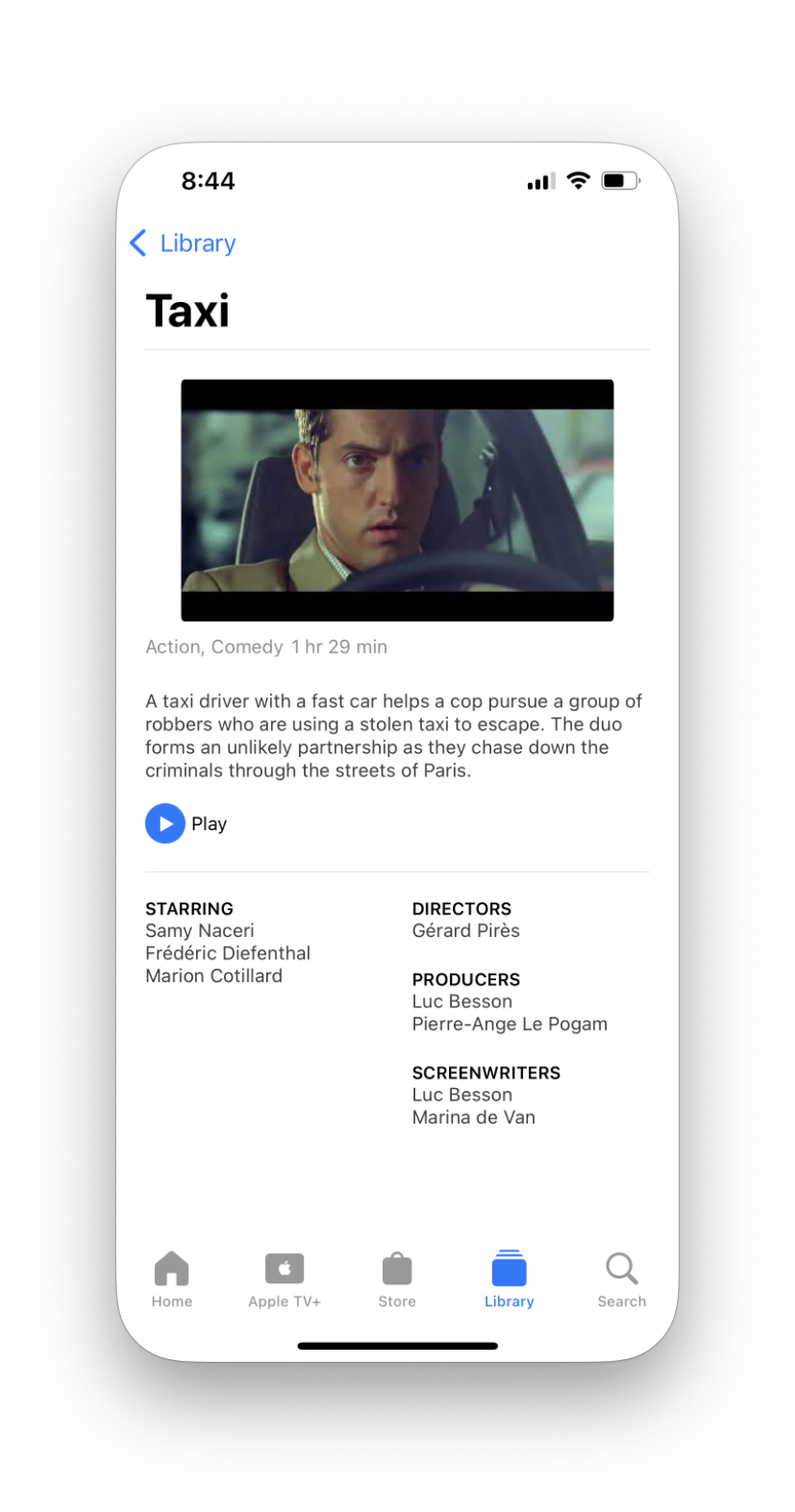
If you want cleaner titles, artwork, or file details, WALTR PRO can help fill in metadata before the file lands on your iPhone. Keep this step optional. Playback matters more than a perfect poster image.
This is where WALTR PRO beats a basic converter. A converter gives you an MP4. WALTR PRO handles conversion, transfer, and native-app placement in one workflow.
Why this works better than manual conversion
Manual WMV conversion usually means you do 4 jobs:
- Find a converter.
- Choose MP4 output settings.
- Wait for the file to convert.
- Move the converted file to your iPhone through Finder, iTunes, Files, AirDrop, or cloud storage.
WALTR PRO removes most of that. You drop the WMV file into the app, and WALTR PRO handles the iPhone transfer path for you.
It is also safer for private videos than an online converter because your file stays on your own computer. That matters if the WMV is a work clip, old family video, medical file, client recording, or anything else you should not upload to a random conversion site.
How to play WMV on iPhone with VLC
VLC for Mobile is the best free option if you only need to play WMV inside a separate app. It supports many video formats and does not require you to convert the file first.
Use VLC when the goal is quick playback, not native Apple TV library placement.
- Install VLC for Mobile from the App Store.
- Move the WMV file to your iPhone through Files, iCloud Drive, AirDrop, Wi-Fi sharing, or another VLC-supported import path.
- Open the file inside VLC.
- Watch the video inside VLC’s own library.
VLC is a fair answer. It is especially useful if a friend sent you a small WMV and you need to check it once.
The tradeoff is workflow. The video stays in VLC, not in the native Apple TV app. If you want your iPhone video library to stay clean, or you want the file transferred from a computer without juggling import paths, WALTR PRO fits better.
How to convert WMV to MP4 for iPhone online
Online WMV converters can work for small, non-private clips. You upload the WMV, choose an iPhone-friendly output such as MP4, wait for conversion, then download the converted file.
That path is fine for a throwaway clip. It is not great for large files or private footage.
Online converters usually add 4 problems:
- You upload the source video to a third-party website.
- Free plans often have file-size limits.
- Conversion quality depends on settings you may not want to touch.
- After conversion, you still need to move the MP4 onto your iPhone.
If you use this route, choose MP4 with a broadly compatible video format. Then transfer the converted file through Files, AirDrop, iCloud Drive, Finder, or another path your setup supports.
For private videos, skip the upload. Use WALTR PRO or a local desktop converter instead.
WALTR PRO vs VLC vs online converters
The honest answer is not “one app wins every situation.” The right method depends on the file and where you want the video to live.
Need | Best choice | Why |
|---|---|---|
Open one WMV quickly | VLC | It plays WMV inside a free third-party player. |
Put WMV in the Apple TV app | WALTR PRO | It converts and transfers from Mac/Windows into the native Apple playback path. |
Avoid iTunes or Finder syncing | WALTR PRO | It handles transfer without Apple’s old media-sync workflow. |
Avoid web uploads | WALTR PRO or VLC | The file stays local. |
Convert a tiny non-private clip | Online converter | Good enough when privacy and file size do not matter. |
Keep a normal iPhone media library | WALTR PRO | The video does not sit inside a separate player app. |
If you are solving a one-time playback problem, VLC is hard to argue with. If you want a repeatable way to move WMV, MKV, AVI, MP4, and other videos to iPhone or iPad, WALTR PRO is the better long-term tool.
You can also use WALTR PRO for related iPhone transfer jobs, such as moving MP4 videos to iPad or getting other non-Apple video formats onto iPhone without iTunes. For users who handle files often, Softorino Universal License can make more sense than buying one utility at a time.
Troubleshooting WMV playback on iPhone
WMV playback can still fail if the file has problems or the transfer path is wrong. Use this checklist before blaming the iPhone.
The WMV file still will not open
Try the same file on your computer first. If the file will not play on Windows or Mac with a compatible player, the WMV may be damaged.
If it plays on your computer but not your iPhone, the issue is format support or transfer path. Use VLC for direct playback, or use WALTR PRO to convert and transfer the file for Apple playback.
Audio plays but video does not
This usually points to a codec mismatch. WMV is a container and codec family, so one WMV file can behave differently from another.
Convert the file to MP4, or use WALTR PRO to handle the conversion during transfer. If you convert manually, use a broadly compatible MP4 output instead of guessing at advanced settings.
The WMV file is huge
Use USB transfer for large videos. Wi-Fi and cloud transfer can work, but they add more ways for the transfer to stall.
Large files also make online converters worse. Uploading a movie-length WMV can take longer than the conversion itself, and many free converters cap file size.
The file is protected or DRM-locked
A protected WMV file may not convert or play correctly in third-party apps. WALTR PRO can transfer normal media files, but it cannot remove DRM from protected videos.
If the video came from an old paid download, corporate system, or protected training library, check the original source for an iPhone-compatible version.
The video is on your iPhone already
If the WMV is already in Files, Mail, or a cloud app, VLC is the fastest option. Use “Open in” or the Share menu to send the file to VLC.
If the WMV is still on your computer and you want it in the Apple TV app, use WALTR PRO instead. That avoids the loop of upload, download, import, and hope.
FAQ
Can I play WMV files on iPhone without converting?
Yes, but not in Apple’s default video apps. You can play WMV on iPhone without converting by using a third-party player such as VLC. If you want the file in the native Apple TV app, convert or transfer it into an iPhone-compatible format with a tool like WALTR PRO.
What is the easiest way to convert WMV to MP4 for iPhone?
The easiest way is WALTR PRO if the WMV is on your Mac or Windows PC. Drop the WMV into WALTR PRO, connect your iPhone or iPad, and let the app convert and transfer the file for Apple playback.
Is VLC safe for playing WMV on iPhone?
VLC is a widely used media player and a practical free option for direct WMV playback. The main downside is not safety; it is workflow. Your video plays inside VLC’s separate library instead of the native Apple TV app.
Do I need iTunes to transfer WMV to iPhone?
No. WALTR PRO transfers WMV to iPhone without iTunes or Finder syncing. VLC can also avoid iTunes depending on how you import the file, such as through Files, iCloud Drive, AirDrop, or Wi-Fi sharing.
Can iPad play WMV files?
The same rules apply to iPad. iPadOS does not reliably play WMV through Apple’s default media apps, so use a WMV player app or convert and transfer the file to an iPad-friendly format like MP4.
Is an online WMV converter safe?
An online converter is fine for small, non-private clips. Do not upload private, work, client, medical, or family videos to a random web converter. Use a local tool such as WALTR PRO when privacy matters.
Bottom line
If you need to play one WMV on iPhone right now, install VLC and open it there. Fast. Free. Separate app.
If you want the WMV transferred from Mac or Windows into your iPhone’s normal Apple TV app, use WALTR PRO to transfer WMV to iPhone without iTunes. Drop the file in, let WALTR PRO handle the conversion, and watch it on your iPhone or iPad.
For more Apple video headaches, see Softorino’s guide on how to play WMV on Apple TV. Same file-format nonsense. Different screen.

WALTR PRO
Convert & Push Any File into Any Apple Device
