How Can I Sync Music on My iPod Without iTunes in 2026?

Sync music to iPod without iTunes
Quick answer: You can sync music to iPod without iTunes using an app that adds songs to its music library. Choose WALTR PRO for local files that need conversion, iMazing 3.6 or later for free music addition to a Classic, or CopyTrans Manager for free Windows playlist editing. Check the model first: WALTR PRO and iMazing support Shuffle on Windows only. Start with two MP3 or AAC files, eject safely, then check playback before transferring a large library.
Tool | Best for |
|---|---|
WALTR PRO | Adding local files with conversion on Mac or Windows; Shuffle needs Windows |
iMazing | Free Classic music addition and two-way legacy transfer in version 3.6+ |
CopyTrans Manager | Free music and playlist management on Windows |
Before we begin
Have local music on your computer? Download WALTR PRO to try drag-and-drop transfer on Mac or Windows. Use its trial to check your actual iPod and files before paying. For Shuffle, use the Windows version; WALTR PRO does not support Shuffle on Mac.
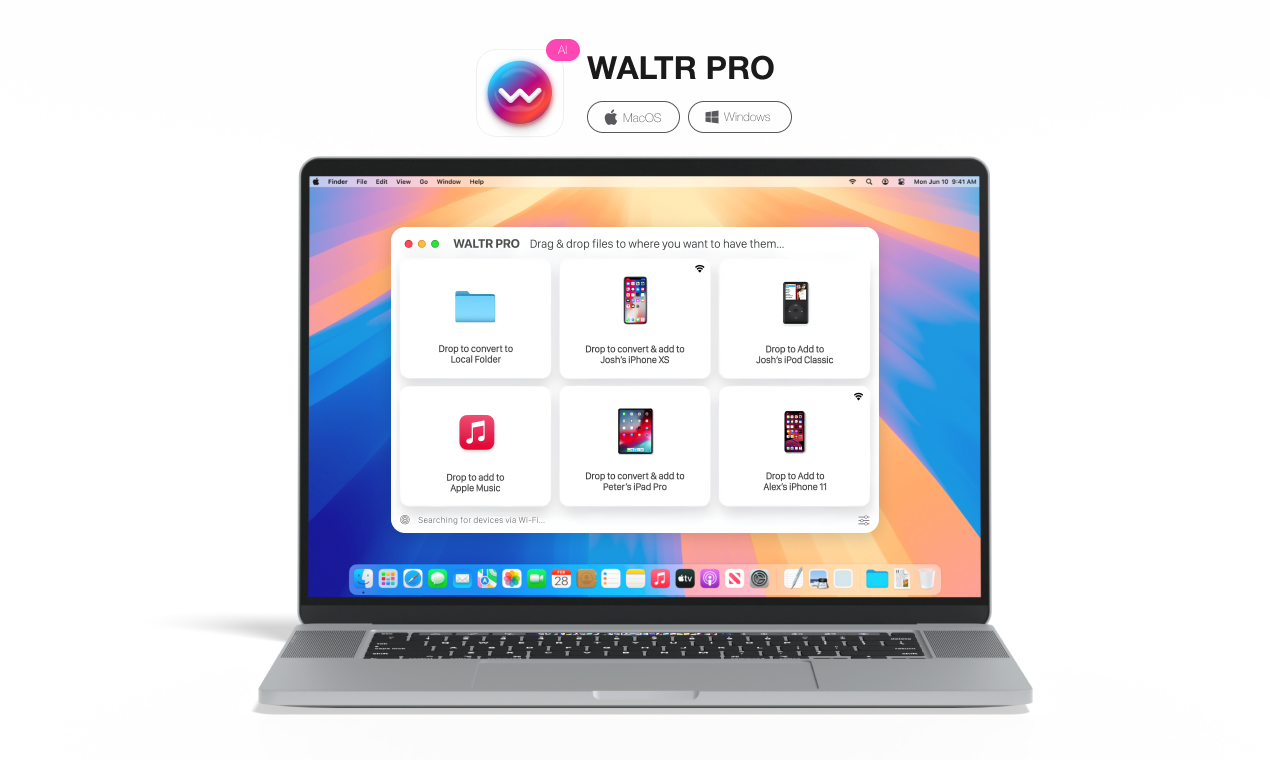
The existing illustration below shows WALTR PRO's desktop transfer interface. It is a product illustration, not evidence of a new test on every iPod generation.
Why listen to us?
Softorino makes WALTR PRO, so this guide includes our own product. We compared current vendor and Apple documentation on October 26, 2026. We did not run new physical-device tests. The recommendations separate device support, transfer direction, file conversion and price. Free alternatives are included where they fit the job better.
Full comparison table
Tool | Computer | Legacy iPod support | Main job | Price model | Important limit |
|---|---|---|---|---|---|
WALTR PRO | Mac, Windows | Classic, Nano; Shuffle on Windows only | Add local files with conversion | 24-hour trial, then paid subscription | Not a verified music-recovery tool |
iMazing | Mac, Windows | Classic, Mini, Nano; Shuffle on Windows only | Add and extract music in 3.6+ | Free Classic addition; other features may be paid | Older versions lack the new inbound legacy support |
CopyTrans Manager | Windows | Vendor lists all iPods, including non-iOS models | Add songs, edit tags and playlists | Free app | No music export to PC; FLAC conversion unconfirmed |
MediaMonkey | Windows 10/11 | Legacy iPods; Touch needs Apple drivers | Manage collections and device sync | Free Standard, optional Gold | Check sync/deletion settings and encoder limits |
Apple Finder | Mac Catalina or later | Apple's connected-iPod sync route | Sync selected music and playlists | Included with macOS | Library-sync rules still apply; Windows legacy route uses iTunes |
Price check: US public pages, October 26, 2026. Free downloads and short trials are different from free licenses. Confirm local taxes, renewal terms and model support before purchase. Details follow in each tool section.
How we evaluated
- Model and desktop OS: Classic, Nano and Shuffle differ from the iOS-based Touch.
- Direction: adding songs, copying songs back and syncing playlists are separate tasks.
- File handling: accepted source formats do not prove native playback on the iPod.
- Cost: free tools, trial limits, recurring plans and one-time upgrades are labeled separately.
- Safety: existing music, sync settings, cable detection and a small test batch come before a whole-library transfer.
We reviewed Apple's device specifications and sync guides, each vendor's support pages, and iMazing's August 2026 release notes. Older roundups and AI answers can miss version-specific changes. No speed rankings or hands-on scores are claimed here.
Quick Takeaways
Choose by iPod model and computer OS before downloading an app.
Use iMazing 3.6+ or CopyTrans Manager when their free music features cover your job.
Try WALTR PRO when local files need conversion during transfer.
Keep Classic, Nano and Shuffle connected by cable; do not apply Touch cloud advice to them.
Back up your local library and check sync settings before a large transfer.
Copying files to an iPod's disk does not add them to its Music menu.
Choose the right iPod method first
iPod Classic and iPod Nano: WALTR PRO and current iMazing support these models on Mac and Windows. CopyTrans Manager and MediaMonkey are Windows options. Confirm the specific generation and installed app version if detection fails.
Shuffle: WALTR PRO and iMazing restrict support to Windows. On Mac, start with Apple's connected-device workflow rather than buying one of those apps for Shuffle. The cable and connector vary by generation; a Classic cable is not a universal iPod cable.
Touch: This iPod runs iOS. It can use some phone-style app and cloud workflows, but OS and app availability vary. That advice does not transfer to a click-wheel Classic or a Shuffle.
WALTR PRO -- add local music with conversion
WALTR PRO suits files that need a simpler transfer route. Drop local songs into the app instead of building an iTunes sync library. The vendor lists MP3, AAC, FLAC, AIFF and WAV among its inputs. Conversion can help when the source format is not playable on the target device.
WALTR PRO key features
- Drag-and-drop local music transfer from Mac or Windows.
- Format conversion during transfer where needed.
- Metadata editing for artist, album and track information.
WALTR PRO pros
- Useful for a folder of local music, without a full Apple library sync.
- Handles a conversion-and-transfer workflow in one app.
WALTR PRO limitations
- Shuffle works only with the Windows version.
- The trial is time-limited; continued use needs a paid license.
- Windows detection can still need Apple drivers or iTunes components. Avoid promising a computer with no Apple software at all.
- Music extraction back to your computer is not established by the sources reviewed here.
WALTR PRO pricing
WALTR PRO offers a 24-hour trial. The US store showed a $0.99 first-day promotion, followed by $7.50/week billed monthly or $3.46/week billed annually under Universal License. Checked October 26, 2026.
Those are the store's displayed units, not verified checkout totals. Check the full renewal charge; the first-day offer is not a lifetime price.
Who WALTR PRO is best for
Choose WALTR PRO for local files on Mac or Windows, especially when you need conversion as well as transfer. For a few compatible tracks and no budget, try the free features of CopyTrans Manager or current iMazing first. For a large managed collection, compare MediaMonkey's sync controls.
Basic WALTR PRO workflow
- Install and open WALTR PRO on your computer.
- Connect a supported iPod with its data cable.
- Drop two MP3 or AAC files into the app.
- Wait for transfer to finish, then eject safely.
- Check the songs on the iPod before sending a whole album.
WALTR PRO starts with local files. Softorino YouTube Converter starts with a supported online source you are allowed to download. Choose the tool for the source you actually have.
How to Sync Music to iPod Without iTunes on Mac or Windows
Start small when you sync music to iPod without iTunes. Open WALTR PRO and connect a supported iPod before moving a big library. A tiny test transfer saves you from guessing whether the cable, device, format, or metadata caused a problem.
Step 1. Connect your iPod by cable
Plug the iPod into your Mac or Windows PC with the correct cable. Classic, Nano and Shuffle use a cable for this job. Match the connector to your generation. Shuffle needs WALTR PRO on Windows; it is not supported by the Mac version.
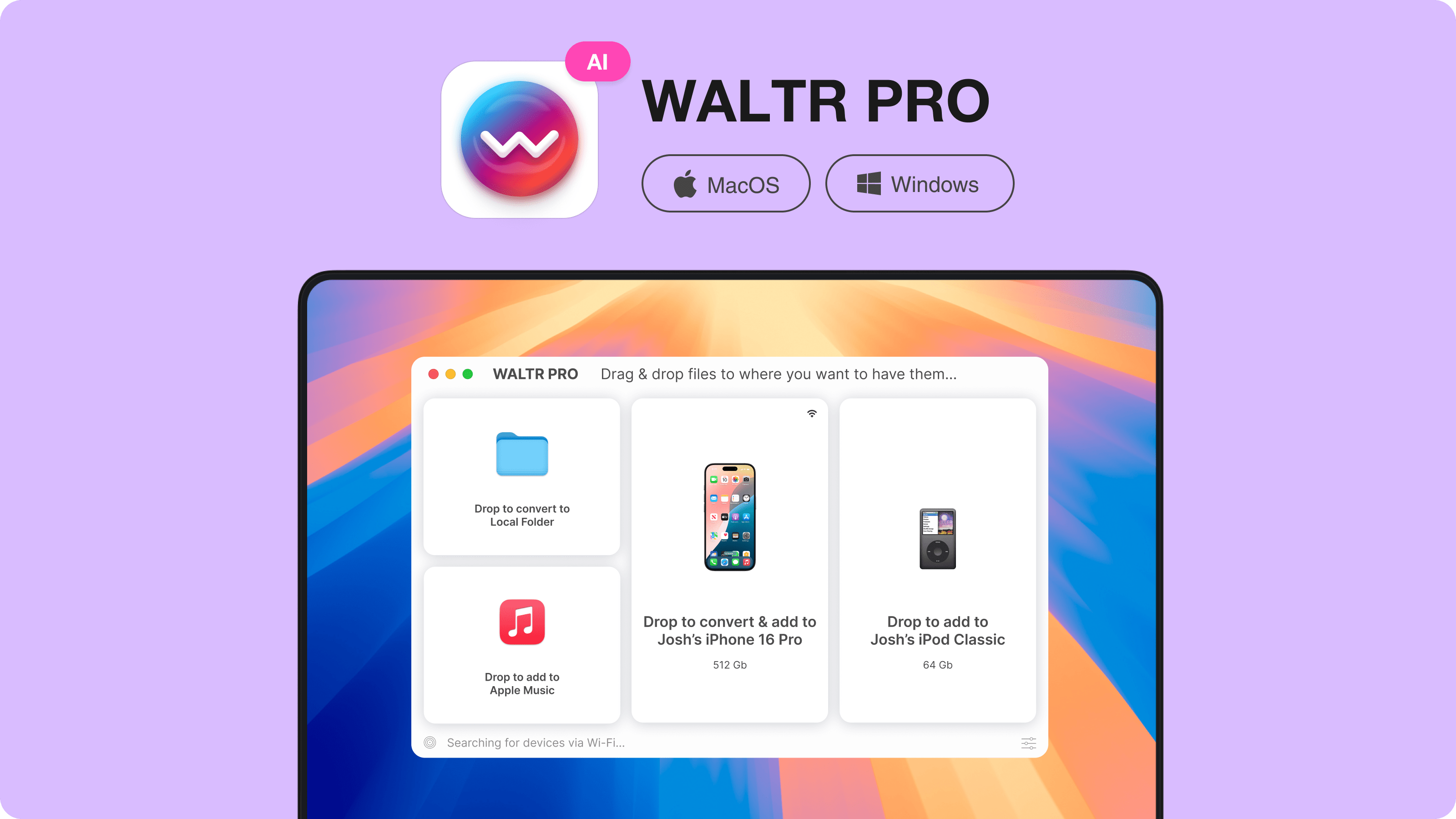
For Touch, start with a cable and approve a trust prompt if shown. The existing desktop illustration below shows the app, not a new connection test.
Step 2. Open WALTR PRO and wait for the device
Open WALTR PRO and give it a moment to detect the iPod. If the app does not see the device, try a different USB port, skip the USB hub, or swap the cable. Check the vendor driver instructions if a working cable does not solve detection.
Do not start with a 400-song folder. Drag in 2 test MP3 or AAC files first. If those tracks appear under Music, your connection works and you can move on to formats, albums, and bigger folders.
Step 3. Drag songs, albums, or folders into WALTR PRO
Select the music you want to add and drag it into WALTR PRO. The app starts the transfer without forcing a full Apple Music or iTunes sync. That matters if you only want to add a few songs to an old iPod, not reorganize the whole device.
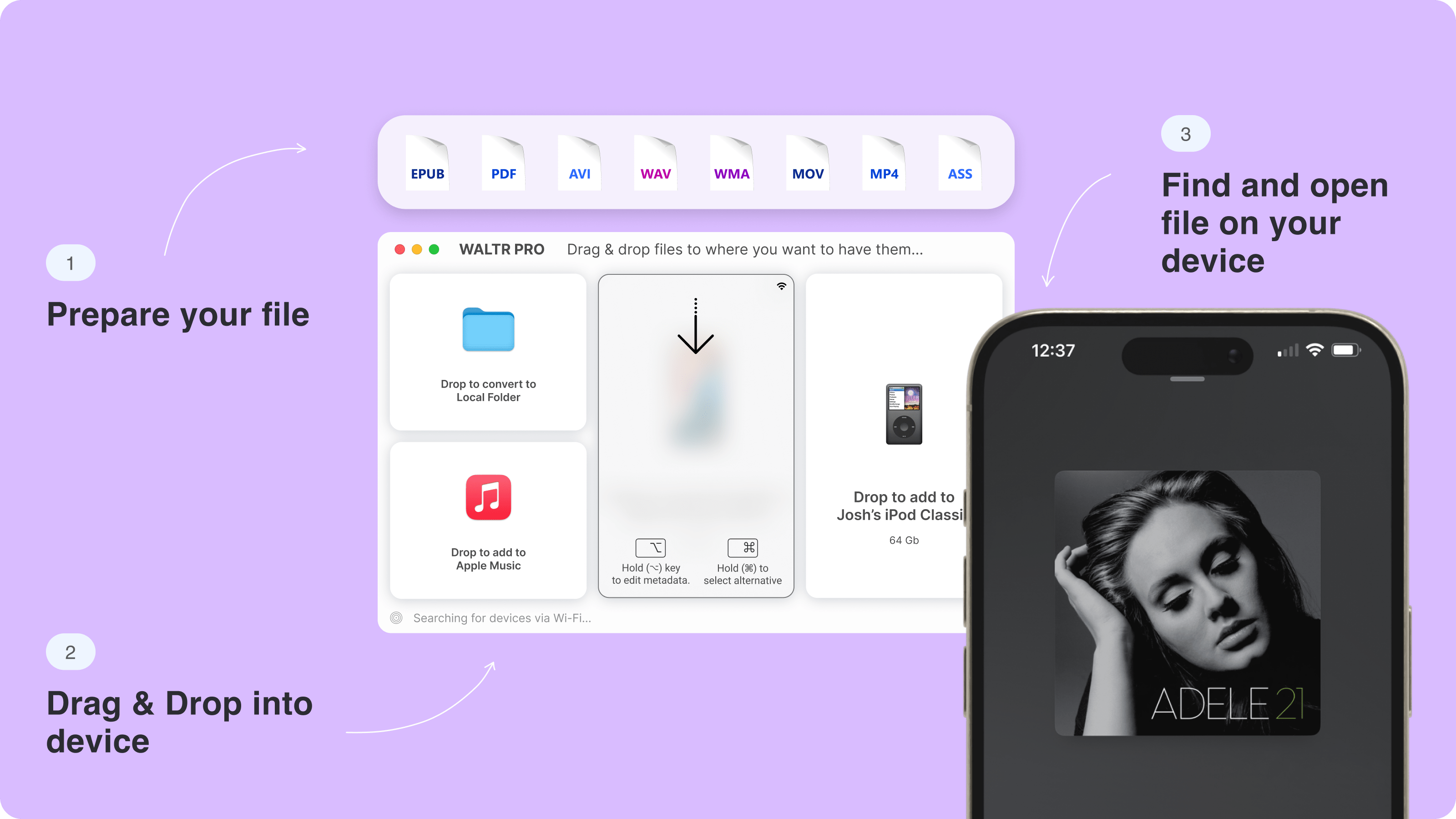
Use folders when your metadata is clean. Use smaller batches when your library is messy. Older iPods browse by artist, album and track, so bad tags make songs hard to find. The graphic below illustrates drag-and-drop transfer. Its phone image is not an iPod screen or proof that every pictured file type plays on Classic.
Step 4. Let WALTR PRO handle format conversion
Apple's iPod Classic specs list AAC, Protected AAC, MP3, MP3 VBR, Audible formats, Apple Lossless, AIFF, and WAV as supported audio formats. MP3 and AAC are the safest everyday choices. Apple Lossless, AIFF, and WAV also fit the classic Apple-device format world.
FLAC is the format that trips people up. FLAC is great for archiving, but Apple does not list FLAC as a native iPod Classic playback format. If your library includes FLAC, transfer through WALTR PRO so the app can handle the Apple-friendly workflow, or convert FLAC to Apple Lossless or AAC before transfer.
The existing graphic below shows optional metadata and destination controls in WALTR PRO. It does not prove a particular conversion codec. Choose the connected iPod as the destination; an alternate iOS app destination is not an option on a Classic.
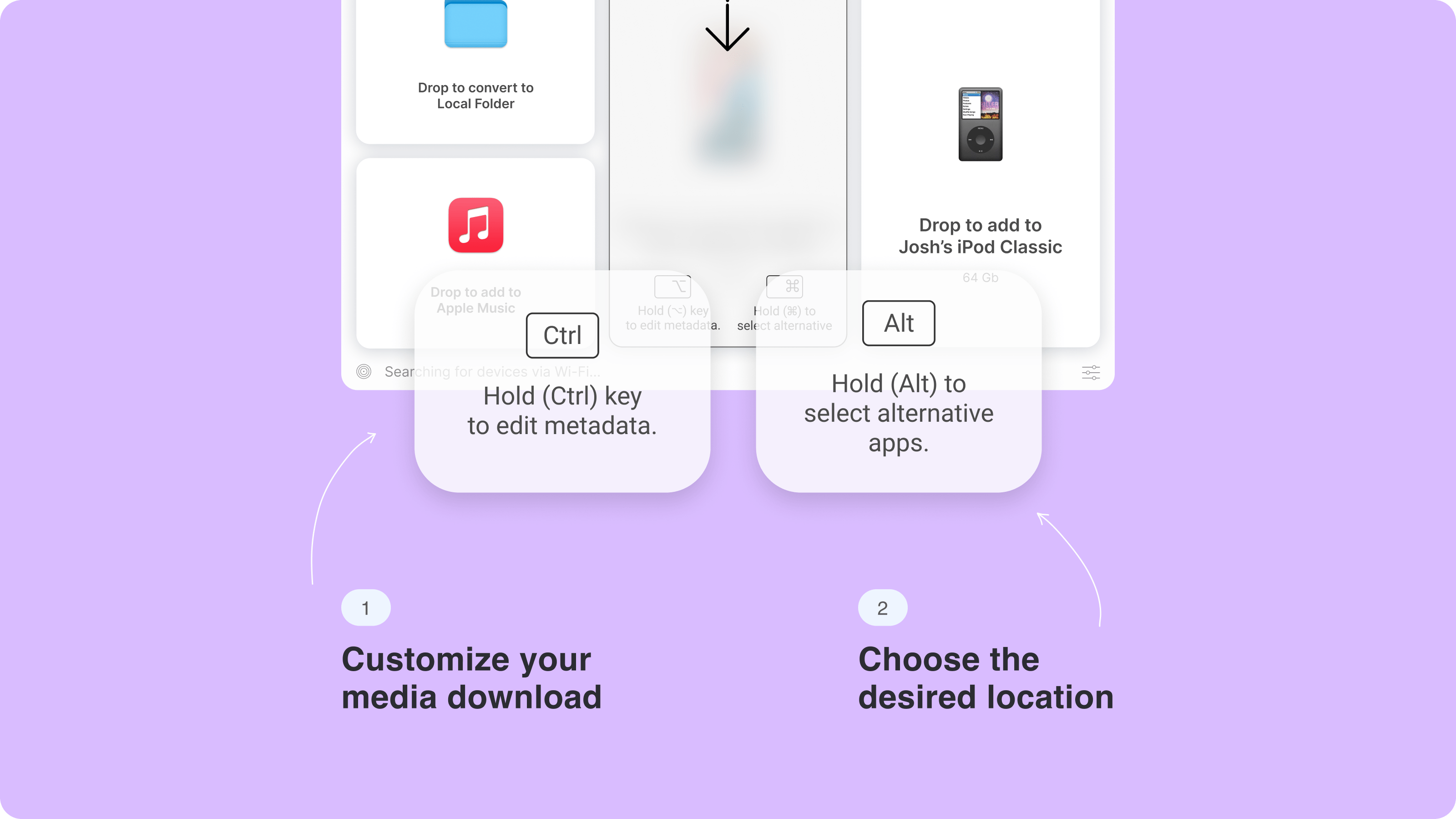
Step 5. Check the iPod Music library
When transfer finishes, eject the iPod safely and check its Music library. Confirm playback, artist, album and track names. The illustration below shows WALTR PRO metadata editing on the computer, not the iPod Music screen.
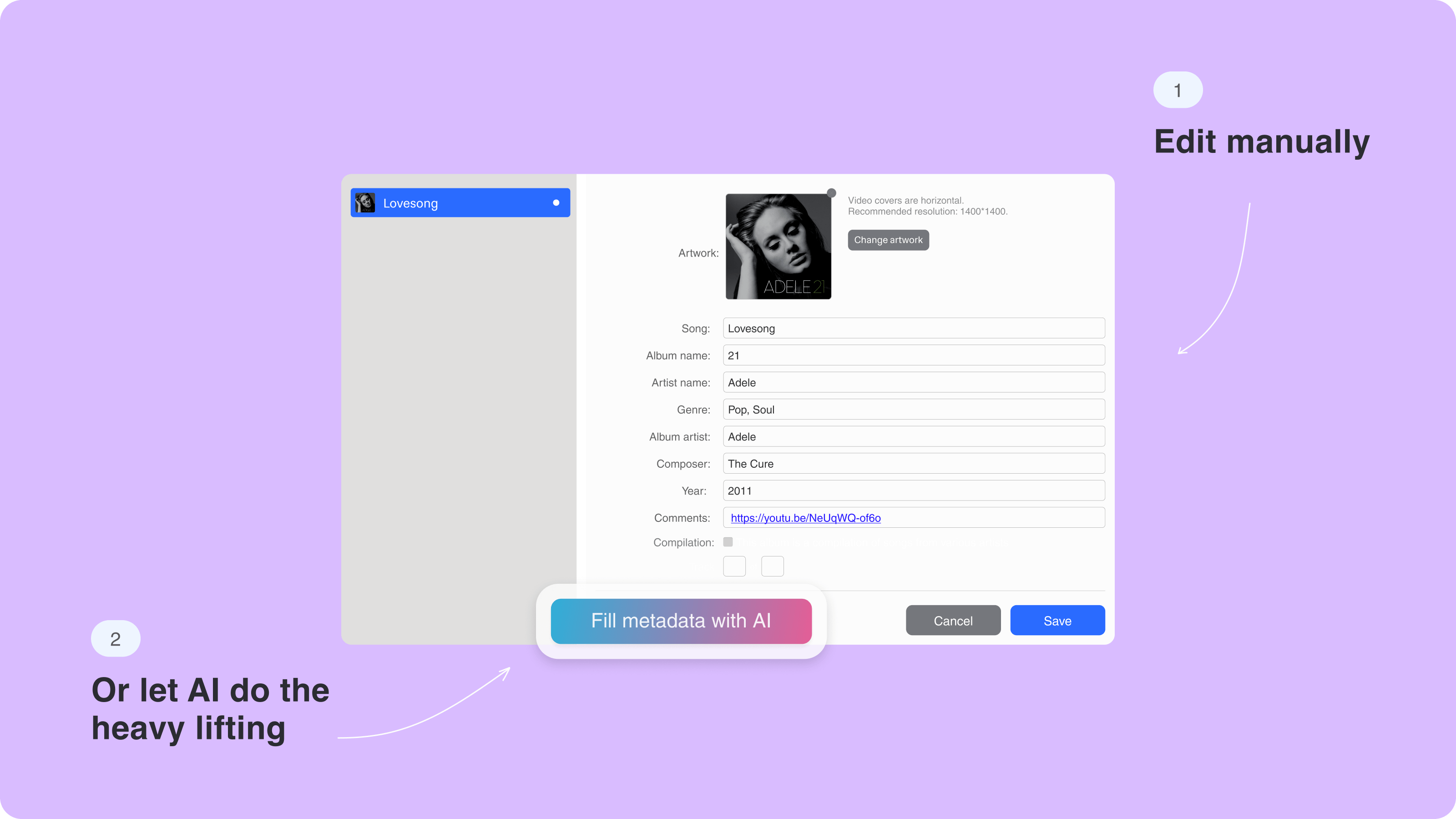
If songs appear but the tags look wrong, correct the metadata on your computer. Check how your chosen app handles existing tracks before adding another copy. Clean metadata matters more on iPod Classic, Nano, and Shuffle because browsing is built around simple library fields.
Why manual disk mode is not the same as adding songs
Disk storage and music playback are different jobs. Some iPods can act as external storage, but copying an MP3 into a random folder does not register it in the Music library. A library-aware transfer app writes the information the player needs.
Do not confuse Apple's manual music management with raw disk copying. The former manages playable library items. The latter can leave a file stored on the device but absent from the song list. For a large library, check sync and deletion settings before you apply changes.
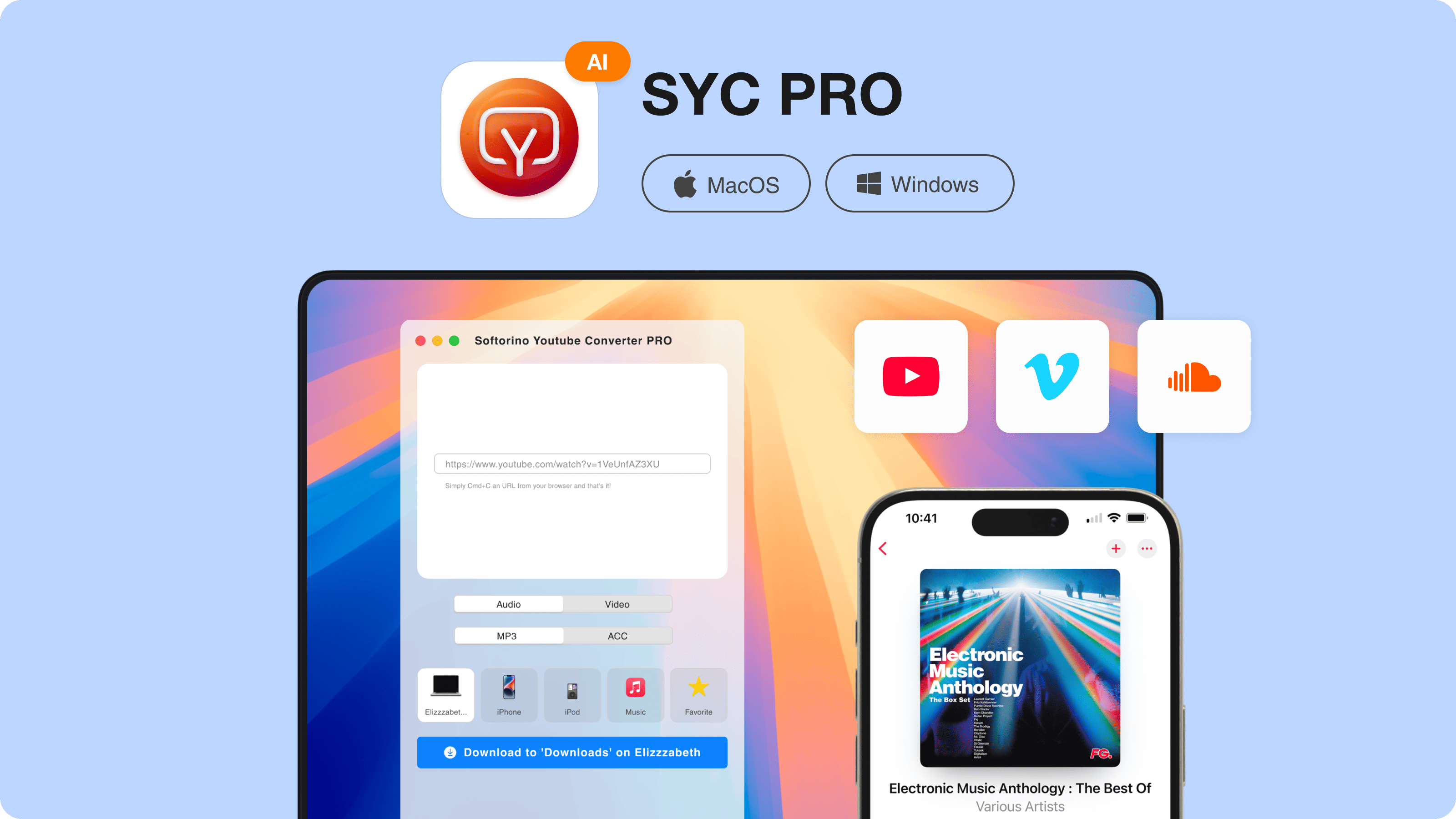
The next product illustration introduces a different source: permitted online audio. It shows Softorino YouTube Converter, not a disk-mode import method.
If the music starts online, use a download workflow
Local music and online downloads need different first steps. Softorino YouTube Converter can save supported online audio or video when you have permission to download it. The current product page offers Mac and Windows versions. It does not turn a streaming subscription into ownership of the files.
For an old iPod, save permitted audio to the computer first, then use a model-compatible transfer route. Do not infer Classic, Nano or Shuffle support from an illustration of an iPhone destination. If you already have the local MP3 or AAC, skip the download step.
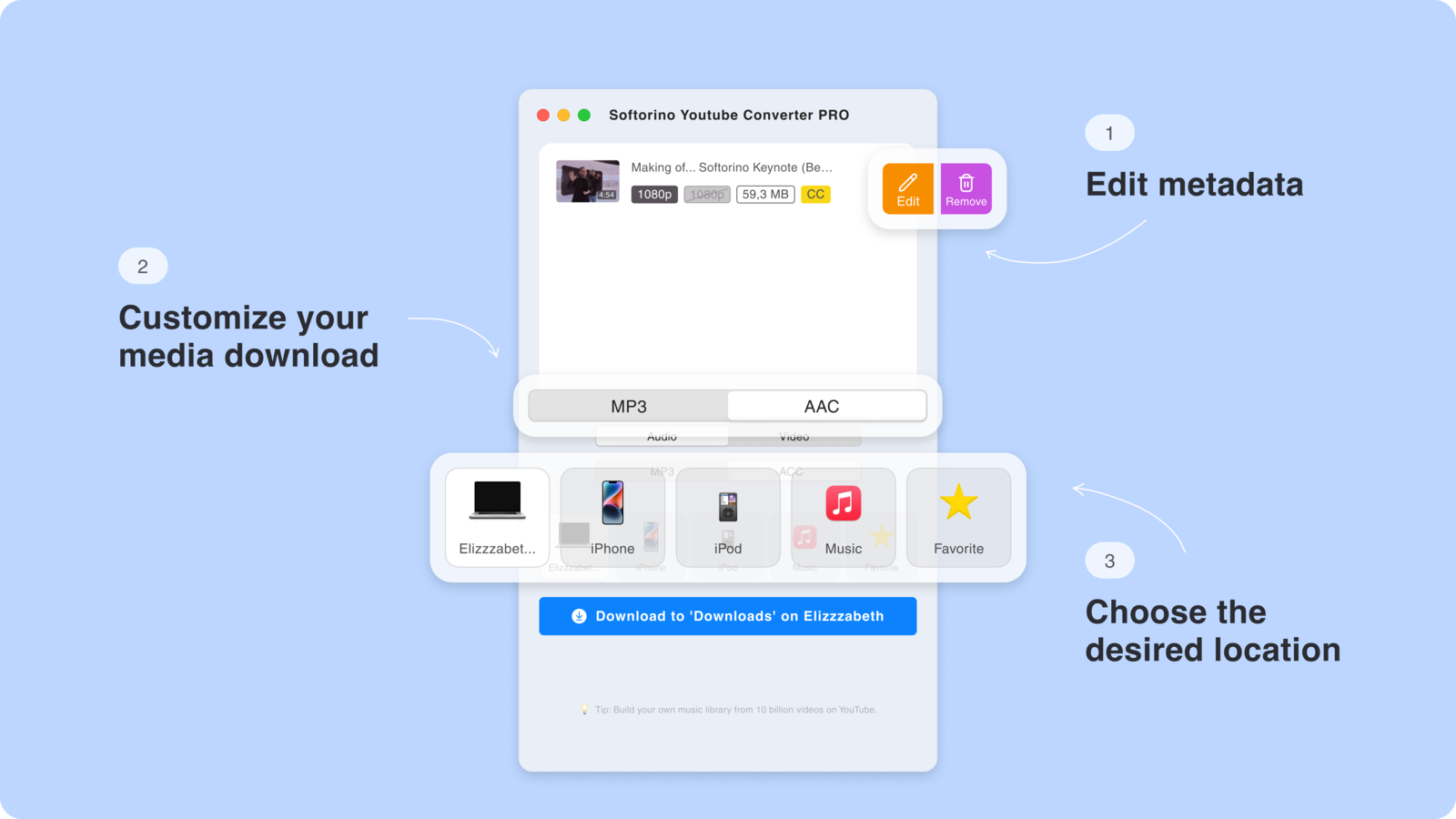
The existing illustration below shows output and metadata controls for the download workflow. It is not evidence of a new legacy-iPod compatibility test.
Other iTunes alternatives for iPod
The following tools solve different parts of the same job. Choose the direction of transfer first. Adding new music to an iPod is not the same as rescuing the only copy of an old collection from it.
iMazing -- free Classic addition in version 3.6+
iMazing is now a real option for adding music to a Classic. Version 3.6 added inbound music transfer for non-iOS iPods in August 2026. Earlier versions could extract from those models but could not add music. Advice based on that older restriction is out of date.
iMazing key features
- Music transfer to and from Classic, Mini and Nano on Mac and Windows.
- Shuffle support on Windows only.
- A separate broader set of iPhone and iPad management features.
iMazing pros
- The vendor describes Classic music addition as free.
- Two-way legacy transfer helps when you need music back on the computer as well as new songs on the device.
iMazing limitations
- Requires version 3.6 or later for the newer inbound legacy-iPod support.
- Does not support Shuffle on Mac.
- Accepted input formats do not establish the final codec on every iPod. Do not assume native FLAC playback.
iMazing pricing
The August 2026 release announcement calls adding music to iPod Classic free. Other iMazing features can require a paid annual subscription. A current US subscription total could not be verified from the store, so no dollar figure is quoted. Its generic media trial limits should not be assumed to override the specifically advertised free Classic feature. Review date: October 26, 2026.
Who iMazing is best for
Choose current iMazing if you want free Classic music addition or also need to copy music off a supported legacy iPod. Check the exact operation in your installed version. An old iMazing installer does not gain the 3.6 feature just because a current guide describes it.
Source: iMazing's August 2026 legacy-iPod release explanation, https://imazing.com/blog/music-to-ipod-classic-transfer-both-ways-with-imazing-3-6.
CopyTrans Manager -- free Windows playlist editing
CopyTrans Manager is a useful free Windows option. It adds songs and edits playlists and track information. The vendor lists all iPod models, including non-iOS devices. It is a different product from the paid CopyTrans extraction tool.
CopyTrans Manager key features
- Computer-to-iPod music addition.
- Playlist management and metadata editing.
- Support for common audio inputs such as MP3, AAC, M4A, AIFF and WAV.
CopyTrans Manager pros
- Free app rather than a time-limited trial.
- Useful when you want to edit a playlist as well as add songs.
CopyTrans Manager limitations
- Windows only; no Mac version for this workflow.
- Does not export music from the device back to the PC.
- Automatic FLAC conversion is not verified. Convert to a model-compatible format first if needed.
CopyTrans Manager pricing
CopyTrans Manager is free, checked October 26, 2026. The separately named CopyTrans product handles music export. Do not buy an extraction tool when all you need is the free Manager's inbound function.
Who CopyTrans Manager is best for
Choose CopyTrans Manager for free Windows music and playlist editing. Its page lists Windows 11, 10, 8.1 and 7; confirm the installer on an older machine. Choose another tool if you use a Mac, need device-to-PC recovery, or need a verified conversion workflow.
Sources: the CopyTrans Manager product page and the support article “Troubleshooting steps” at copytrans.net. Reviewed October 26, 2026.
MediaMonkey -- manage a larger Windows collection
MediaMonkey fits a music library that needs ongoing management. It combines library organization with device syncing. That is useful when playlists and tags matter more than the shortest route for two songs. Its current Windows version supports Windows 10 and 11.
MediaMonkey key features
- Music-library, tag and playlist management.
- USB synchronization with supported Apple devices.
- Preconfigured conversion in Standard; custom conversion settings in Gold.
MediaMonkey pros
- Free Standard tier covers common library tasks.
- More sync control for a collection that changes often.
MediaMonkey limitations
- Review sync and deletion settings before applying them to an existing iPod library.
- Touch and other iOS devices need Apple drivers. Most non-iOS iPods do not require iTunes for this route.
- Apple-device music synchronization is one-way to the device. Separate copying back is not reverse library sync.
- Some encoding functions have trial or purchase limits.
MediaMonkey pricing
The US page lists free Standard, Gold at $39.95 with 2024.x upgrades, and Lifetime Gold at $99.95. These are purchase options, not monthly subscription prices. Checked October 26, 2026. M4A and certain video encoders have a 30-day limit unless purchased; do not assume every conversion stays free.
Who MediaMonkey is best for
Choose MediaMonkey when you want to manage tags, playlists and a larger Windows collection in one place. For a single album, a simpler transfer app may need less setup. For lossless audio, check the actual output format and encoder support instead of treating every conversion as equivalent.
Sources: MediaMonkey for Windows and the “iPod Synchronization” help page at mediamonkey.com. Reviewed October 26, 2026.
Apple Finder -- the no-extra-app Mac route
Finder can sync an iPod without the iTunes app on newer Macs. Apple directs macOS Catalina and later users to Finder. Older Macs use iTunes. This route still follows Apple's library-sync model, so review the selected content and any replacement warning before proceeding.
Apple Finder key features
- Connected-device music synchronization in macOS.
- Selection of music and playlists rather than ordinary disk copying.
- An Apple-supported route without a separate transfer-app purchase.
Apple Finder pros
- Included with compatible macOS versions.
- Useful when your music is already organized in Apple's library.
Apple Finder limitations
- Mac only. Apple's Windows guidance still names iTunes for Classic, Nano and Shuffle.
- Sync settings and library association can affect existing content.
- Protected subscription downloads are not general-purpose audio files for old iPods.
Apple Finder pricing
Finder is included with macOS at no extra app charge. Apple's iTunes software is also free where it is the supported route. Neither requires an Apple Music subscription to sync music files you already own. Review date: October 26, 2026.
Who Apple Finder is best for
Choose Finder if you use a newer Mac and want Apple's built-in route. It is also the first route to check for a Mac-connected Shuffle, which WALTR PRO and iMazing do not support on Mac. On Windows, iTunes is a free fallback for legacy iPods, but it is not an iTunes-free Windows alternative.
Apple's general PC guidance also mentions Apple Devices. That alone does not establish identical support for every legacy iPod. Use the specific Classic/Nano/Shuffle guidance and confirm that your device appears before changing software.
Sources: Apple’s computer-sync overview, https://support.apple.com/en-us/108311, and “Intro to syncing in iTunes on PC” in the Apple iTunes User Guide. Reviewed October 26, 2026.
How to choose
If you need free Windows music addition: start with CopyTrans Manager or current iMazing's free Classic feature. Pick MediaMonkey Standard when library and playlist management matter more.
If you have mixed local formats: try WALTR PRO with a small batch. Check playback and tags before paying for a longer-term plan. A conversion app's input list is not your iPod's playback list.
If you need music back from the iPod: compare iMazing 3.6+ or the separate CopyTrans extraction product. CopyTrans Manager is not an export tool, and this guide does not establish WALTR PRO as one.
If you use Shuffle on Mac: do not choose WALTR PRO or iMazing for that combination. Check Apple's Finder or older-iTunes route for your Mac instead.
If you already have a working Apple library sync: you may not need another app. A transfer tool makes sense when it solves a specific limitation, not because a list calls it the best.
Supported music formats for iPod
Check the destination format, not just the input. Apple's late-2009 iPod Classic 160GB specifications list AAC, MP3, Apple Lossless, AIFF and WAV, among other formats. FLAC is not listed as a native format. A FLAC file accepted by a desktop app still needs a playable output for stock Classic firmware.
Start with MP3 or AAC when testing a connection. If you want lossless files, read our iPod FLAC and Apple Lossless guide. Do not assume every Nano or Shuffle shares every Classic specification. Check the model and generation before converting a whole collection.
Apple Music subscription downloads are not a source of unprotected files for arbitrary transfer. Use owned or otherwise permitted local audio. DRM restrictions and file compatibility still apply, regardless of which app you choose.
Troubleshooting: iPod not showing up or songs missing
Check the connection before changing apps. Try a known working data cable and a direct USB port. The connector depends on the iPod generation. A cable that charges successfully does not prove that data transfer works.
- Connect the iPod directly to the computer.
- Check whether the computer and transfer app detect it.
- For Touch, unlock the device and approve the trust prompt if shown.
- If detection fails, follow the app vendor's model-specific driver instructions.
- Transfer two MP3 or AAC files, then eject safely and check playback.
WALTR's Windows support page may require standalone iTunes components and Disk Use for legacy detection. Its Mac help has older iTunes wording; use the controls available for your macOS version and ask support if they differ. Do not disable security software or erase the device as a first troubleshooting step.
If songs are present on disk but missing from Music, confirm that a library-aware app added them. Then check the file format and tags. Do not keep copying the same files into random folders. If the only copy of your old collection is on the iPod, recover it before experimenting with replacement sync settings.
Sources and citations
Facts and US price displays reviewed October 26, 2026. These are documentation-based findings, not physical-device trial results. The existing artwork below is an illustration, not a demonstration of transfer results.
- Apple Classic specifications: https://support.apple.com/en-us/112601.
- Apple iPod documentation: https://support.apple.com/en-us/docs/ipod.
- WALTR PRO device support: https://help.softorino.com/help/waltr-pro-does-not-recognize-my-device-mac.
- WALTR PRO pricing: https://softorino.com/store/waltr.
Bottom line: sync music to iPod without iTunes
Use a tool that matches the model, computer and direction of transfer. WALTR PRO fits local files with conversion. Current iMazing adds a free Classic route and two-way transfer; CopyTrans Manager provides free Windows editing. MediaMonkey suits a managed collection, while Finder remains a built-in Mac choice.
For the local-file route shown above, try WALTR PRO with two tracks first. For more device preparation, see how to transfer music from computer to iPod. Keep your original music backed up and confirm playback before sending the rest.
FAQ
What is the best iTunes alternative for iPod Classic?
The best choice depends on the job: WALTR PRO for local transfer with conversion, iMazing 3.6+ for free Classic music addition and two-way transfer, or CopyTrans Manager for free Windows playlist editing. Finder is the built-in Mac route. Check your OS and installed version before choosing.
Is there a free way to add music to an iPod without iTunes?
Yes. CopyTrans Manager is free on Windows, and iMazing's 3.6 announcement describes Classic music addition as free. MediaMonkey has a free Standard tier, while newer Macs use Finder. These options have different model, driver and conversion limits; free does not mean every function is included.
Can I use WALTR PRO with an iPod Shuffle on Mac?
No. Softorino's support page says Shuffle is supported only by WALTR PRO for Windows. iMazing has the same Windows-only Shuffle restriction. Mac users should check Apple's connected-device route rather than buy either app for that unsupported combination.
Can iMazing add music to an old iPod, or only copy it off?
iMazing 3.6 and later can add music to legacy iPods as well as copy it off. The August 2026 update changed the earlier extraction-only limitation. Classic, Mini and Nano are covered on Mac and Windows; Shuffle is Windows-only. Check your installed version first.
Can I drag MP3 files directly onto the iPod disk?
You can store files on supported iPods in disk-use mode, but ordinary disk copying does not add songs to the playable Music library. Use an app that updates the device's music library. Apple's manual music management and generic file storage are different operations.
Can I transfer Apple Music subscription songs to an iPod Classic?
Apple Music subscription tracks are not general-purpose unprotected files for a legacy iPod. Use owned or otherwise permitted local audio in a supported output format. A transfer or conversion app does not grant permission to remove DRM. Purchased music and subscription downloads are different sources.

WALTR PRO
Convert & Push Any File into Any Apple Device
