How to Convert FLAC to MP3, M4A, or ALAC in 2026

Need to convert a FLAC file? Start with one decision: where will you play the result?
Use MP3 if you need the file to work everywhere: old car stereos, cheap speakers, Android phones, Windows PCs, web uploads, and random devices with picky format support. Use M4A/AAC if you live inside Apple devices and want better quality at a smaller file size. Use ALAC if you want lossless audio inside the Apple ecosystem. Keep the original FLAC files as your archive.
That is the whole game. FLAC is the master copy. MP3 and AAC/M4A are portable copies. ALAC is the Apple-friendly lossless copy.
The annoying part comes after conversion: getting the file onto an iPhone or iPad without turning your afternoon into an iTunes séance. That is where WALTR PRO helps you transfer FLAC files to iPhone without iTunes.
Before we begin
Download WALTR PRO on Mac or Windows when your real goal is to play FLAC on an iPhone without converting the library to MP3. Drag the original FLAC files to the connected device and keep the lossless source files intact.
FLAC to MP3: Pick the Right Format First
Before you open a converter, pick the output format. Converting the same album 3 times because you chose the wrong format is not character-building. It is just annoying.
Goal | Best format | Why it fits |
|---|---|---|
Play music on almost any device | MP3 | Maximum compatibility, small files, works nearly everywhere |
Use the file mostly on iPhone, iPad, or Mac | M4A/AAC | Apple-friendly, efficient, often better quality than MP3 at the same bitrate |
Keep lossless quality in Apple Music-style libraries | ALAC | Apple Lossless keeps the original audio data |
Archive your music collection | FLAC | Lossless, open, great as the source copy |
Move music to iPhone without syncing | MP3, AAC/M4A, FLAC, or ALAC with WALTR PRO | WALTR PRO handles the iPhone transfer path without iTunes/Finder sync drama |
Here is the clean rule:
- Choose MP3 for compatibility.
- Choose M4A/AAC for Apple-friendly lossy audio.
- Choose ALAC for Apple lossless audio.
- Keep FLAC as your backup.
Do not convert FLAC to MP3 and delete the original FLAC. MP3 is lossy. Once the converter removes audio data, you cannot get that data back by converting the MP3 into another format later.
FLAC vs MP3 vs M4A vs ALAC
FLAC, MP3, M4A, and ALAC are not four names for the same thing. They solve different problems.
Format | Type | File size | Quality | Best use |
|---|---|---|---|---|
FLAC | Lossless | Large | Preserves original audio data | Archiving, hi-fi libraries, source files |
MP3 | Lossy | Small | Good at high bitrate, but data is removed | Cars, sharing, web uploads, old devices |
M4A/AAC | Lossy | Small to medium | Strong quality for Apple playback | iPhone, iPad, Mac, Apple-focused libraries |
ALAC | Lossless | Large | Preserves original audio data | Apple lossless libraries |
FLAC is excellent for storage. It keeps the music intact while shrinking the file compared with uncompressed WAV or AIFF. The tradeoff is compatibility. Many apps can play FLAC now, but Apple’s cleanest library workflow still favors Apple formats.
MP3 is the opposite. It throws away audio data to make smaller files. A 320 kbps MP3 can sound good on normal headphones, in a car, or on a Bluetooth speaker. But it is not lossless. If you care about preserving the original recording, MP3 should be the travel copy, not the master copy.
M4A usually means AAC audio in an .m4a container. For Apple users, that is often a smarter lossy choice than MP3. AAC can sound better than MP3 at the same bitrate, and Apple devices handle it well.
ALAC is Apple Lossless. If your real question is “how do I keep FLAC quality in Apple Music or an Apple-style library?”, ALAC is the answer. Apple says Apple Music lossless uses ALAC, and lossless files use more storage and data than lossy files. That is the tradeoff.
Best FLAC to MP3 Settings
If you choose MP3, bitrate matters. FLAC starts as a lossless file, so the converter has a clean source. The MP3 settings decide how much quality you keep in the portable copy.
Setting | Use it when | Notes |
|---|---|---|
320 kbps MP3 | You want the best portable MP3 quality | Good default for music when file size is not the main concern |
256 kbps MP3 | You want a balance of size and quality | Fine for most everyday listening |
192 kbps MP3 | You need smaller files | Acceptable for casual listening, not ideal for hi-fi music |
128 kbps MP3 | Size matters more than quality | Better for voice notes or throwaway files than music |
VBR MP3 | You want efficient file size | Variable bitrate can save space while keeping quality where needed |
For music, start with 320 kbps MP3 if your player supports it. If you want smaller files and you mostly use Apple devices, consider 256 kbps AAC/M4A instead of MP3.
Do not use “no quality loss” language for this kind of conversion. The file can still sound good, but MP3 conversion removes data. A better promise is this: 320 kbps MP3 gives you a strong portable copy from a clean FLAC source.
Online Converters: Fast, But Not Always Smart
Online audio converters win because they are quick. You upload a file, choose MP3, click convert, and download the result. For one small, non-private track, that is fine.
Use an online converter when:
Avoid online converters when:
This is where a local workflow wins. Desktop apps such as Music/iTunes, Audacity, ffmpeg, fre:ac, and other local converters keep the file on your machine. They also give you more control over bitrate, batch conversion, and metadata.
- You have 1 or 2 small files.
- The audio is not private, unreleased, or sensitive.
- You do not need strict control over metadata or album art.
- You are on a computer where you cannot install software.
- You are converting a full album or music library.
- The audio is private, client-owned, unreleased, or personal.
- You care about album art, tags, artist names, and track order.
- Your file is large enough to hit upload limits.
- You do not want to send your audio to a third-party server.
The boring privacy rule is the right one: if the audio matters, convert it locally.
Convert FLAC to M4A or ALAC for Apple Devices
If your destination is iPhone, iPad, Mac, or Apple Music-style listening, MP3 may not be the best move.
Choose M4A/AAC if you want a smaller Apple-friendly file. If you want a deeper format walkthrough, read Softorino’s FLAC to M4A guide. It is lossy, like MP3, but Apple devices handle it well. It is a good choice for everyday listening, especially when you want a smaller file without dropping to low MP3 quality.
Choose ALAC if you want to keep lossless quality. ALAC is the Apple Lossless format. It keeps the original audio data, like FLAC, but fits better into Apple’s own lossless ecosystem.
Here is the practical decision:
If you already have a FLAC library, do not treat conversion as a one-way cleanup. Keep the FLAC originals. Create MP3, M4A, or ALAC copies for the device that needs them.
- Want small files for iPhone? Use AAC/M4A.
- Want files for car stereos and older devices? Use MP3.
- Want lossless inside Apple’s world? Use ALAC.
- Want a permanent archive? Keep FLAC too.
Can iPhone Play FLAC?
Yes, modern iPhones can play FLAC in some workflows. Apple’s own technical specs list FLAC among supported audio playback formats on recent iPhone models. That corrects the old myth that “iPhone cannot play FLAC” at all.
The catch is the workflow. FLAC support does not mean every Apple music path treats FLAC like a first-class library format. The Files app and compatible players can open FLAC. Apple Music lossless uses ALAC. iTunes/Finder-style syncing and library management can still push you toward MP3, AAC/M4A, or ALAC.
Use this simple map:
Apple gives you format support. It does not always give you a painless transfer workflow. Classic Apple move.
- Want to open a FLAC file directly? Try Files or a compatible audio app.
- Want the track in an Apple-style music library? Convert to ALAC for lossless or AAC/M4A for smaller files.
- Want universal playback outside Apple? Convert FLAC to MP3.
- Want to move files to iPhone without iTunes sync? Use WALTR PRO.
Transfer FLAC, MP3, or M4A to iPhone Without iTunes
Once you have the right file format, you still need to get the music onto your iPhone or iPad. iTunes and Finder syncing work for some people. They also feel like they were designed by a committee that hates drag and drop.
WALTR PRO is the simpler path. It transfers user-owned music files to iPhone and iPad from Mac or Windows, without iTunes. It supports music formats including MP3, FLAC, and AAC, and works over cable or Wi-Fi.
Use WALTR PRO when:
- You have converted FLAC to MP3 and want it in your iPhone music workflow.
- You prefer M4A/AAC for Apple devices.
- You want to transfer FLAC files without fighting iTunes sync.
- You want a drag-and-drop workflow instead of library management.
Here is the basic workflow.
Step 1: Download WALTR PRO
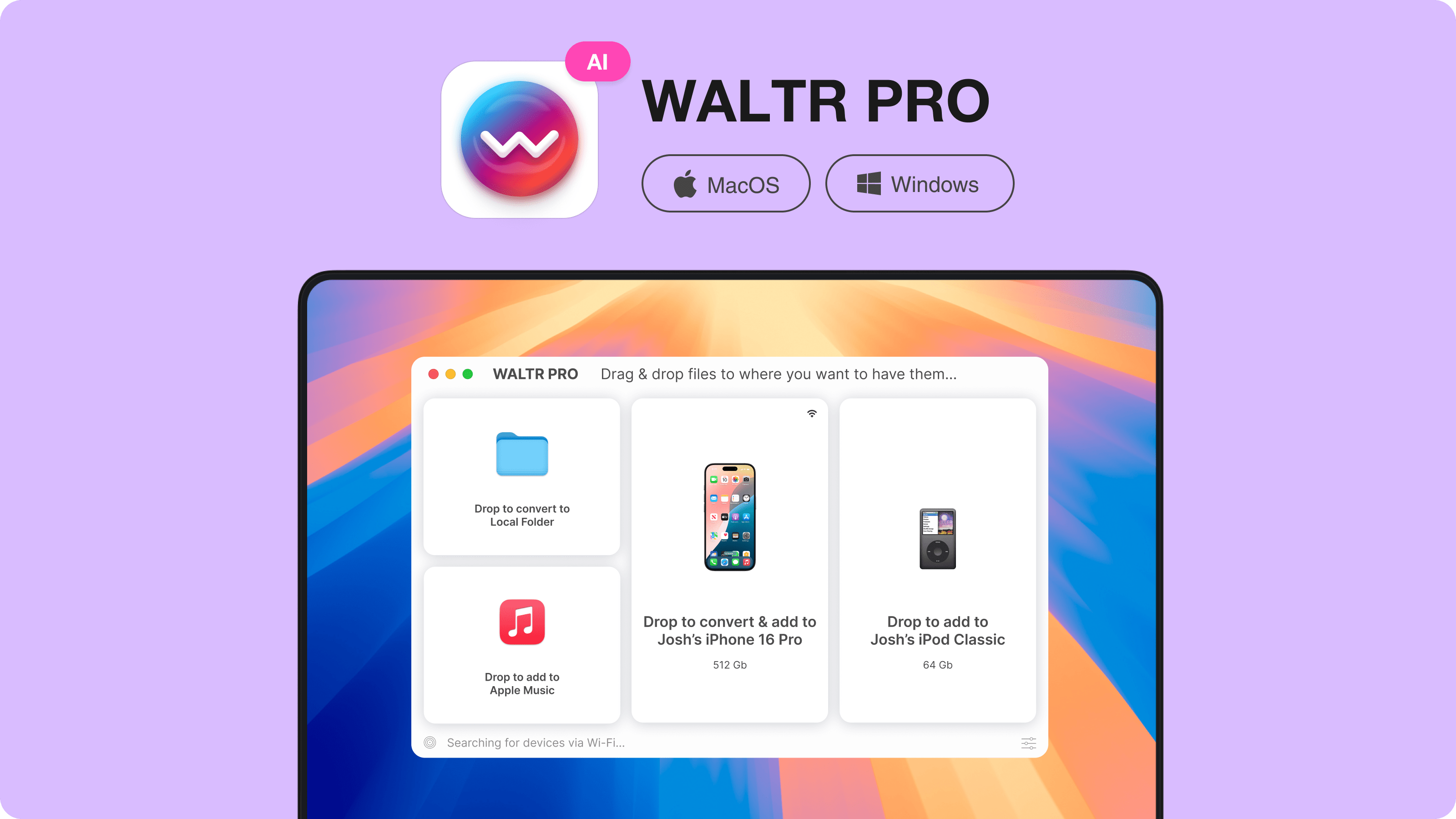
Download WALTR PRO for Mac or Windows. The app is free to try, so you can test it with one track before moving a full album.
Step 2: Connect Your iPhone or iPad
Open WALTR PRO and connect your iPhone with a USB cable. You can also use Wi-Fi transfer after setting up Wi-Fi connectivity in WALTR PRO.
If you are testing a converted file, start with one track. Make sure the song title, artist, album, and cover art look right before transferring a whole folder.
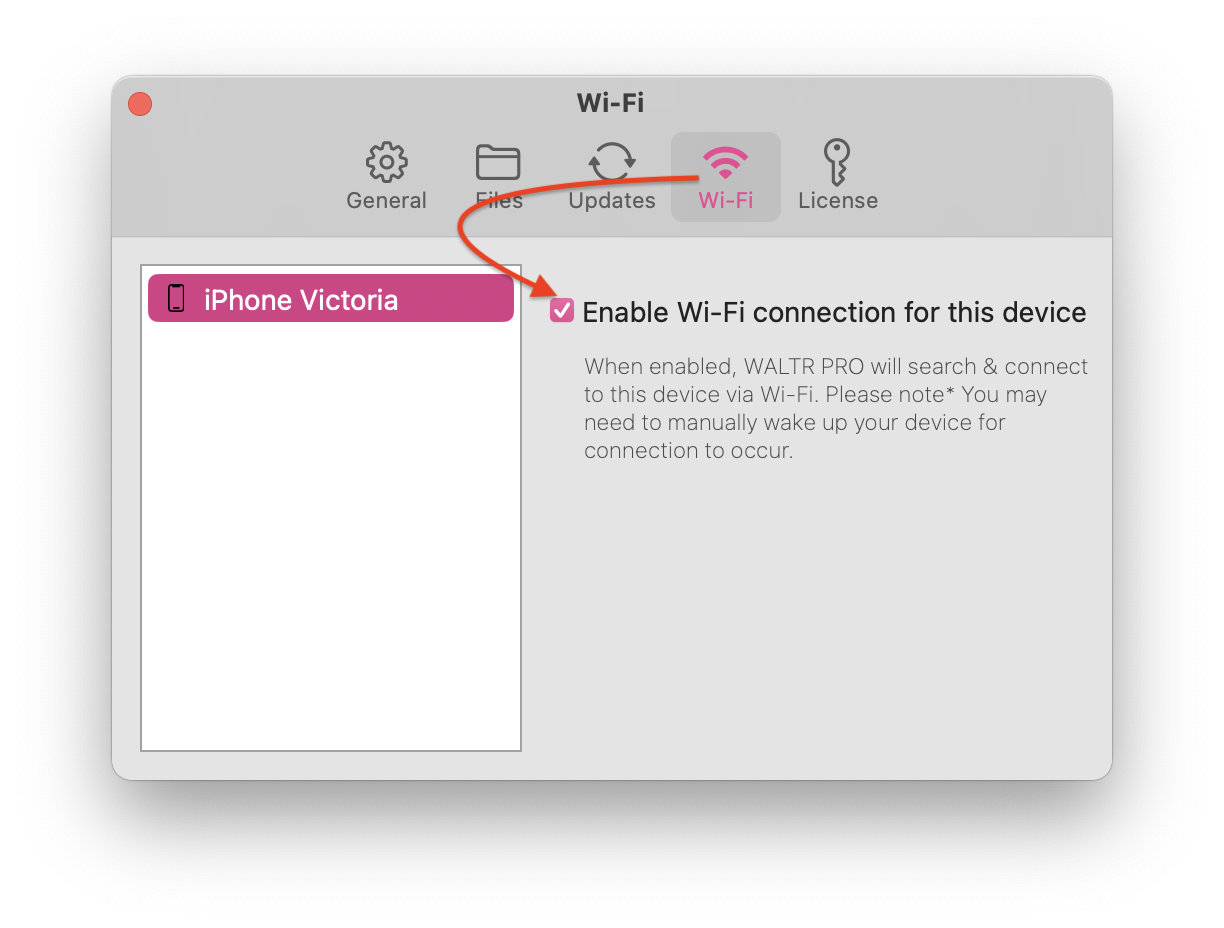
Step 3: Drag the Music File Into WALTR PRO
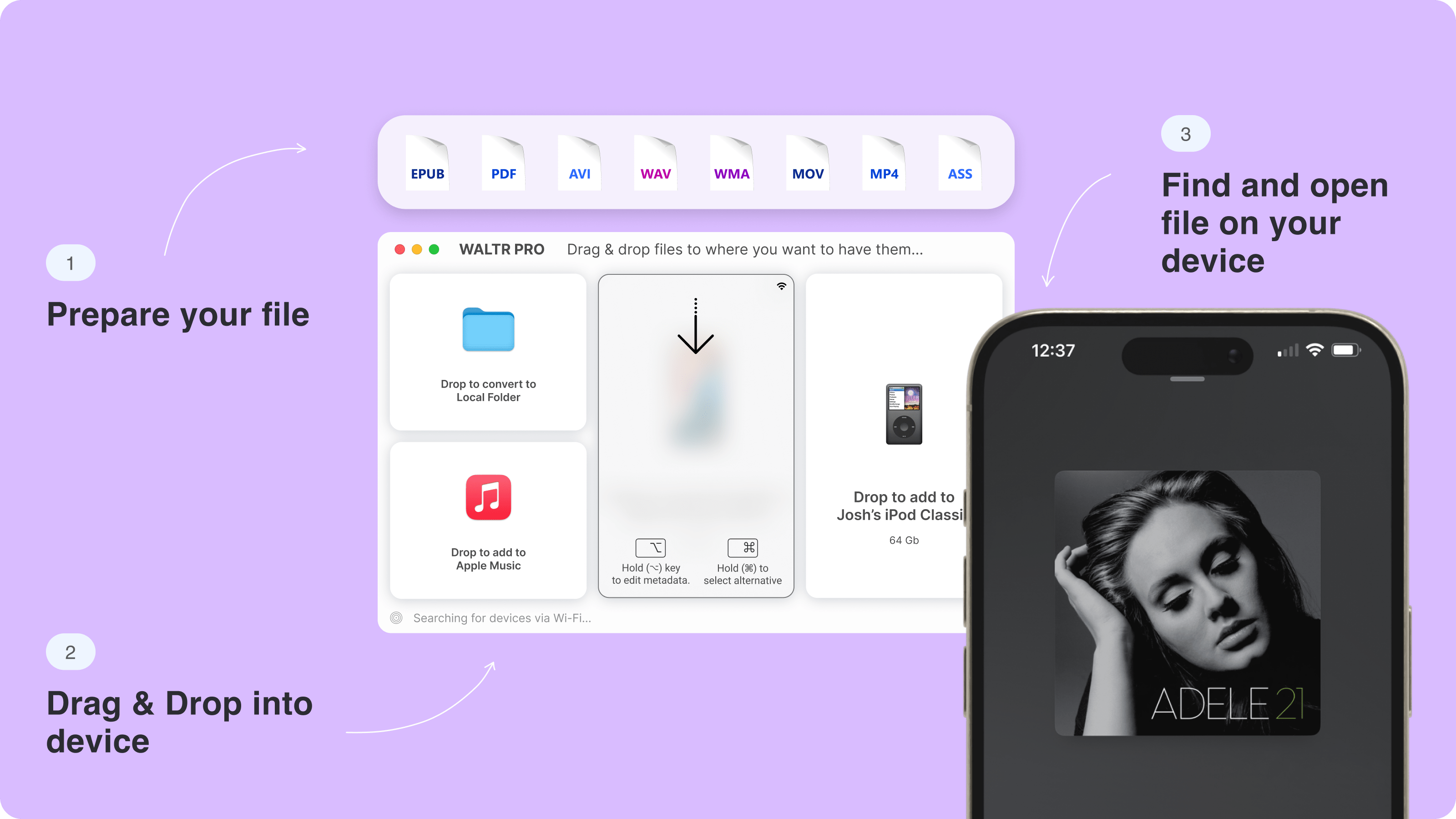
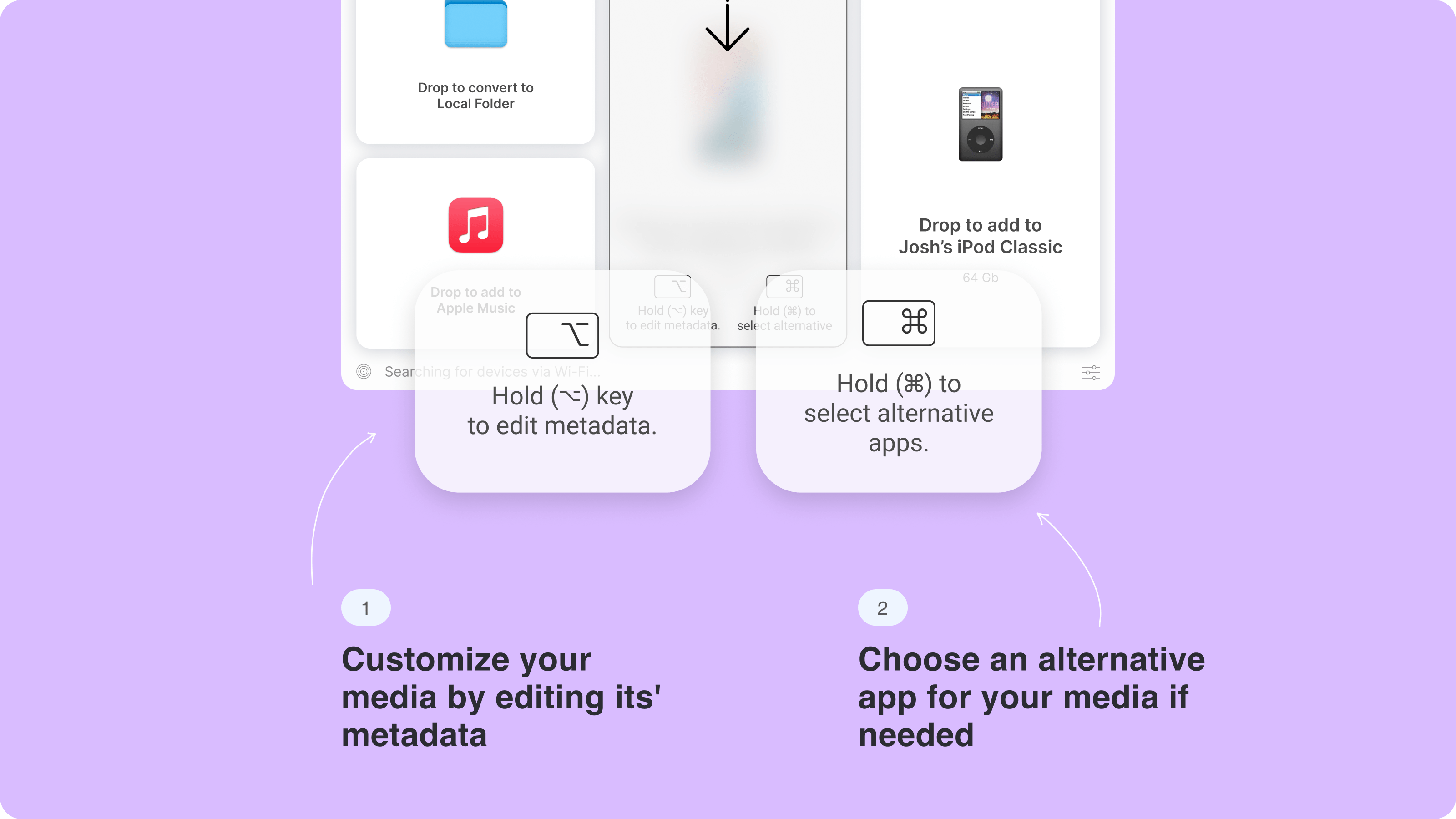
Drag your FLAC, MP3, M4A, or AAC file into WALTR PRO. The point is not to build a new library or sync your whole phone. The point is to move the file you own onto the device you use.
WALTR PRO routes supported media to the right native app where possible. For music, that means the file can appear in the Music app instead of living in some random download folder you forget about 10 minutes later.
Optional: Check Metadata Before Transfer
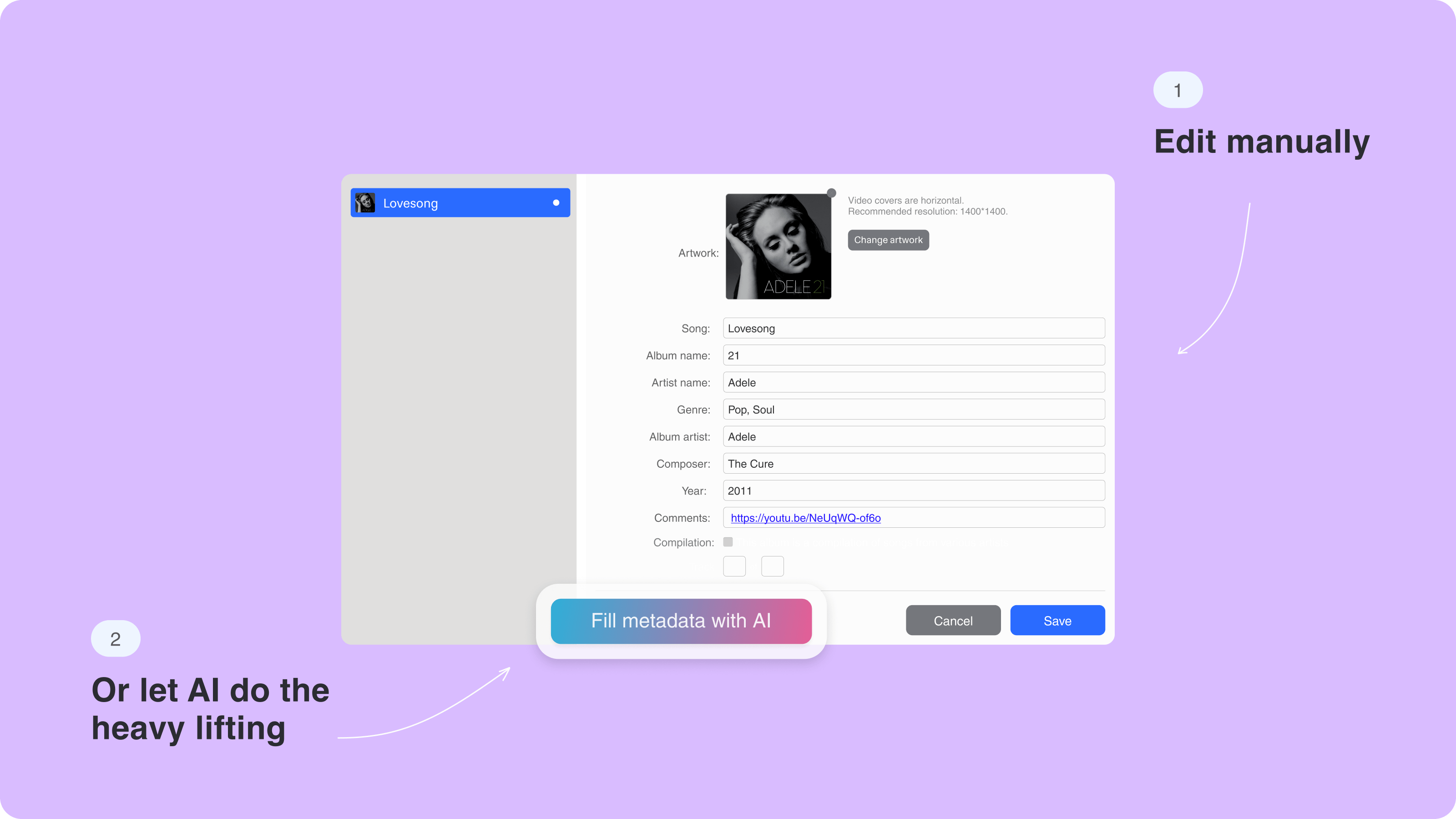
FLAC collectors usually care about tags: artist, album, track number, cover art, and year. Check those before you send a batch to your iPhone.
If your converter stripped metadata, fix it before transfer. A music library with 60 tracks called “Track 01” is not a library. It is a future headache.
You can also use WALTR PRO’s metadata tools during the transfer workflow when they fit the file.
Online Converter, Local Converter, or WALTR PRO?
A converter and a transfer app solve different parts of the job. Do not force one tool to do everything.
Method | Best for | Weak spot |
|---|---|---|
Online FLAC to MP3 converter | One-off non-private files | Upload privacy, file limits, metadata risk |
Local desktop converter | Albums, private audio, bitrate control | More setup, more choices |
Apple Music/iTunes/Finder | Apple library workflows | Sync friction, format quirks |
WALTR PRO | Moving music to iPhone/iPad without iTunes | Not the generic answer for every desktop conversion job |
ALAC conversion | Apple lossless listening | Larger files than MP3 or AAC/M4A |
For a quick ringtone source, podcast clip, or disposable track, an online converter can be enough. For a private album, convert locally. For iPhone transfer, use WALTR PRO after you pick the right format.
Keep Metadata and Album Art When You Convert
FLAC files often carry clean metadata. Album title, artist, track number, embedded cover art, and sometimes lyrics all matter when you move music into a phone library.
Some converters preserve tags. Some do not. Some keep artist and album names but drop cover art. Some batch converters rename files in ways that make sense to a machine and no one else.
Before batch converting a music library, run this quick check:
That test takes 2 minutes. It can save you from cleaning up 300 broken tracks later.
Convert one FLAC track first.
Open the MP3, M4A, or ALAC file and check the tags.
Confirm album art survived.
Check the bitrate and file size.
Transfer that one file to your iPhone and play it.
Only then convert the full album.
If you want a no-install option for an occasional file, use Softorino's free FLAC to MP3 converter. Conversion runs locally in your browser, so the audio is not uploaded.
FAQ
Does conversion reduce quality?
Yes. FLAC is lossless. MP3 is lossy. When you create an MP3 from a lossless source, the converter removes audio data to make the file smaller. A 320 kbps file can still sound good, but it is not the same as the original lossless source.
What bitrate should I use?
Use 320 kbps for the best portable MP3 copy. Use 256 kbps if you want a smaller file with good quality. Use 192 kbps for casual listening. Avoid 128 kbps for music unless file size matters more than sound.
Is M4A better than MP3 for iPhone?
M4A/AAC is often a better default for iPhone, iPad, and Mac because Apple devices handle AAC well. MP3 is still better when you need maximum compatibility with old stereos, web tools, or non-Apple devices.
Should I convert FLAC to ALAC instead of MP3?
Convert FLAC to ALAC if you want lossless audio inside Apple’s ecosystem. Convert FLAC to MP3 if you want a small file that plays almost anywhere. ALAC keeps quality. MP3 saves space.
Can iPhone play FLAC files?
Modern iPhones can play FLAC in some workflows, and Apple technical specs list FLAC as a supported playback format. But Apple Music-style lossless libraries use ALAC, and iTunes/Finder transfer workflows can still be clumsy. For simple iPhone transfer, WALTR PRO is easier.
Are online converters safe?
Online converters are fine for small, non-private files. Do not upload unreleased music, client audio, private recordings, or files you cannot afford to share. Use a local converter for sensitive audio.
Will album art survive conversion?
Sometimes. It depends on the converter. Test one track before converting an album. Check the artist, album, track number, and cover art before moving the files to your phone.
Do I need iTunes to transfer converted music to iPhone?
No. You can use iTunes or Finder if you like syncing. If you want drag-and-drop transfer from Mac or Windows, WALTR PRO moves music to iPhone or iPad without iTunes.
Final Take: MP3 for Compatibility, M4A for Apple, ALAC for Lossless
MP3 is the right move when you need a portable file that works almost everywhere. Use 320 kbps MP3 if quality matters. Use AAC/M4A if the file will mostly live on Apple devices. Use ALAC if you want Apple lossless.
Keep your FLAC files as the archive. Create device-friendly copies from them. Then move the music to your iPhone without wrestling iTunes.
Try WALTR PRO if you want to transfer music to iPhone or iPad from Mac or Windows with drag and drop. If you use more than one Softorino app, the Universal License keeps them under one plan.

WALTR PRO
Convert & Push Any File into Any Apple Device
