How to Convert YouTube to Ringtone on iPhone

To convert YouTube to ringtone on iPhone, you need to save the audio, trim a 15-30 second clip, turn it into an M4R ringtone file, then send it to your iPhone. Android can usually use MP3. iPhone is fussier because Apple wants ringtone files in its own format.
The fast path is a ringtone app that handles the clip and transfer for you. The free path is GarageBand or Music/iTunes, plus more steps. Use only audio you own, have permission to use, or are allowed to download.
If you want the visual walkthrough first, this video shows the basic iPhone ringtone transfer flow:
What you need before you convert YouTube to ringtone
YouTube to ringtone workflows have 4 parts: source audio, trimming, ringtone format, and iPhone transfer. Most bad tutorials fail because they explain the first 2 parts and leave you stuck at the iPhone transfer step.
For iPhone, prepare these basics:
- A YouTube video link or audio file you are allowed to use.
- A short ringtone clip. Aim for 15-30 seconds.
- M4R output for iPhone ringtones.
- A transfer method: iRingg, WALTR PRO, GarageBand, or Music/iTunes.
- The final iPhone path: Settings > Sounds & Haptics > Ringtone.
M4R is the key detail. MP3 works fine for many Android ringtone workflows, but iPhone ringtones usually need M4R. That is why a random YouTube to MP3 converter does not solve the whole problem for iPhone users.
Quick rule: if your end device is an iPhone, think YouTube to M4R. If your end device is Android, MP3 is usually enough.
YouTube to ringtone method 1: Use iRingg for iPhone
Use iRingg when you want the least painful YouTube to ringtone workflow on a Windows PC. iRingg is a Windows ringtone maker for iPhone. It can turn YouTube or SoundCloud clips into custom ringtones and push them to your iPhone without iTunes.
That matters because iTunes is where ringtone projects go to die. You edit one clip, convert one file, rename one extension, sync one device, then wonder why the tone did not show up. iRingg keeps the creation and transfer flow in one place.
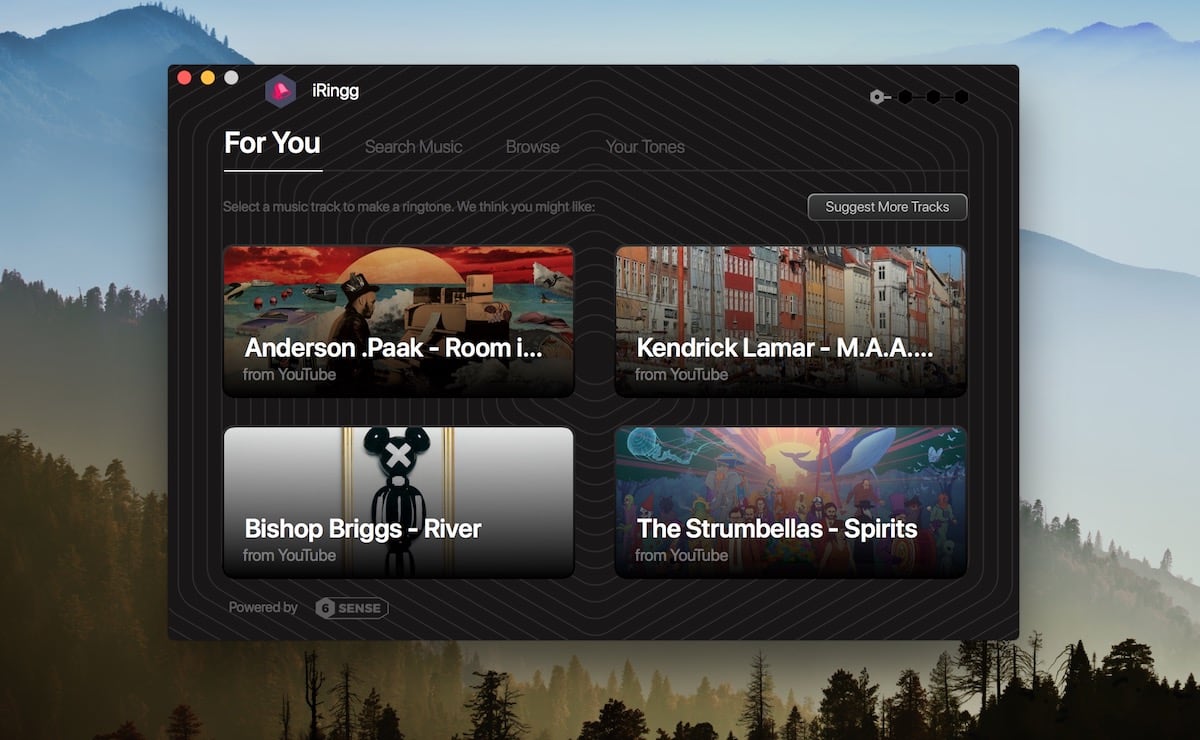
What iRingg does well
Use iRingg if you want:
- YouTube or SoundCloud ringtone creation in one app.
- A guided clip editor instead of a separate audio editor.
- Direct transfer to the iPhone ringtone list.
- Voice and sound-effect options for custom tones.
- A no-iTunes workflow for Windows users.
iRingg is not the right fit if you are on Mac and need a verified Mac app. Current Softorino product context lists iRingg as Windows-only. If you use Mac, look at the manual GarageBand/Music path or use WALTR PRO after you already have an M4R file.
iRingg is the best Softorino fit when your goal is “make a YouTube video my ringtone on iPhone” and you are working from Windows.
Step 1: Connect your iPhone
Install iRingg on your Windows PC, open the app, and connect your iPhone with a USB cable. The first connection lets the app see the device and prepare ringtone transfer.
After setup, you can create the ringtone inside iRingg instead of bouncing between a downloader, an editor, a converter, and iTunes.
Step 2: Find the YouTube clip
Search for the song or paste the source you want to use. Keep the rights caveat in mind. Use your own videos, public-domain material, creator-approved clips, or content you have permission to download.
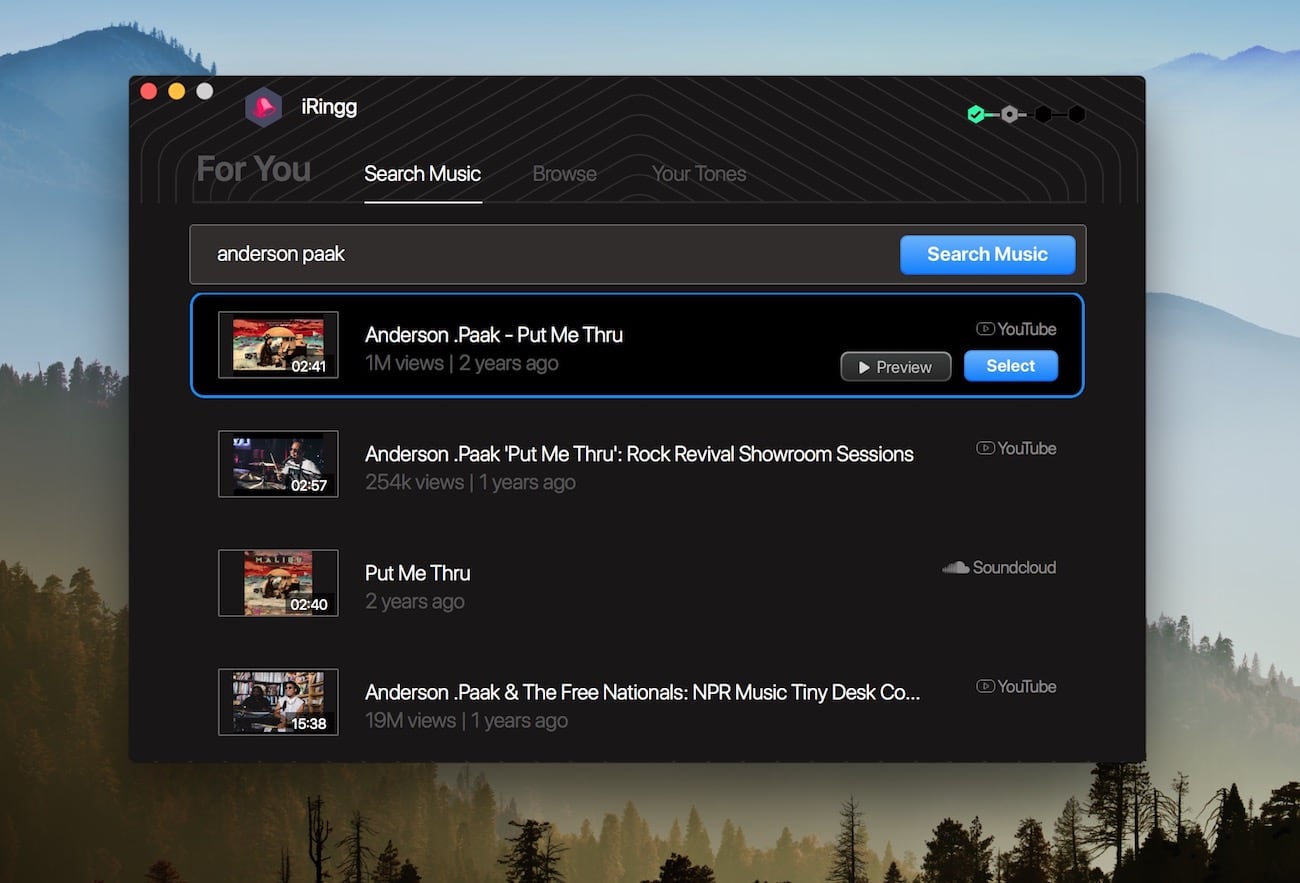
This is where iRingg beats a normal online YouTube ringtone maker. A web converter may give you an MP3. iRingg is built around the iPhone ringtone job: choose audio, cut the part you want, and send the result to the phone.
Step 3: Trim the ringtone section
Pick the 15-30 second part you want as your ringtone. The cleanest ringtone usually starts fast, avoids long intros, and ends before the clip feels awkward.
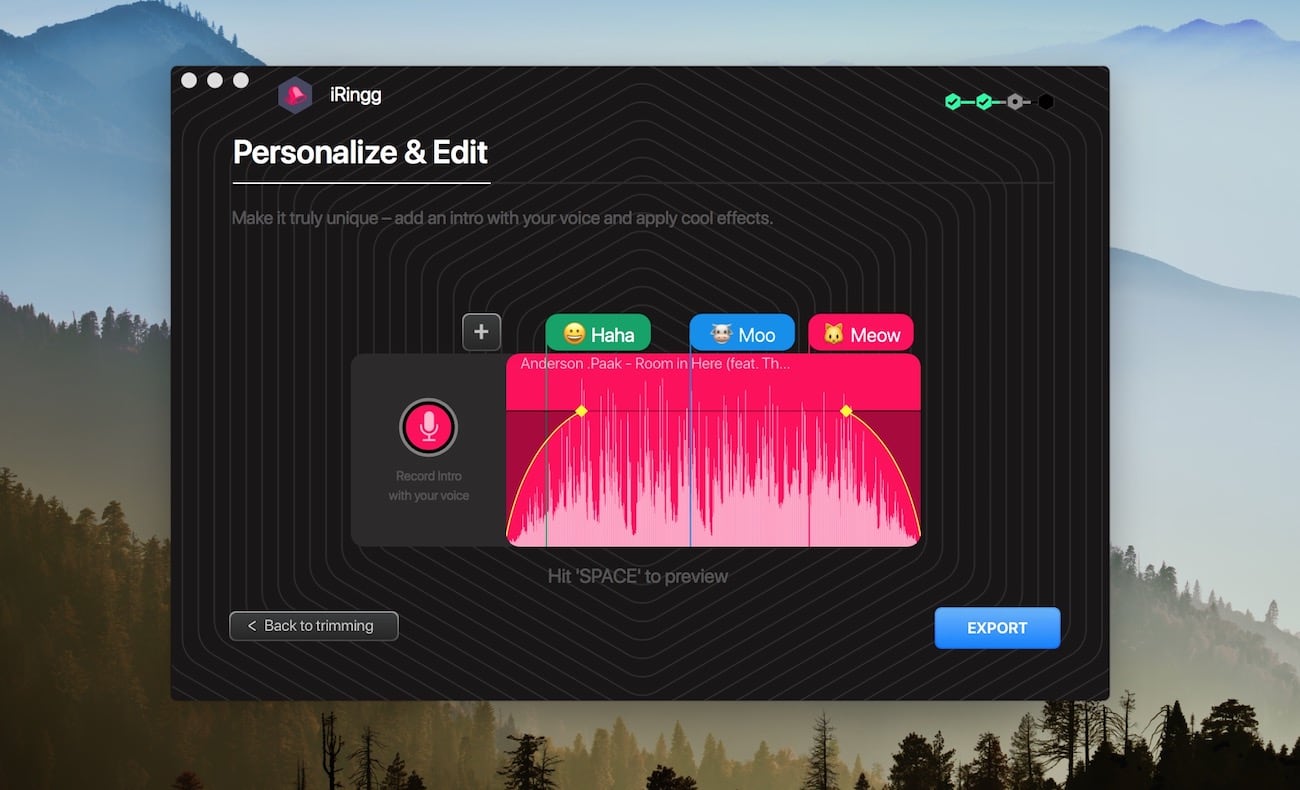
You can add sound effects if you want something less standard. Skip effects if the original clip already sounds clear. The point is a ringtone you can recognize in 2 seconds, not a miniature remix project.
For more ringtone personalization ideas, use our guide to custom ringtone creation on iPhone.
Step 4: Push the ringtone to iPhone
Export the ringtone and choose the iPhone transfer option. After transfer, open Settings > Sounds & Haptics > Ringtone on your iPhone and select the new tone.
That is the whole appeal: YouTube to ringtone without iTunes sync, manual M4R dragging, or a chain of sketchy converter pages.
Method 2: Use WALTR PRO when you already have an M4R file
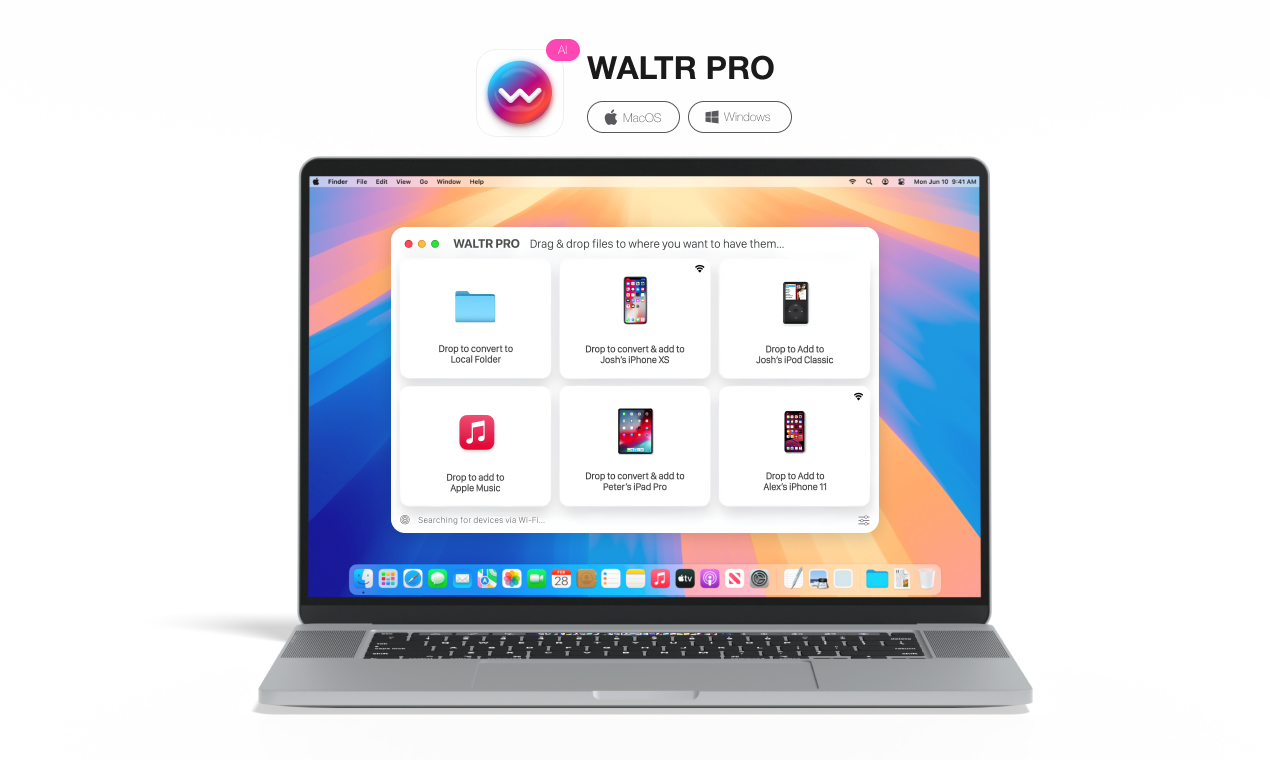
Use WALTR PRO when you already have the ringtone file and need to move it to iPhone without iTunes. WALTR PRO is not the main YouTube ringtone editor in this workflow. It is the cleaner transfer tool once your file is ready.
That makes it useful when you have an M4R file from GarageBand, Music, an editor, or another allowed source. Drag the ringtone into WALTR PRO, send it to iPhone, then pick it in Settings.
When WALTR PRO is the better choice
WALTR PRO fits if you:
- Already have an M4R ringtone file.
- Want drag-and-drop iPhone transfer.
- Also transfer music, videos, PDFs, or other files to iPhone.
- Hate iTunes sync and want a cleaner file-transfer app.
- Use Mac or Windows.
WALTR PRO supports Mac and Windows. That makes it the more flexible Softorino transfer option when iRingg is not the right platform fit.
Step 1: Prepare the ringtone file
If your source is an M4A audio file, you may be able to rename the extension to .m4r after trimming the clip. If your source is MP3, convert it to AAC/M4A first, then prepare the M4R ringtone file.
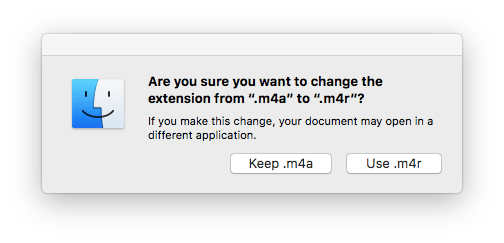
Do not promise yourself “full-song ringtone” support unless your exact iPhone setup confirms it. A short 15-30 second clip is the safer ringtone target and matches what most users expect from iPhone ringtone workflows.
Step 2: Open WALTR PRO and connect iPhone
Install WALTR PRO, open the app, and connect your iPhone. Use USB for the first setup. If wireless transfer is available in your version, enable it after the first device connection.
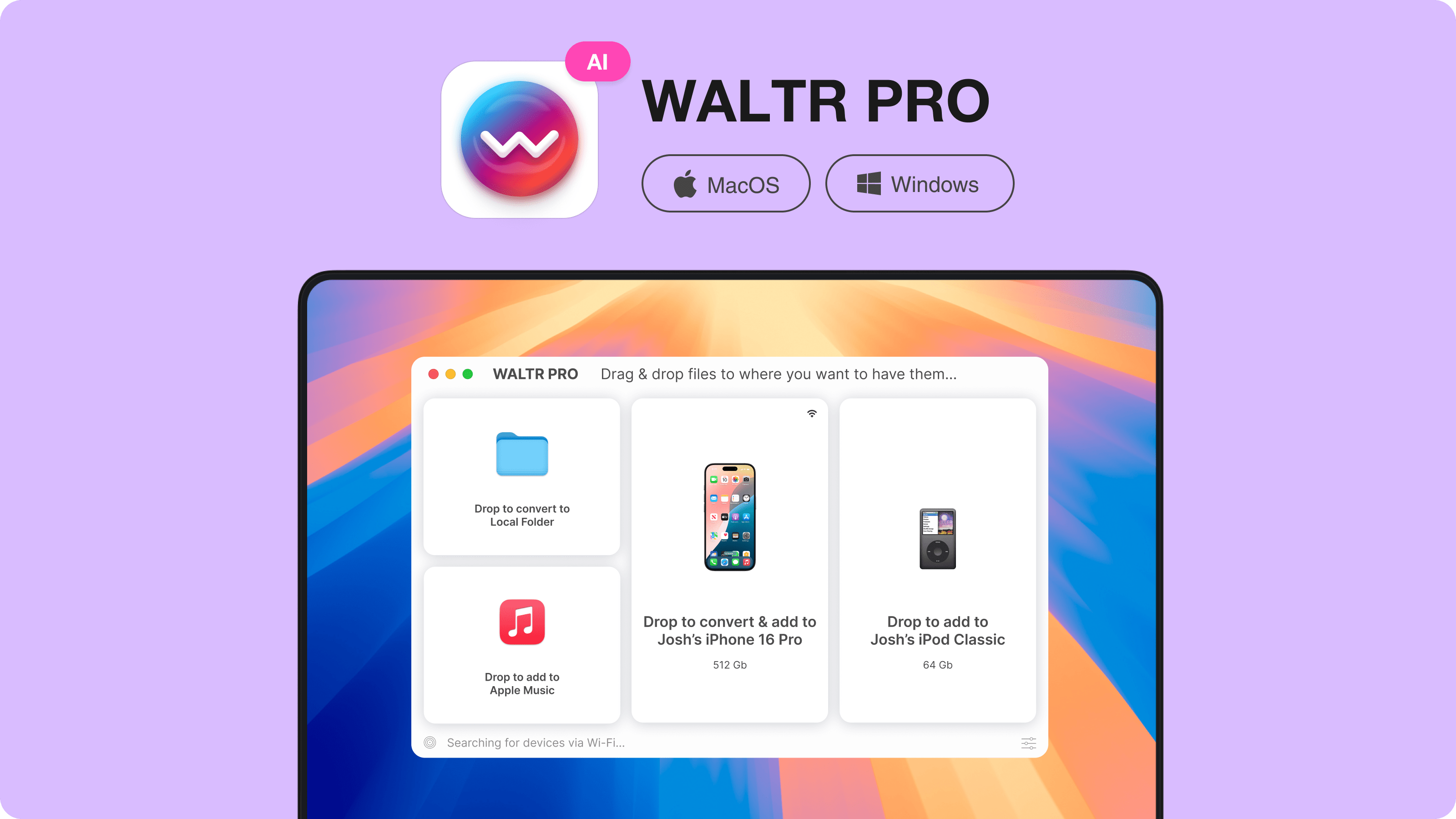
WALTR PRO keeps this part simple. You do not need to open iTunes, hunt for Tones, or run a full sync just to move one ringtone.
Step 3: Drag the M4R file into WALTR PRO
Drag your M4R file into WALTR PRO and wait for the transfer to finish. Then check your iPhone under Settings > Sounds & Haptics > Ringtone.
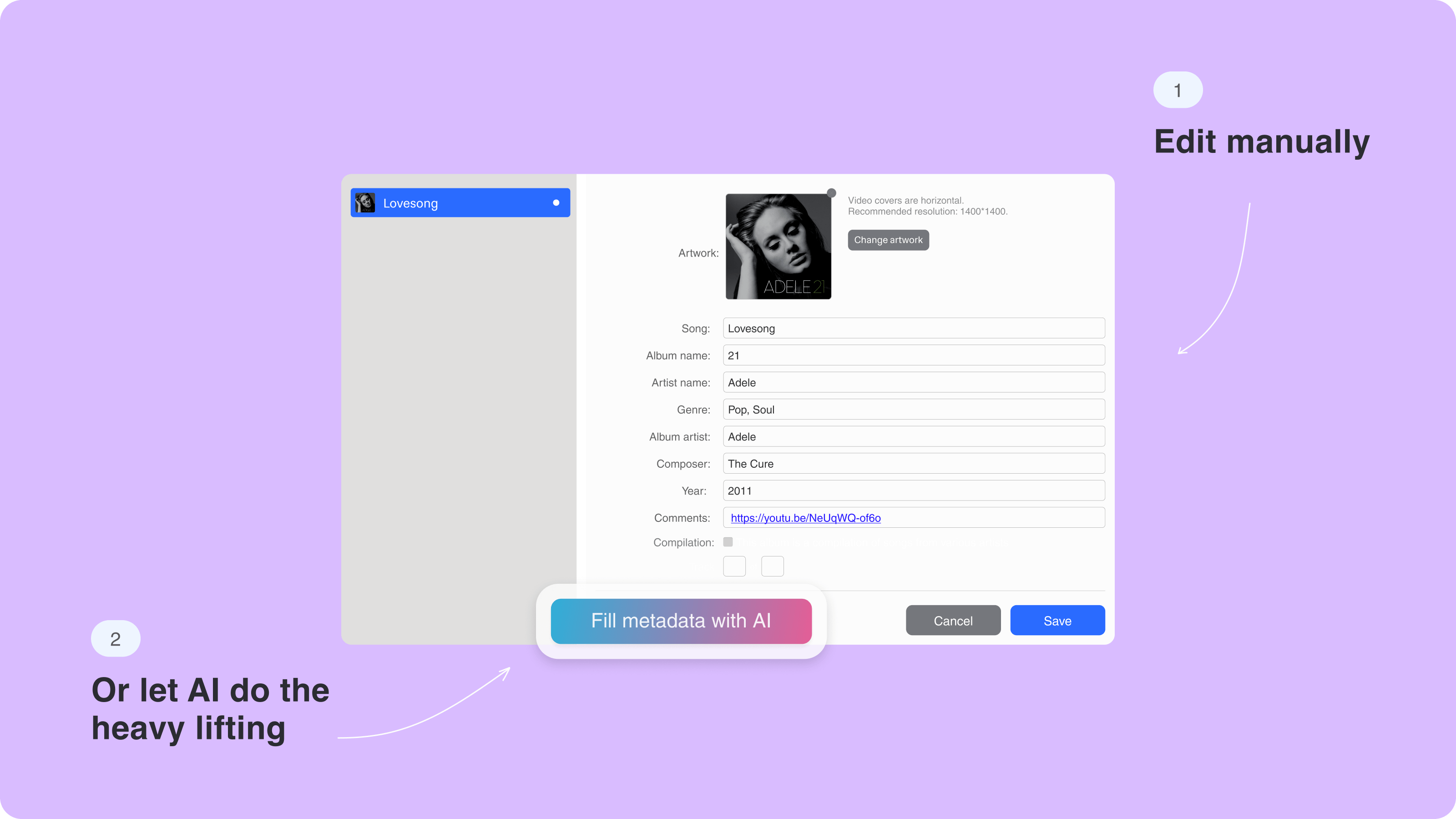
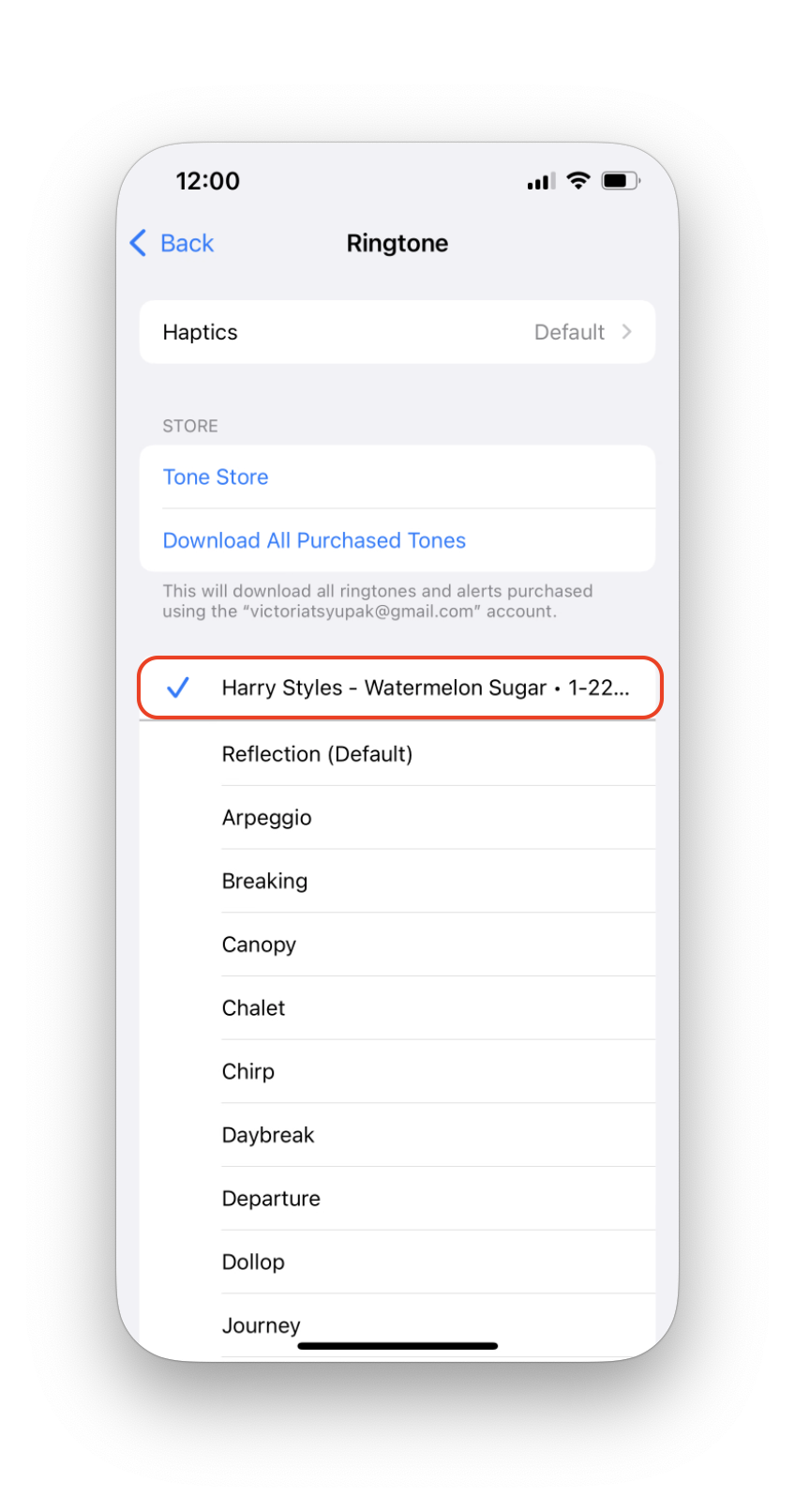
If the tone does not show up, confirm the file extension is .m4r, the file is not corrupted, and the iPhone trusted the computer during connection.
Method 3: Free manual method with GarageBand, Music, or iTunes
The free YouTube to ringtone method works, but it takes more patience. You need to get allowed audio, trim it, convert it to the right format, then move it through Apple's ringtone path.
Use this route if you only make ringtones once in a while or you do not want to install a paid app.
Free manual workflow
- Save or obtain the audio from a source you are allowed to use.
- Trim the clip to about 15-30 seconds in GarageBand, Audacity, or another audio editor.
- Export the clip as AAC/M4A when your tool supports it.
- Change or convert the final ringtone file to M4R.
- Add the ringtone through GarageBand, Music, Finder, or iTunes depending on your device and OS version.
- Open Settings > Sounds & Haptics > Ringtone on iPhone.
- Select the new ringtone.
Apple's own instructions for changing ringtone settings live in its iPhone sounds and vibrations guide. YouTube's own Terms of Service also matter. Do not download or reuse audio you do not have the right to use.
The manual method is not hard once you know the steps. It is annoying because one failed format or sync step can send you back to the beginning.
Method 4: Online YouTube ringtone converters
Online YouTube ringtone converters rank well because they look instant. Paste a link, cut the audio, download a file. For Android, that can be enough. For iPhone, it often stops before the hard part.
The missing step is transfer. A web tool may create MP3, M4A, or M4R, but it usually does not send the ringtone to the iPhone ringtone list. You still need GarageBand, Finder, Music/iTunes, WALTR PRO, or another transfer route.
Online tools can also vary a lot in quality. Some are clean. Some bury the real button under ads, pop-ups, extension prompts, or unclear file names.
Use this checklist before trusting one:
- Does it clearly state the output format?
- Can it create M4R, not only MP3?
- Does it avoid forced browser extensions?
- Does it work without pop-up chains?
- Does it explain the iPhone transfer step?
- Does it let you delete uploaded files or avoid uploading private audio?
If you need one quick Android ringtone, a web tool may be fine. If you need a YouTube to ringtone iPhone workflow you can repeat, use a desktop tool or Apple's manual path.
Which YouTube ringtone method should you choose?
Pick the method based on the annoying part you want to avoid.
Choose iRingg if you want the easiest Windows-to-iPhone flow
iRingg is the best fit when you want to turn YouTube or SoundCloud audio into an iPhone ringtone from a Windows PC. It handles the clip workflow and sends the ringtone to iPhone without iTunes.
Choose WALTR PRO if you already have an M4R file
WALTR PRO is the better fit when your ringtone file is ready and you want to transfer it to iPhone. It is also useful if you move music, video, PDFs, or other files to iPhone without iTunes.
Choose GarageBand or Music/iTunes if you want free
The free method costs time instead of money. It works best if you are comfortable trimming audio, converting formats, and checking Apple's current ringtone transfer behavior for your device.
Choose an online converter for one-off conversion only
Online converters can help with a quick MP3 or M4R file, but they rarely solve the iPhone transfer step. Treat them as conversion tools, not complete ringtone systems.
YouTube to M4R, MP3, or AAC: which format do you need?
For iPhone ringtones, M4R is the format to aim for. For Android ringtones, MP3 is usually the easier format. AAC or M4A often sits in the middle because many tools export AAC audio before you turn it into M4R.
Use this simple format guide:
- M4R: iPhone ringtone file.
- MP3: common Android ringtone and general audio file.
- M4A/AAC: common Apple-friendly audio format and conversion step.
- MP4: video file, not the final ringtone format.
If your search is “YouTube to ringtone iPhone,” skip straight to the M4R path. If your search is “YouTube to MP3 ringtone,” you may be solving an Android workflow or the first half of an iPhone workflow.
How to send ringtones to iPhone wirelessly
Wireless transfer depends on the app and the first device setup. In most cases, connect your iPhone over USB first, trust the computer, then enable Wi-Fi connectivity if the app supports it.
The safe setup looks like this:
- Connect iPhone with USB.
- Open the ringtone or transfer app.
- Trust the computer on the iPhone if prompted.
- Enable Wi-Fi connectivity in the app settings if available.
- Keep both devices on the same Wi-Fi network for future transfers.
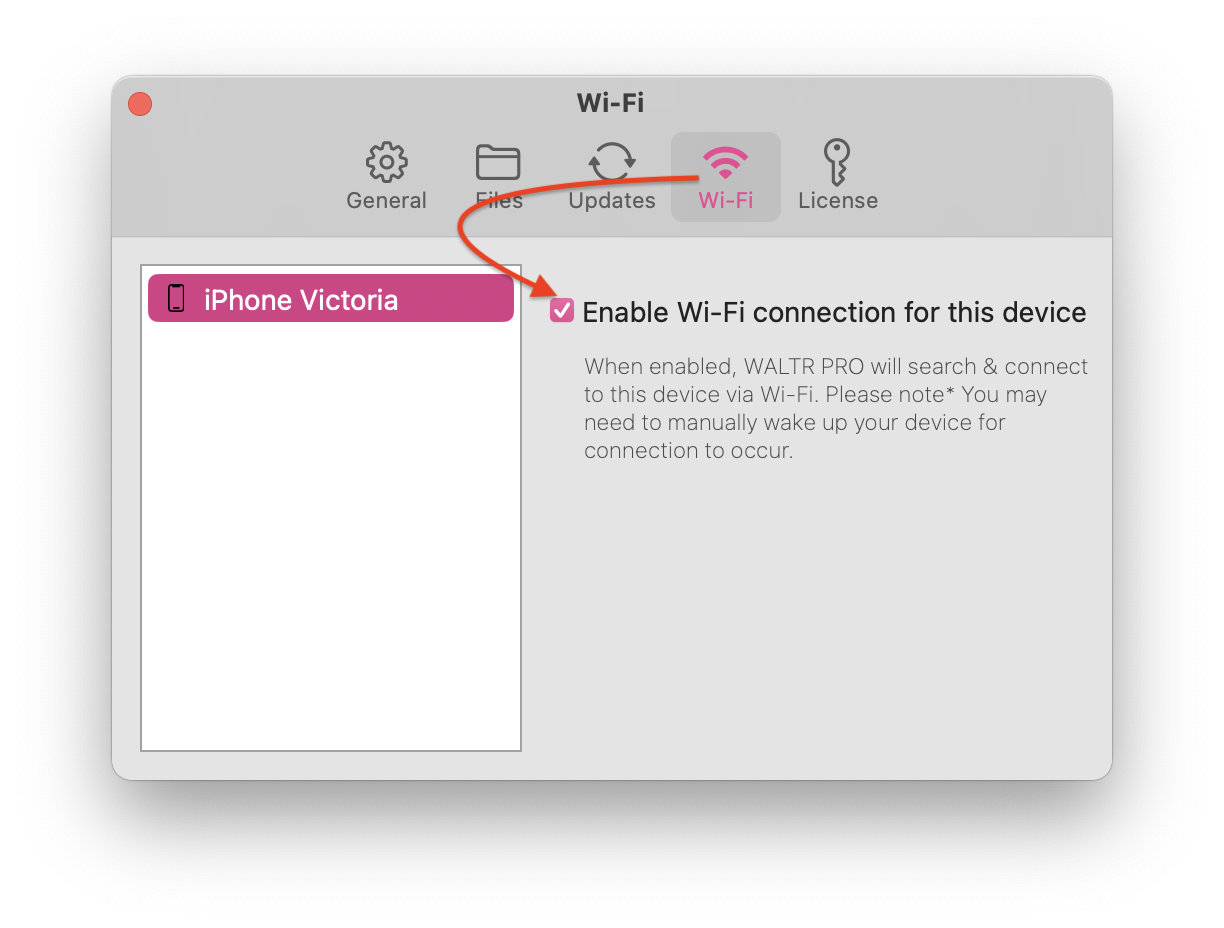
Do not delete the app until you confirm the ringtone appears under Settings > Sounds & Haptics > Ringtone. Your iPhone should keep transferred tones, but it is smarter to verify before cleanup.
Bottom line
The best YouTube to ringtone method depends on your device and patience. iPhone users need more than a YouTube to MP3 file. You need a short clip, M4R format, and a way to get the ringtone into iPhone settings.
Use iRingg if you are on Windows and want the most direct YouTube ringtone maker for iPhone. Use WALTR PRO if you already have the M4R and want drag-and-drop transfer without iTunes. Use the free manual method if you do not mind extra steps.
Your iPhone does not need to sound like every other iPhone in the room. It just needs the right file in the right place.
FAQ
Can I convert YouTube to ringtone on iPhone?
Yes. To convert YouTube to ringtone on iPhone, use audio you are allowed to save, trim it to a short clip, convert it to M4R, then transfer it to iPhone. The ringtone appears under Settings > Sounds & Haptics > Ringtone.
What format does an iPhone ringtone need?
An iPhone ringtone usually needs M4R format. MP3 works for many Android ringtone workflows, but iPhone ringtones use the M4R path.
Can I make a YouTube video my ringtone without iTunes?
Yes. iRingg can create and send custom ringtones to iPhone without iTunes on Windows. WALTR PRO can transfer an existing M4R file to iPhone without iTunes on Mac or Windows.
Is an online YouTube ringtone converter safe?
Some online converters are fine for simple files, but quality varies. Avoid tools with pop-up chains, forced extensions, unclear download buttons, or no explanation of the iPhone transfer step.
Where does the ringtone appear after transfer?
After a successful transfer, open Settings > Sounds & Haptics > Ringtone on your iPhone. Your custom ringtone should appear in the ringtone list.
Can I use a full song as an iPhone ringtone?
Do not rely on full-song ringtone claims. A short 15-30 second M4R clip is the safer target for iPhone ringtone workflows and works better as an actual ringtone.

iRingg
Create Your Own Ringtone And Push Into iPhone
