5 Best AirDrop Alternatives for Windows and iPhone

AirDrop alternatives for Windows and iPhone
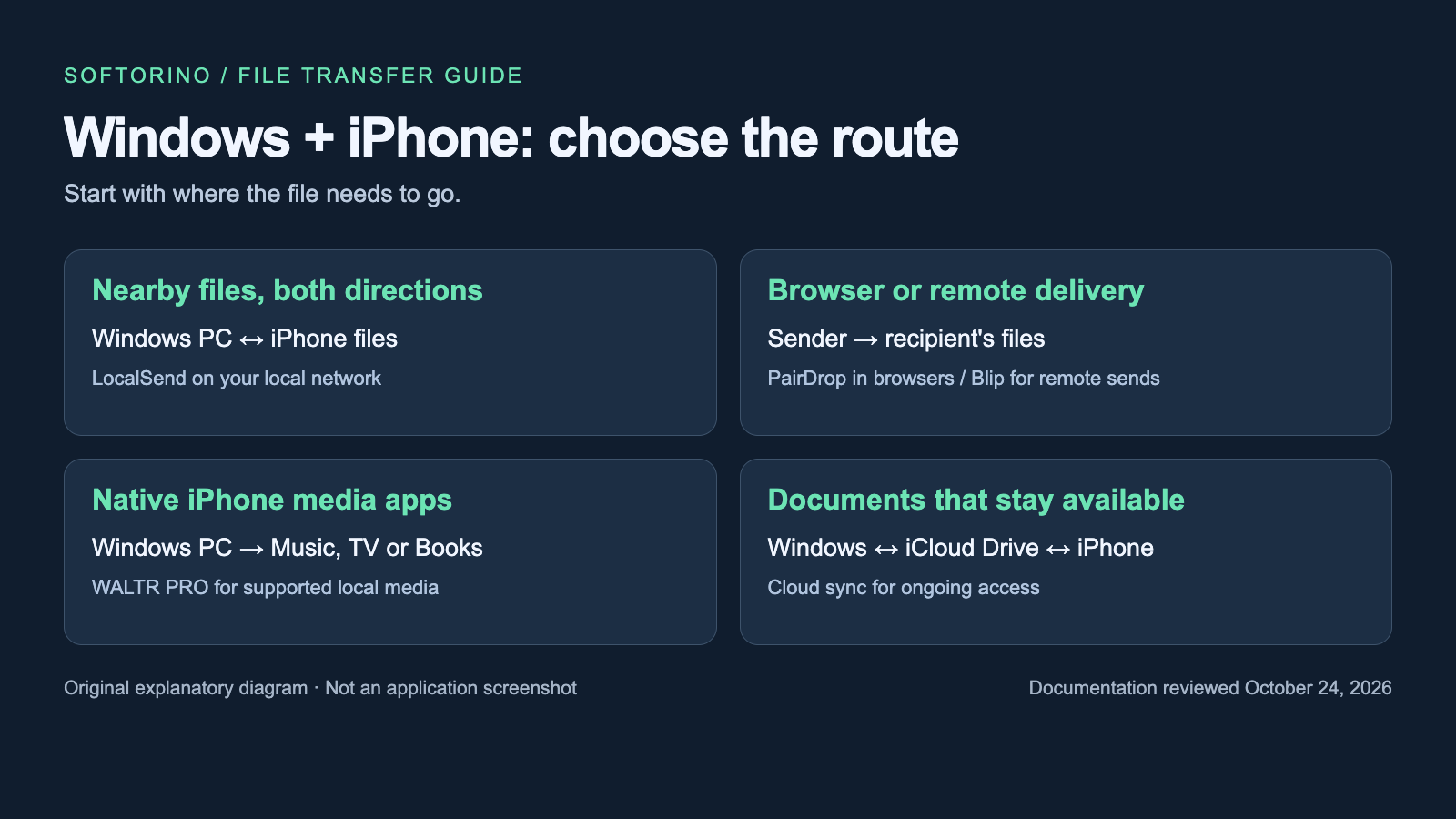
Quick answer: LocalSend is our first pick for regular file sharing between a Windows PC and an iPhone on the same network. Choose PairDrop for a browser-based transfer, or WALTR PRO when you need music and video in native iPhone apps. For remote recipients, consider Blip; for a folder that stays available across devices, use iCloud Drive. Pick by file destination and connection, not by a promise that one app replaces every AirDrop workflow.
Tool | Best for |
|---|---|
LocalSend | Free nearby sharing in both directions |
PairDrop | A quick transfer through your browsers |
WALTR PRO | PC media into native iPhone apps |
Before we begin
Download WALTR PRO for Windows if you want to add local music, videos or PDFs to your iPhone. It converts supported formats and sends files to the matching native apps. Start with one file over USB. For ordinary file sharing back to your PC, choose a two-way tool below.
Why listen to us?
Softorino publishes this comparison under Josh Brown, CEO of Softorino. Vendor disclosure: Softorino makes WALTR PRO, one of the five options below. LocalSend gets the first recommendation because free, nearby sharing is the main job here.
This is a documentation-based comparison, with official sources reviewed on October 24, 2026. No hands-on transfer tests or speed benchmarks were performed for this article. Recommendations reflect documented workflows, destinations, costs and limits, rather than a test score.
Full comparison table
Tool | Best use | Direction | Connection | Where files go | Price model |
|---|---|---|---|---|---|
LocalSend | Nearby file exchange | Both ways | Same local network | Received files; choose save location | Free, open source |
PairDrop | Browser-based exchange | Both ways | Browser connection; pairing across networks | Browser save or share action | Free, open source |
WALTR PRO | Add local media to iPhone | PC to iPhone | USB or Wi-Fi after setup | Matching native media apps | Free trial; paid subscription offer |
Blip | Send to someone elsewhere | Both ways | Local or remote internet-connected devices | Recipient's files | Free noncommercial use; paid business |
iCloud Drive | Keep documents available | Both ways through sync | Internet for new uploads and downloads | iCloud Drive in Files or Windows | 5 GB free; paid storage tiers |
How we evaluated
The comparison uses the same six criteria for each tool: Windows/iPhone support, transfer direction, destination, connection needs, setup and price. Sources include official product pages, Apple documentation and the LocalSend and PairDrop project documentation. Prices below use US dollars where quoted, checked October 24, 2026; taxes and regional offers can differ.
The important distinction is the destination. Copying an MP3 to a file folder does not add it to the iPhone Music library. A browser transfer, a cloud folder and a media-import app solve different parts of the problem. None of the tools below should be treated as a complete iPhone backup.
Quick Takeaways
LocalSend is the free starting point for nearby Windows/iPhone file sharing.
PairDrop avoids an app install but depends on browser and network conditions.
WALTR PRO fits computer-to-iPhone media imports, not general outbound extraction.
Blip fits remote recipients; its free use excludes commercial projects.
iCloud Drive fits ongoing access to documents, with cloud storage and sync limits.
LocalSend: best for regular nearby sharing
Choose LocalSend when both devices are on your local network. It offers a focused way to send photos, documents, videos and text between Windows and iPhone. You install it on both devices, select what to send and approve the transfer at the other end.
You do not need an account or an internet connection for the local transfer. That makes LocalSend a sensible default at home, especially if you exchange files in both directions. It does not turn a received video or song into an item in Apple's media libraries.
LocalSend key features
- Windows, iOS, macOS, Android and Linux apps.
- Local file and text transfers without a cloud storage account.
- HTTPS encryption and optional PIN verification, according to the project.
LocalSend pros
- Free and open source, with no ads or tracking advertised by the project.
- A single tool can cover several operating systems in one household.
- Internet upload speed does not determine a local transfer's speed.
LocalSend cons
- Both devices need the app and a reachable local network connection.
- Guest-network isolation or a firewall can prevent discovery.
- It is not designed to send to a recipient in another city.
LocalSend pricing
LocalSend is free and open source. The official site lists no subscription or paid transfer tier. Optional donations support the project. Avoid paying an unrelated download site for access.
Who LocalSend is best for
Pick LocalSend for frequent, nearby Windows/iPhone exchanges when you can install an app on each device. The current project documentation lists Windows 10 and iOS 13 as minimum versions; sharing from other iOS apps requires iOS 14 or later.
For a first transfer, install the official apps, open them on both devices and select a small file. Confirm the recipient's device name before accepting it. If the devices do not appear, check local-network permissions and the network's rules. Do not disable your firewall or bypass a workplace restriction to make a transfer work.
PairDrop: best for a browser-based transfer
Choose PairDrop when you do not want to install another app. Open the site on your Windows PC and iPhone, select the receiving device and send a file. Device pairing and temporary rooms provide ways to connect beyond automatic nearby discovery.
PairDrop suits occasional sharing, such as moving a PDF to a borrowed computer. Keep both browsers open until the transfer finishes, and check where the receiving browser saved the file. A browser's save or share action differs from importing media into Music or TV.
PairDrop key features
- File and text sharing through supported browsers.
- Device pairing and temporary public rooms.
- Open-source code and an optional self-hosted deployment.
PairDrop pros
- No native app installation required for the basic browser workflow.
- A useful option when you need to exchange a file once.
- Paired devices can communicate across networks when the connection permits it.
PairDrop cons
- The hosted service needs a signaling server to establish connections.
- Cross-network transfers can use a TURN relay rather than a direct local path.
- Browser behavior and restrictive networks can interrupt the workflow.
PairDrop pricing
The public PairDrop service and open-source project are free. Self-hosting is optional and can involve your own server costs; it is not required to send a file through the public site.
Who PairDrop is best for
Pick PairDrop for occasional file exchanges where opening a website is easier than installing two apps. The official PairDrop FAQ says WebRTC encrypts files in transit, but users still have to trust the server. Do not equate encryption with an independent security audit or a guarantee that every route stays on your network.
For images, the project's FAQ describes Save Image on current iOS versions. Other files may use a browser download or share action. Confirm the saved copy before closing the tab or deleting the original.
WALTR PRO: best for native iPhone media apps
Choose WALTR PRO when the file needs to appear in a native iPhone app. It runs on your Windows computer and sends supported media to your iPhone. Music goes to Music, video to TV, and PDFs or books to Books. It also converts supported incompatible media formats during transfer.
That is a narrower job than LocalSend's two-way sharing. If you only need to move a document back to Windows, start with a two-way option. For exporting messages, contacts or other iPhone data, use the separate iPhone-to-PC transfer guide.
WALTR PRO key features
- Computer-to-iPhone transfer on Windows or Mac.
- USB transfers and Wi-Fi support after setup.
- Supported media conversion and native-app delivery.
WALTR PRO pros
- Useful when receiving a loose file in Files is not enough.
- A cable provides an option when local-network sharing is inconvenient.
- Conversion and transfer form one workflow for supported media.
WALTR PRO cons
- Not a general two-way file-sharing replacement or an iPhone backup tool.
- A paid license is needed beyond the trial's terms.
- Format conversion can change the file; use a file-sharing tool when you need to preserve the original file unchanged.
WALTR PRO pricing
The WALTR PRO page offers a free trial and promotes Universal License, which includes WALTR PRO. At review, that offer displayed US$0.99 for the first day, then US$3.46 per week billed annually.
That weekly figure is an advertised equivalent, not weekly billing or a WALTR-only price. Check the checkout's total, renewal terms and taxes before paying.
Who WALTR PRO is best for
Pick WALTR PRO if you own local music, video or PDFs on a Windows PC and want them in the matching iPhone apps. Use files you own or have permission to copy. A transfer utility does not grant download rights or remove a streaming service's DRM restrictions.
A practical first check is one supported file over USB: connect and unlock the iPhone, follow any trust prompt, then drop the file into WALTR PRO. After transfer, open the matching iPhone app and confirm the result before starting a batch. This is documentation-based guidance, not a measured transfer test.
Blip: best for a recipient on another network
Choose Blip when the other person is elsewhere. Blip sends files to other Blip users in real time, including between Windows and iPhone. Its official site describes folder transfers without zipping, resume after interruptions and no file-size limit.
A remote transfer still depends on the sender's connection, the recipient's connection and available storage. “No size limit” does not mean any transfer finishes instantly. Blip's approach also differs from a public download link that someone can open later.
Blip key features
- Windows and iPhone apps, with other platform clients available.
- Direct sending to another user, including across the internet.
- Folder sending and interrupted-transfer recovery documented by the vendor.
Blip pros
- Useful for large personal files when local-only sharing cannot reach the recipient.
- No separate cloud-folder management is needed for a one-off send.
- Free use covers noncommercial activities such as hobbies and education.
Blip cons
- Commercial projects require a paid plan, even if you are working alone.
- The recipient needs to receive through Blip, rather than a public file link.
- Real-time delivery is less suitable when you want someone to collect a file later.
Blip pricing
Blip's pricing page lists Business at US$25 per user per month when billed US$300 annually, or US$30 on the monthly plan. It advertises a 15-day Business trial. The free option is for noncommercial use, not an unrestricted business plan.
Who Blip is best for
Pick Blip to send a large file to another person who can receive it now, especially when the devices are on different networks. Check the license if the transfer relates to paid client work. If you need an ongoing shared folder instead, consider iCloud Drive.
iCloud Drive: best for documents you keep using
Choose iCloud Drive when you want files available over time. Add documents from Windows, then access them in the iPhone Files app. You can work in the other direction too. Apple documents access across devices and sharing through iCloud Drive.
This is cloud sync rather than a nearby handoff. New uploads and downloads need internet access, and cloud storage must have room. A file visible in a folder may still need downloading before you can open it offline.
iCloud Drive key features
- File access across Windows, iPhone and other supported Apple devices.
- Documents in iCloud Drive through the iPhone Files app.
- Shared files and folders with access choices.
iCloud Drive pros
- Convenient if you already use an Apple Account and iCloud.
- Files stay available beyond the moment of transfer.
- Better suited to ongoing document access than repeated manual sends.
iCloud Drive cons
- The free storage allowance also serves other iCloud data, including backups and photos.
- Upload and download delays depend on the internet connection.
- Sync is not a separate archive; understand deletion behavior before removing a shared copy.
iCloud Drive pricing
Apple provides 5 GB of iCloud storage free. The US iCloud+ price list starts at US$0.99 per month for 50 GB, with larger tiers available. Apple notes that some US states add tax. Other countries have different prices.
Who iCloud Drive is best for
Pick iCloud Drive for documents you want on both your PC and iPhone without manually sending each update. Read Apple's iCloud Drive guide before setting up sharing. For purely local transfers with no cloud copy, LocalSend is the better starting point.
How to choose
- If both devices are nearby and you can install apps, start with LocalSend.
- If the transfer is occasional and you prefer browsers, try PairDrop.
- If a song or movie must land in Music or TV, try WALTR PRO with one file first.
- If the recipient is remote and ready to receive, choose Blip and check its license.
- If you want the same documents available tomorrow, choose iCloud Drive.
For AirDrop between Apple devices that suddenly stopped working, use the AirDrop troubleshooting guide. That is a different problem from choosing a Windows sharing tool. For organizing the files already on your phone, see the iPhone file-manager comparison.
Before you send private or important files
Check the receiving device name and the destination folder. Confirm that the file opens and contains what you expected before removing the source. Do not accept unexpected incoming files, even on a familiar network.
For work documents, use an approved transfer method and follow your organization's policy. A free app, encrypted connection or temporary room does not override those rules. Keep a separate backup of files you cannot replace.
Want music and movies inside iPhone apps?
Try the WALTR PRO download if native-app delivery is your goal. For general nearby sharing in both directions, choose LocalSend instead. Paying for a media-import tool makes little sense when a free file transfer meets the need.
Frequently asked questions
What is the best free AirDrop alternative for Windows and iPhone?
LocalSend is our first pick for free nearby sharing between Windows and iPhone. Both devices need the app and a reachable local network connection. For an occasional browser-based exchange, PairDrop is another free option. Neither is a general iPhone backup tool.
Can I use Apple's AirDrop on a Windows PC?
Apple does not provide native AirDrop as a Windows app. To share selected files with an iPhone, choose a compatible tool such as LocalSend, PairDrop or Blip. Avoid treating a product's “AirDrop alternative” label as proof that Apple made or endorsed it.
Which option works without internet access?
LocalSend can transfer over your local network without an internet connection once the apps are installed. Both devices still need to reach each other on that network. WALTR PRO provides a USB transfer route; iCloud Drive needs internet access for new uploads and downloads.
Will a transferred MP3 appear in the iPhone Music app?
A file-sharing transfer does not automatically add an MP3 to the iPhone Music library. For local media that should appear in native apps, use an appropriate import workflow such as WALTR PRO. If you only need a file to open in a compatible player, ordinary sharing may be enough.
Does PairDrop keep every transfer on my local network?
No. PairDrop's documentation describes direct local transfers, but paired devices across networks can use a TURN relay. WebRTC encrypts files in transit, and the project notes that you still need to trust its server. Choose the route that matches your privacy requirements.
Is Blip free for business transfers?
Blip's free use is for noncommercial activities. The vendor requires a paid plan for professional or commercial projects, including client work. Check the current Business plan and billing term rather than assuming a free download covers every use.
AirDrop alternatives: the best fit for your next transfer
Start with LocalSend for nearby Windows/iPhone sharing. Use PairDrop when a browser is more convenient, or Blip when the recipient is remote. Choose WALTR PRO for native media-app delivery and iCloud Drive for ongoing document access. Check the destination once before sending a whole library.

WALTR PRO
Convert & Push Any File into Any Apple Device
