Best Mac App Uninstaller for Cleaning Leftovers on Mac

TL;DR
For simple App Store apps, Finder or Launchpad is usually enough.
For apps that leave helpers, caches, preferences, and support files, use a dedicated uninstaller.
The safest uninstaller previews related files before removing anything.
CleanAppsNow is the practical pick when you want app leftovers cleaned without manual Library hunting.
Deleting a Mac app looks easy. Drag the icon to Trash, empty Trash, and pretend the whole thing is gone.
That works for the app bundle. It does not always remove support files, caches, preferences, containers, logs, login helpers, launch agents, or files the app created elsewhere. That is why the right Mac uninstaller is not the one with the loudest dashboard. It is the one that removes the app and its related leftovers, shows you what it found, and avoids random system cleanup.
TL;DR: The best Mac app uninstaller for most people is a focused tool that removes the app plus related leftovers without turning cleanup into a whole-system panic scan. Finder is safest for simple apps. AppCleaner is a good free option for basic removals. CleanAppsNow is the practical Softorino pick when you want to uninstall Mac apps completely and review leftovers before removal.
Before we begin
Start with the app’s own uninstaller if it includes one. Close the app first, save any files you may need, and review detected leftovers before removing them. CleanAppsNow is the focused option when you want to remove the app and its related support files together.
Best Mac app uninstaller quick takeaways
Finder and Launchpad remove the visible app. They usually do not hunt through every Library folder.
Use an app's own uninstaller first when it includes one. Complex apps can store login items, extensions, or helper data outside Applications.
AppCleaner is the best free Mac uninstaller for simple jobs. It is small, direct, and useful.
CleanMyMac makes sense when you want a broad cleaner suite. It is more than most people need for app removal.
CleanAppsNow is the focused paid choice when your real problem is app leftovers, not a full Mac cleanup ritual.
Quick answer: the best Mac app uninstaller for most people
The right Mac uninstaller depends on what you are removing.
Use Finder or Launchpad for a small App Store app you barely used. Use the app's own uninstaller when the developer includes one. Use AppCleaner when you want a free minimalist tool for basic app leftovers. Use CleanMyMac when you want an all-in-one Mac maintenance suite. Use CleanAppsNow when you want a focused uninstaller that helps remove apps and related leftovers without broad cleaner bloat.
That distinction matters because app uninstalling is not the same job as storage cleanup. A storage cleaner asks, "What is using space?" A Mac uninstaller asks, "What did this app leave behind?"
CleanAppsNow fits the second question. Pick the app, review the related files CleanAppsNow found, then remove the app and leftovers together. If a file looks unrelated, leave it alone. That workflow is boring in the right way.
What a Mac uninstaller should remove
A good uninstall tool should remove more than the visible app bundle in Applications.
Most Mac apps keep extra files in Library folders. Some files store preferences. Some cache temporary data. Some support background helpers or login behavior. Some store containers or saved application state. Finder does not always connect those files back to the app you dragged to Trash.
Common leftover locations include:
- ~/Library/Application Support/
- ~/Library/Caches/
- ~/Library/Preferences/
- ~/Library/Containers/
- ~/Library/Logs/
- ~/Library/Saved Application State/
- /Library/Application Support/
- /Library/LaunchAgents/
- /Library/LaunchDaemons/
You can remove leftovers manually, but you need to know what each file belongs to. Some files use the app name. Others use the developer name. Many use bundle identifiers like com.company.appname. Guessing inside Library folders is how a cleanup job becomes tomorrow's bug.
The useful version of a Mac uninstall workflow does 5 jobs:
- Finds the app you want to remove.
- Detects files tied to that app.
- Shows those files before deletion.
- Removes the app and leftovers together.
- Avoids unrelated system files.
A tool that deletes aggressively is not better. It is riskier.
Mac uninstallers in 2026: quick comparison
The SERP for this query mixes Reddit recommendations, free tools, broad cleaner suites, and official Apple guidance. That is the right mix. Mac users do not all need the same workflow.
Method | Best for | Weak spot | Pick it when |
|---|---|---|---|
Finder / Launchpad | Simple App Store apps | Leaves many support files alone | You want the safest built-in removal |
App's own uninstaller | Complex apps with helper tools | Not every app includes one | The app ships an Uninstaller app or official uninstall instructions |
Manual Library cleanup | Technical users | Easy to delete the wrong file | You understand bundle IDs and Library paths |
AppCleaner | Free basic uninstalling | Minimal guidance and support | You want a lightweight free option |
CleanMyMac | Broad Mac maintenance | Overkill for app-only cleanup | You want many cleanup modules in one suite |
CleanAppsNow | Focused app + leftovers removal | Paid Softorino tool | You want guided uninstalling without broad cleaner bloat |
No tool should win every row. A good recommendation respects the job.
Use the app's own uninstaller first when it has one
Apple's own guidance is simple: if an app includes an Uninstall or Uninstaller app, use that first.
That advice matters for VPN clients, audio plugins, drivers, security tools, launchers, and other apps that install helpers beyond the app bundle. These apps may place login items, extensions, background components, or support data outside Applications. Their own uninstaller can remove pieces a generic Trash workflow misses.
A safe order looks like this:
- Quit the app.
- Check the app folder for an Uninstall or Uninstaller app.
- Use the developer's official uninstall instructions when they exist.
- Restart if macOS says the app is still in use.
- Use a focused Mac uninstall tool to find leftovers after the main app is gone.
CleanAppsNow fits the last step. It should not replace official uninstallers for complex apps. It helps with the leftover problem after the normal path does not clean enough.
Finder and Launchpad: safest basic removal
Finder is the safest place to start for simple apps.
Open Applications, drag the app to Trash, then empty Trash. For many App Store apps, Launchpad can also delete the app with the built-in delete control. You are using macOS behavior, not trusting a third-party scan.
The limit is obvious once you know where apps store data. Finder removes the app bundle. It usually does not chase every preference file, cache, support folder, saved state file, login item, or container connected to that app.
That is not always a crisis. A few preference files will not ruin your Mac. But if you install trial apps, test utilities, remove creative tools, or clean an old work machine, leftovers pile up. Your Library folder starts collecting fossils from apps you forgot existed.
Use Finder when:
- the app came from the Mac App Store;
- you barely used the app;
- you do not care about small leftover settings;
- you want the safest built-in method.
Do not stop at Finder when:
- the app installed helper tools or login items;
- the app was a trial, VPN, driver, downloader, audio tool, or system utility;
- you want a clean reset before reinstalling the same app;
- you are removing many old apps at once.
Manual Library cleanup: only for technical users
Manual cleanup gives you control, but it asks you to know too much.
After deleting the app, you search Library folders for file names tied to the app or developer. That sounds simple until the names stop matching. One app may use a product name in Applications, a developer name in Application Support, and a bundle identifier in Preferences.
Manual cleanup is reasonable if you know what a plist file is, can read a bundle identifier, and understand the difference between your user Library and the system Library. It is a bad default for normal Mac users who only want to remove an app.
Warning: If you are not sure what a Library file belongs to, leave it alone. App leftovers are annoying. Deleting the wrong support file can break another app.
AppCleaner: best free Mac uninstaller for simple jobs
AppCleaner earns its reputation because it does one simple thing for free. You drag an app into AppCleaner, it looks for related files, and you choose what to remove.
For many people, that is enough. If your main filter is "free Mac uninstaller," AppCleaner belongs in the conversation. Pretending otherwise would make this guide less useful.
The tradeoff is guidance. A free minimalist tool can show related files, but it will not always give a nervous user enough context to feel comfortable. If you remove apps once a year, that may not matter. If you test apps often, clean old machines, or want a more guided Softorino workflow, CleanAppsNow is the better fit.
Think of AppCleaner as the free lightweight choice. Think of CleanAppsNow as the focused paid choice for people who want a cleaner path through the same app-leftover problem.
CleanMyMac: useful when you want an all-in-one cleaner
CleanMyMac is not only an app uninstaller. It is a broad Mac maintenance suite.
That can be useful if you want many cleanup modules in one place. It also means you may get more product than you need. If your job is "remove this app and its leftovers," malware scans, performance modules, startup management, and storage dashboards can turn a small task into a bigger decision.
There is nothing wrong with choosing a broad cleaner when you want broad cleanup. But if you came here searching for a focused uninstall tool, the narrower app often makes more sense. App removal should not feel like filing your taxes.
CleanAppsNow wins on focus. It is built around uninstalling Mac apps completely, including the leftover files, caches, and preferences users usually miss.
CleanAppsNow: focused uninstalling without broad cleaner bloat
CleanAppsNow is the Softorino pick for Mac users who want to remove apps properly without digging through hidden folders.
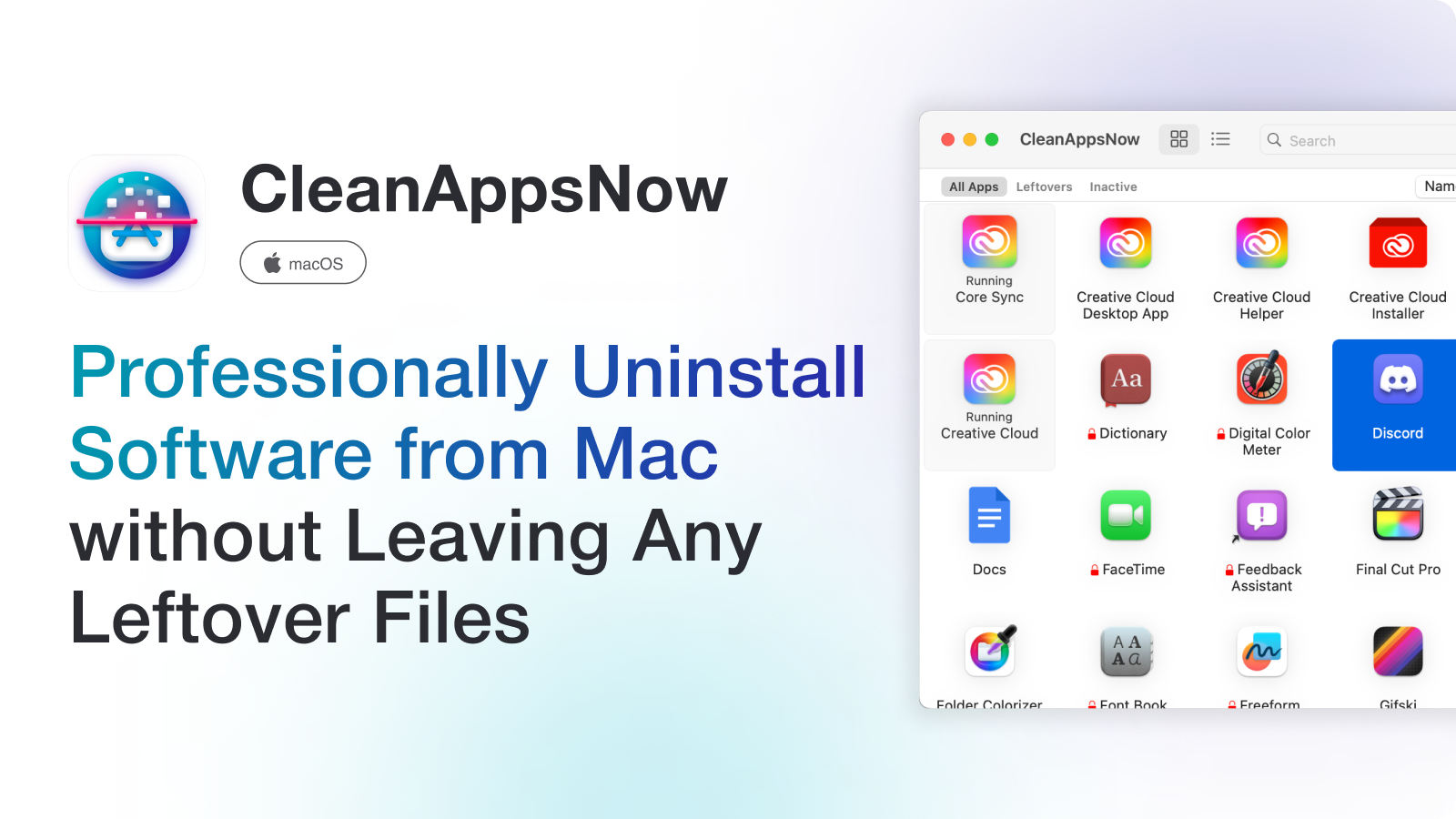
The product fit is direct: CleanAppsNow is a macOS app for fully uninstalling Mac apps, including leftover files, caches, and preferences. It also detects unused and inactive apps, which helps when you are cleaning an old Mac or clearing trial apps you forgot about.
The best part is the shape of the workflow. You do not need to run a giant system scan and decode scary warnings. You choose the app, review related leftovers, and remove the app plus files together. That is the whole point.
Use CleanAppsNow if you:
- test a lot of Mac apps;
- install and remove tools for client work;
- want to clean old trial apps;
- need a clean reinstall of a broken app;
- want to remove app leftovers without hunting through Library folders;
- prefer a focused uninstaller over a broad cleaner suite.
It is not magic. It should not promise to make an old Mac new. CleanAppsNow solves a smaller, better-defined problem: delete apps properly. Not just the icon.
Best fit: CleanAppsNow makes sense when you want app removal plus leftover cleanup in one focused workflow. It is not a general-purpose Mac speed booster, and that is the point.
What to do when a Mac app will not delete
If macOS says an app cannot be deleted because it is open or in use, do not force random files into Trash.
First, quit the app from the menu bar or Dock. If the app has a background helper, open Activity Monitor and quit the related process only when you recognize it. Next, restart the Mac and try deleting the app again. If macOS still refuses, use the app's own uninstaller or the developer's support instructions.
For stubborn apps, Safe Mode can help because macOS loads fewer background items. After the main app is removed, use CleanAppsNow or another uninstaller to check for leftovers tied to the app.
Do not delete LaunchAgents, LaunchDaemons, or system-level files unless you know what they do. A stuck app is annoying. A broken login item or driver cleanup is worse.
How to choose a Mac uninstaller
Use this checklist before installing any Mac uninstall app.
1. It should preview files before removal
Never trust a cleaner that deletes without showing you what it found.
A good uninstaller should show related files, file locations, and enough context for you to understand the removal. If something looks unrelated, you should be able to leave it alone.
2. It should remove app leftovers, not random system files
The goal is not to delete the biggest number of files. The goal is to remove files connected to the app.
Be suspicious of tools that mix app uninstalling with vague system cleaning, memory boosting, or scary warning screens. That turns a specific task into theater.
3. It should respect Apple's own uninstall path
A good Mac uninstall app should not pretend official uninstallers do not exist.
If a complex app ships an Uninstaller app, use it first. Then check leftovers. That order is safer than letting any third-party tool guess at every helper component.
4. It should handle apps outside the Mac App Store
Many messy leftovers come from apps installed from websites.
Think VPN clients, audio plugins, screen recorders, device utilities, launchers, menu bar apps, and productivity tools. These apps often create background items or support folders. A serious Mac uninstaller should handle that reality.
5. It should be simple enough to use twice
If the app makes you read a manual, you will avoid it.
Uninstalling should be a repeatable workflow: choose app, review files, remove. Done.
6. It should not scare you into buying
Storage warnings can be useful. Fake panic is not.
Good software tells you what it found. Bad software tries to make every cache file sound like a disaster.
When you do not need a Mac uninstaller
You do not need a dedicated uninstaller every time.
Finder or Launchpad is enough when you remove a small App Store app and do not care about leftover preferences. macOS also includes built-in storage tools for large files, old downloads, and other space hogs. Use Apple's storage recommendations when the main problem is disk space, not an app you no longer want.
Use a Mac uninstaller when the problem is tied to apps and their leftovers. Use a storage cleaner when the problem is large files. Use the app's own uninstaller when the app installed helpers or extensions and the developer gives you a removal path.
If you want to remove the app and its related leftovers, CleanAppsNow can uninstall Mac apps completely without a manual Library-folder cleanup.
FAQ
What is the best app to completely uninstall apps on a Mac?
The best app to completely uninstall apps on a Mac is one that removes the app plus related leftovers, previews files before deletion, and avoids unrelated system cleanup. CleanAppsNow is a focused option for users who want guided app removal without a broad cleaner suite.
Does dragging an app to Trash remove all leftovers?
No. Dragging an app to Trash removes the visible app bundle, but preferences, caches, support files, containers, logs, and helper files can remain in Library folders. That is why app leftovers still exist after a normal Finder uninstall.
Is AppCleaner enough for removing Mac app leftovers?
AppCleaner is enough for many basic removals, especially when you want a free lightweight tool. Use CleanAppsNow when you want a more guided Softorino workflow for reviewing related files and removing app leftovers without manual Library cleanup.
Is CleanMyMac better than a dedicated Mac uninstaller?
CleanMyMac is better if you want a broad Mac maintenance suite with many cleanup modules. A dedicated uninstaller is better when your specific job is removing an app and its leftovers without extra dashboards or scare tactics.
Is it safe to delete app leftovers manually?
Manual deletion can be safe if you know exactly what each file belongs to. If you are guessing from a file name or bundle identifier, leave the file alone. A focused uninstaller is safer for normal users.
Do I need a Mac cleaner or a Mac uninstaller?
Use a Mac uninstaller when you want to remove old apps and their leftovers. Use a Mac cleaner or Apple's storage tools when your problem is large downloads, videos, backups, or other files unrelated to one app.
The bottom line
A good Mac uninstaller should not feel like a slot machine for deleting files.
Use Finder for simple app deletion. Use an app's own uninstaller when it has one. Use AppCleaner if you want the free lightweight path. Use CleanMyMac if you want a broad cleaner suite. Use CleanAppsNow when you want to uninstall Mac apps completely without digging through hidden Library folders.
Delete the app. Review the leftovers. Move on.

CleanAppsNow
Remove Unwanted Mac Apps with ALL hidden files
