How to Uninstall Mac Apps Completely Without Leaving Junk Behind

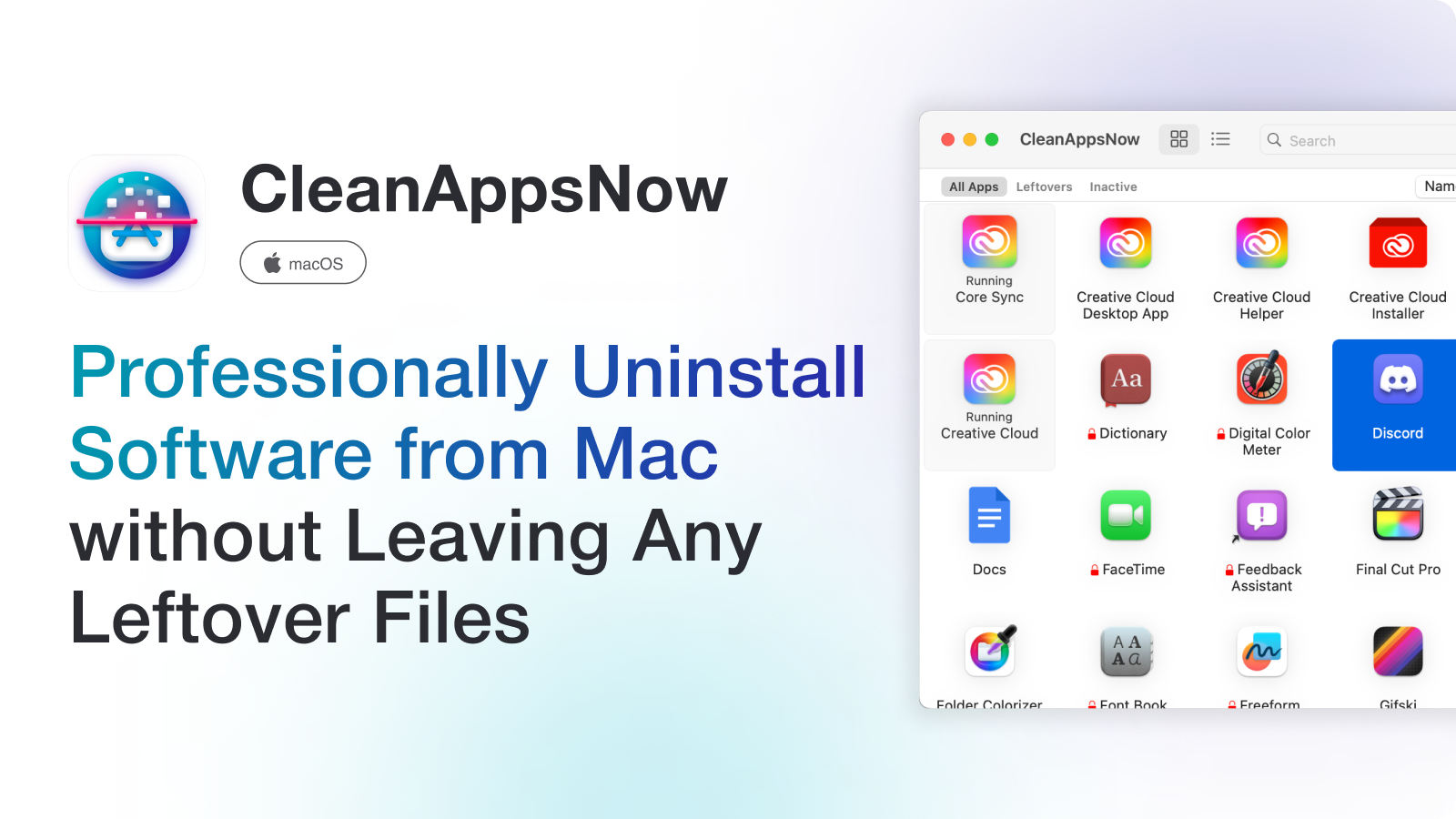
TL;DR: Dragging an app to Trash removes the app bundle, not the full footprint. To uninstall Mac apps completely, remove support files, caches, preferences, launch agents, login items, and helper files. CleanAppsNow automates that cleanup so you do not have to hunt through Library folders by hand.
Most Mac users uninstall apps the same way: open Applications, drag the app to Trash, and empty it. That works for simple apps. It does not fully remove apps that create preferences, caches, helper tools, browser extensions, launch agents, background services, and login items.
That leftover junk is why a deleted app can still show notifications, run a helper in the background, take disk space, or leave broken settings behind. This guide shows how to uninstall Mac apps completely, when manual cleanup is safe, and when an uninstaller is the better choice.
Quick takeaways
Trash is not a complete uninstall. It usually removes only the visible app bundle.
Leftovers live in Library folders. Look for Application Support, Caches, Preferences, Logs, Containers, LaunchAgents, and LaunchDaemons.
CleanAppsNow is safer for most users. It finds related app files and helps remove them without blind folder hunting.
Be careful with shared files. Do not delete system folders or files you cannot connect to the app.
Restart after removing apps with helpers. This clears stuck services and login items.
Before we begin
Mac users can download CleanAppsNow to uninstall an app together with related hidden files and leftovers. Close the app first and review the detected files before confirming removal.
Manual uninstall vs CleanAppsNow
Method | Best for | Risk |
|---|---|---|
Drag to Trash | Tiny apps with no helpers | Leaves preferences and support files |
Manual Library cleanup | Advanced users who know file paths | Easy to delete the wrong files |
CleanAppsNow | Complete app removal and leftovers | Requires installing a cleanup app |
Vendor uninstaller | Apps with drivers or security components | Not every app provides one |
1. Use CleanAppsNow for a complete uninstall
CleanAppsNow is the fastest path when you want to uninstall Mac apps completely without manually searching hidden folders. It is designed to find the app and related leftover files, then remove them as one cleanup job.
This is useful for apps that install helpers, menu bar tools, login items, caches, crash logs, and support folders. It is also useful when you are cleaning a Mac before selling it, freeing disk space, or removing apps that keep coming back after a normal Trash uninstall.
How to uninstall an app with CleanAppsNow
- Open CleanAppsNow.
- Find the app you want to remove.
- Review the related files CleanAppsNow found.
- Confirm the uninstall.
- Restart the Mac if the app used background helpers, drivers, or login items.
Best fit: Use CleanAppsNow when you want the app, preferences, cache files, support folders, logs, and background leftovers handled together.
2. Use the app vendor uninstaller when available
Some apps install system extensions, drivers, VPN components, audio tools, browser modules, or security services. For those, check whether the developer provides an official uninstaller. This matters because the app may have files outside the normal Applications and user Library locations.
Examples include antivirus tools, VPN apps, audio routing utilities, virtualization tools, cloud sync apps, and enterprise security software. If the vendor provides an uninstaller, use it first, then run a leftover check afterward.
3. Manual method: remove the app bundle
For a basic uninstall, open Applications, drag the app to Trash, and empty Trash. You may need to quit the app first. If macOS says the app is open, check the menu bar and Activity Monitor.
This step removes the main app. It does not remove everything the app created while you used it. That is why the next steps matter.
4. Manual method: check Library leftovers
The user Library folder is hidden by default. In Finder, click Go in the menu bar, hold Option, then click Library. Search only for files clearly tied to the deleted app name, developer name, or bundle identifier.
- ~/Library/Application Support/
- ~/Library/Caches/
- ~/Library/Preferences/
- ~/Library/Logs/
- ~/Library/Containers/
- ~/Library/Saved Application State/
- ~/Library/LaunchAgents/
Look for obvious matches. For example, an app called ExampleApp may leave folders named ExampleApp, com.example.app, or the developer name. Do not delete random folders just because they look old.
5. Check login items and background items
Some apps keep helpers active after the main app is deleted. Open System Settings, go to General, then Login Items and Extensions. Remove anything tied to the app you uninstalled.
If a helper refuses to disappear, restart the Mac and check again. If it still appears, the app may have installed a LaunchAgent or background service that needs a deeper cleanup.
6. Empty Trash and restart
After removing app files, empty Trash. Then restart the Mac. This clears stuck processes and makes it easier to see whether anything from the deleted app still launches.
If the app icon, menu bar helper, notification permission, or background item still appears after restart, use CleanAppsNow or the vendor uninstaller instead of continuing to delete files manually.
Files you should not delete blindly
Location | Why to be careful |
|---|---|
/System | Protected macOS files live here |
/Library without a clear app match | May include shared services used by other apps |
Developer folders with many products | One folder may support multiple installed apps |
Containers with unclear names | Can hold app data you still need |
When a complete uninstall matters most
A complete uninstall matters when an app runs in the background, starts at login, stores large caches, changes file associations, installs browser extensions, or keeps syncing data. It also matters when you are troubleshooting crashes or reinstalling an app from scratch.
For one tiny menu bar utility, dragging to Trash may be enough. For bigger apps, cleanup tools, cloud apps, downloaders, creative software, VPNs, and anything with helpers, do the full cleanup.
How to confirm the app is really gone
After the uninstall, check three places. First, open Applications and confirm the app is gone. Second, open System Settings and check Login Items and Extensions. Third, open Activity Monitor and search for the app or developer name. If nothing appears after a restart, the uninstall probably worked.
You can also check storage. Open System Settings, General, Storage, then review Applications and Documents. If the app was large, the available space should change after Trash is emptied. Some cache cleanup may happen after restart, so do not judge only by the first number you see.
Cleanup tip: If you plan to reinstall the same app to fix a bug, remove the leftovers first. Reinstalling over broken preferences can bring the same problem back.
Final take
To uninstall Mac apps completely, remove more than the app icon. You need the app bundle, preferences, support files, caches, logs, launch agents, login items, and related helpers.
Manual cleanup works if you know exactly what you are removing. For most users, CleanAppsNow is the cleaner route: review the files, remove the app, clear leftovers, and avoid turning your Library folder into a guessing game.
FAQ
Is dragging an app to Trash enough on Mac?
Sometimes. It removes the main app bundle, but it often leaves preferences, caches, logs, support files, and helper items behind.
Where are Mac app leftovers stored?
Common locations include Application Support, Caches, Preferences, Logs, Containers, Saved Application State, LaunchAgents, and Login Items. Most user-level leftovers are inside ~/Library.
Can I delete everything with the app name in Library?
No. Delete only files that clearly belong to the app or developer. Some folders are shared across products. When in doubt, use a dedicated uninstaller or leave the file alone.
Does CleanAppsNow remove app leftovers?
Yes. CleanAppsNow is designed to find related files and help remove the app plus leftovers in one cleanup flow, with a review step before removal.

CleanAppsNow
Remove Unwanted Mac Apps with ALL hidden files
