How to Add Music to iPhone Without iTunes

How to Add Music to iPhone Without iTunes
TL;DR
- iTunes sync can remove existing music from your iPhone
- Cloud and streaming apps do not add songs to the Music app
- Direct file transfer keeps your library intact
Adding music to an iPhone without iTunes is a common need, especially if you use more than one computer or keep your music outside Apple’s ecosystem. The challenge is finding a method that adds new songs without touching the music already on your device.
This article explains how music transfer works on iPhone, why iTunes causes problems, and which alternatives give you more control.
Why iTunes often removes existing music
iTunes treats the computer library as the main source of truth. When you sync an iPhone, the device mirrors what exists on that computer.
If a song is missing from the computer library, it disappears from the iPhone during the next sync. The same happens when you connect the same iPhone to a different computer.
This behavior makes iTunes risky for users who:
- use multiple computers
- download music from different sources
- organize playlists directly on the iPhone
Apple allows a “manual music management” option, but the sync model still remains one directional. Music flows from computer to iPhone, not the other way around.
For a broader explanation of how syncing works across devices, this article explains how iPhone sync behaves when switching computers.
Common alternatives and their limits
Cloud storage and file apps
Services like Google Drive or Dropbox let you store music files and play them through the Files app or third party players.
The downside is simple. Files do not appear in the native Music app. Playback depends on separate apps and an internet connection for downloads.
This approach works for temporary listening, not for building a real music library.
Streaming apps
Spotify and YouTube Music allow offline downloads, but those files are locked inside the app.
If you cancel your subscription, the music disappears. You cannot move those tracks into the Music app or use them as normal files.
This is covered in more detail in the article about downloading music to iPhone without owning the files.
Where direct transfer makes more sense
If your goal is to keep music permanently on your iPhone, the only reliable option is direct file transfer.
That means:
- no syncing
- no cloud middle layer
- no subscription lock
This is where Softorino apps are often used as an alternative to iTunes, especially by users who manage their own music libraries.
Next step
How to add music to iPhone using WALTR PRO
WALTR PRO is designed for direct file transfer into Apple’s native apps. Music lands directly in the Music app without replacing anything already on the device.
What you need before starting
- a Mac or Windows computer
- an iPhone or iPad
- a USB or USB-C cable for the first connection
Download WALTR PRO

WALTR PRO
Convert & Push Any File into Any Apple Device
Step 1, connect your iPhone once
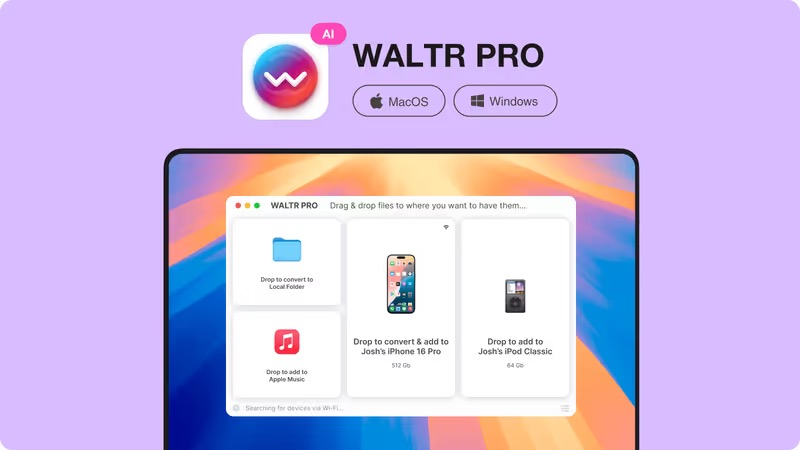
Connect your iPhone to your computer with a cable or Wi-Fi. Unlock the device and tap Trust if prompted.
Open WALTR PRO. Your iPhone should appear automatically.
Step 2, drag and drop your music files
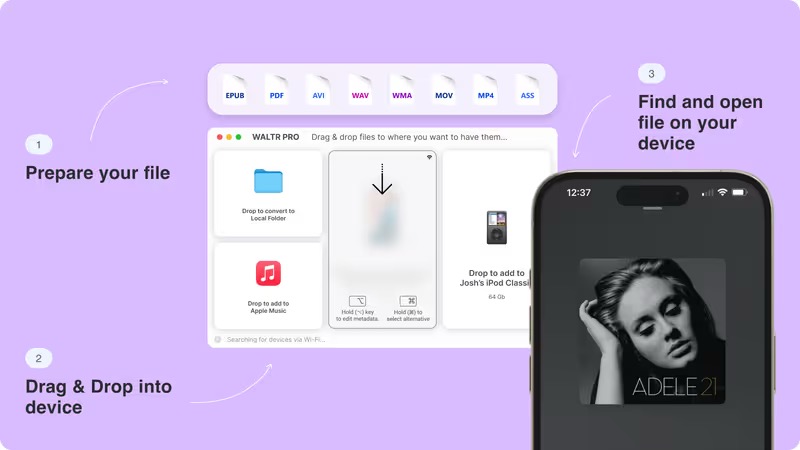
Drag audio files from Finder or File Explorer into the WALTR PRO window.
Common formats include:
- MP3
- FLAC
- WAV
- AAC
- ALAC
If a format is not supported by iOS, WALTR PRO converts it during transfer and sends the result to the correct place.
For users moving large collections, this article explains how music transfers from computer to iPhone work in practice.
Step 3, check the Music app
Open the Music app on your iPhone.
Tracks appear like regular library items with album art, artist name, and metadata. Existing music remains untouched.
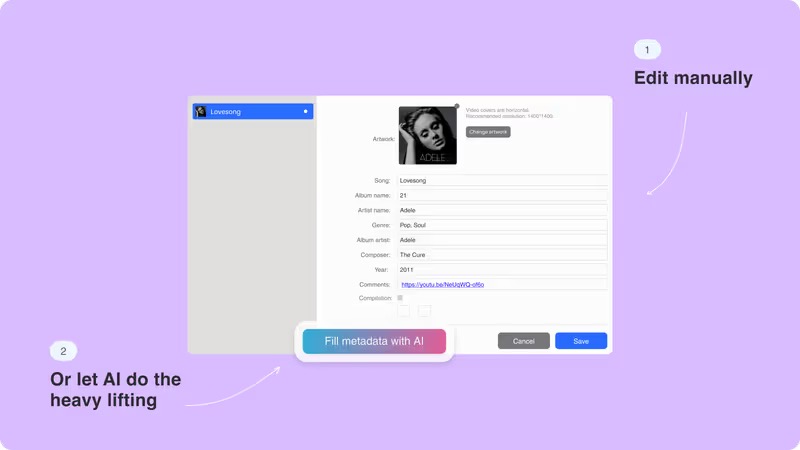
WALTR PRO also allows metadata editing manually or with AI, which helps keep albums and playlists organized.
Audio formats and metadata handling
Unlike iTunes, which relies on strict sync rules, WALTR PRO focuses on file delivery.
It supports common and lossless formats and preserves:
- album artwork
- track names
- artist and album info
This matters if you work with FLAC or converted files. For format compatibility, these articles explain how iPhone handles audio formats:
- Can iPhone play WAV files
- FLAC vs ALAC explained
Key takeaways
- iTunes sync replaces libraries
- Cloud and streaming apps do not build a real Music library
- Direct transfer keeps music permanent
- Softorino apps offer a non-sync alternative
FAQs
How can I add music to iPhone without deleting existing songs?
Use a transfer method that does not rely on syncing. Direct file transfer adds new tracks without replacing your current library.
Can cloud storage add music to the Music app?
No. Cloud files must be played through separate apps unless they are transferred locally.
Is iTunes required to manage music on iPhone?
No. Modern alternatives allow file based transfer without iTunes.
Can I add FLAC music to iPhone?
Yes. Files must be converted during transfer or sent using a tool that handles conversion automatically.
WALTR PRO
Convert & Push Any File into Any Apple Device
