Best File Manager for Mac: 5 Finder Options Compared

Best file manager for Mac: quick picks
Quick answer: The best file manager for Mac depends on what Finder makes difficult. Keep Finder for everyday browsing, search and simple batch renaming. Choose ForkLift for frequent remote transfers and folder sync, or Commander One for free two-pane local work. QSpace suits custom multi-pane workspaces; Path Finder adds deeper file controls. Compare the exact edition, macOS requirement and paid limits before switching. These recommendations use vendor documentation, not speed tests.
Tool | Best for |
|---|---|
Finder | Everyday local files at no extra cost |
ForkLift | Remote transfers and folder sync |
Commander One | Free two-pane local work |
Before we begin
Download Folder Colorizer for Mac if your separate problem is telling project folders apart. It adds colors, emoji, decals and image backgrounds to folder icons. This is an optional visual companion, not a Finder replacement: it does not add dual panes, remote transfers or a new file-search engine.
Why listen to us?
Vendor disclosure: Softorino makes Folder Colorizer for Mac. None of the five file managers below is a Softorino app. Recommendations follow the job each tool supports, including cases where the built-in Finder is enough.
This is a documentation-based comparison, with official product, support and pricing pages reviewed on October 26, 2026. No apps were installed or benchmarked for this article. The byline identifies Softorino's editorial owner; it is not evidence of personal testing. Missing facts stay unconfirmed instead of becoming invented advantages or drawbacks.
Full comparison table
Tool | Pane setup | Batch rename and search | Remote work | Entry price, USD | Compatibility or limit |
|---|---|---|---|---|---|
Finder | Tabs and separate windows | Built-in rename; criteria search and Smart Folders | SMB/WebDAV; FTP read-only | Included with macOS | No integrated dual-pane workspace |
ForkLift | Dual pane | Rule-based multi-rename; local and remote search | SFTP, FTP, WebDAV, S3; folder sync | $19.95 single user | Current release: macOS 14.6+; 1 year of updates |
Commander One | Dual pane | Advanced search; batch-rename tier unconfirmed | PRO adds remote/cloud connections | Free basics; PRO $29.99 | macOS 10.13+; direct and App Store editions differ |
QSpace | Configurable multi-pane | Folder search; advanced rename is an extension | Server Connections paid extension | Direct Pro $13.99 promotional base | macOS 10.15+; extensions cost extra |
Path Finder | Dual pane | Batch rename; current-folder filtering | Dropbox and folder sync; check exact protocol needs | $32.95 for a 1-year license | Current minimum macOS unconfirmed |
Prices are dated, not promises. These are US-dollar offers displayed on official pages on October 26, 2026. Taxes, region and promotions may change checkout totals. A free download can be a trial. A lifetime-use license can still limit future updates. The product sections explain those differences.
How we evaluated
The same questions shaped every entry:
- Does the app keep source and destination visible, or use tabs and separate windows?
- Which batch operations and search modes does its documentation describe?
- Can it browse the remote service you use, rather than merely upload a selected file?
- What is free, what requires payment, and what does the quoted license include?
- Which macOS version and download edition does the vendor support?
Apple's current Mac guides provide the Finder baseline. Product pages, manuals and stores provide the other facts. Older comparison reviews helped identify questions, but their prices and performance claims are not reused as current results. Search-only apps and iPhone file browsers are outside this macOS shortlist.
Quick Takeaways
Try Finder's existing rename and search tools before paying for replacements.
Choose a two-pane app when repeated source-to-destination work is the real problem.
Verify remote protocols and paid extensions in the exact edition you download.
Read update terms separately from the right to keep using an app.
Test a copied folder before bulk renaming, moving or syncing important files.
1. Finder: best for everyday local files
Verdict: Finder is the sensible starting point when you browse, search and rename local files without a specialist transfer workflow. It comes with macOS, so you can establish what is missing before buying another app.
Finder can do more than a simple folder view suggests. Apple documents multi-item renaming, search criteria and saved Smart Folders. Two separate windows can show source and destination side by side. That is useful for occasional copies, although it is different from one integrated dual-pane interface.
Finder key features
- Tabs and separate windows for browsing folders.
- Batch renaming with replace-text, add-text and format options.
- Search criteria and Smart Folders for repeat searches.
- Connections to shared computers and supported servers, including SMB and WebDAV.
Finder pros
- Included with macOS, with no separate license to manage.
- Handles common local-file tasks before you install anything else.
- Apple's documentation explains both basic renaming and more specific searches.
Finder cons
- No integrated two-pane transfer workspace like the third-party tools below.
- Finder's FTP access is read-only; it is not a full FTP upload client.
- Repeated remote transfers or rule-heavy renaming may justify a more focused tool.
Finder pricing
Finder is included with macOS. There is no separate subscription or time-limited trial. The extra software cost for using Finder is zero.
Who Finder is best for
Choose Finder for documents, downloads and project folders when you do not need frequent remote transfers. If file organization itself is unclear, fix the folder and tag structure before changing the browser around it.
Try the built-in option first. Apple's rename guide describes selecting multiple items, Control-clicking one and choosing Rename. Test Replace Text or Add Text on copies. See whether that solves your actual naming job before paying for another renamer.
2. ForkLift: best for remote transfers and sync
Verdict: ForkLift is the strongest starting point here for people who repeatedly work between local folders and remote servers. Its documented combination of dual panes, remote connections and folder sync addresses that specific job.
For example, a web project may live on your Mac while its upload destination lives on an SFTP server. A file manager that shows both locations saves you from treating remote transfers as a separate browsing task. This is a workflow fit, not a claim that ForkLift transferred files faster in a test.
ForkLift key features
- Dual-pane file browsing with local and remote locations.
- SFTP, FTP, WebDAV, S3 and supported cloud connections.
- One-way and two-way folder synchronization.
- Multi-rename rules, local and remote search, and local Spotlight search.
ForkLift pros
- Combines file browsing and remote transfer in one app.
- Documents rename rules and sync options rather than just generic file operations.
- Lets you keep using the version covered by your license after its update period ends.
ForkLift cons
- The current release requires macOS 14.6 or later.
- Future updates are not included forever with the entry license.
- It adds paid software where Finder may already handle a simple local task.
ForkLift pricing
The ForkLift store displayed $19.95 for a single-user license, including one year of free updates. It is a lifetime-use license, not an annual subscription: after that year, you can keep the latest version covered by the license. A new license is needed for later updates.
A free trial is available. Its duration was not stated on the official pages reviewed, so check the download offer rather than assuming a particular number of days.
Who ForkLift is best for
Choose ForkLift for recurring remote transfers, local-to-server work and folder sync. Its manual explains how search differs between local and remote locations. Do not assume a remote search has every capability of local Spotlight.
Check version support before buying. BinaryNights lists different macOS requirements for older ForkLift releases. Its support notes also set a minimum ForkLift version for macOS Tahoe. An older download that runs on an old Mac is not automatically the right version for a new Mac.
3. Commander One: best for free two-pane local work
Verdict: Commander One is the practical free starting point when you want two panes without buying a remote-transfer package first. Its free mode covers local file browsing and basic operations.
This suits a recurring task such as sorting a Downloads folder into an external drive's project folders. You can keep both locations in view. If you later need remote servers or cloud integrations, assess PRO separately rather than assuming the free app includes the whole feature list.
Commander One key features
- Dual-pane browsing for source and destination folders.
- Basic local file operations and ZIP handling in free mode.
- Advanced search, with documented regex and archive-search options.
- Remote and cloud connections in the paid PRO offering.
Commander One pros
- A continuing free mode, rather than only a temporary trial.
- A clear way to try the two-pane approach before paying.
- Vendor-listed support starts at macOS 10.13, which matters for older Macs.
Commander One cons
- PRO features should not be confused with free local basics.
- The Mac App Store and direct-download versions have different limits.
- A vendor page mentions batch renaming, but the reviewed manual did not settle its full rules or free-versus-PRO availability.
Commander One pricing
Commander One has permanent free basic functionality. Its direct-download PRO Personal license displayed $29.99 for one Mac, sold as a one-time payment. Future major-version upgrades may be separate; the store also offers a Lifetime Upgrades Guarantee.
The PRO Team license displayed $99.99 for five Macs. Confirm the current edition and license terms at purchase, especially if you are comparing the direct version with the App Store app.
Who Commander One is best for
Choose Commander One for free local dual-pane browsing, especially when Finder's separate windows feel repetitive. Choose the paid version only after confirming that it supports the remote service or advanced operation you need.
Treat batch rename as a trial question. The feature appears in vendor marketing, but that does not establish the exact rules available in your edition. If complex rename rules drive the purchase, inspect that workflow before committing. Do not infer a missing feature from incomplete documentation either.
4. QSpace: best for custom multi-pane workspaces
Verdict: QSpace suits people who want several working locations visible in a configurable layout. Its workspace approach is the reason to consider it over a basic two-pane manager.
The developer describes multiple layouts and workspace restoration. That can suit a project spread across incoming files, working assets and finished exports. The important purchase detail is that the base app and optional extensions are separate: a low headline price is not the cost of every advertised capability.
QSpace key features
- Configurable multi-pane layouts and workspace restoration.
- Folder search and filtering.
- An optional Advanced Batch Rename extension.
- An optional Server Connections extension for supported remote services.
QSpace pros
- More layout choices when two working locations are not enough.
- Separate extensions let you pay for the additional functions you need.
- Direct-download QSpace Pro offers a 30-day trial.
QSpace cons
- Advanced Batch Rename and Server Connections cost extra.
- The sandboxed Mac App Store edition differs from direct-download Pro.
- Promotional prices can obscure the normal price, so check the full cart.
QSpace pricing
The QSpace pricing page displayed a promotional $13.99 base price for QSpace Pro, excluding extensions. It describes a one-time purchase and a 30-day trial. The Mac App Store version displayed $12.99, with separate in-app purchases; its offer has no trial.
Advanced Batch Rename and Server Connections each displayed a promotional $0.99 extension price on the developer page. These are dated sale prices, not a promise of future pricing. QSpace lists macOS 10.15 or later and support for Intel and Apple chips.
Who QSpace is best for
Choose QSpace when workspace layout is your main reason to leave Finder. Before comparing prices, list which extensions you need and which edition supports your workflow. The developer's edition comparison is more useful than assuming that two products with the QSpace name behave identically.
If you only want two local panes, start with Commander One's free basics. If remote transfer and sync are central, compare QSpace's paid remote extension directly with ForkLift during their trials.
5. Path Finder: best for deeper local-file controls
Verdict: Path Finder suits users who want a more feature-rich local file workspace, including dual panes, batch renaming and folder filtering. Its value here comes from file controls, not an assumed win on every remote protocol.
The current vendor site lists dual-pane copying, folder sync and Dropbox integration. Remote support needs a closer look: a release note about uploading selected files over SFTP or FTP does not establish a full remote-browsing workflow. Buy for documented functions you need, and confirm the rest.
Path Finder key features
- Dual-pane browsing and copying between panes.
- Batch renaming and current-folder filtering.
- Folder synchronization.
- Documented Dropbox integration.
Path Finder pros
- Brings several local file-management controls into one workspace.
- Offers a full-featured 30-day trial.
- Provides fixed-term license options as well as subscription terms.
Path Finder cons
- The current minimum macOS version was not confirmed from the reviewed official pages.
- Integrated remote browsing for a specific protocol needs verification.
- License duration, update rights and subscription pricing need careful comparison.
Path Finder pricing
Cocoatech's shop displayed $32.95 for a one-year license, $55.95 for two years and $122.95 for five years. These are labeled fixed-term licenses. They should not be described as perpetual licenses or automatically relabeled annual subscriptions.
The current terms also describe monthly and yearly auto-renewing subscriptions, but their rates were not verified for this review. The full-featured 30-day trial is separate from permanent free use.
The fixed-term license expires. Cocoatech's current terms grant use for the purchased term and stop updates at expiry unless you buy a new license or subscription. Do not assume the installed version remains licensed for use forever.
Who Path Finder is best for
Choose Path Finder when you want its local file controls and can verify compatibility on your Mac during the trial. For a purchase driven mainly by remote servers, start with the clearer protocol information for ForkLift or Commander One PRO, then compare your exact requirements.
Unknown is not unsupported. This review did not establish Path Finder's current minimum macOS version. That is a documentation limit, not a claim that the app cannot run on your Mac. Use its current download and support information to settle the question.
How to choose
The best file manager for Mac should fix a task you repeat, not add a longer feature menu. Use these decision rules:
- If you mainly open, search and rename local files, stay with Finder first.
- If you want free side-by-side local browsing, try Commander One's basic mode.
- If you routinely transfer to servers or sync folders, start with ForkLift.
- If you need several persistent working locations, try QSpace and price the required extensions.
- If you want Path Finder's local controls, use its trial to confirm compatibility and your exact workflow.
Best file manager for Mac: test before switching
Run a small, safe comparison. Make a disposable copy of a typical project folder. Include a few duplicate names, nested folders and files you can recognize. Try the same rename, copy and search job in the candidate app. This is a suggested evaluation, not a test performed for this article.
For remote work, use a noncritical folder on a server you control. Check the direction of sync and whether the preview proposes deletions. Keep a separate backup before any bulk change. A sync operation can propagate an unwanted edit; it is not a substitute for recovery history.
Make folders easier to recognize
Folder appearance is a separate decision from file-manager selection. Folder Colorizer for Mac adds colors, emoji, decals and image backgrounds. It can be useful for marking a few frequently used project folders without replacing Finder.
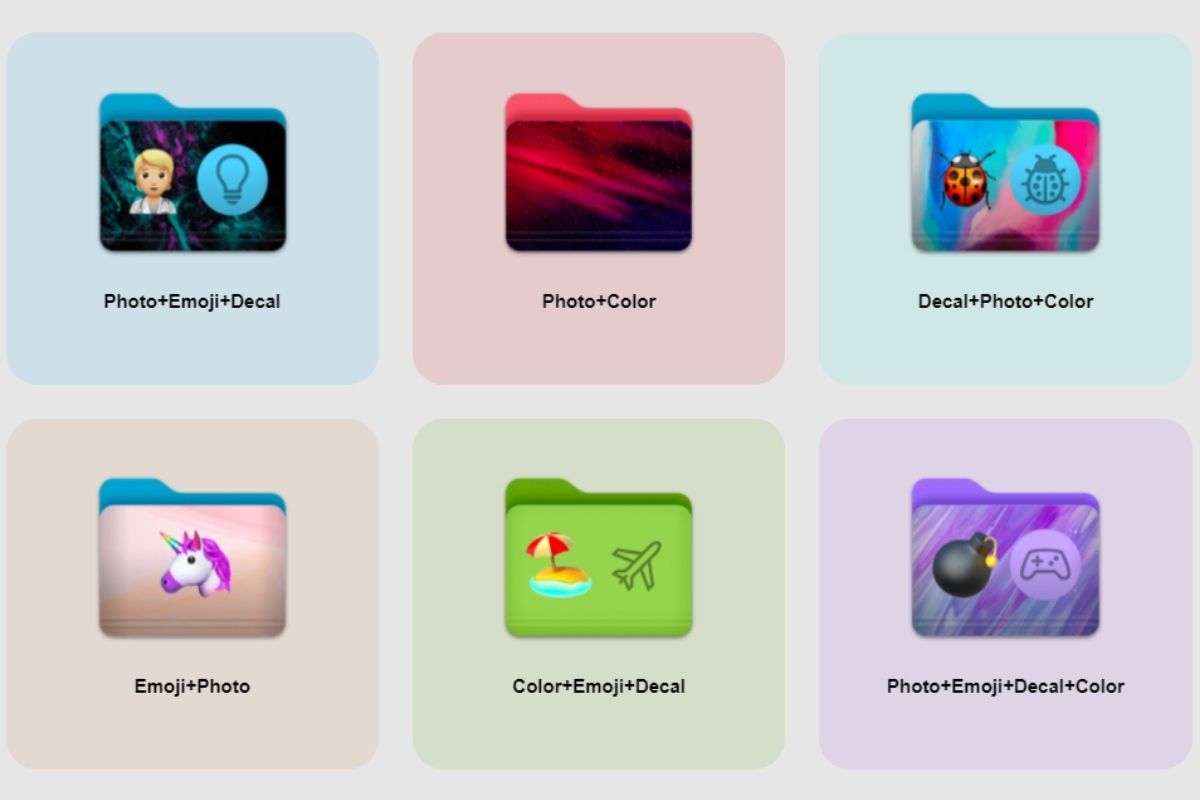
Historical Softorino illustration of Folder Colorizer styles. This is not a screenshot of any file manager reviewed here.
macOS Tahoe already offers basic folder colors and symbols. Try that if it meets your needs. Softorino's Mac folder-color guide explains native and third-party routes; you do not need another file manager just to change an icon.
For richer visual styling, download Folder Colorizer for Mac and try it on a spare folder. Its documented workflow is to add a folder, choose the style and apply it with Colorize Folder. The free download is a trial, not a claim of unrestricted free use. Keep the folder's name meaningful even after styling it.
Frequently asked questions
What is the best file manager for Mac?
Finder is the best starting point for ordinary local work. ForkLift is the strongest fit here for frequent remote transfers and sync, while Commander One offers free two-pane local basics. The right choice depends on your workflow, macOS version and required paid features.
Is there a free alternative to Finder?
Yes. Commander One offers a continuing free mode for basic local file management with two panes. Its paid PRO functions are separate. Finder itself is included with macOS, while a free trial of another app is not permanent free access.
Can Finder rename multiple files at once?
Yes. Finder can rename multiple selected items using replace-text, add-text and format options. Try those built-in controls on copies before buying a batch renamer. More complex rules may justify another tool, but basic batch rename is not missing from Finder.
Which Mac file manager should I use for SFTP?
ForkLift and Commander One PRO document SFTP support. QSpace offers remote services through its paid Server Connections extension. Verify the exact edition, server setup and required operations during a trial; an app supporting file upload does not always provide the remote browsing you expect.
Is ForkLift a subscription?
The reviewed ForkLift store offer is a lifetime-use license with a limited period of free updates. The $19.95 single-user option includes one year of updates. You can keep using the covered version afterward; receiving later updates requires another license purchase.
Does Folder Colorizer for Mac replace Finder?
No. Folder Colorizer for Mac changes folder appearance with colors, emoji, decals and images. It complements your file-organization setup. Choose a file manager for browsing, search, bulk operations and remote work; choose folder styling only when visual identification is the problem.
Bottom line
Keep Finder unless you can name the task it fails to handle well. Commander One is the free two-pane starting point; ForkLift is the remote-transfer shortlist pick. QSpace and Path Finder offer different kinds of workspace control. Check the exact edition, current OS support and license terms, then trial the job on copied files before changing your main library.

AltTunes
Seamlessly Browse, Manage & Export iOS Data
