Best File Organization Software for Mac and Windows

Quick answer: file organization software
Quick answer: Choose file organization software by the job it needs to do. Hazel suits automatic sorting on Mac; File Juggler handles rule-based Windows filing. TagSpaces adds tags across Mac and Windows without forcing every file into one category. For a messy backlog, AI File Sorter offers suggestions to review before applying. Folder Colorizer for Mac and Folder Colorizer 2 help identify existing folders visually. They do not sort the files inside them.
Tool | Best for |
|---|---|
Hazel | Recurring Mac sorting rules |
File Juggler | Recurring Windows document filing |
TagSpaces | Tags across Mac and Windows |
Before we begin
Download Folder Colorizer for Mac or Folder Colorizer 2 for Windows if your folders already have a sensible structure but look too similar. These separate apps add visual cues to folder icons. Use a sorting or tagging tool below when the problem is where files belong or how to find them by subject.
Why listen to us?
Vendor disclosure: Softorino makes both Folder Colorizer apps. They appear here for visual organization, not as substitutes for automatic sorting or file tagging. The top-three shortlist recommends other products because they solve those different jobs.
This comparison draws on official product pages, manuals and licensing pages reviewed on October 26, 2026. No apps were installed or benchmarked for this article. The byline identifies the editorial owner, not a personal test record. Recommendations reflect documented workflows; unconfirmed prices and compatibility details stay unconfirmed.
Full comparison table
Tool | Desktop platforms | Main job | What changes | Control model | Price or license |
|---|---|---|---|---|---|
Hazel | Mac | Recurring rule-based sorting | Moves, names, tags or other configured actions | Rules watch chosen folders | Paid license; trial available |
File Juggler | Windows | Automatic document filing | Moves, copies, names or deletions | User-created rules; action log | Paid license; 30-day trial |
TagSpaces | Mac, Windows, Linux | Labels and tag-based retrieval | File tags in names or sidecars; folder tags in sidecars | User tagging; optional Pro AI features | Free Lite; paid Pro |
AI File Sorter | Mac, Windows, Linux | Review a messy file backlog | Proposed moves and names | Preview and approve; dry run and undo | Free open source; cloud costs separate |
Folder Colorizer for Mac | Mac | Rich folder-icon styling | Folder appearance | Select folders and apply a style | Trial; Universal License subscription |
Folder Colorizer 2 | Windows | Right-click folder coloring | Folder appearance | Choose a color or HEX value | Free download; Universal License subscription |
Pricing check: License types were reviewed on October 26, 2026. A free download is not necessarily a free permanent license. Missing checkout amounts are not zero. Numeric offers, currency limits and renewals are explained in the individual entries rather than hidden behind a low starting price.
How we evaluated
The same questions shaped each recommendation:
- Which job does the tool perform: sorting, tagging, reviewing a backlog or changing appearance?
- Which desktop platforms does the vendor list?
- Does the tool move files, rename them, create metadata or change icons?
- What control do you have before and after a change?
- What does the free edition, trial or paid license include?
Noodlesoft, File Juggler, TagSpaces and AI File Sorter documentation supplied competitor facts. Softorino pages supplied its product claims. Apple's current Mac User Guide supplied the built-in baseline. This is a buyer guide to organizing files, not a comparison of dual-pane file managers or an enterprise document-management system.
Quick Takeaways
Use Hazel or File Juggler when incoming files follow repeatable rules.
Use TagSpaces when a file needs several searchable labels.
Review AI sorting proposals before allowing moves or renames.
Choose Folder Colorizer only for visual folder identification.
Try built-in Mac tags and folder colors before paying for more styling.
Test changes on copies and keep a backup separate from sync.
1. Hazel
Verdict: Hazel is the Mac choice for files that keep arriving in predictable patterns. You define conditions once and let the app watch the folders you select. It fits a recurring Downloads or document-filing job better than a one-off cosmetic cleanup.
Noodlesoft describes rules based on names, dates, file types, download origin and other attributes. Actions include moving, renaming, tagging and archiving. For example, a rule could route files with a known naming pattern into a project folder. That is an illustrative use case, not a measured result from this review.
Hazel key features
- Watches selected folders and applies rules automatically.
- Sorts into subfolders using attributes and pattern matching.
- Supports tags, uploads and Mac automation integrations.
Hazel pros
- A strong fit for repeated workflows with clear conditions.
- Combines filing and metadata actions in the same rule system.
Hazel cons
- Mac-only; it is not the Windows half of a shared cross-platform setup.
- You must design and maintain the rules. Poor conditions can act on the wrong files.
- Deletion and Trash automation need particular care; leave them out of an initial trial.
Hazel pricing
Hazel is paid software with a free trial. The Hazel 6 store displayed $42 for a base license, $65 for a household family pack and $20 for an upgrade. The captured store did not explicitly label the dollar currency. Confirm currency, taxes and eligibility before paying; those amounts are not a verified local checkout quote.
Who Hazel is best for
Choose Hazel if you use a Mac and can describe the sorting rule clearly. If each file requires a judgment call, begin with a reviewed cleanup instead of trying to encode every exception into unattended rules.
2. File Juggler
Verdict: File Juggler suits Windows users who receive a steady flow of documents and want rules to handle filing. Its content-based conditions matter when filenames alone do not tell you enough.
The official document guide describes looking for words or dates inside files, then moving or renaming them. It also describes an action log that records what happened. This is useful when you need to trace a document after a rule runs. It is not evidence that every scan or file format will be readable.
File Juggler key features
- Automatic move, copy, rename and delete actions.
- Conditions based on document content, including words and dates.
- An action log for tracing changes.
File Juggler pros
- A focused Windows option for recurring document workflows.
- Content rules can handle files with unhelpful names.
File Juggler cons
- Rules still require setup and maintenance.
- Check text extraction on your actual documents before relying on content rules.
- An action log helps trace changes but does not replace a backup.
File Juggler pricing
The official document page offers a 30-day free trial. A paid license follows the trial, but the current purchase amount did not render in the reviewed buying page. Confirm the price and currency with the vendor. The $40 quote in a third-party comparison is not treated as current official pricing here.
Who File Juggler is best for
Choose File Juggler for repeatable Windows filing, such as routing documents by recognizable content. Do not select it just to make folders easier to spot; an appearance change is a smaller job.
3. TagSpaces
Verdict: TagSpaces is the cross-platform choice when one file needs several labels. It lets you find files by tags while keeping an ordinary folder structure underneath.
The key buying decision is how tags are stored. TagSpaces can put file tags in the filename or use sidecar JSON files inside a hidden .ts folder. Folder tags always use sidecars. These choices have different handoff risks. Neither should be assumed to behave exactly like Finder's native tags.
TagSpaces key features
- File and folder tagging on Mac, Windows and Linux.
- Filename-based or sidecar-file tag storage.
- File previews and tag search in the free Lite edition.
- Pro features include advanced search and additional folder views.
TagSpaces pros
- A shared tagging approach across desktop platforms.
- No central tag database is required for its documented storage methods.
- Lite provides a free way to assess the basic workflow.
TagSpaces cons
- Filename tags change names, which can affect links and naming rules elsewhere.
- Hidden .ts metadata folders may be omitted by cloud sync. Keep sidecars with files when copying or renaming outside TagSpaces, and check hidden-file sync settings.
- Advanced features belong to Pro; do not assume the whole feature list is free.
TagSpaces pricing
TagSpaces Lite is free and open source. The Pro page offers annual and one-time-payment options, but a numeric amount did not render during this review. Check the current price, currency and update terms before choosing a license. This comparison does not turn a missing price into a free-Pro claim.
Who TagSpaces is best for
Choose TagSpaces for a collection that needs several searchable labels across Mac and Windows. If you only use a Mac and need simple labels, try Finder tags first. The tags-versus-folders guide explains how to design the system without buying an app first.
4. AI File Sorter
Verdict: AI File Sorter is worth evaluating for an irregular backlog where you want suggested destinations and names to review. It differs from a standing rule that silently processes every matching new file.
The official site describes focused cleanup flows for Downloads, photos, scans, screenshots and archives. It shows a review step before applying changes, plus dry-run and undo features. Local models and a user-supplied cloud provider are separate choices. Decide which data may leave your device before selecting a model.
AI File Sorter key features
- Proposed file moves and renames with review before application.
- Content-aware handling for supported documents and images.
- Local processing or a connected cloud provider.
- Dry run, undo and project-folder protection described by the vendor.
AI File Sorter pros
- Can suggest structure when you cannot express a neat filename rule.
- Free, open-source software with builds for Mac, Windows and Linux.
- A visible review stage supports selective approval.
AI File Sorter cons
- A plausible suggestion can still be wrong. Inspect names and destinations.
- Local models need machine resources; cloud providers have separate terms and possible fees.
- The Mac download page warns about unsigned-app installation. Managed Macs may not permit it; follow your organization's policy rather than disabling protections.
AI File Sorter pricing
The software is free and open source. Optional cloud-model use can carry provider charges; no universal cloud price applies. A local workflow does not require buying a cloud API subscription. Confirm the current build for your Mac processor or Windows setup before downloading.
Who AI File Sorter is best for
Choose it for a backlog you are willing to review carefully. For ongoing, predictable rules, Hazel or File Juggler may be a better fit. For sensitive files, verify the selected model and data path instead of relying on the word local in a headline.
5. Folder Colorizer for Mac
Verdict: Folder Colorizer for Mac fits an existing folder structure that needs clearer visual cues. It changes how folders look; it does not decide where documents belong.
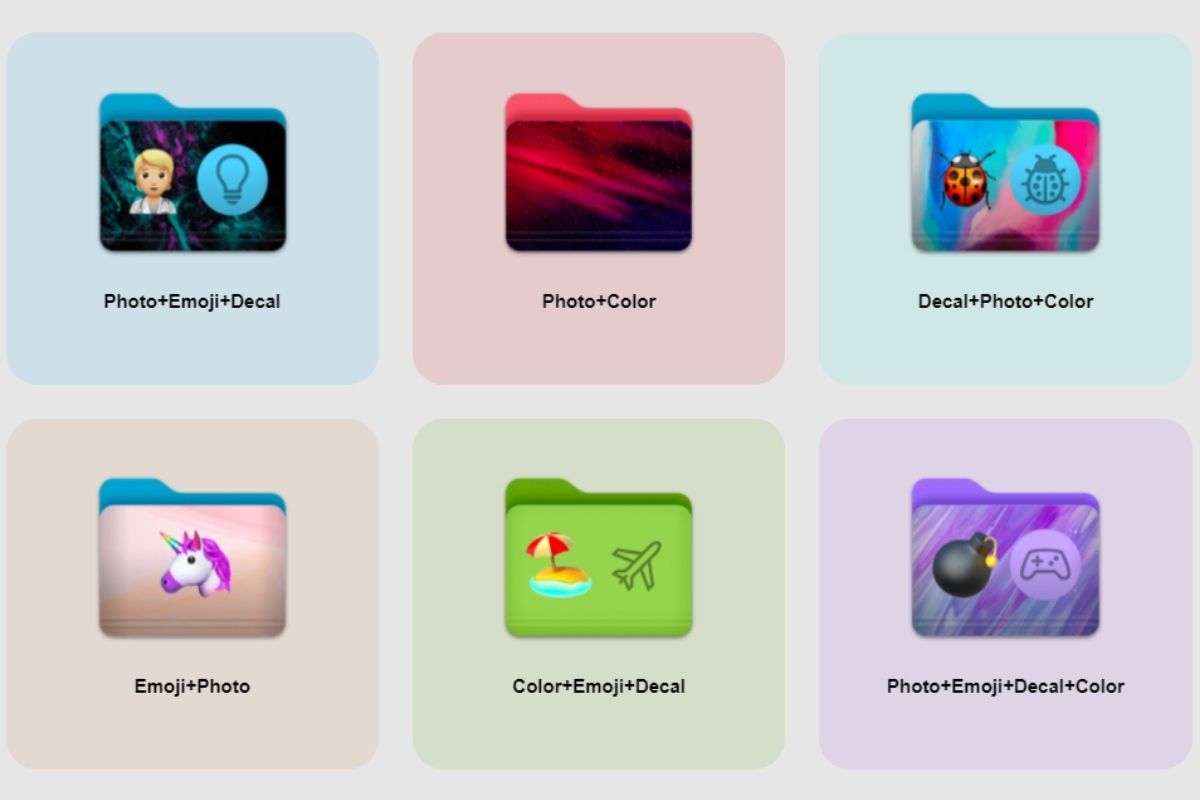
Softorino documents colors, emoji, decals, custom image backgrounds and changes to multiple folders. Its workflow is to drag folders into the app, select a style and press Colorize Folder. The illustration below shows possible style combinations. It is existing Softorino product artwork, not a screenshot from testing for this article.
Folder Colorizer for Mac key features
- Custom folder colors, emoji, decals and image backgrounds.
- Styling for multiple folders in one operation.
- A reset option to restore the original appearance.
Folder Colorizer for Mac pros
- Keeps the existing folder structure while adding visible distinctions.
- Supports richer combinations than a simple color label alone.
Folder Colorizer for Mac cons
- It does not replace a sorting engine, search index or tag system.
- Current macOS already offers folder colors, symbols and emoji. An extra app is unnecessary when those meet your needs.
- Visual meaning is not access control. Keep clear names rather than relying on color alone.
Folder Colorizer for Mac pricing
The direct-download Mac app is free to try. Continued unrestricted use requires a Universal License subscription; the current direct store does not sell standalone app licenses.
The Universal License page advertises a USD $0.99 first-day offer, then $3.46 per week billed annually, with a $180 annual headline. The subscription renews automatically unless canceled. Confirm checkout terms; $0.99 is not the annual price.
The older $39.96 figure in the product FAQ conflicts with the current subscription page, so it is not used as a current quote. App Store and direct-store offers may differ.
Who Folder Colorizer for Mac is best for
Choose it if you need custom styling beyond the built-in options and often distinguish project folders visually. For a few simple colors, start with the native method in the Mac folder-color guide.
6. Folder Colorizer 2
Verdict: Folder Colorizer 2 is the Windows option for applying folder colors from a right-click menu. It is a separate product from Folder Colorizer for Mac, with a different workflow.
Softorino documents a Colorize menu and a color editor with HEX support. You can apply a consistent shade to a project folder without designing a separate icon for each color. That gives the folder a visual cue; it does not move or label the documents inside it.
Folder Colorizer 2 key features
- Right-click Colorize workflow for Windows folders.
- Preset colors and a HEX-capable color editor.
- Folder colors that remain after the app closes, according to Softorino.
Folder Colorizer 2 pros
- Works from the folder's context menu.
- Precise color values can support a consistent visual scheme.
Folder Colorizer 2 cons
- No automatic file sorting or content-based tagging is claimed here.
- Windows-only; Mac instructions do not apply.
- Test the appearance in your actual folder location rather than assuming every cloud or network folder behaves alike.
Folder Colorizer 2 pricing
The Windows app is free to download and is offered under Softorino's Universal License subscription. The current promotion is described in the Mac entry above. Confirm the selected plan, currency and renewal amount before buying. A download button alone does not establish a permanent free license or an identical trial for both products.
Who Folder Colorizer 2 is best for
Choose it for repeated Windows folder-color changes. For occasional manual icon changes or troubleshooting, use the separate Windows folder-color guide. Neither method replaces a rule engine when incoming files need automatic filing.
How to choose
Start with the failing task. A folder full of misplaced documents needs sorting. Files that belong to several topics need labels. A well-organized folder tree with identical icons needs visual cues. Buying for the wrong task leaves the original problem intact.
- If incoming Mac files match repeatable conditions, evaluate Hazel.
- If Windows documents need content-based filing, evaluate File Juggler.
- If you need tags across Mac and Windows, start with TagSpaces Lite.
- If an irregular backlog needs proposed moves, review AI File Sorter on copies.
- If folder appearance is the problem, try native controls before the platform-correct Folder Colorizer app.
Check what will change. Moving a file changes its path. Renaming can affect links and scripts. Sidecar tags add metadata that must be copied too. Folder colors change appearance. These differences matter more than whether an app calls itself a file organizer.
Try file organization software safely
Begin with a small copied folder, not your whole drive. A preview or undo feature is useful, but neither proves every change can be reversed in every situation. Cloud synchronization can spread a mistaken move or deletion to another device.
- Back up the original files separately from the test folder.
- Choose representative copies, including files that should stay untouched.
- Review proposed moves, names, tags or colors before broad application.
- Open files afterward and check links, paths and any sidecar metadata.
- Try the tool's documented reversal process on the copies.
- Expand only after you understand the result. Avoid two automation tools controlling the same folder.
For the visual-only job, download the correct Folder Colorizer app from the links above and start with one project folder. Use one meaning per color and retain descriptive names. That makes the cue useful even when another device does not show the same icon.
FAQ
What is the best file organization software?
The best file organization software depends on the task. Hazel suits Mac rules, File Juggler suits Windows document filing, and TagSpaces suits cross-platform tags. AI File Sorter offers reviewed suggestions for a backlog. Folder Colorizer is for identifying existing folders visually, not automatically sorting their contents.
Is there free file organization software?
Yes. TagSpaces Lite and AI File Sorter are free, while Finder supplies built-in Mac tags and folder customization. Free editions and trials are different: File Juggler's documented trial lasts 30 days, and paid features or optional cloud-model use may cost extra.
Can file organization software sort files automatically?
Yes. Hazel and File Juggler apply user-created rules to selected folders. Review the conditions and actions before relying on them. A visual folder-color tool does not perform the same job, and an AI tool with a review stage should not be assumed to run unattended.
Do TagSpaces tags work like Finder tags?
No. TagSpaces documents filename tags or sidecar JSON storage, while Finder has its own native tagging workflow. Do not assume labels will translate automatically between them. Choose a method deliberately, then test copying, syncing and finding a few tagged files on each computer.
Will a folder color app organize the files inside folders?
No. Folder Colorizer for Mac and Folder Colorizer 2 change folder appearance. They do not decide which documents belong inside. Use them after choosing a folder structure, or alongside a separate sorter, when visual identification is the remaining problem.
Is AI file sorting safe for private documents?
AI file sorting requires checking the model and data path, not just the app name. A local workflow and a cloud-connected workflow have different exposure. Use copies, inspect every proposed change and confirm where file contents are processed before including private documents.
Bottom line
Match the tool to the operation: Hazel or File Juggler for recurring rules, TagSpaces for labels, and AI File Sorter for reviewed backlog changes. Use the Mac or Windows Folder Colorizer only when clearer folder appearance is what you need. Start with copies and keep the simplest setup that solves the problem.

AltTunes
Seamlessly Browse, Manage & Export iOS Data
