How to Transfer Videos from iPhone to Computer

Transfer Videos from iPhone to Computer
TL;DR
- AirDrop, email & cloud links often fail with large or 4K videos
- USB transfer keeps full quality on Mac & Windows
- WALTR PRO helps when formats or file sizes cause problems
Trying to transfer videos from iPhone to computer sounds simple, but it rarely is. Large files, 4K recordings & format limits often lead to failed transfers or lower quality.
This article explains what actually works and how to move iPhone videos to Mac or Windows without losing resolution.
Why transferring iPhone videos is harder than it looks
iPhones record high quality video by default. A few minutes of 4K footage can take several gigabytes, which breaks many common transfer methods.
Wireless tools often compress files. Cloud services add storage limits. Email fails almost instantly.
The result is retries, missing files, or videos that look worse than the original.
If you also deal with photos, this article on transferring photos from iOS to computer explains the same issue in detail.
Wired ways to transfer videos from iPhone
Using File Explorer on Windows
On Windows, the most direct method is a USB cable and File Explorer.
Connect your iPhone, unlock it, and tap Trust when asked. Open This PC, select your iPhone, then open the DCIMfolder.
From there, you can copy video files directly to your computer.
If iCloud Photos is set to Optimize Storage, some videos may not be stored locally. Switch to Download and Keep Originals before transferring.
For Windows users who want a deeper walkthrough, this article explains how to transfer files from iPhone to PC.
Using Finder or Image Capture on Mac
On macOS, Apple’s built-in tools work better.
Connect your iPhone with a cable, approve the connection, then open Photos or Image Capture.
Photos imports videos into your library. Image Capture lets you choose a folder and skip the Photos app completely.
Both methods keep original quality and work well for large files.
What most people get wrong when moving iPhone videos
First mistake is relying on AirDrop for long or 4K videos. It works until it doesn’t, especially if the connection drops.
Second mistake is using cloud links and assuming quality stays the same. Many services compress video or replace originals with optimized versions.
Third mistake is forgetting about format support. Some videos copied to a computer won’t play without conversion.
This is common with formats like MKV or WMV. These articles explain how playback works on iPhone.
A better alternative
If you move videos often or deal with large or unsupported formats, a dedicated tool like WALTR PRO saves time.
You only need:
- a Mac
- an iPhone or iPad
- a USB or USB-C cable for the first connection
That’s it.
Download WALTR PRO

WALTR PRO
Convert & Push Any File into Any Apple Device
Step 1, connect your iPhone once
Connect your iPhone to your Mac with a cable or Wi-Fi. Unlock your iPhone and tap Trust if you see the prompt.
Open WALTR PRO. Your device should appear in the app.
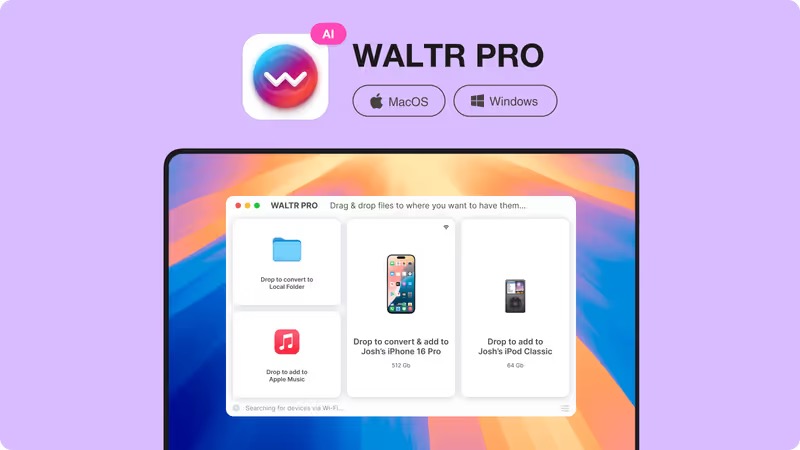
Step 2, drag and drop your files
Drag files from Finder into the WALTR PRO window.
Common examples:
- MKV or AVI videos
- MP4 or MOV files
- music albums
- PDF or EPUB files
WALTR PRO converts formats when needed and sends the result to the right iPhone app.
If you also transfer music, this article explains how to move music from computer to iPhone.
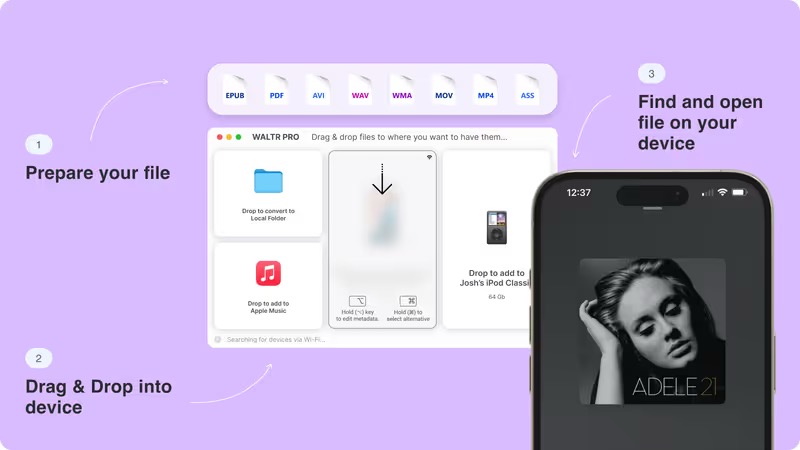
Step 3, check where the file landed
Open the related iPhone app:
- TV app for videos
- Music app for songs
- Books app for books
- Settings for ringtones
If you dropped multiple items, they appear like normal content.
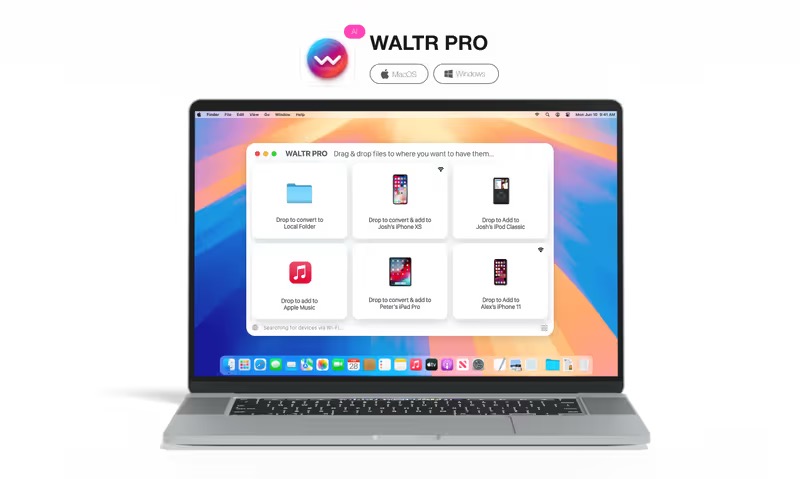
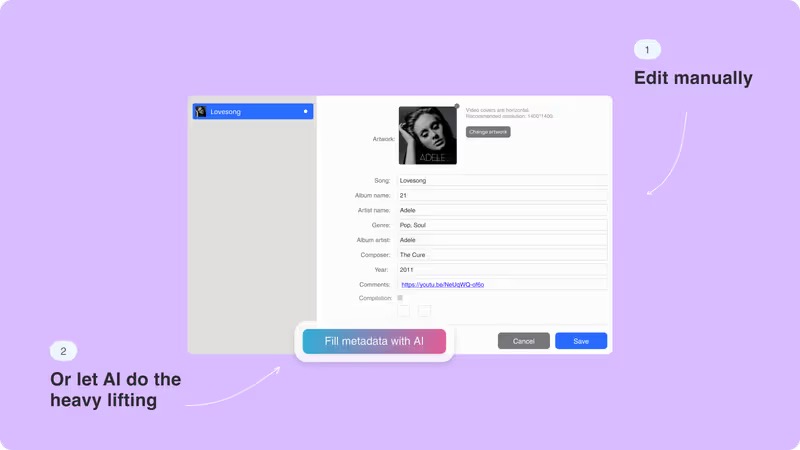
Step 4, edit metadata manually or with AI
WALTR PRO also lets you edit metadata manually or with AI. This helps keep your library organized and easy to browse.
Key takeaways
- USB transfers keep original video quality
- Built-in tools work but need manual steps
- Large or unusual formats cause most issues
- WALTR PRO helps when transfers become frequent
Convert & Push Any File into Any Apple Device

FAQs
What is the best way to transfer videos from iPhone to computer?
The most reliable way is using a USB cable. Finder or Image Capture on Mac and File Explorer on Windows keep full resolution and avoid compression.
Why do my iPhone videos lose quality after transfer?
This usually happens with AirDrop, email, or cloud sharing. These methods often compress files or use optimized versions.
Can I transfer 4K videos from iPhone to Windows?
Yes. Use a USB cable and File Explorer or the Windows Photos import tool. Make sure videos are stored locally on the iPhone.
Do I need iTunes to move iPhone videos?
No. Modern versions of macOS and Windows allow direct access without iTunes.
What if my video format doesn’t work on iPhone?
That usually means manual conversion or using a tool that converts files during transfer.
WALTR PRO
Convert & Push Any File into Any Apple Device
