How to Change Folder Icons on Mac: 2026 Step-by-Step Guide

Quick answer: To change folder icons on Mac, open your image in Preview and copy its contents. Select the folder in Finder, choose File > Get Info, click the small icon at the top, then choose Edit > Paste.
Finder and Preview are free and already on your Mac. Use them for a single picture or logo. For repeated designs, you can also use Folder Colorizer for Mac. You do not need a paid app to replace one folder icon.

Quick Takeaways: Change Folder Icons on Mac
Choose the method for the change you want. Replacing an icon, changing a folder's color, and adding a searchable tag are different jobs.
Goal | Method | When to use it |
|---|---|---|
Replace a folder icon with a picture | Preview and Finder Get Info | One custom image or logo |
Choose a native color or emoji | Customize Folder in macOS Tahoe 26 | Built-in styling on a supported folder |
Recolor a copied folder image | Preview Adjust Color | Manual color editing |
Apply repeated folder designs | Folder Colorizer for Mac | Decals, uploaded images, bulk color changes and history |
Group folders for search | Finder Tags | Labels without replacing the icon |
For one custom image, start with Finder. For a set of folder designs, compare the app workflow below with the built-in controls before downloading anything.
Before we begin
Download Folder Colorizer for Mac if you want to combine folder colors, emoji, decals and your own image backgrounds. It is free to download and try. For one picture icon, the Finder method below needs no extra app.
How to Change Folder Icons on Mac with Finder
Copy the image's contents in Preview, then paste into the folder's small Get Info icon. This follows Apple's folder and file customization guide. Copying the image file in Finder is a different action.
Choose an image with a clear subject, such as a project logo or a photo you can recognize at a small size. Keep the original image file if you want to reuse the design later.
Copy the picture and replace the icon
- Open the picture in Preview. A PNG or JPG is a practical starting point.
- Choose Edit > Select All, then Edit > Copy. The shortcuts are Command + A and Command + C.
- Select the folder you want to change in Finder.
- Choose File > Get Info, or press Command + I.
- Click the small folder icon below the title bar, at the top-left of the Info window.
- Choose Edit > Paste, or press Command + V.
- Close Get Info and look at the folder in Finder.
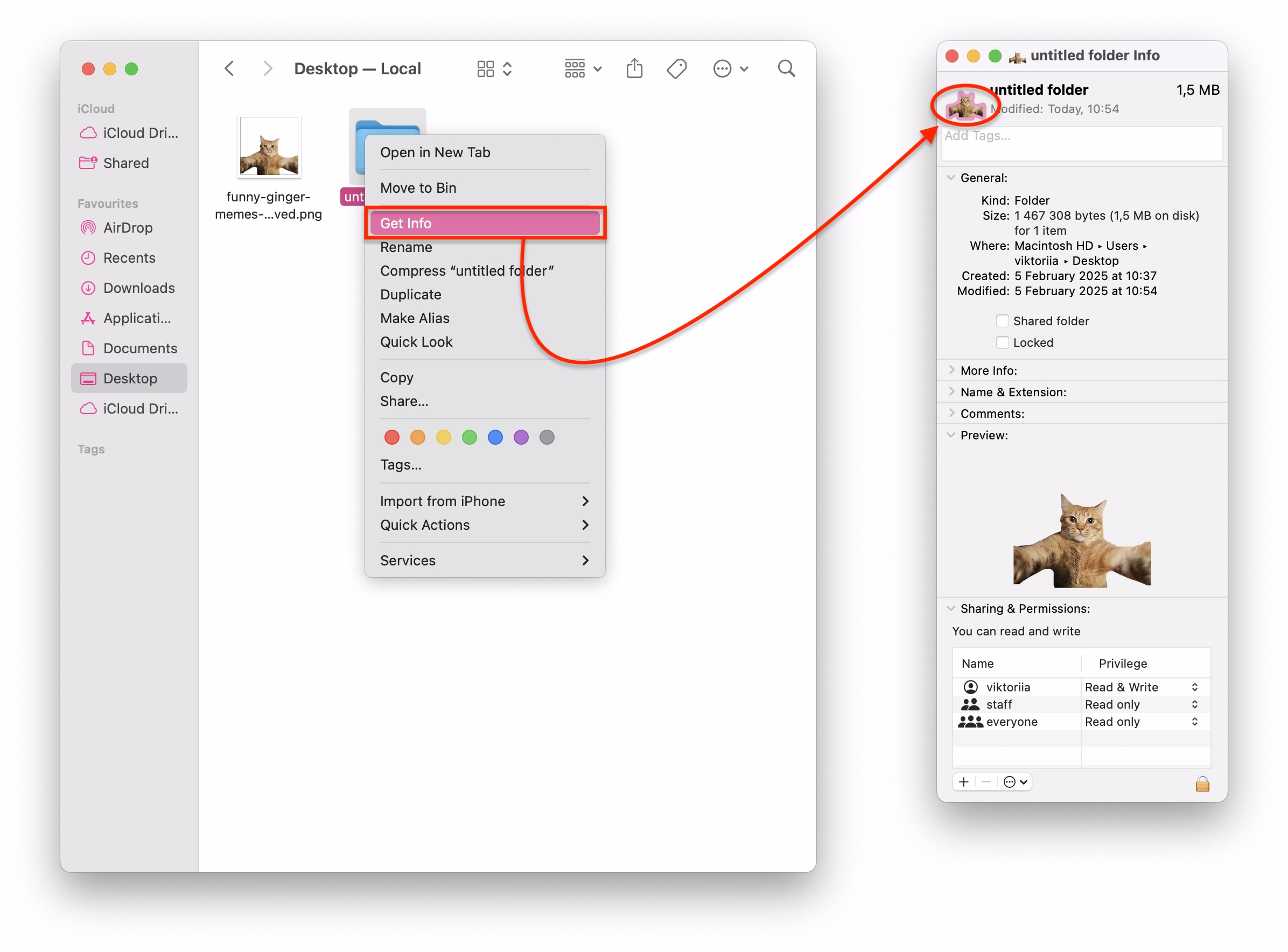
Paste unavailable? Select the small icon at the top of Get Info. The large image in the Preview section is the wrong target. Apple identifies this selection mistake in its instructions.
Choose a picture that stays recognizable
Keep the design simple. A detailed photo may be hard to recognize in a compact Finder list. Try a clear logo or a single subject before styling a whole group of folders.
- PNG is useful when your artwork needs a transparent background.
- JPG suits photos where a rectangular background is acceptable.
- Preview lets you copy the picture itself rather than its Finder file icon.
- Judge the result at the size you normally use in Finder, not only in an enlarged preview.
Folder Colors Are a Separate Choice
If you want a different color rather than a replacement picture, use a color workflow. Our guide to changing folder color on Mac covers that task in more detail.
Apple documents native colors, symbols and emoji in macOS Tahoe 26. Those controls are an option for basic styling without a third-party app. They do not make the Preview image-copy method unnecessary when you want your own picture.
Use native colors in macOS Tahoe 26
Select a folder in Finder and open the Action menu. Choose Customize Folder, then select a color, symbol or Emoji option.
Apple allows this customization for your Home folder but excludes Applications, Library, System and Users. For the version-specific controls, see our macOS Tahoe folder colors guide.
- Select a folder you created in Finder.
- Open Action > Customize Folder.
- Choose a color or add a symbol or emoji.
- Check the folder's appearance in Finder before changing more folders.
Recolor a folder image with Preview
You can also edit a copy of the folder icon in Preview, then paste it back. This manual alternative appears in Digital Trends' illustrated folder icon guide.
- Open the folder's Get Info window, select the small top icon and copy it.
- Open Preview and choose File > New from Clipboard.
- Use Tools > Adjust Color to change the color of the copied image.
- Select and copy the edited image in Preview.
- Return to Get Info, select the small top icon and paste.
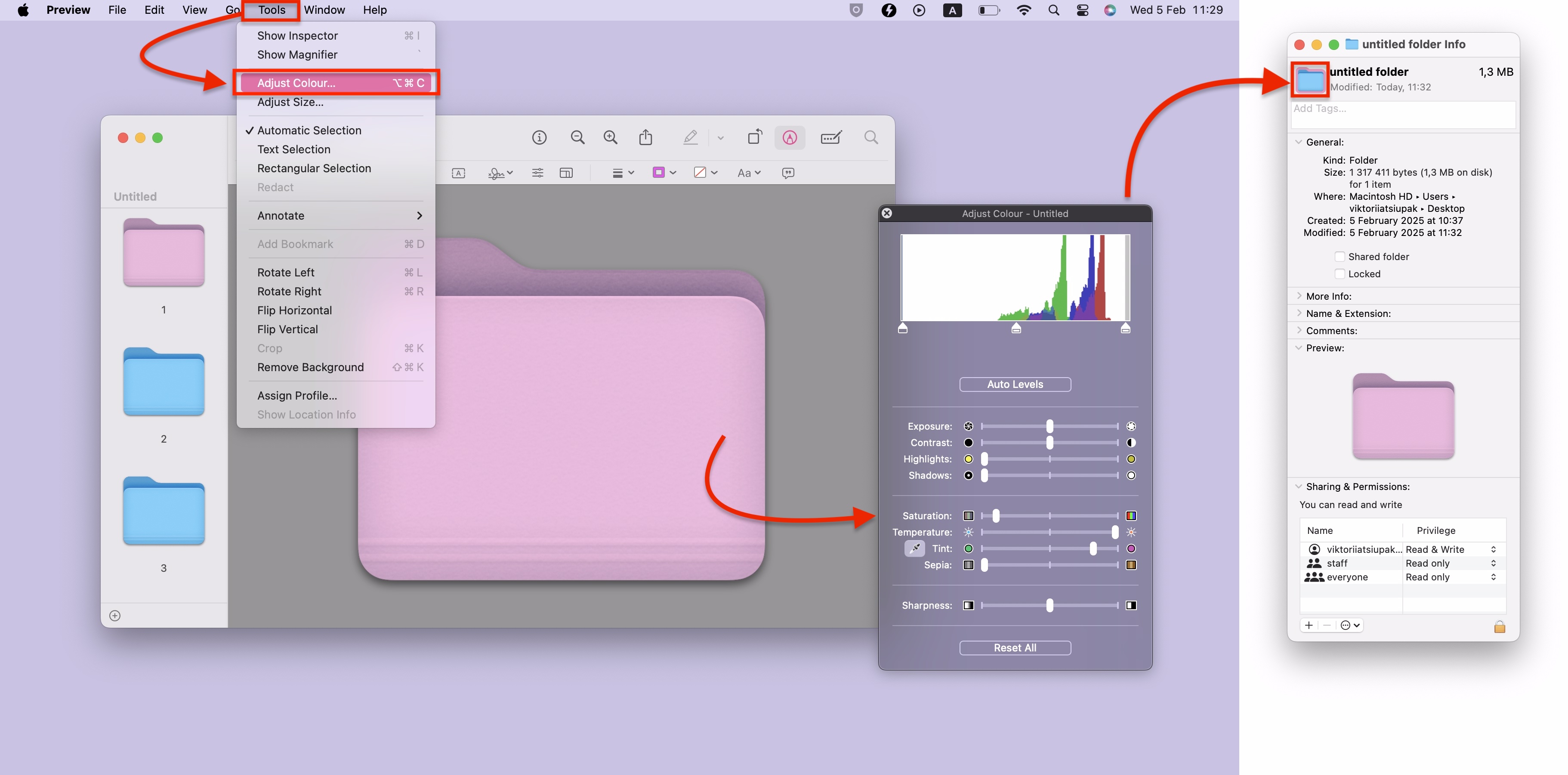
The screenshot belongs to the manual color workflow. If your goal is a photo or logo icon, skip color editing and paste your chosen image using the first method.
Finder Tags Versus Custom Folder Icons
Finder Tags help you find folders by label. They do not replace the full folder image. Apple's guide to tagging files and folders explains how to assign tags and find tagged items.
Use a tag such as a client name or project status when you need a searchable group. Use a custom icon when you want a particular folder to look different in Finder.
A folder can need both. For example, give a campaign folder its project image and tag it with the client's name. That is a suggested organization scheme, not a requirement for changing icons.
Keep folder names descriptive even after changing their icons. A picture gives you a visual cue; a name still tells you which project or year the folder contains.
Choose based on how you plan to find the folder:
- Finder Tags: retrieve folders by a shared label.
- Custom image: recognize a particular project visually.
- Native color or emoji: distinguish folders using the built-in styling options on supported macOS versions.
How to Change Folder Icons on Mac with Folder Colorizer
Use Folder Colorizer for Mac when you want to work with colors, decals and image backgrounds in one app. Its documented workflow is to drag in a folder, choose a design and press Colorize Folder!
The Folder Colorizer for Mac product page documents bulk color changes, custom PNG/JPG uploads and restore history. The instructions below follow that documentation. The existing screenshots illustrate the workflow; no new on-device testing took place for this update.
The app suits repeated styling, while Finder remains enough for one replacement picture. Native Tahoe colors and emoji also remain a free option.
Choose Folder Colorizer for its specific design tools rather than assuming macOS cannot customize folders:
- Add emoji or decals to a folder design.
- Use your own PNG or JPG as a folder background image.
- Apply bulk color changes to multiple folders.
- Return to original colors or previous designs with the documented restore/history features.
Step 1: Download the Mac app
Download Folder Colorizer for Mac from the official link above, install it and open the app. The Mac product is separate from Folder Colorizer 2 for Windows.
Softorino offers a free download and trial. Check the current product page for license terms rather than assuming the full app is free forever.
Step 2: Drag in your folder
Drag a folder from Finder into Folder Colorizer for Mac. Start with a folder you created so you can choose a design and check the result before working on a larger set.
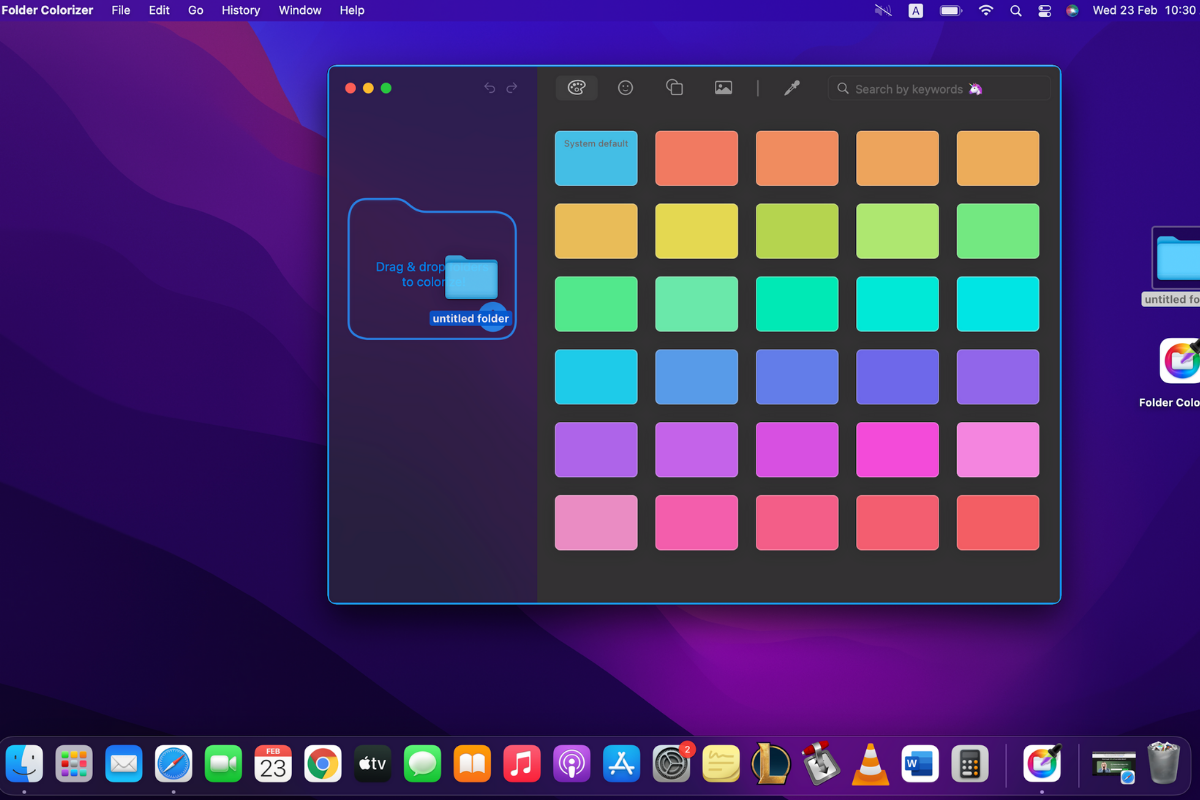
Keep track of the folder's name and location. You will return to that folder in Finder after applying the design, rather than judging only the app's preview.
Step 3: Choose a base color
Choose a color for the folder. Use the palette to pick a shade that fits the design you want to build; you can add an emoji, decal or image next.
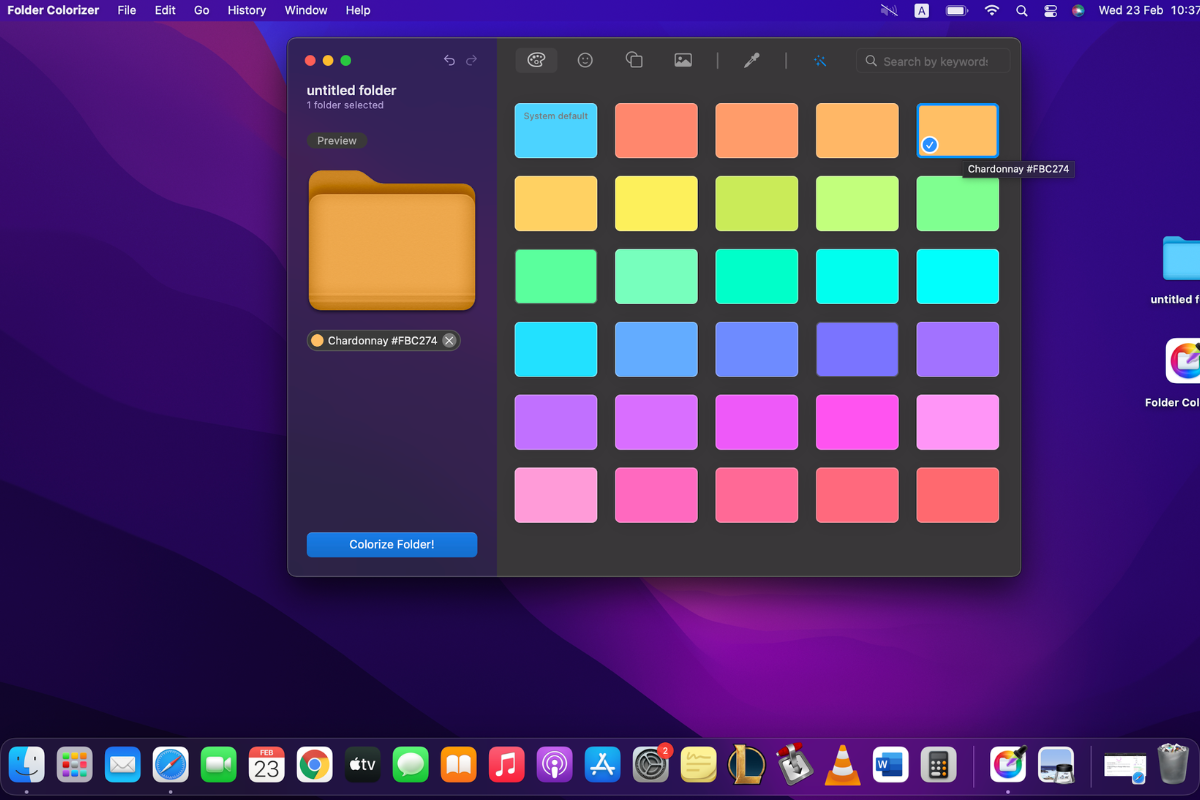
For a work folder, choose a color you will recognize alongside neighboring folders. If you also use Finder Tags, avoid giving the same color two conflicting meanings.
A small set of meanings is easier to remember than a different rule for each folder. For example:
- Red for a project that needs attention.
- Green for completed work.
- Yellow for drafts still in progress.
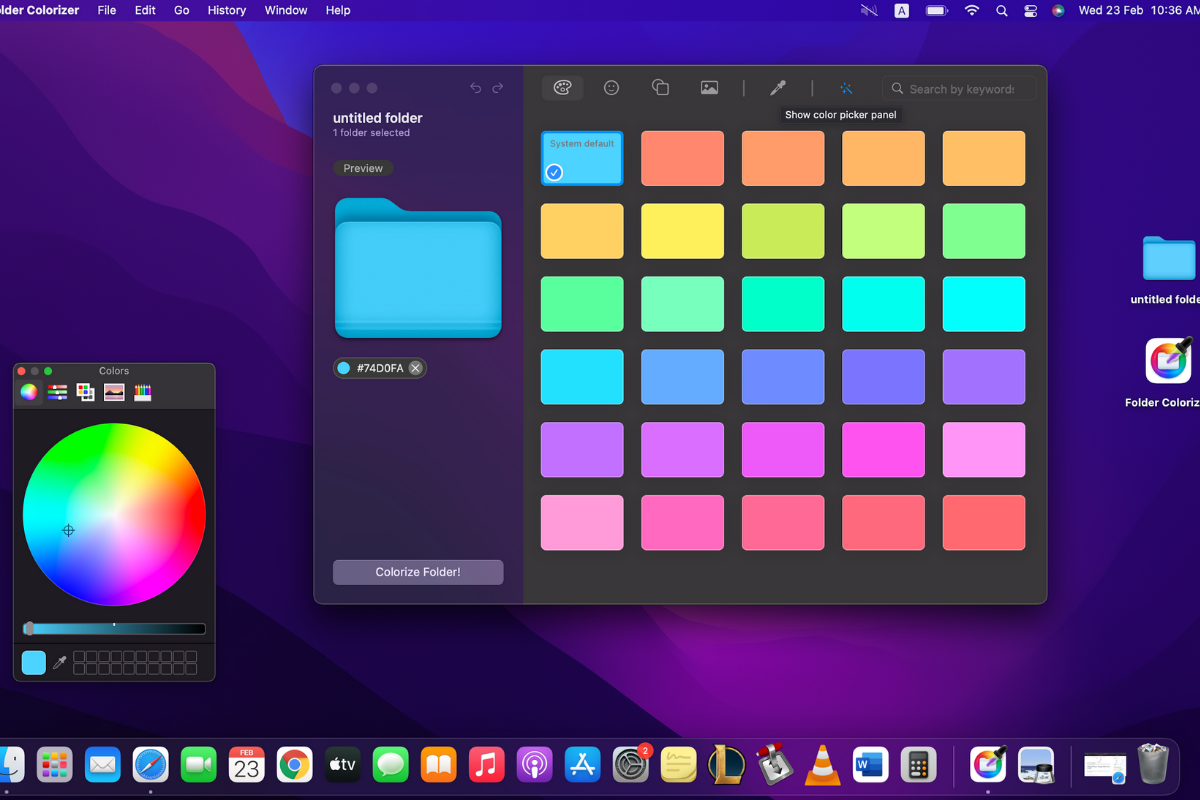
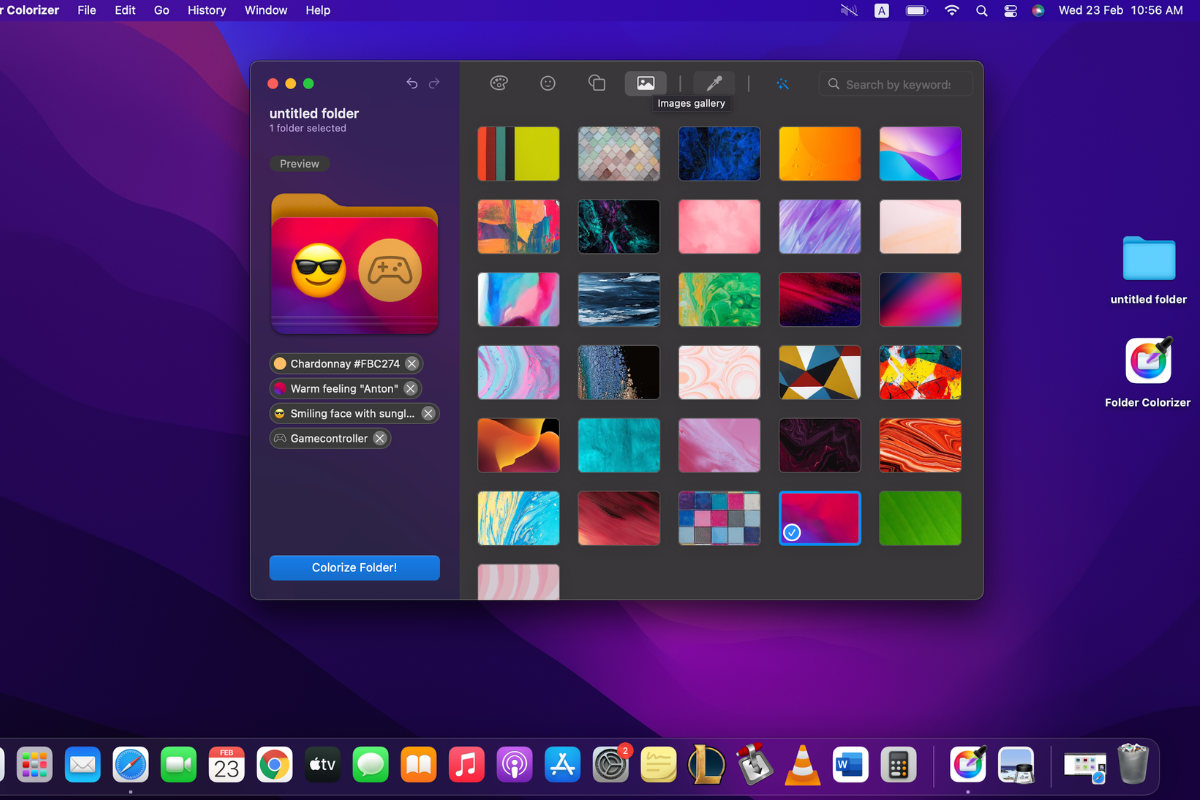
Step 4: Add an emoji, decal or image
Choose an emoji or decal when a symbol fits the folder's contents. A music symbol could identify audio work; a travel symbol could mark trip documents.
For a client or campaign folder, use an image that belongs to that project. This changes the folder's appearance, not the background of an open Finder window.
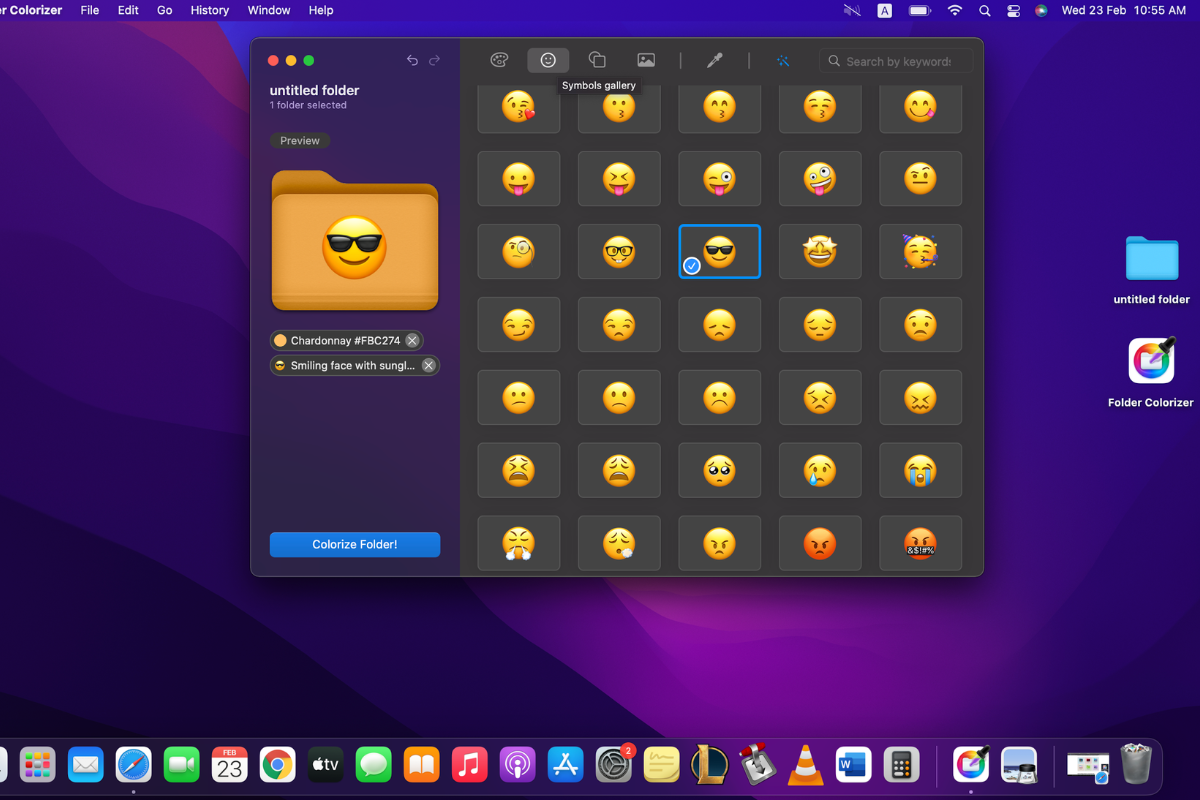
Folder Colorizer supports dragging in your own PNG or JPG images. Softorino says uploaded images stay stored locally. That statement concerns those images, not a blanket claim about every app feature or network connection.
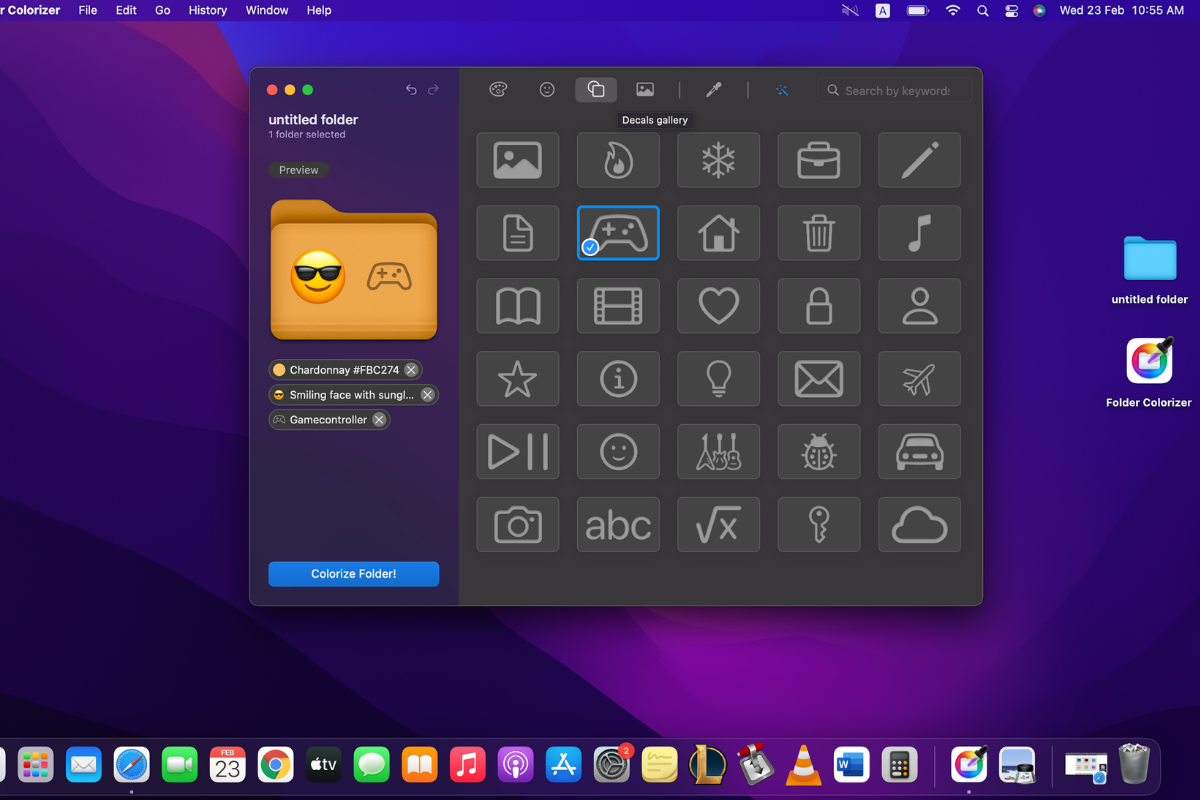
Check that the design remains recognizable at a small size. A client logo may work better than a full-page layout with tiny text. Keep the same naming scheme whether you choose a photo, a decal or a plain color.
Step 5: Review and apply the design
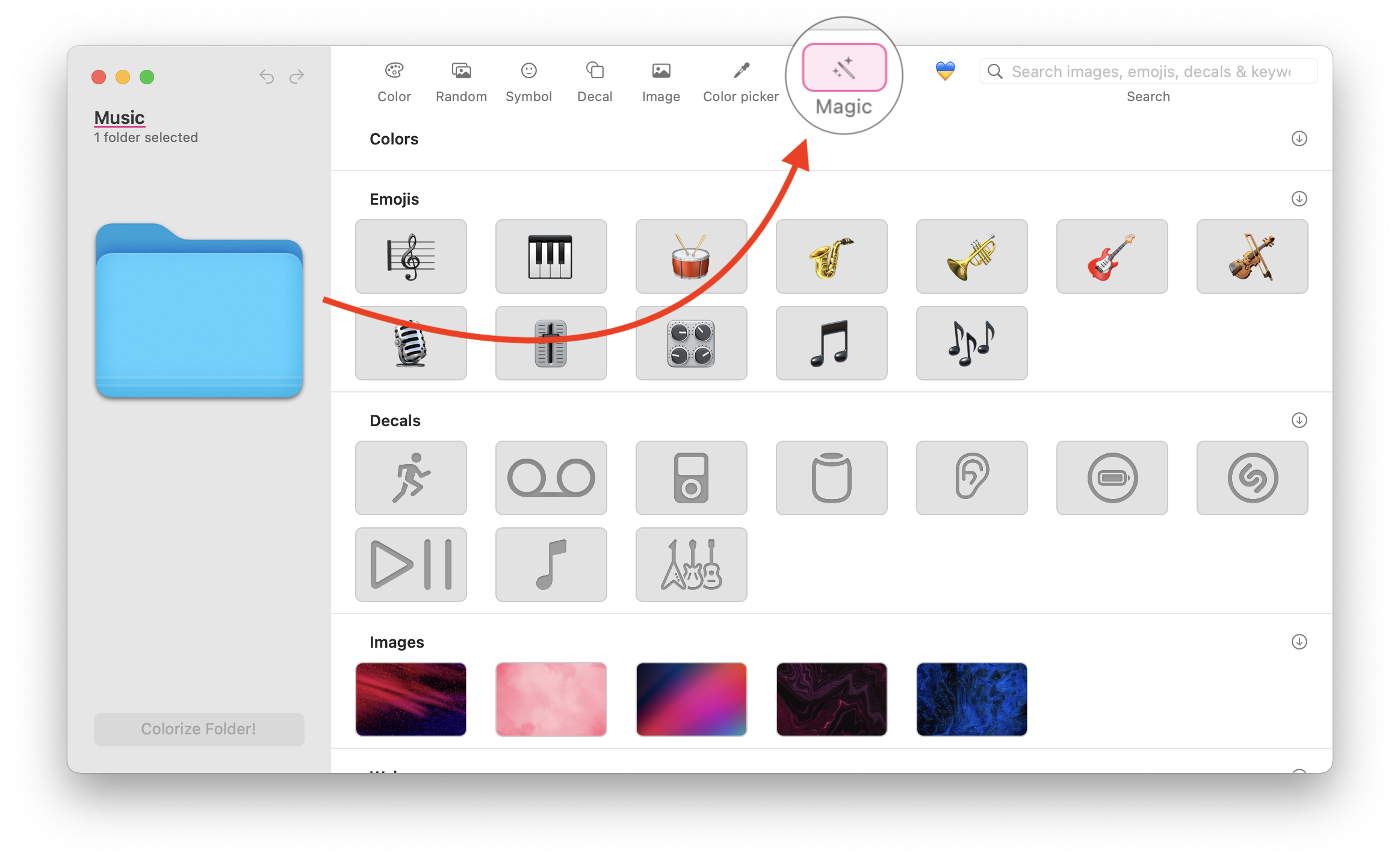
Folder Colorizer also offers an AI-based suggestion using the folder name. Treat the suggestion as a starting point and choose a design you recognize.
Press Colorize Folder! to apply your choice, as the official product instructions specify. Return to the folder in Finder to check the result. Choosing a design in the app is not the final apply action.
Restore the Original Folder Icon on Mac
To remove a custom folder icon in Finder, open Get Info, select the small icon at the top and choose Edit > Cut. Apple documents this as the restore action. You do not need to find and download a replacement default icon.
- Select the folder in Finder.
- Choose File > Get Info.
- Click the small icon below the title bar.
- Choose Edit > Cut.
- Close Get Info and check the folder.
Folder Colorizer for Mac also offers a return to the original color and a history of changes. Use those features when you want to undo an app design or revisit an earlier style. The exact default appearance can depend on the folder; do not assume every reset produces the same blue icon.
Fix Folder Icon Paste Problems on Mac
Paste is greyed out in Get Info
Click the small top-left icon, not the large image under Preview. Then choose Edit > Paste again. If Paste still is not available, return to Preview and copy the image contents before returning to the selected folder icon.
Finder shows a file symbol instead of your picture
Copy the picture inside Preview, not the file in Finder. Open the image, select its contents and copy. Then select the folder's small Get Info icon and paste again. Repeating the file-copy action will not correct the clipboard contents.
The wrong folder appears to have changed
Check the folder name at the top of Get Info and its location in Finder. Close unrelated Info windows so you can match the selected folder to the one you meant to customize.
A protected folder will not accept customization
Use a folder you created instead. Apple's Tahoe Customize Folder instructions exclude Applications, Library, System and Users. Do not disable System Integrity Protection or modify system files to force a cosmetic change.
Choose the Right Folder Icon Method
For one picture icon, use Preview and Finder. For native colors or emoji in macOS Tahoe 26, use Customize Folder. For decals, uploaded backgrounds and repeated color work, download and try Folder Colorizer for Mac.
If you also work on a PC, use the separate guides to changing folder colors in Windows and changing folder icons on Windows. The Mac app and Finder instructions on this page are not Windows procedures.
FAQ
Can I change a Mac folder icon without another app?
Yes. Finder and Preview are enough to replace a folder icon with a picture. Open the image in Preview, copy its contents and paste into the small icon at the top of the folder's Get Info window.
Which image should I use for a folder icon?
Start with a clear PNG or JPG you can open in Preview. PNG supports transparent backgrounds; JPG suits photos. Choose a design you can recognize in Finder at your usual icon size, rather than relying on tiny details.
How do I undo a custom folder icon?
Select the folder in Finder, open File > Get Info and click the small top icon. Choose Edit > Cut to restore the original icon. This removes the custom icon rather than deleting the folder.
Why can I not paste my picture into Get Info?
Make sure you selected the small icon at the top of Get Info. Apple warns that selecting the large Preview image can leave Paste unavailable. Copy the image contents in Preview, then try the small icon again.
Do I need Folder Colorizer for native colors and emoji?
No. Apple documents colors, symbols and emoji under Customize Folder in macOS Tahoe 26. Folder Colorizer for Mac is an optional choice for decals, uploaded image backgrounds, bulk color changes and design history.
Can Folder Colorizer change multiple folders?
Softorino documents bulk color changes for multiple folders in Folder Colorizer for Mac. Start with one folder to check your chosen color. Do not assume every individual image or design operation has the same bulk behavior.

AltTunes
Seamlessly Browse, Manage & Export iOS Data
