How to Download VR Videos from YouTube Without Breaking 360 Playback

Need the short version? Copy the YouTube VR or 360 video link, paste it into SYC PRO, choose MP4 and the highest available quality, then download the file. After that, open it in a 360-capable player or move it to your headset.
That last part matters. A YouTube VR download is not useful if your headset plays it as a flat rectangle. This guide shows how to download VR videos from YouTube, keep the file practical for offline viewing, and avoid the usual 360 playback mess.
Quick answer: how to download VR videos from YouTube
Here is the clean path:
Use this when you want a video offline for travel, classes, demos, training, or a headset session where Wi-Fi is unreliable. Use YouTube Premium when you only need offline playback inside the YouTube app. Use a local file when you need control over the file, player, device, or storage.
One rights note before the tutorial: download videos you own, videos you have permission to save, or videos the creator allows you to use offline. YouTube and creators set the rules for their content. Do not treat a downloader as a permission slip.
- Open the YouTube VR, 360, or VR180 video you want to save.
- Copy the video URL.
- Open SYC PRO on Mac or Windows.
- Paste the link, or let SYC PRO detect it from your clipboard.
- Choose MP4 and the highest quality YouTube offers for that video.
- Download the video.
- Watch it in a 360-capable player such as VLC 3.0+, Skybox VR Player, Oculus Gallery, or a headset app that understands 360 video.
Before we begin
Download SYC PRO on Mac or Windows to save permitted YouTube VR videos in their available high-resolution format. Confirm that the source is actually a 360-degree video before downloading it for headset playback.
Searchers use "VR video" for several different things. The file type changes what happens after download.
Type | What it means | What to expect after download |
|---|---|---|
360 video | A flat video wrapped around you in every direction | Needs a 360-capable player or headset app |
VR180 | Half-sphere video, often made for headset viewing | Needs a compatible VR180 player |
3D stereoscopic video | Separate left-eye and right-eye views | Needs a player that supports side-by-side or top-bottom 3D |
Flat video in a headset | Normal 2D video watched on a virtual screen | Works in most video players, but it is not real VR |
Most YouTube "360" videos are downloaded as MP4 files. That is fine. The catch is metadata and projection. Some players need the file to include 360 metadata so they know it should wrap around you. If the metadata is missing, the same file may open as a normal flat video.
So the goal is not only to download a YouTube video. The goal is to download a VR video from YouTube in a format your player understands.
How to download VR videos from YouTube with SYC PRO
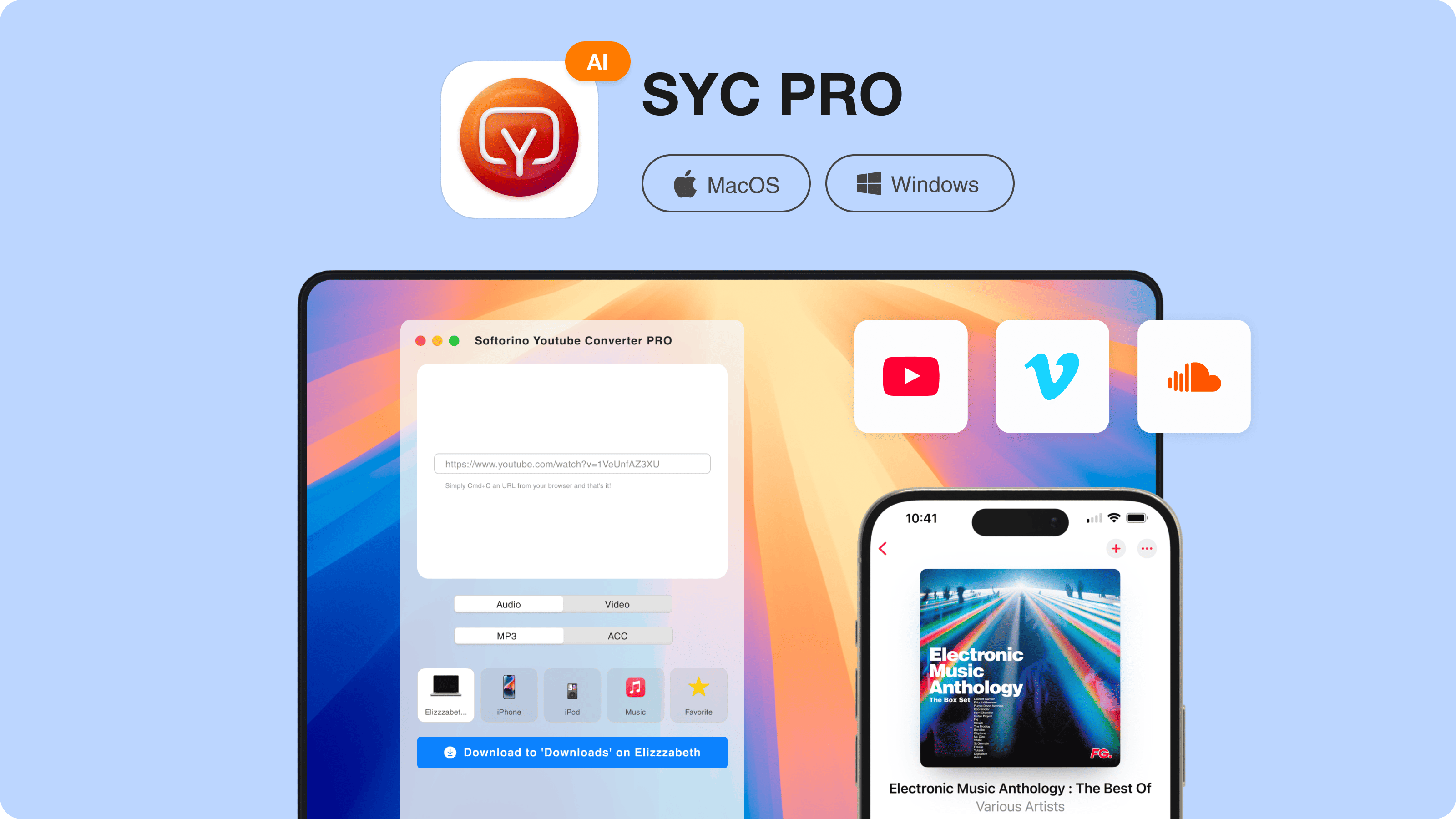
SYC PRO is the practical route if you want a desktop VR video downloader without sketchy browser converter sites. It works on Mac and Windows, supports YouTube and Vimeo, and lets you save video or audio for offline use.
Step 1: Get SYC PRO
Install SYC PRO on your Mac or Windows computer. If you already use Softorino tools, this is the same app family built for saving online video and audio without fighting browser ads or weird download pages.
SYC PRO is a good fit for this job because it keeps the flow simple: paste a link, choose the quality, save the file. You can also use it for regular YouTube to MP4 conversions, YouTube audio downloads, and videos with subtitles.
Step 2: Copy the YouTube VR video link
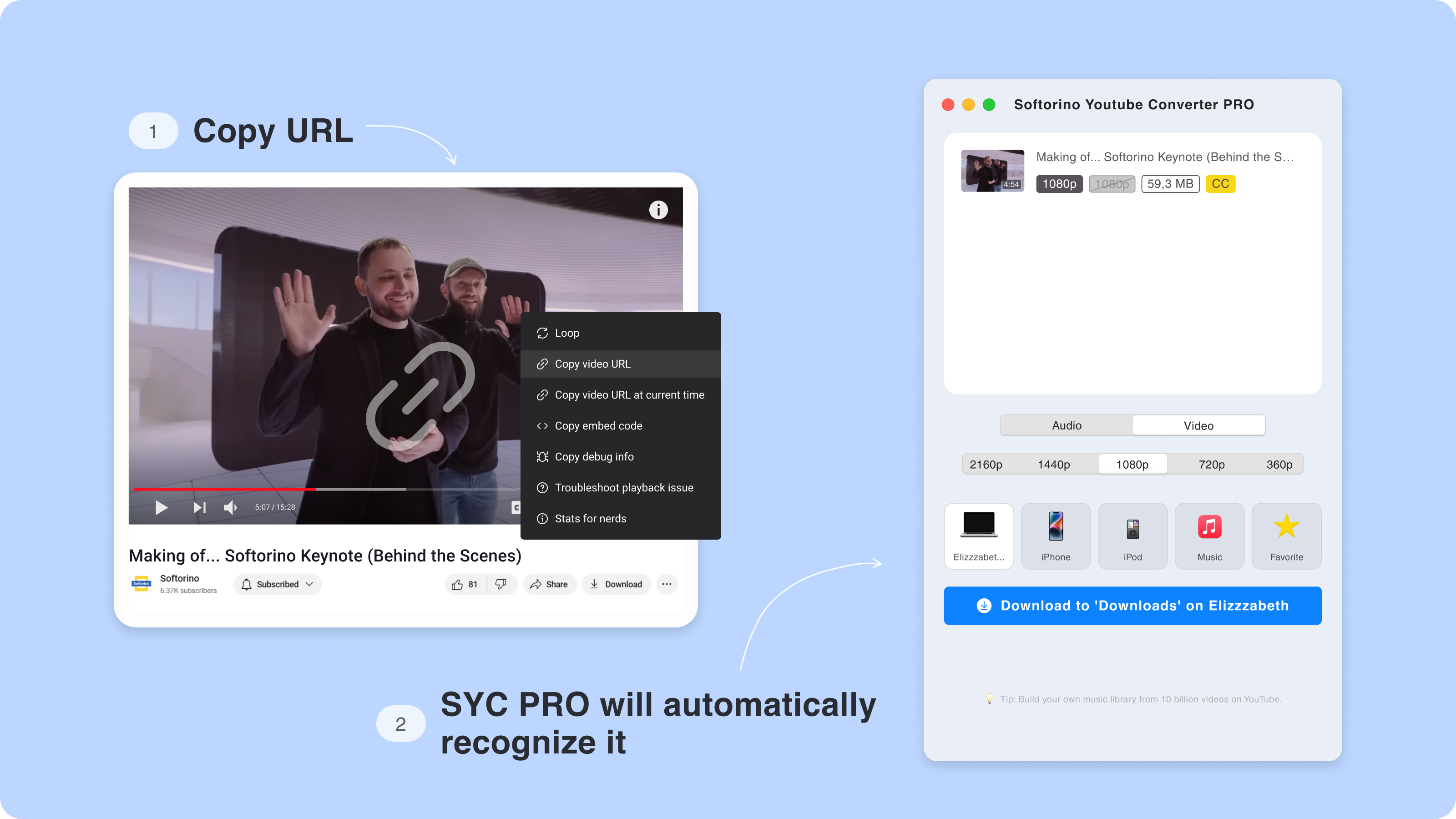
Open YouTube and find the VR, 360, or VR180 video you want to save. Copy the full video URL from the address bar or the Share button.
SYC PRO can detect the copied link from your clipboard and add it to the download list. That saves you from pasting the same URL into 5 fake download buttons on a random website. Small mercy, but a real one.
Step 3: Choose MP4 and the best available quality
Pick MP4 for the safest playback across computers, phones, and headsets. Then choose the highest quality available for that YouTube video.
VR needs more resolution than normal video. A 1080p 360 video can look soft in a headset because those pixels stretch across the full sphere. If YouTube offers 4K, choose 4K. If it only offers 1080p, download 1080p and test the playback before you depend on it for a trip, class, or presentation.
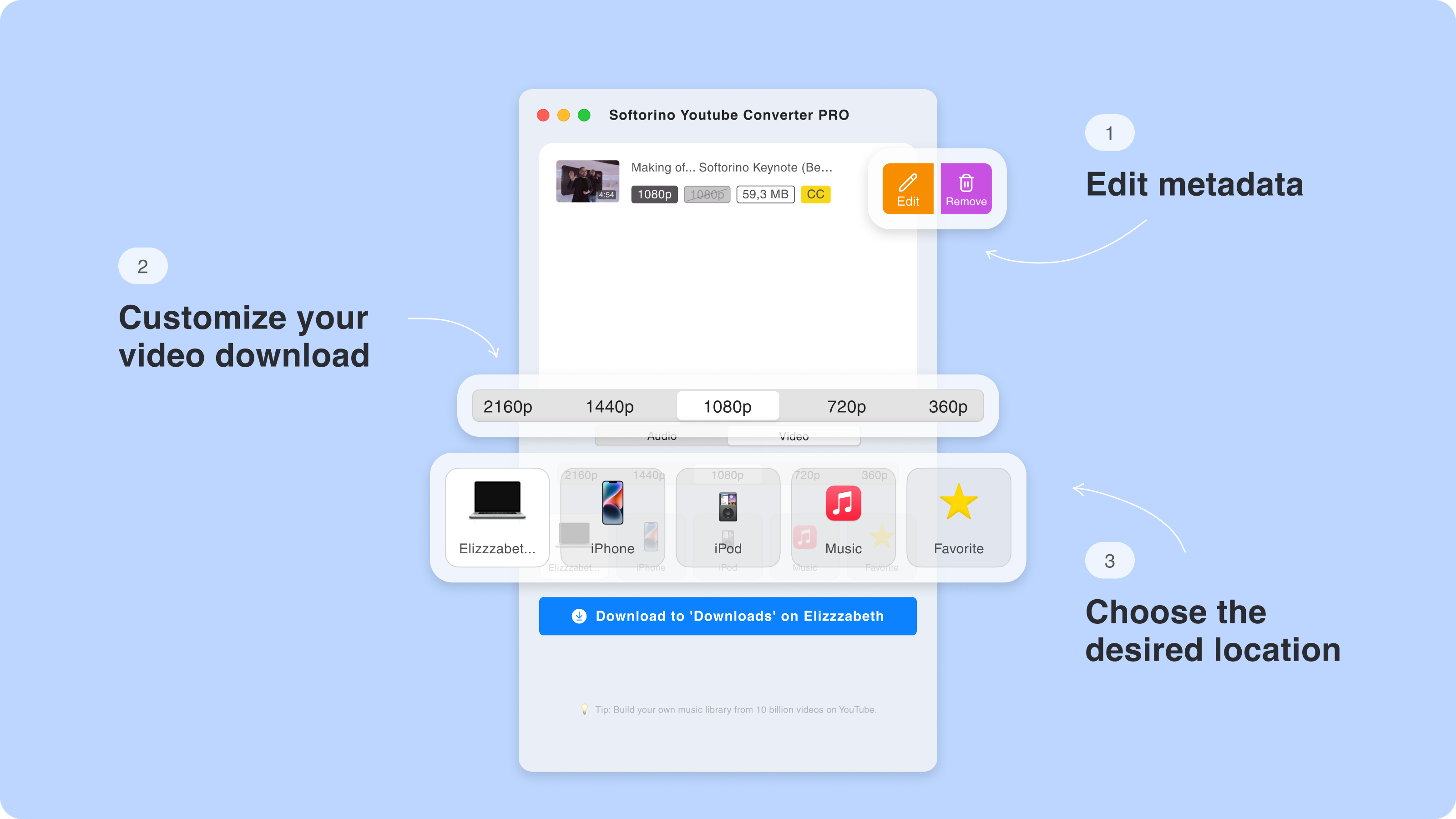
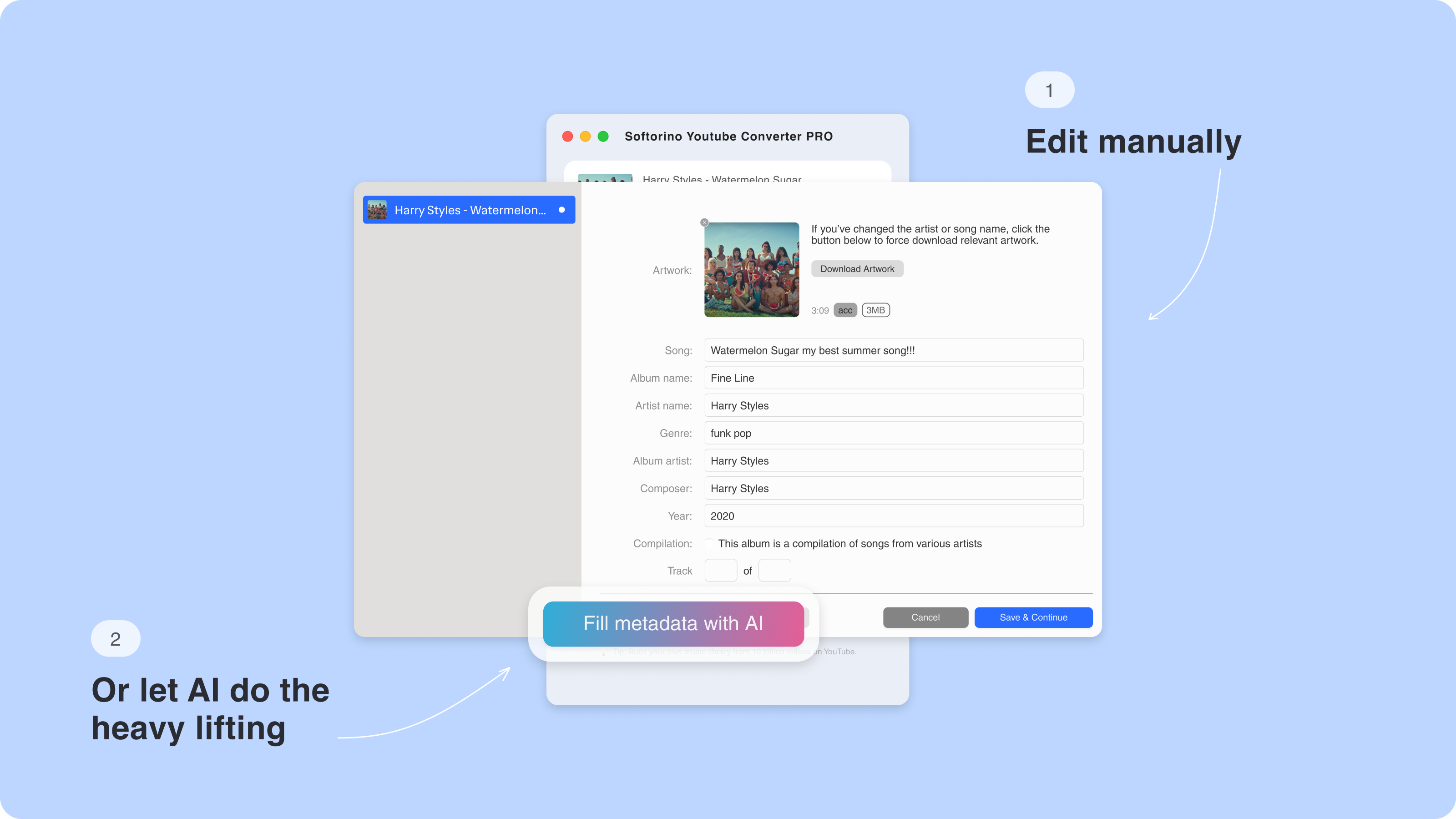
Step 4: Edit metadata if you want a cleaner library
Downloaded VR files get messy fast. A few long filenames and random thumbnails can turn your folder into a junk drawer.
Use SYC PRO's metadata options to clean up the title, artwork, year, or other details before saving. This is useful if you are building a local VR library for school, demos, or offline headset sessions.
Step 5: Download the video
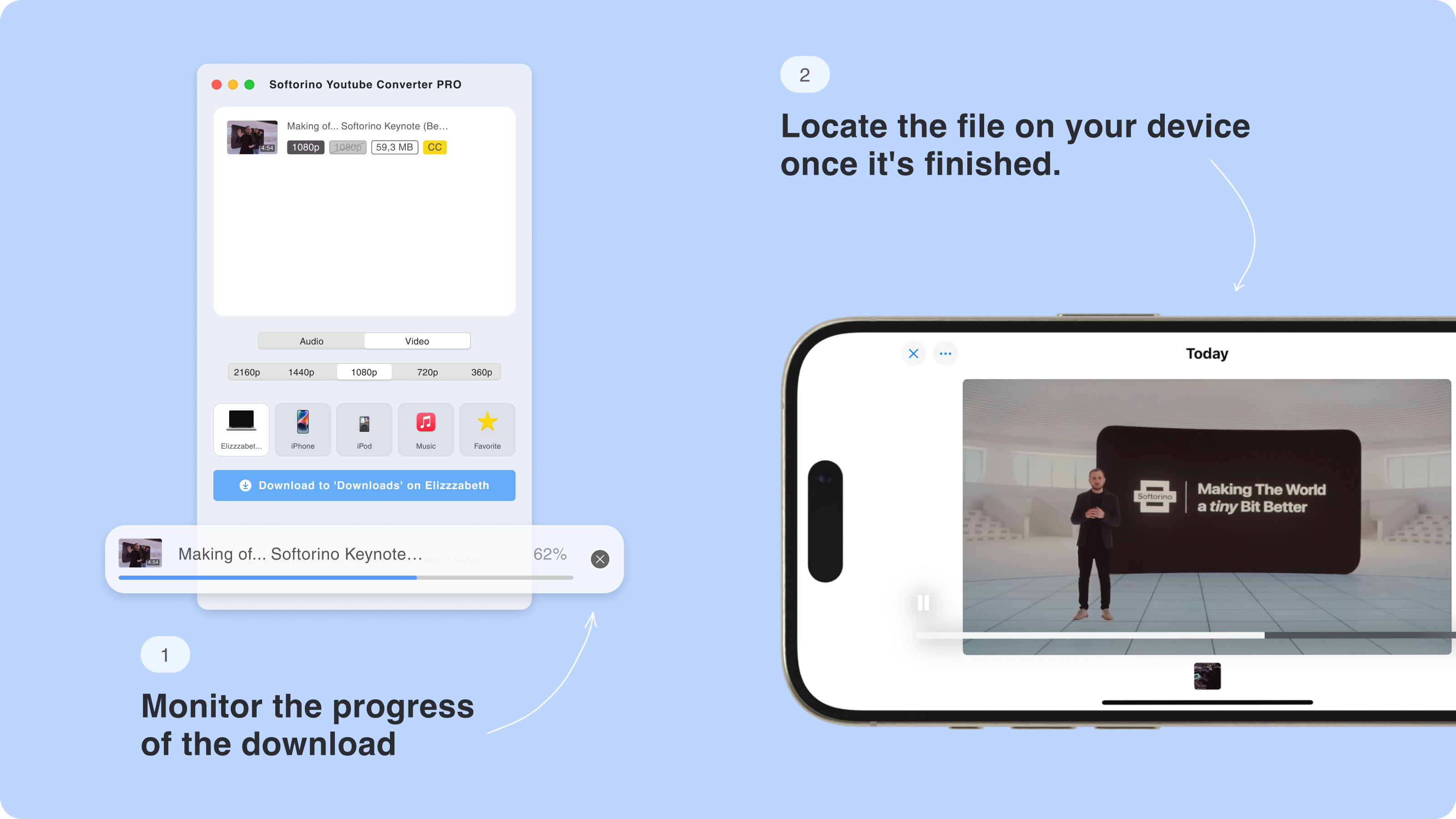
Click Download and let SYC PRO save the file to your computer. Large VR videos can take longer than normal clips, especially at 4K.
After the download finishes, play the file before you move it anywhere else. If it wraps correctly in a 360 player on your computer, you have a much better chance of getting clean playback on a headset.
If the video has captions, use SYC PRO's subtitle option when available. Captions matter for travel videos, lectures, documentaries, and anything you plan to watch in a loud place.
Best format and quality for YouTube VR downloads
Use MP4 unless you have a specific reason to choose something else. MP4 works with the widest range of VR players, media apps, phones, and headsets.
For quality, choose the highest version YouTube offers. In a headset, low resolution gets ugly fast. You are not watching a flat rectangle from across the room. You are stretching the video around your entire view.
Use this rule of thumb:
Use case | Recommended quality | Notes |
|---|---|---|
Quick preview on desktop | 1080p | Fine for testing, weak for headset viewing |
Casual headset viewing | 4K when available | Better balance of quality and file size |
High-detail 360 scenes | 4K or higher when available | Better for nature, city walks, tours, and education |
Old PS VR / PS4 playback | 1080p MP4 H.264 | PS4 VR playback has stricter limits |
Do not assume every YouTube VR video has a clean 4K download option. The available quality depends on the source upload, YouTube's processing, and what the downloader can access.
How to watch downloaded YouTube VR videos after saving them
The download is only half the job. You need the right player.
Device | Good playback option | What to check |
|---|---|---|
Meta Quest / Oculus | Skybox VR Player, Oculus Gallery, compatible local video apps | Transfer the MP4 to the headset or stream from local storage. Set the view mode to 360, VR180, or 3D if needed. |
PC or Mac | VLC 3.0+ with 360 support, 5KPlayer, GOM Player, Ricoh Theta viewer | Confirm the video wraps instead of playing flat. |
iPhone / Cardboard-style viewer | Skybox VR Player or another 360 video app | Save the file locally, then open it inside the 360 player. |
Android phone | A 360 video player or VR media app | Choose the correct projection mode if the app asks. |
PlayStation VR on PS4 | PS4 Media Player with compatible MP4 files | Use 1080p MP4 with H.264. 4K VR mode is not the safe target for legacy PS VR. |
If a file plays flat, check the player's view mode first. Many VR players have a small globe, 360, projection, or stereo setting. The file may be fine, but the player may not auto-detect it.
Why downloaded 360 videos sometimes play flat
This is the most common complaint in VR download threads. You save the YouTube file, open it, and get a flat stretched mess.
Common causes:
Start with the easy fix. Open the file in a known 360-capable player and switch the viewing mode manually. If that fails, try another player before blaming the file. VLC 3.0+ is a good desktop test because it supports 360 playback.
If several players show the same flat view, the file may not contain the metadata or projection your headset expects. In that case, try a different quality option, download source, or conversion tool that can preserve or inject 360 metadata.
- The player does not support 360 video.
- The player opened the file in normal 2D mode.
- The downloaded file lost or never had 360 metadata.
- The video uses a projection format your player does not understand.
- The source video was labeled VR, but it was only a normal video meant for headset theater mode.
Where to find good VR and 360 videos on YouTube
YouTube has plenty of good 360 video, but the labels are not always tidy. Search with terms that match the type of file you want.
Good search terms:
You can also browse YouTube's 360 and VR channels, Vimeo's VR content, creator pages, and educational video libraries. For stock-style footage, check the usage rights before downloading or reusing anything. "Free to watch" does not mean "free to reuse."
- YouTube 360 video
- 360 travel video
- VR180 documentary
- 360 nature video 4K
- 360 city walk
- VR education video
- 3D SBS VR video
Why use SYC PRO as a VR video downloader
A YouTube 360 video downloader should do 3 things well: save the file, avoid ruining the format choice, and keep the workflow clean. SYC PRO is built around that practical job.
With SYC PRO, you can:
It is not magic. No downloader can make a low-quality upload look like true 8K VR. No app can make every headset accept every projection type. SYC PRO gives you the cleanest starting file it can from the source, then your player or headset handles playback.
- YouTube and Vimeo video downloads.
- MP4 files for wide playback support.
- Available quality choices, including HD or 4K when the source supports it.
- Subtitle downloads when the source provides captions.
- Audio-only versions for music, lectures, or soundtrack material.
- Batch downloads for multiple videos.
- Metadata editing so your local VR library is not a pile of random filenames.
How to upload VR movies to PlayStation VR on PS4
Legacy PlayStation VR has stricter requirements than modern computer players or Quest apps. If you plan to watch downloaded VR files on PS VR through a PS4, prepare the file for that setup.
Use this target:
PlayStation 4 is not the place to rely on 4K VR playback. For PS VR, 1080p H.264 MP4 is the safer target.
- MP4 file
- H.264 video codec
- 1080p resolution
- High profile level 4.2
- PS4 Media Player version 2.50 or later
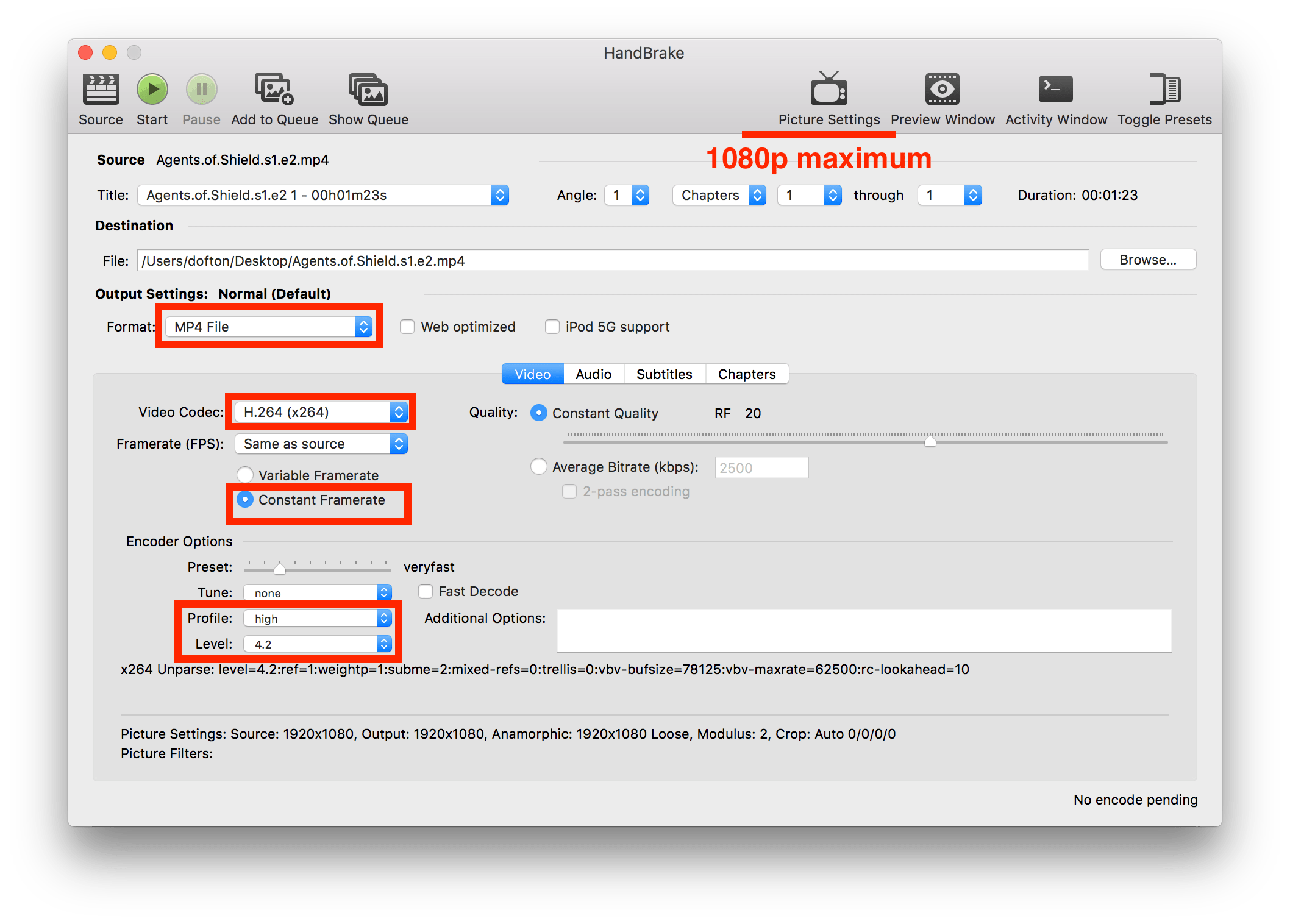
If your downloaded YouTube VR video is 4K, use HandBrake or another converter to make a PS4-friendly version. Set the resolution to 1080p and export as MP4 with H.264.
Then move the file to PS4:
Test one short file before converting a whole folder. PS VR compatibility is picky, and you do not want to discover that after moving 40 GB of video.
- Copy the MP4 file to a USB flash drive.
- Plug the USB drive into your PS4.
- Open PS4 Media Player.
- Open the video file.
- Turn on the PS VR headset.
- Open Options.
- Select VR Mode when available.
Troubleshooting YouTube VR downloads
The video downloaded, but it is not 360
Open it in a 360-capable player and switch projection mode manually. Look for settings named 360, spherical, equirectangular, VR180, side-by-side, or top-bottom.
If that does not work, the file may be missing 360 metadata or may use a projection your player cannot read.
The quality looks bad in the headset
Download the highest quality YouTube offers. If the source only has 1080p, it may look soft in VR. That is normal for 360 video because the image wraps around your full field of view.
The file is huge
VR videos are large because high resolution matters. If storage is tight, keep only the videos you plan to watch offline and delete test downloads after checking them.
Audio or subtitles are missing
Check whether the source video includes subtitles or separate audio tracks. If subtitles matter, choose the subtitle download option in SYC PRO when available. Then test the file in your chosen player.
Quest or Oculus will not play the file correctly
Try a dedicated local VR player such as Skybox VR Player. Also check whether the file needs manual projection mode selection. Some headset apps default to 2D video until you tell them otherwise.
Online downloaders break the VR format
That happens. Browser download sites often chase quick MP4 output and ignore VR metadata or projection details. Use a desktop downloader and test the file in a real 360 player before moving it to your headset.
Final thoughts
You can download VR videos from YouTube in a few minutes. The trick is choosing the right format, keeping quality high, and testing the file in a player that understands 360 or VR playback.
If you want the low-friction route, use SYC PRO to save the video as MP4, keep subtitles or metadata when available, and build a clean offline library without browser-converter nonsense. Start with one test video. If it plays correctly, download the rest.
FAQ
Can I download 360 VR videos from YouTube?
Yes. Use a VR video downloader such as SYC PRO, copy the YouTube link, choose MP4 and the highest available quality, then download the file. For offline viewing, open it in a 360-capable player or headset app.
What is the best format for downloaded YouTube VR videos?
MP4 is the safest format for most devices and VR players. It works across Mac, Windows, phones, and many headset apps. For legacy PS VR on PS4, use 1080p MP4 with H.264.
Why does my downloaded 360 video play as a flat video?
Your player may not support 360 playback, may be in 2D mode, or may not see the file's 360 metadata. Open the video in a 360-capable player and switch the projection mode manually.
Can I download YouTube VR videos for Meta Quest or Oculus?
Yes, but the download is only the first step. After saving the MP4 file, move it to the headset or open it through a local VR video app such as Skybox VR Player or Oculus Gallery. Set the correct 360 or VR180 mode if needed.
Do I need 4K for YouTube VR videos?
Use 4K when YouTube offers it. VR and 360 video stretch pixels across your full view, so 1080p can look soft inside a headset. If the source only has 1080p, download that and test it before relying on it.
Can SYC PRO download YouTube VR videos with subtitles?
SYC PRO can download subtitles when the source video provides them and the option is available. This helps with documentaries, lectures, language videos, and noisy travel viewing.

SYC PRO
Download Web Videos Like a PRO
