Transfer Videos from PC to iPhone: 4 Ways (2026)


Quick Answer: Transfer Videos from PC to iPhone
Choose the method by where you want to watch. To transfer videos from PC to iPhone, use Apple Devices for movie sync or app file sharing. Use WALTR PRO for supported movie conversion into Apple TV, VLC for free app-local playback, or iCloud Photos when the video must appear in Photos.
#tldr
Before we begin
For local movies that need conversion, download WALTR PRO and try the free trial. You can send supported MKV, AVI, and other video files to your iPhone without managing an iTunes library. Videos go to the TV app through the normal video workflow, not to Photos. Start with a USB connection before setting up Wi-Fi.
Check the file format, free iPhone storage, and destination app before choosing a route. An upload can finish without putting the video in the app you expected.
Your goal | Method | Destination on iPhone | Main limit |
|---|---|---|---|
Sync a compatible movie with Apple's Windows tools | Apple Devices with Apple TV on Windows | Apple TV | Library sync and format requirements |
Convert and send a supported MKV or AVI movie | WALTR PRO | Apple TV | Paid app after the trial; no universal codec guarantee |
Watch a local file in a free player | VLC Wi-Fi upload or Apple Devices Files | VLC | Does not add the video to Apple TV or Photos |
Open a video from cloud storage | Dropbox or iCloud Drive | Cloud app or Files | Upload/download time and storage allowance |
Add a clip to the Photos library | iCloud Photos for Windows | Photos | Requires iCloud Photos and enough cloud storage |
Getting a file onto the iPhone and playing it are separate jobs. Apple Devices can copy a file into a compatible app without making that file playable in every other app. Choose the destination first, then check what formats that app supports.
Quick Takeaways for PC Video Transfers
The file extension is only part of the answer. MP4 and MOV are common Apple-friendly containers, but the video and audio codecs inside still matter. Renaming an MKV file to .mp4 does not convert it.
- Use USB for a large movie when you want to avoid a cloud upload and download.
- Keep the PC original until you have opened the transferred video and checked its sound.
- Choose iCloud Photos for Photos access; iCloud Drive stores files separately.
- Leave enough free space on the iPhone for the finished video. Cloud storage and iPhone storage are separate limits.
If a video transfers but will not play, check its codec and destination app before repeating the same transfer. A different cable will not fix an unsupported audio track.
Method 1: Transfer Videos from PC to iPhone with Apple Devices
Use Apple Devices on Windows for Apple's free sync and file-sharing routes. Movies sync and Files are different workflows. Apple's movie-sync instructions require the Apple TV app on your PC. File sharing instead copies a file into a compatible iPhone app.
Sync movies to the Apple TV app
- Install Apple Devices and Apple TV on Windows. Have the compatible movie available in your PC's Apple TV library.
- Connect the iPhone by USB, unlock it, and tap Trust if asked.
- Select your iPhone in Apple Devices, then choose Movies.
- Select Sync movies onto device and choose the movies you intend to copy. Review the selection before applying it.
- Click Apply, wait for sync to finish, and eject the device. Open Apple TV on the iPhone to find the movie.
Copy a video into a compatible app
- Install an iPhone video player that supports file sharing, such as VLC, and connect the iPhone to your PC.
- Select the iPhone in Apple Devices, then click Files.
- Choose the receiving app. If Files is missing, Apple says no file-sharing apps are available on the device.
- Click Add File, select the video on your PC, then click Add.
- Wait for the copy to finish and open the receiving app on iPhone. Look there, not in Photos or Apple TV.
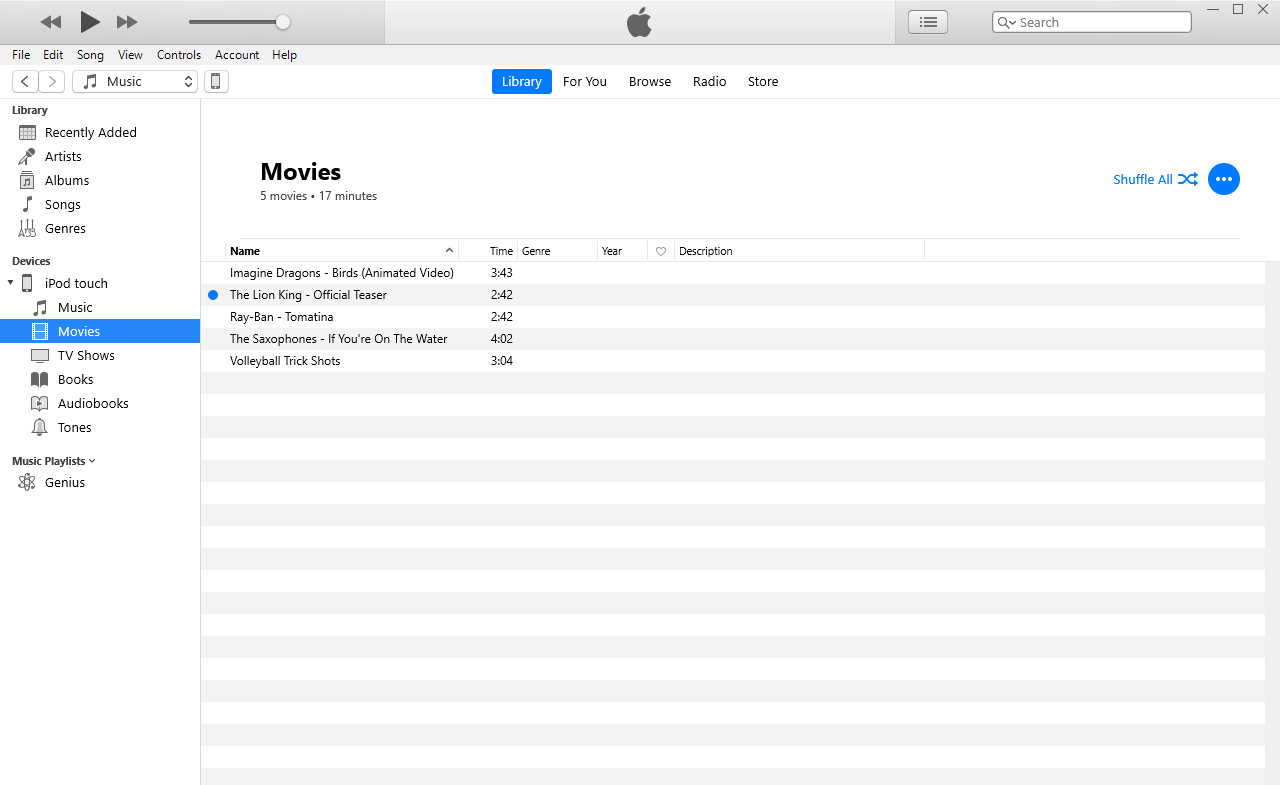
The image above shows legacy iTunes, not Apple Devices. Follow the current Apple Devices file-sharing controls listed here rather than looking for identical buttons in that older screenshot. iTunes remains a separate legacy route; its menus are not interchangeable with Apple Devices.
Check before changing sync settings
Keep a copy of the video on the PC until you confirm playback on iPhone.
Review which movies you are syncing. Apple says deleting an automatically synced item on the PC removes it from the device at the next sync.
Check the receiving app's format support. File sharing copies the file; it does not promise conversion.
Remember that a file copied into VLC stays in VLC unless you take a separate export action.
Method 2: Use WALTR PRO for MKV, AVI, and No-iTunes Transfer
WALTR PRO is Softorino's Mac and Windows app for sending local files to iPhone or iPad. For supported video files, it combines conversion and transfer so you do not have to prepare a separate compatible copy and manage an iTunes library.
Use WALTR PRO when you need to transfer videos from PC to iPhone and want the movie in the native TV app. Supported format examples include MKV, AVI, MP4, MOV, WMV, FLV, and WEBM. A listed container does not guarantee every codec combination or damaged file will work.
When conversion saves a separate step
Apple's movie-sync route expects a compatible file in your library. WALTR PRO suits a folder of local MKV movies, AVI exports, or WMV clips that need conversion for native playback. You choose the file and iPhone in one app rather than exporting a new copy through a separate converter first.
If you already have a compatible video and use Apple TV on Windows, Apple's free route may be enough. If you are happy watching inside VLC, that free player may also meet your needs. WALTR PRO's relevant advantage is conversion plus native-app delivery, not a claim to be the fastest transfer tool.
Without iTunes sync does not mean without Apple drivers. Windows may still need Apple device-support components to detect your iPhone. Keep the normal video destination when your goal is playback in Apple TV; do not assume it also creates a Photos library item.
Steps to transfer videos with WALTR PRO
Step 1: Connect your iPhone
Plug your iPhone into the PC with a USB cable. Unlock the iPhone and trust the computer if iOS asks. Establish a working USB connection before enabling WALTR PRO's Wi-Fi option. For wireless transfers, the PC and iPhone must be on the same Wi-Fi network and subnet.
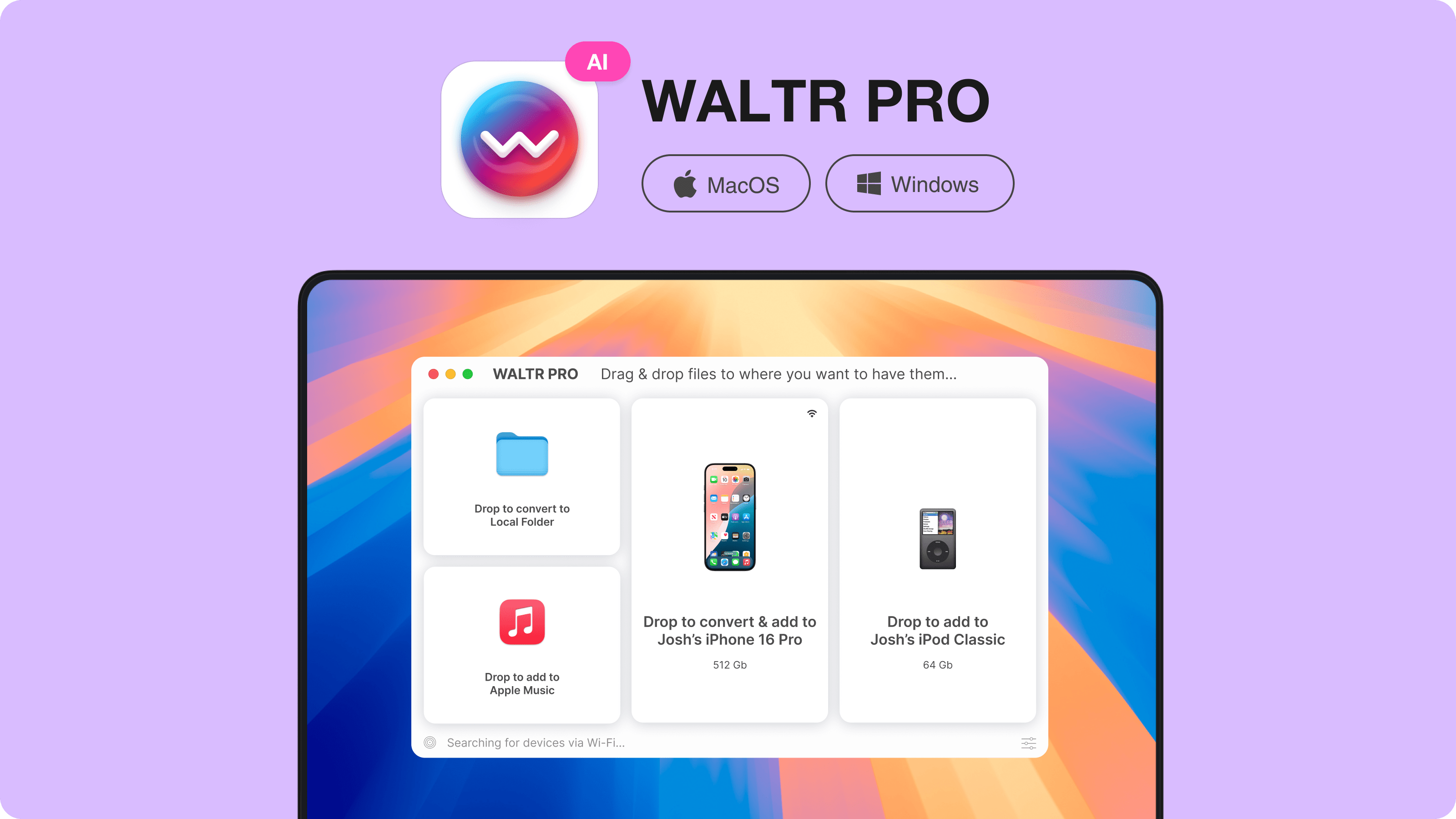
The following product illustration shows WALTR PRO's transfer window; it is not a connection test from this update. For Apple's separate wireless-sync workflow, see the guide to syncing iPhone over Wi-Fi.
Step 2: Drag the video into WALTR PRO
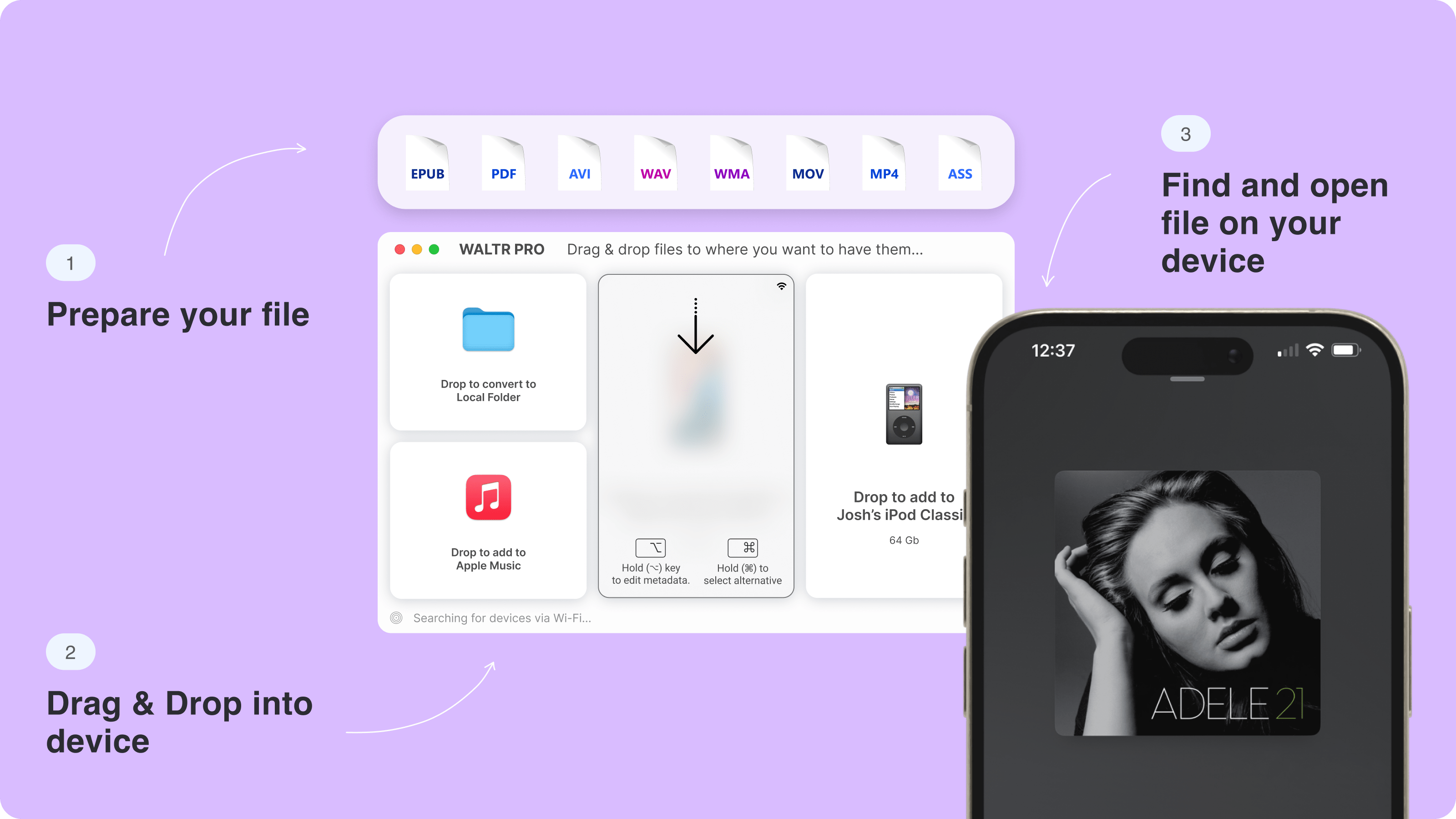
Open WALTR PRO and drag the local video file into its window. WALTR PRO handles conversion for supported files when needed. The illustration below uses music to show the drag-and-drop pattern; your video follows the video workflow rather than becoming a Music library item.
Start with one video before sending a batch. Open that file on the iPhone and check both picture and sound, then send the rest. Keep your original files on the PC so you can use another playback route if a particular file fails.
Step 3: Choose the device or destination
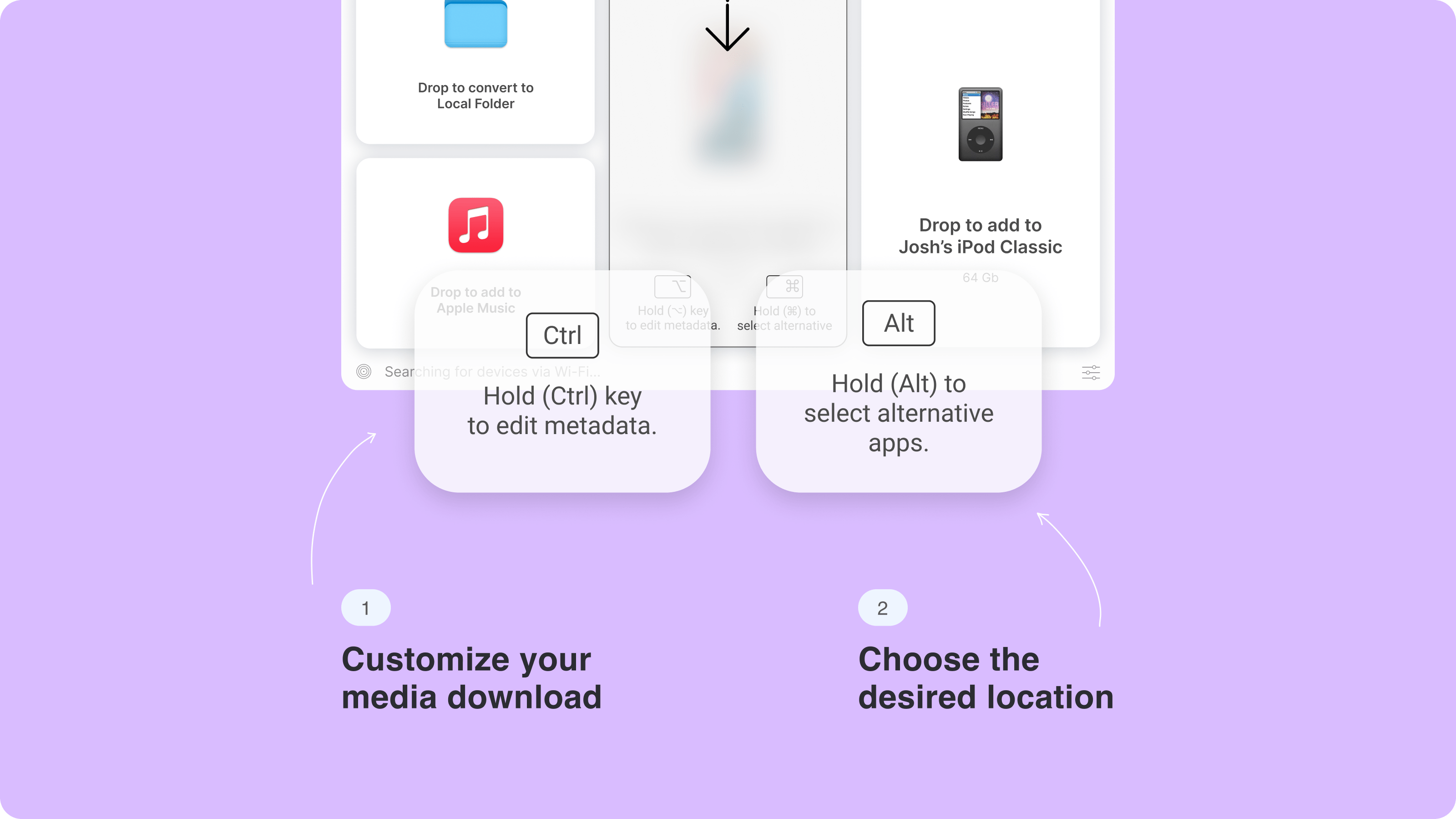
Choose your iPhone as the target device and keep the normal video workflow for Apple TV playback. The historical illustration below shows extra destination and metadata options. Its shortcut labels are not required for these steps; use the controls available in your installed version.
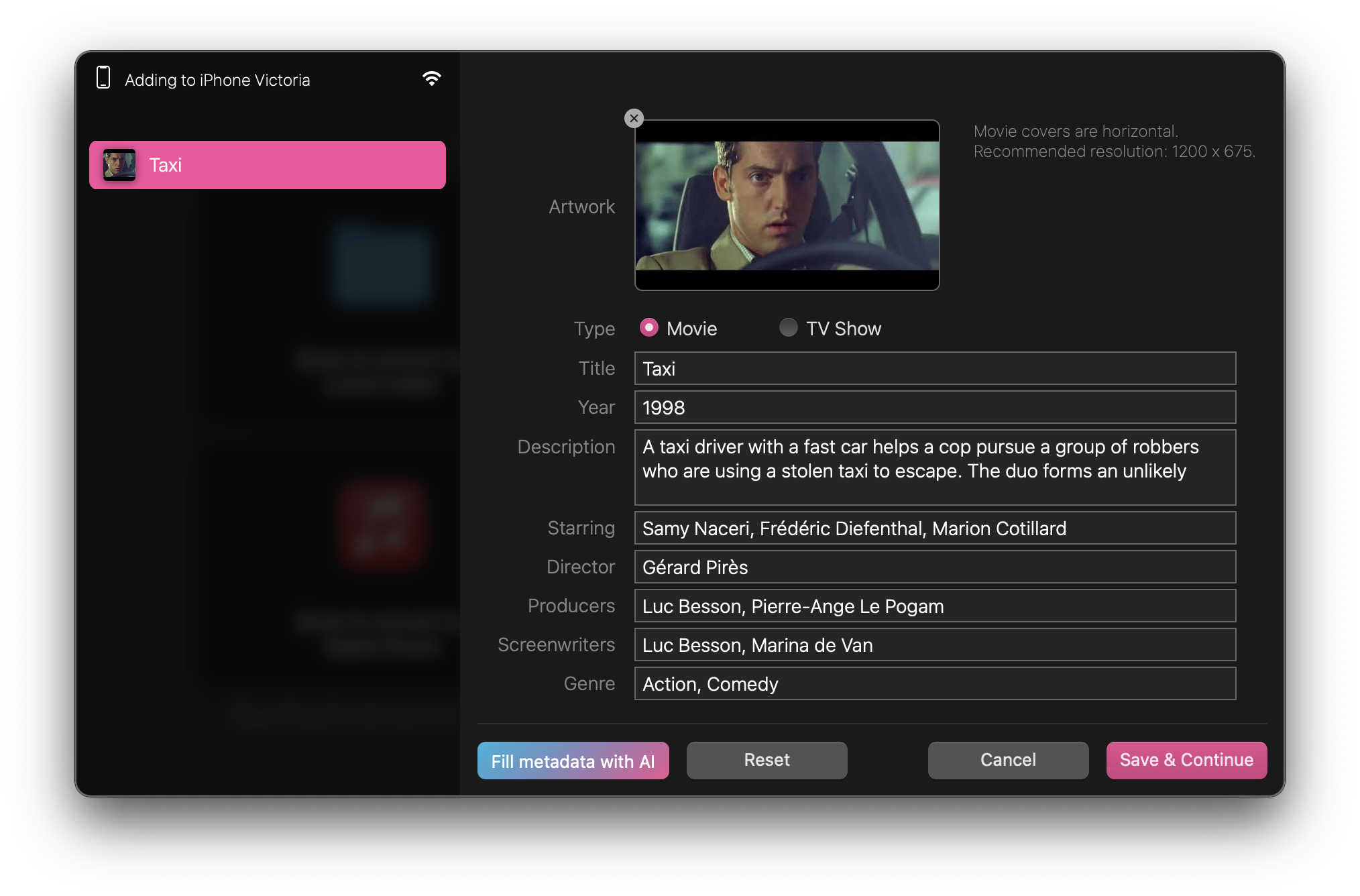
You can adjust metadata before sending the file. A clear title helps you identify the movie on your iPhone. WALTR PRO's product page documents Fill Metadata with AI; review the suggested details before saving. The following source screenshot illustrates the movie metadata editor.
Step 4: Open the video on iPhone
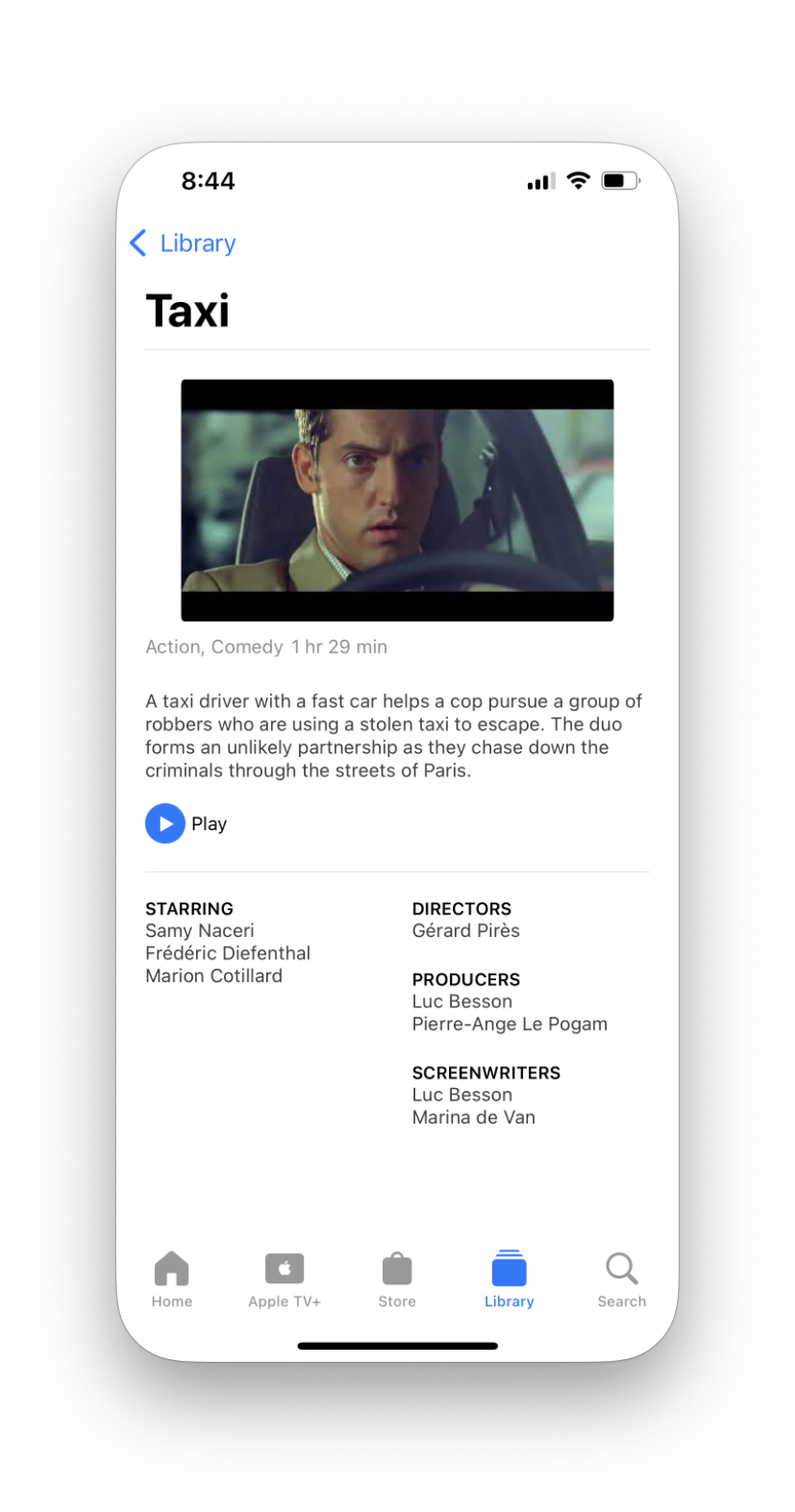
After the transfer finishes, open TV > Library > Downloaded, as described in WALTR PRO's file-location guide. You can also use Where are my files? in WALTR PRO after transfer. The historical screenshot below shows a movie detail page, not the navigation path for every iOS version.
Method 3: Use VLC for Free App-Local Playback
Use VLC when you want to watch a local video on iPhone and do not need it in Apple TV or Photos. VideoLAN documents Wi-Fi sharing and browser uploads in VLC for iOS. VLC plays many formats without conversion, though individual codec support still matters.
You can copy into VLC over USB through Apple Devices > Files, using Method 1. For a cable-free transfer, use VLC's local web upload on the same network. Infuse and Documents are other player/file-app options, but their menus differ; the steps here are for VLC.
Upload from your PC browser to VLC
- Connect the PC and iPhone to the same local Wi-Fi network.
- Open VLC on the iPhone and enable its Wi-Fi sharing/web-upload feature. Use the address VLC displays; menu placement can vary by version.
- Enter that displayed address in a browser on your PC.
- Add the video through the upload page and wait for the upload to finish.
- Open the video in VLC on the iPhone. Turn off Wi-Fi sharing when you finish.
VLC uploads stay in VLC. A successful browser upload does not add the movie to Apple TV or Photos. If the local address will not open, check that both devices can communicate on the network; guest-network isolation can prevent a connection.
Method 4: Transfer Videos with Dropbox or iCloud
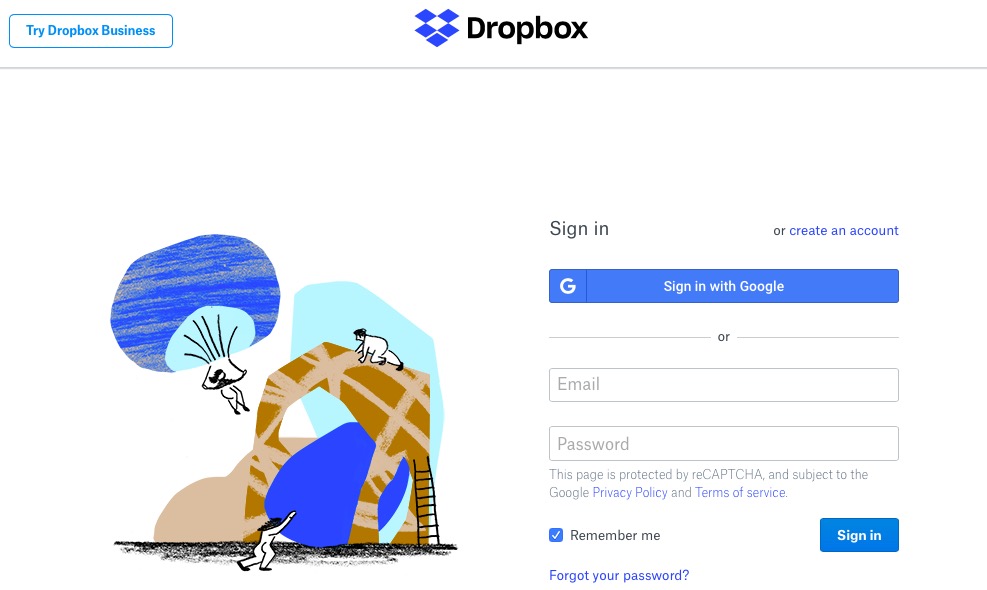
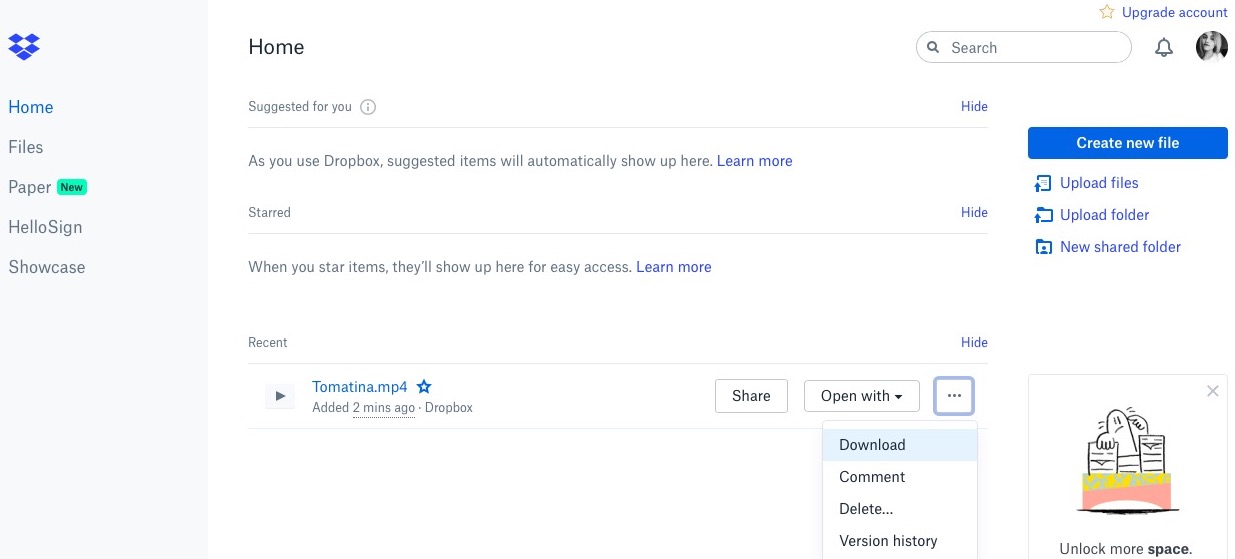
Cloud transfer works when you have no cable or want access across devices. Use Dropbox or iCloud Drive for file access, and iCloud Photos for your photo/video library. The two screenshots in this section show an older Dropbox sign-in and file-upload interface, not iCloud or a newly tested Windows setup.
Transfer through a cloud storage account
- Sign in to Dropbox or iCloud Drive on your PC and upload the video.
- Open the same account on your iPhone, in the service's app or Files where available.
- Download the video for offline access if you need to watch without internet.
- Open it in a player that supports its format. Uploading a file does not convert unsupported codecs.
This route involves an upload from the PC and a download to the phone. For a large movie, allow for both transfers and the account's storage limit. The Dropbox image below illustrates browser file controls; the current service may look different.
Put a video in Photos with iCloud Photos
Use iCloud Photos if your goal is the iPhone Photos library rather than a folder in Files. Apple's iCloud for Windows upload guide describes the PC workflow. Make sure iCloud Photos is set up on the PC and enabled on the iPhone with the same Apple Account.
- Open File Explorer on the Windows PC.
- Drag the videos into iCloud Photos in the navigation pane.
- Allow the upload and sync to finish, then open Photos on your iPhone.
Do not put the files in iCloud Drive and expect the same result. Drive and Photos serve different libraries. Check available iCloud storage before starting; a full cloud account can stop the sync even when the iPhone has free space.
Cloud transfer trade-offs
- Storage: HD and 4K videos can use a large share of a cloud plan.
- Connection: upload and download time depend on both internet connections.
- Playback: Dropbox and iCloud Drive do not guarantee Apple TV or Photos placement.
- Privacy: cloud transfers use an online account rather than a direct local copy.
Format Compatibility: Why Some Videos Transfer but Will Not Play
A video file contains a container and codecs. The container is the wrapper, such as MP4 or MKV. The codecs define how the picture and sound are encoded. A receiving app must support the contents, not only recognize the extension.
Format | Native playback expectation | Practical route | Check before sending |
|---|---|---|---|
MP4 / MOV / M4V | Often compatible, depending on codecs | Apple movie sync, WALTR PRO, or a suitable player | Video and audio codec support |
MKV | No native playback guarantee | WALTR PRO conversion or VLC | Native TV versus app-local destination |
AVI / WMV / FLV / WEBM | No native playback guarantee | WALTR PRO for supported files or a compatible player | Whether the particular file's codecs work |
For example, a movie can show a picture but have no sound if the player accepts the video track and rejects the audio track. Repeating the upload will not change those codecs. Use a player that supports the file or convert it to a supported format.
Troubleshooting: Missing Videos, Playback, and Connections
- Video missing: look in the app you chose. Apple Devices Files copies to that app; WALTR PRO's normal video route uses TV; iCloud Photos uses Photos.
- File will not play: check format and codecs. Do not rename the extension as a substitute for conversion.
- PC cannot see the iPhone: unlock it, respond to Trust, and try a known working data cable and USB port.
- WALTR PRO Wi-Fi connection fails: establish USB detection first, enable Wi-Fi, and check the shared network/subnet.
- Storage error: check free space on the iPhone and, for cloud methods, the cloud account too.
- Silent video: try a player that supports the audio track or convert the file. Keep the PC original until playback works.
For WALTR-specific detection issues, follow the USB and Wi-Fi connection guide. Avoid deleting drivers or turning off security software as a first troubleshooting step.
Choose the Right Video Transfer Method
Use Apple Devices for the official Windows sync or file-sharing route. Use VLC if free playback inside a separate app is enough. Choose iCloud Photos when Photos is the destination, or Dropbox/iCloud Drive when file access is enough.
For local movies that need conversion and belong in the native TV app, download the WALTR PRO free trial. Transfer one of your own videos first and confirm its picture, sound, and location before sending a whole folder.
FAQ: Sending PC Videos to iPhone
Can I transfer videos from PC to iPhone without iTunes?
Yes. Apple Devices offers Windows sync and app file sharing, while VLC supports local Wi-Fi uploads. WALTR PRO combines conversion and transfer for supported movie files. None of these workflows requires managing an iTunes library, though USB detection may still need Apple device-support components.
How do I send videos from PC to iPhone Photos?
Use iCloud Photos for Windows with the same Apple Account and iCloud Photos enabled on the iPhone. Drag the videos into iCloud Photos in File Explorer and wait for sync. Uploading to iCloud Drive or VLC does not automatically add the files to Photos.
Which method should I use for a large video?
Use a USB route if you want to avoid uploading and downloading a large movie through cloud storage. Choose Apple Devices for compatible movie sync or app file sharing, or WALTR PRO when conversion is needed. Check iPhone storage before starting.
Why will my transferred video not play on iPhone?
The receiving app may not support the video's container or one of its codecs. Try a compatible player such as VLC or convert the file to a supported format. A successful file transfer alone does not prove playback compatibility.
Can I transfer MKV or AVI files to iPhone?
Yes. Use WALTR PRO to convert supported files for native playback, or copy them into a compatible player such as VLC. Choose based on where you want to watch, and check the individual file's picture and audio after transfer.

WALTR PRO
Convert & Push Any File into Any Apple Device
