How to Transfer Files from iPhone to Computer

How to Transfer Files from iPhone to Computer
TL;DR
- iPhone files live inside apps, not in one shared folder
- USB transfer works best for photos and videos, but not for every file type
- WALTR PRO helps move more file types and avoids most iOS limits
Transferring files from iPhone to a computer can feel confusing because iOS does not work like a normal folder system. Many files live inside specific apps, and the computer cannot browse everything like it can with a USB drive.
This article explains why the process is tricky, which built-in options work for specific file types, and what to do when you need a faster workflow.
Why transferring files from iPhone is harder than it looks
iPhone storage is app based
On iPhone, files are often tied to the app that created or received them. A PDF might be inside Books or Files. A voice note might be inside Voice Memos. A document could be inside a third party app.
That is why you can sometimes see a file on your iPhone but cannot find it from your computer.
This topic overlaps with file access problems in Photos too. This article explains the common prompt and how to fix it.
iOS sandbox rules limit access
Apps are separated for security. One app cannot freely read another app’s storage, and your computer also gets limited access.
If an app is deleted, its local files can be deleted too, unless they were backed up or exported somewhere safe.
If you work with backups and want to see what is inside them, this article explains how to view iPhone backup files.
Built-in ways to transfer iPhone files
USB transfer for photos and videos
For photos and videos, USB is usually the quickest built-in option.
On Windows, connect the iPhone with a cable, unlock it, and tap Trust.
Then use either:
- Windows Photos import
- File Explorer and the DCIM folder
Two important notes:
- Albums are not preserved. Files usually come grouped by date.
- If iCloud Photos uses Optimize Storage, some originals may not exist on the device.
This article explains how to transfer photos from iPhone to computer step by step.
If you see errors or your iPhone fails to show up correctly, this article covers a common cause.
iCloud Drive for wireless transfer
iCloud Drive works well for smaller documents you already keep in Files.
Move the files to iCloud Drive on iPhone, then download them on the computer.
The limits are:
- 5 GB free storage fills up fast
- upload and download speed depends on internet
- some app files do not sync the way you expect
If the main goal is a local backup instead of cloud storage, this article explains how to back up iPhone without iCloud.
iTunes File Sharing and the Apple Devices app
iTunes File Sharing and the Apple Devices app can export files from specific apps that support it.
This works for some document-based apps, but it does not help with everything. If the app does not support File Sharing, it will not appear.
This approach is useful for one-off exports, not for managing many file types across apps.
What most people get wrong
Expecting a folder view like a USB drive
Most people expect to open the iPhone like a flash drive and browse everything. iOS does not allow that.
Mixing formats Windows cannot open
Some iPhone formats may not open well on Windows, especially modern Apple photo and video formats.
If you run into HEIC issues, this article explains how to convert HEIC to JPG.
Confusing transfer with playback support
A file can transfer correctly but still fail to play on iPhone or Apple TV. That usually means the format is not supported by the app you are using.
These articles explain common video format cases:
- MKV playback on iPhone
- WMV playback on iPhone
Next step
How to move files to iPhone using WALTR PRO, then keep a clean copy on your computer
If you handle different file types often, WALTR PRO is a practical alternative to built-in methods because it:
- accepts more file formats
- places files into the right Apple apps
- converts formats when needed
- works over USB and later over Wi Fi
This reduces the usual back and forth with Files, cloud storage, and app restrictions.
What you need before starting
- a Mac or Windows computer
- an iPhone or iPad
- a USB or USB-C cable for the first connection
Download WALTR PRO

WALTR PRO
Convert & Push Any File into Any Apple Device
Step 1, connect your iPhone once
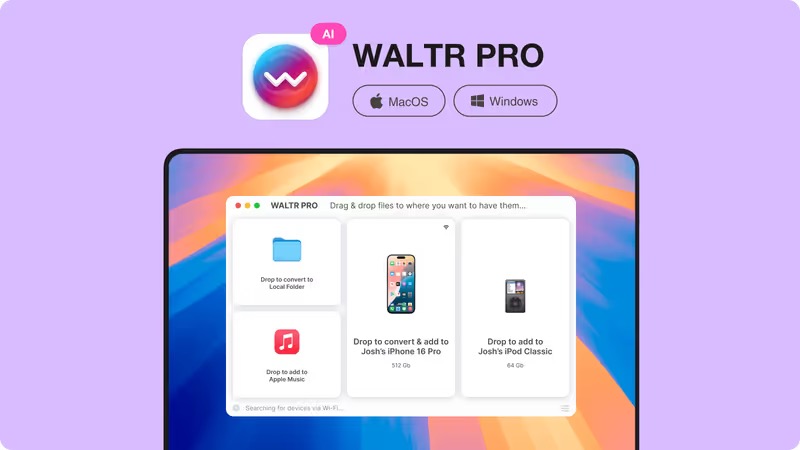
Connect your iPhone to your computer with a cable or Wi-Fi. Unlock it and tap Trust if prompted.
Open WALTR PRO. Your device should appear in the app.
Step 2, drag and drop your files
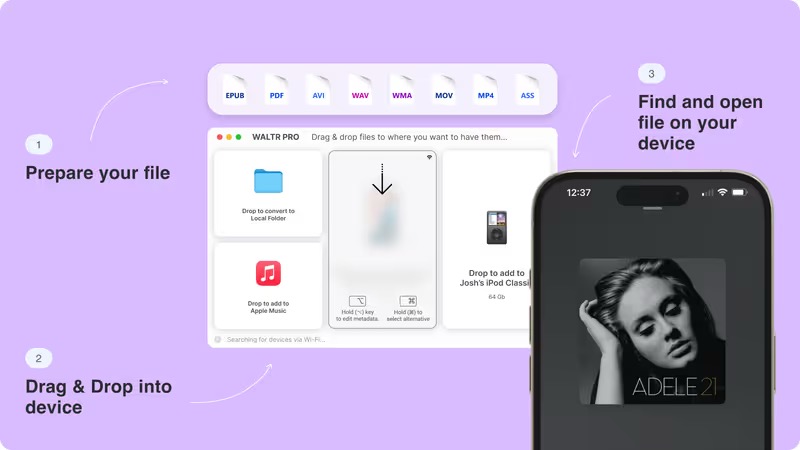
Drag files from Finder or File Explorer into the WALTR PRO window.
Common examples:
- MKV or AVI videos
- FLAC music
- EPUB or PDF books
- M4R ringtones
WALTR PRO converts formats when needed and sends the result to the correct iPhone app.
For people transferring video from Windows to iPhone, this article explains the typical options.
Step 3, check where the file landed
Open the related iPhone app:
- TV app for videos
- Music app for audio
- Books app for EPUB or PDF
- Settings for ringtones
Files appear like normal content, not temporary downloads.
If you want help with EPUB specifically, this article explains how to open EPUB on iPhone.
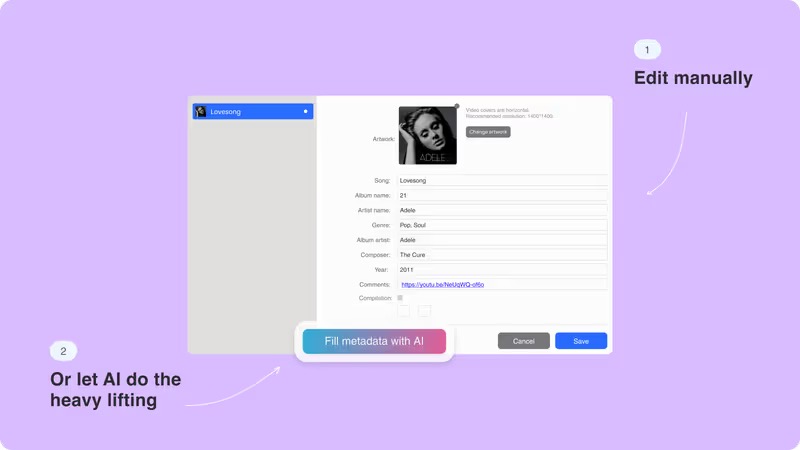
WALTR PRO also allows metadata edits manually or with AI, which helps organize music and video libraries.
Key takeaways
- iPhone storage is app based, not one shared folder
- USB import works best for photos and videos only
- iCloud Drive works for small files but depends on storage and internet
- WALTR PRO is a practical alternative when you handle many file types
Convert & Push Any File into Any Apple Device

FAQs
Why can’t I see all iPhone files on my computer?
Because iOS keeps most files inside app storage and limits computer access for security.
What is the easiest way to transfer photos and videos to a computer?
A USB cable plus Windows Photos import or File Explorer works well for DCIM media.
What should I do if Windows cannot open iPhone photos?
HEIC is a common reason. Converting HEIC to JPG usually fixes it.
What if a file transfers but does not play on iPhone?
That is usually a format issue. The file may need conversion or a different destination app.
WALTR PRO
Convert & Push Any File into Any Apple Device
