How to Convert YouTube to MP4 on Mac or Windows


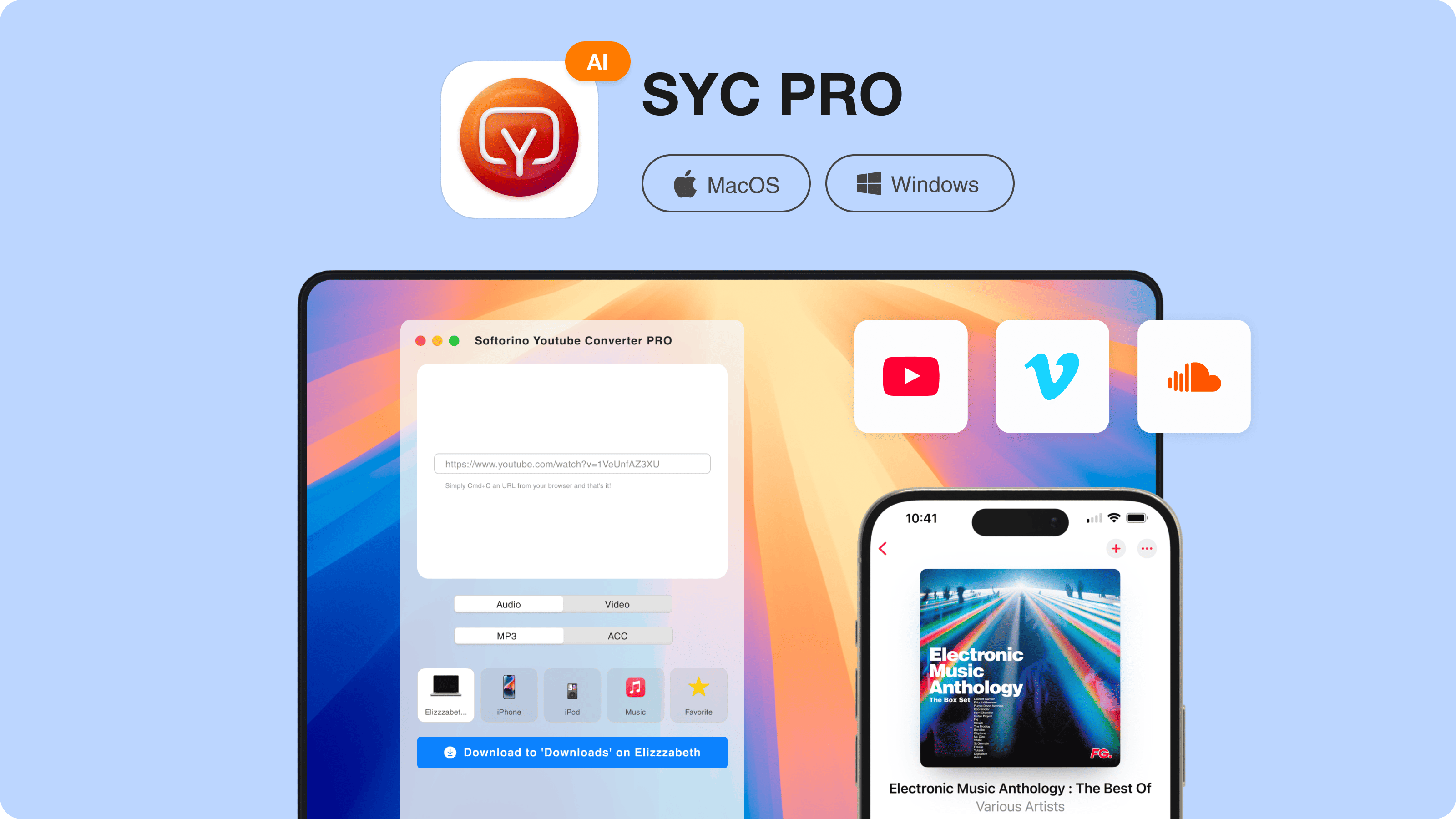
Need a YouTube video as a normal MP4 file? Use Softorino YouTube Converter PRO on Mac or Windows. Copy the YouTube link, choose MP4, pick the quality, and save the video to your computer, iPhone, iPad, or iPod.
One quick note before the fun part: download only videos you own, have permission to save, or that are clearly offered for offline use. YouTube Premium also lets you save some videos for offline viewing inside the YouTube app, but it does not give you a regular MP4 file you can move anywhere.
Why use SYC PRO instead of an online converter?
Most MP4 converter searches lead to the same kind of page: paste a URL into a browser box, close 3 pop-ups, hope the download button is the real one, and pray the file is not named something weird.
SYC PRO is cleaner. It is a Mac and Windows app for downloading YouTube videos as MP4 files without sketchy browser converters. It also does one thing most online tools do not: it can send the video straight to an Apple device.
Use Softorino YouTube Converter PRO if you want a safer desktop converter that works on both Mac and Windows. If you also move local videos, music, PDFs, or ringtones to iPhone, WALTR PRO covers that file transfer job without iTunes.
Free 24-hour converter trial: Download and test the app before you pay. Use the full workflow and see if it fits.
MP4 downloads in HD quality: Save YouTube videos in 720p, 1080p, or 4K when the source video supports it.
Direct downloads to iPhone and iPad: Send videos to Apple devices without iTunes.
MP3 and audio options: Choose MP3 or AAC when you only need the audio.
Batch queue: Add more than one video and let SYC PRO process them in order.
How to save a YouTube video on Mac or Windows
The basic workflow is the same on macOS and Windows.
The steps below use SYC PRO because it handles the download, conversion, metadata, and device transfer in one place.
Step 1. Download Softorino YouTube Converter PRO
Download and install SYC PRO on your Mac or Windows PC. The setup is quick, and the free 24-hour trial lets you test MP4 downloads before buying.
Open the downloaded installer and follow the setup prompts. Once the app is installed, launch it and move to the device connection step.
Step 2. Connect your iPhone, iPad, or iPod
If you want the MP4 file only on your computer, you can skip device transfer and save it locally. If you want the video on your iPhone or iPad, connect the device before downloading.
You have 2 options:
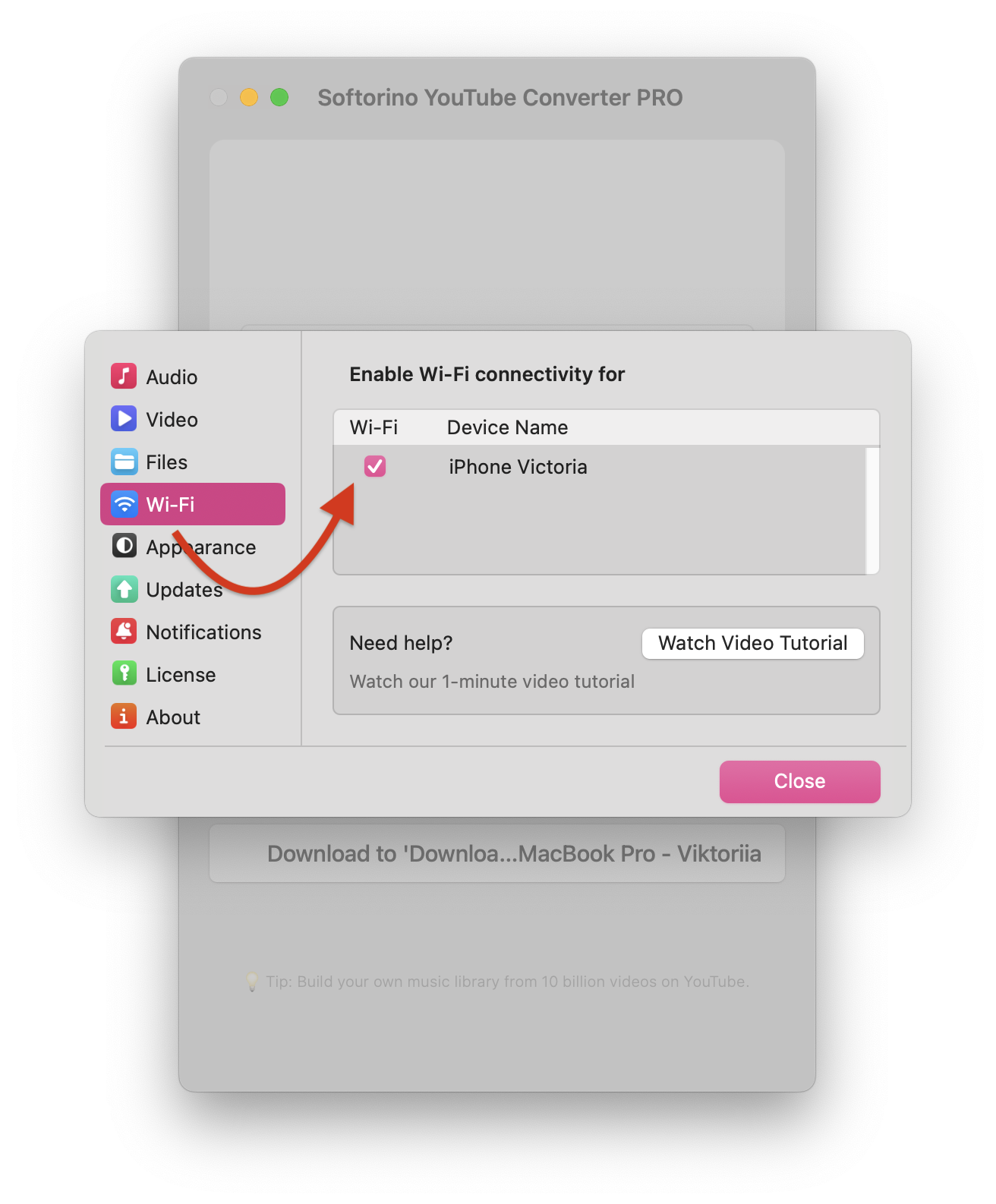
With SYC PRO, you can set up Wi-Fi transfer from Settings > Wi-Fi and choose your device. Once it is paired, future transfers are faster because you do not need to plug in a cable each time.
- Use a USB cable for the most reliable connection.
- Use Wi-Fi if your computer and Apple device are on the same network.
- For wired, you can use the USB cable that comes with your device to connect it to your computer.
- For wireless, you can make sure that your device and computer are connected to the same network so that when you’re ready to transfer MP4 videos, your Apple Device is ready.
Step 3. Copy the YouTube video URL
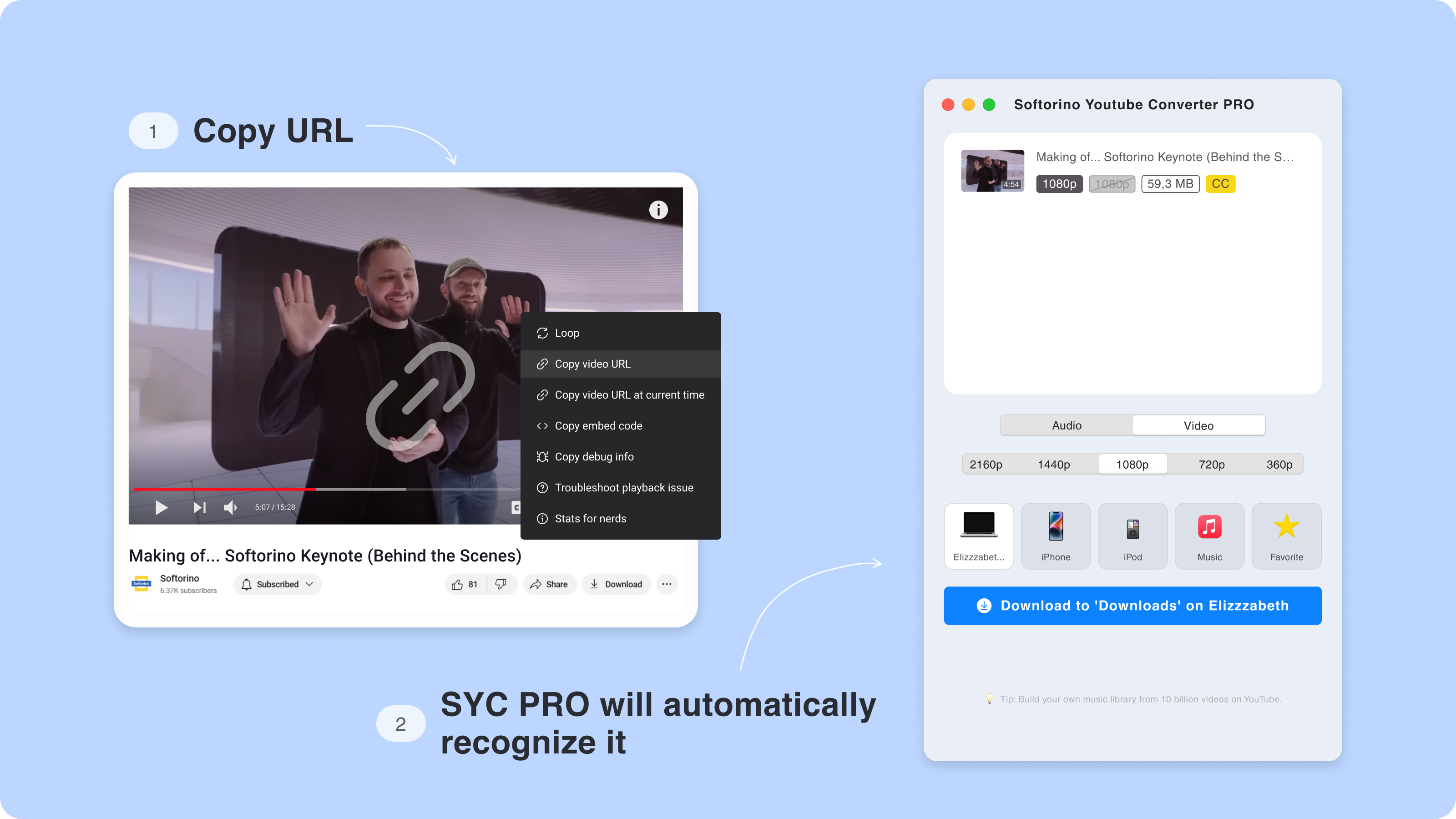
Open YouTube in your browser or in the YouTube app. Find the video you want to save, then copy the URL from the address bar or the Share button.
SYC PRO detects copied YouTube links and places them in the app. You do not need to paste the link into a random online converter or fight a page full of fake download buttons.
Pro tip
💡 SYC PRO lets you add multiple videos to the queue.
This helps when you are saving lectures, workout videos, tutorials, playlists, or travel content for offline use. Add the links, choose your settings, and let the app work through the list.
Step 4. Choose MP4 format and video quality
Select MP4 as the output format. Then choose the quality that matches how you plan to watch the video.
Here is the simple version:
Quality | Best for | Trade-off |
|---|---|---|
720p | Smaller files, phones, quick saves | Less detail on large screens |
1080p | Normal viewing on phones, tablets, laptops | Good balance of quality and file size |
4K | Large screens and videos uploaded in 4K | Bigger files and more storage use |
If the source video is only 1080p, choosing 4K will not magically create real 4K detail. Pick the highest quality the original video supports when you care about sharpness. Pick 720p when storage matters more.
Step 4.5. Edit the download metadata
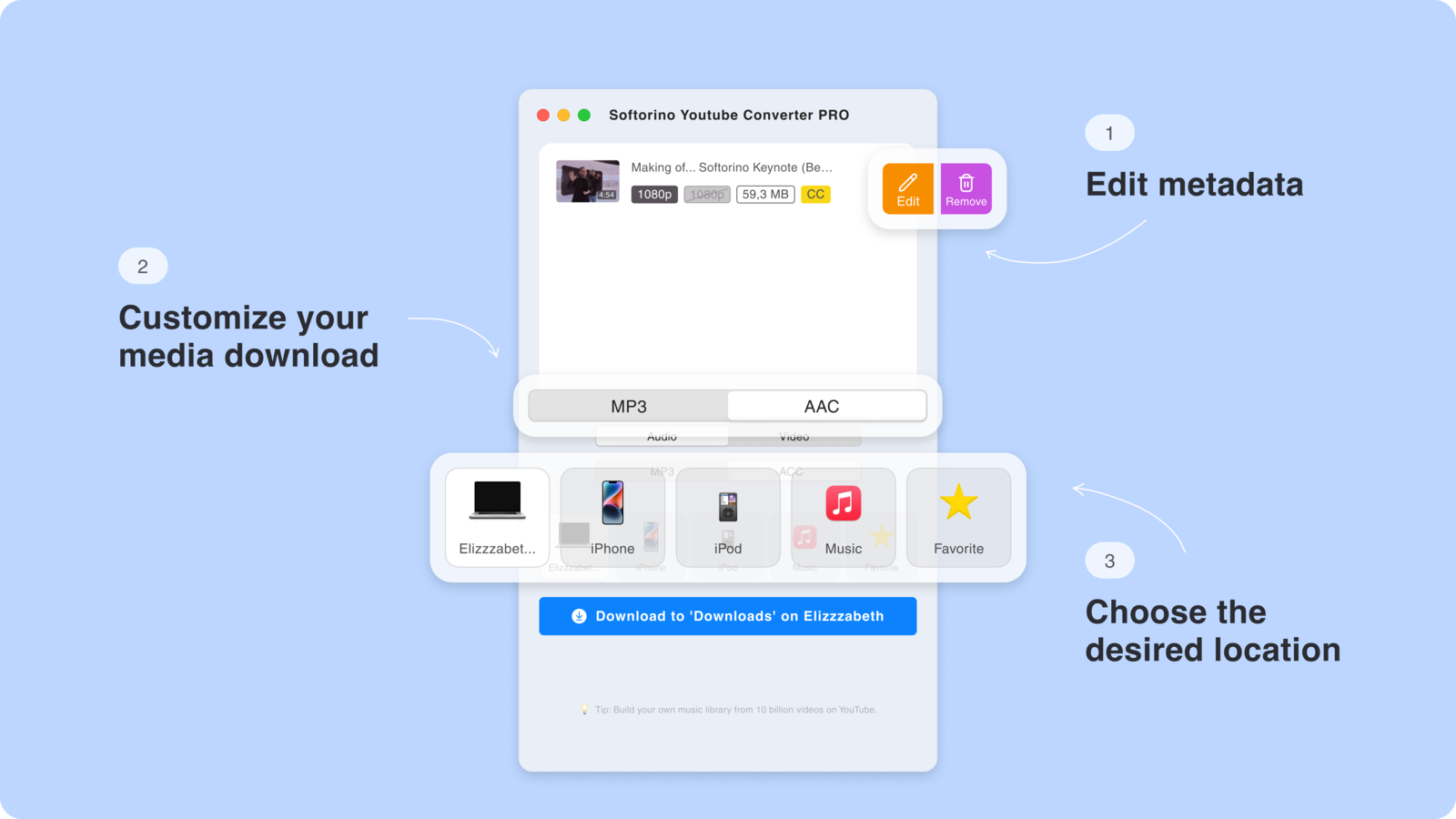
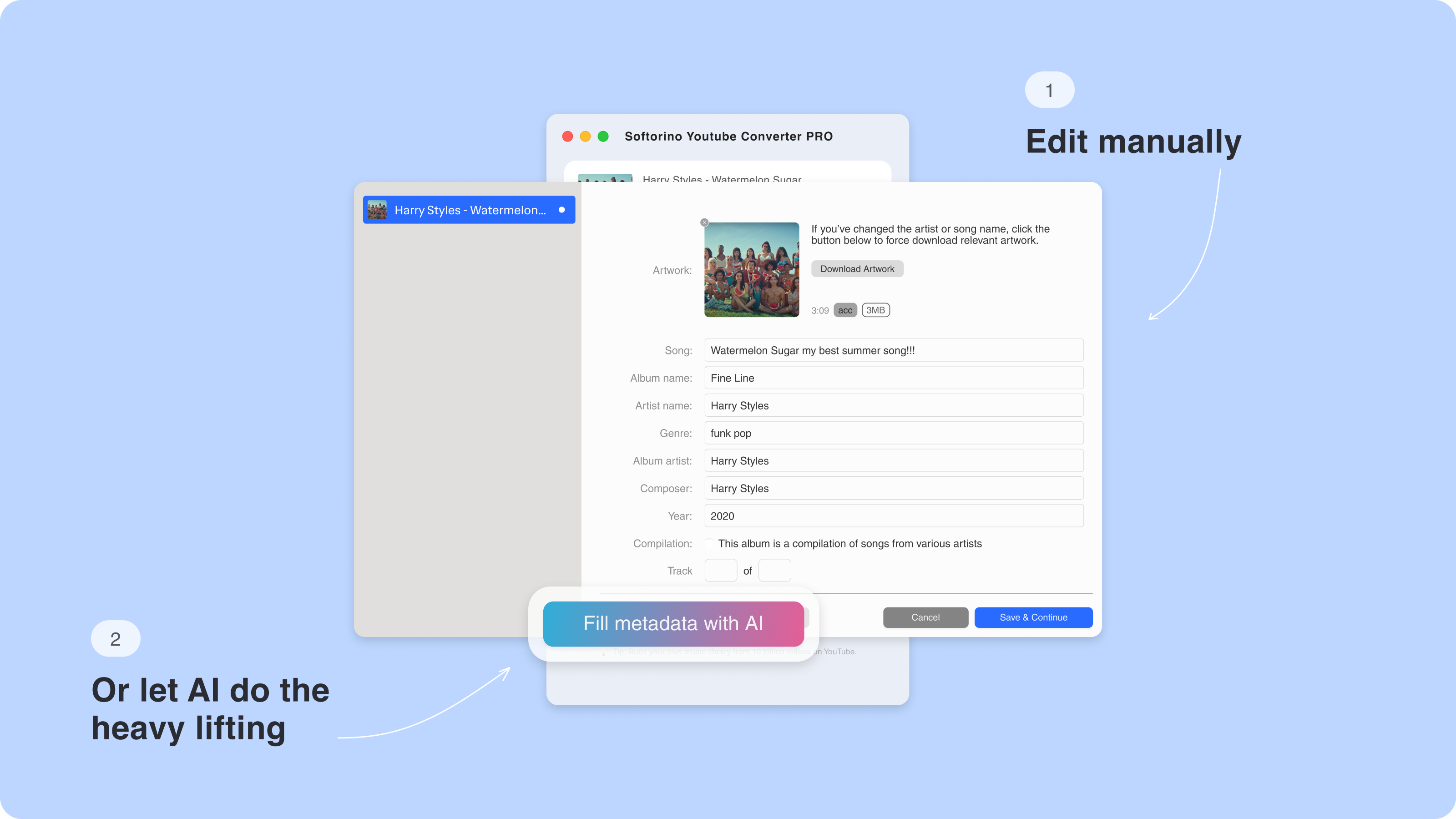
Before the download starts, you can edit the title, artist, album name, and artwork. This matters if you are saving music videos, tutorials, or recurring video series and want them to look clean on your device.
SYC PRO can also help fill in metadata, so your downloaded video does not land as a messy file with a random name.
Step 5. Download and watch offline
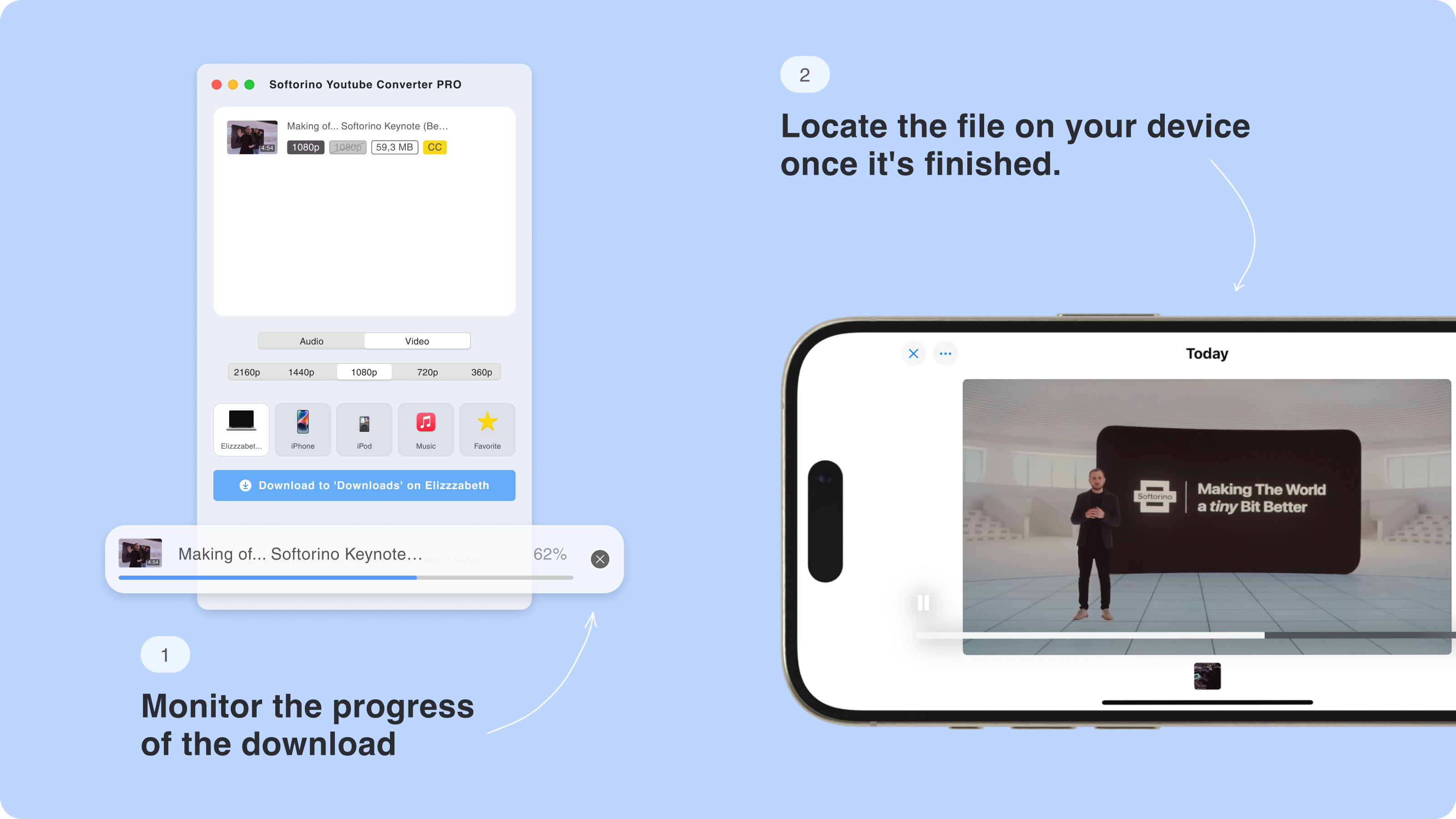
Start the download. SYC PRO shows the progress while it converts the YouTube video to MP4 and sends it to the destination you chose.
When the download finishes, the MP4 is ready for offline viewing. If you selected an Apple device, the video appears on that device without iTunes sync, browser extensions, or manual file juggling.
Mac vs Windows: what changes?
Not much. The workflow stays the same on Mac and Windows:
The main difference is how you connect devices and manage local files. Mac users may save videos into Finder folders or send them to iPhone. Windows users can do the same from a PC, which is useful because iTunes on Windows is still not anyone's idea of a relaxing evening.
If your bigger problem is moving any file to iPhone, not only YouTube downloads, use WALTR PRO for iPhone file transfer. If you want the whole Softorino set for iPhone transfer, YouTube downloads, and other Apple utility work, the Universal License covers the main apps for about $3/month.
- Install SYC PRO.
- Copy the YouTube link.
- Choose MP4.
- Pick quality.
- Save the file or transfer it to an Apple device.
MP4 vs MP3: which format should you choose?
Choose MP4 when you want the video. That includes tutorials, interviews, workouts, lectures, music videos, or anything where the visuals matter.
Choose MP3 when you only need the audio. That works for songs, podcasts, lectures, or spoken content you want to listen to offline.
SYC PRO supports both paths. Keep video as your default when you want a normal file. Switch to MP3 or AAC when video would only waste storage.
Why avoid online converters?
Free online converters look tempting because they run in a browser. Some work. Many are a mess.
The usual problems are boring but real:
A desktop app is a better fit if you download often, care about quality, or want videos on an Apple device. SYC PRO is built for that workflow instead of a one-off browser download.
- Pop-ups and fake download buttons.
- Quality limits that force lower-resolution MP4 files.
- Unclear privacy around pasted URLs and downloaded files.
- Broken downloads when YouTube changes something.
- No direct transfer to iPhone or iPad.
- No metadata cleanup.
YouTube Premium vs a YouTube to MP4 converter
YouTube Premium is the official way to save many YouTube videos for offline watching inside YouTube. That is useful if you only watch inside the YouTube app.
A desktop converter solves a different problem. It gives you a regular MP4 file. You can store it on your computer, organize it, rename it, add metadata, or transfer it to a supported device.
Use YouTube Premium when you want official offline viewing inside YouTube. Use SYC PRO when you need a normal MP4 file for personal offline use and you have the right to download that content.
For the platform's own offline viewing rules, see the official YouTube Help page on watching videos offline.
Best MP4 download settings
Use these quick rules:
If a converter promises impossible quality, ignore it. A 720p source cannot become a true 4K file because a website says so.
- Pick MP4 for video. It works almost everywhere.
- Pick 1080p for most downloads. It looks good without eating too much storage.
- Pick 4K only when the source video supports 4K and you need the detail.
- Pick 720p for smaller files or phone-only viewing.
- Edit metadata before transfer if you want a clean library.
- Use Wi-Fi transfer after the first device setup if you hate cables.
Start converting YouTube to MP4
If you want the fast answer: download SYC PRO, copy the YouTube URL, choose MP4, and save the file. That is the whole workflow.
If you want the better answer: use SYC PRO because it works on Mac and Windows, avoids the worst parts of online converters, and can send videos straight to iPhone or iPad without iTunes.
Try Softorino YouTube Converter PRO with the free 24-hour trial and save your first YouTube video as an MP4 file.
FAQ
Can I save a YouTube video as an MP4 on Mac?
Yes. Install SYC PRO on your Mac, copy the YouTube URL, choose MP4, select the quality, and download the file. You can save it on your Mac or transfer it to an iPhone or iPad.
Can I save a YouTube video as an MP4 on Windows?
Yes. SYC PRO works on Windows too. The process is the same: copy the YouTube link, choose MP4, pick the quality, and download the video to your PC or Apple device.
Is it legal to download YouTube videos as MP4 files?
It depends on the video and your use. Download only content you own, have permission to save, or that is offered for offline reuse. YouTube Premium is the official option for offline viewing inside YouTube.
Can I save YouTube videos without iTunes?
Yes. SYC PRO can download and transfer YouTube videos to Apple devices without iTunes. That is the point. You choose the device in SYC PRO instead of syncing through Apple's old media flow.
What MP4 quality should I choose?
Choose 1080p for most videos. Choose 720p when you want smaller files. Choose 4K only when the original YouTube video supports 4K and you have enough storage.
Can I download multiple YouTube videos at once?
Yes. SYC PRO lets you queue multiple videos. Add the links, choose your format and quality, and let the app process them one by one.
Can I save YouTube MP4 files directly to iPhone?
Yes. Connect your iPhone by USB or Wi-Fi, then choose it as the destination in SYC PRO. The MP4 lands on the device without a separate iTunes transfer.

SYC PRO
Download Web Videos Like a PRO
