How to Download PDF on iPhone: 6 Easy Methods

If you want to know how to download PDF on iPhone, the fastest answer is: open the PDF, tap Share, then choose Save to Files or Books. Files is for storage, folders, uploads, and sharing. Books is for reading and keeping a library.
Use Apple’s native method first when the PDF is already online, in Safari, in Mail, or on the iPhone. Apple’s own iPhone PDF guide says to open the PDF in Safari, tap Share, then tap Save to Files: https://support.apple.com/guide/iphone/download-a-pdf-ipha9ed5131c/ios
Use WALTR PRO only when the PDF or EPUB is already on your Mac or Windows PC and you want to send it to iPhone or iPad without iTunes or Finder sync. WALTR PRO: https://softorino.com/waltr. This guide covers 6 methods and tells you where each PDF ends up.
Before we begin
Download WALTR PRO on Mac or Windows to send PDF files from a computer to an iPhone or iPad without iTunes. Connect the device, drag in the PDF, and open it from the Books app when the transfer finishes.
Quick takeaways: how to download PDF on iPhone
TL;DR: To download a PDF on iPhone from Safari, open the PDF link, tap Share, choose Save to Files or Books, pick a folder if Files opens, then tap Save. Files is better for work documents. Books is better for reading. WALTR PRO is for local PDFs and ebooks that are already on Mac or Windows.
Short version: online PDF = Share > Save to Files or Books. PDF on Mac = AirDrop, Finder, iCloud Drive, or WALTR PRO. PDF on Windows = iCloud Drive, email/cloud upload, or WALTR PRO. Passwords, DRM, storage space, and trial limits still matter.
Which PDF method should you use?
Method | Use when | Where the PDF lands | Main limit |
|---|---|---|---|
Safari / Share > Save to Files | The PDF is online or already open on iPhone | Files > Downloads, iCloud Drive, or On My iPhone | Free and native, but you must choose the folder |
Books | You want a reading library | Apple Books Library | Best for reading, not uploads or folder workflows |
Email, Gmail, Messages, or link | Someone sent the PDF to you | Files, Books, or the sending app | App labels vary in the Share sheet |
AirDrop | A nearby Mac is sending one or a few PDFs | Files, Books, or chosen app | Mac/iPhone only; not for Windows |
iCloud Drive | You want folders and device sync | Files app > iCloud Drive | Uses iCloud storage and internet upload time |
Finder or Books sync | You already sync from a Mac library | Apple Books or synced location | Mac-only and clunky if libraries differ |
WALTR PRO | PDFs or EPUB files are already on Mac or Windows | Books app or selected destination app | Paid app; trial has file limits; does not unlock DRM/passwords |
Method 1: how to download PDF on iPhone from Safari
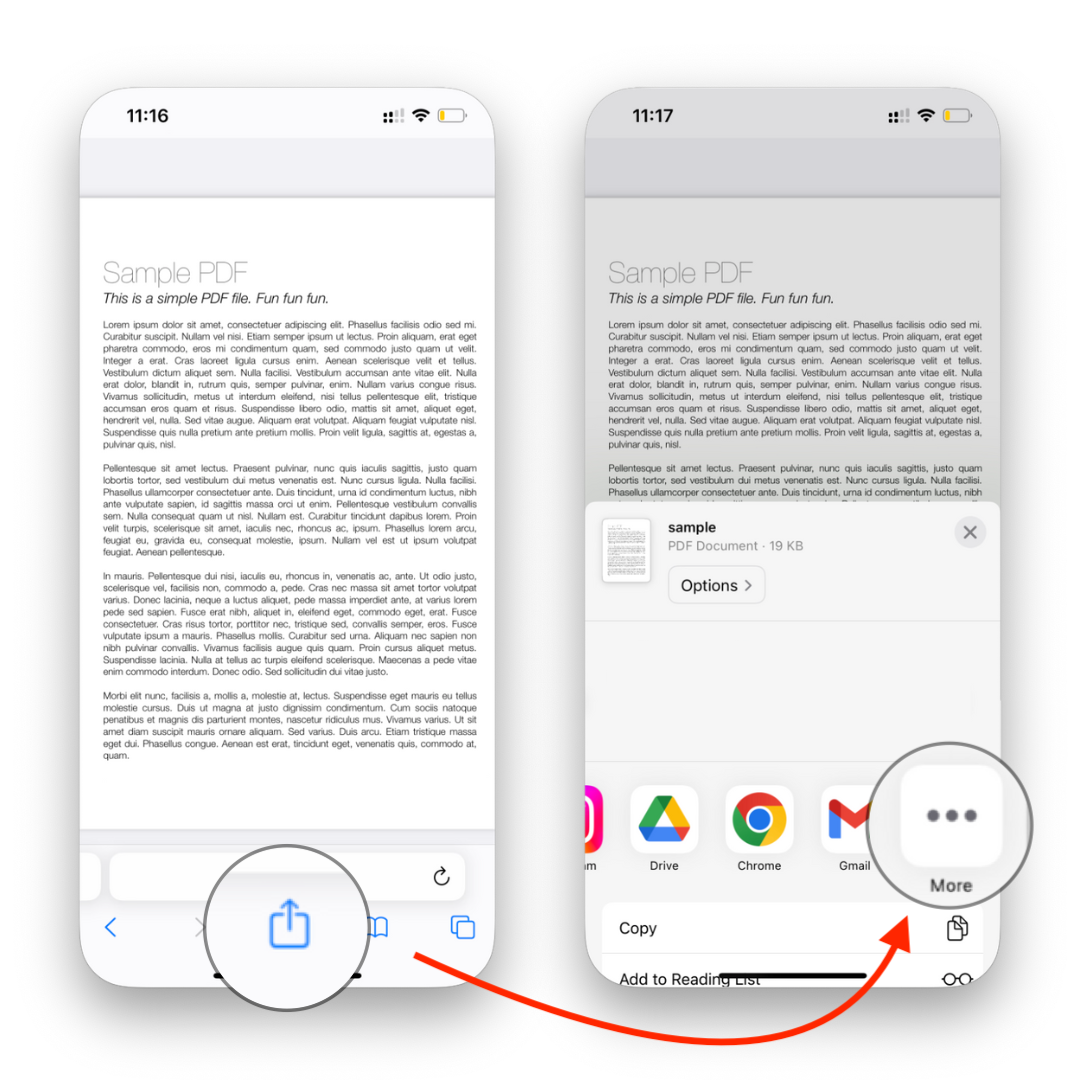
Safari is the best first method when the PDF is already online. Apple’s official path is free: open the PDF in Safari, tap the Share button, then tap Save to Files. Use Books instead when you want the PDF in a reading library.
- Step 1: Open the PDF link in Safari.
- Step 2: Wait for the PDF preview to load.
- Step 3: Tap the Share button.
- Choose Save to Files if you want folder control, or Books if you want to read it later.
- If you choose Files, pick iCloud Drive, On My iPhone, or Downloads, then tap Save.
If Books does not show up, scroll across the app row, tap More, and search for Books. If Save to Files does not show up, swipe up in the Share sheet and look under the action list.
Native Apple honesty: Save to Files and Books should be your first choices for PDFs already on the iPhone or web. Files is better for uploads, renaming, folders, and sharing. Books is better for reading. WALTR PRO is not needed for a single Safari PDF.
You can also use Chrome or Firefox. The labels may look a little different, but the path is the same: open the PDF, tap Share, then save to Files or Books.
Method 2: save a PDF from email, Gmail, Messages, or a link
A lot of PDF downloads do not start in Safari. They arrive as invoices, boarding passes, ebooks, school documents, bank statements, and shared links. The workflow is still Share first, destination second.
For Apple Mail
- Open the email with the PDF attachment.
- Tap the PDF to preview it.
- Tap Share.
- Choose Save to Files or Books.
- Pick the folder or app where you want the PDF to live.
For Gmail
- Open the message in Gmail.
- Tap the PDF attachment.
- Tap the Share icon.
- Choose Save to Files, Books, or another app.
For Messages
- Open the conversation.
- Tap the PDF or link.
- Tap Share.
- Save it to Files or send it to Books.
If the PDF opens inside a third-party app, look for Share, Open In, Export, or Send a Copy. iOS changes labels depending on the app because of course it does.
Method 3: transfer PDFs and ebooks from Mac or Windows without iTunes
If the PDF is already on your computer, downloading it again on your iPhone is the long way around. WALTR PRO moves PDFs from Mac or Windows to iPhone or iPad without iTunes. Softorino’s supported formats help lists EPUB and PDF as Books-app formats: https://help.softorino.com/help/waltr-pro-supported-formats-full-list
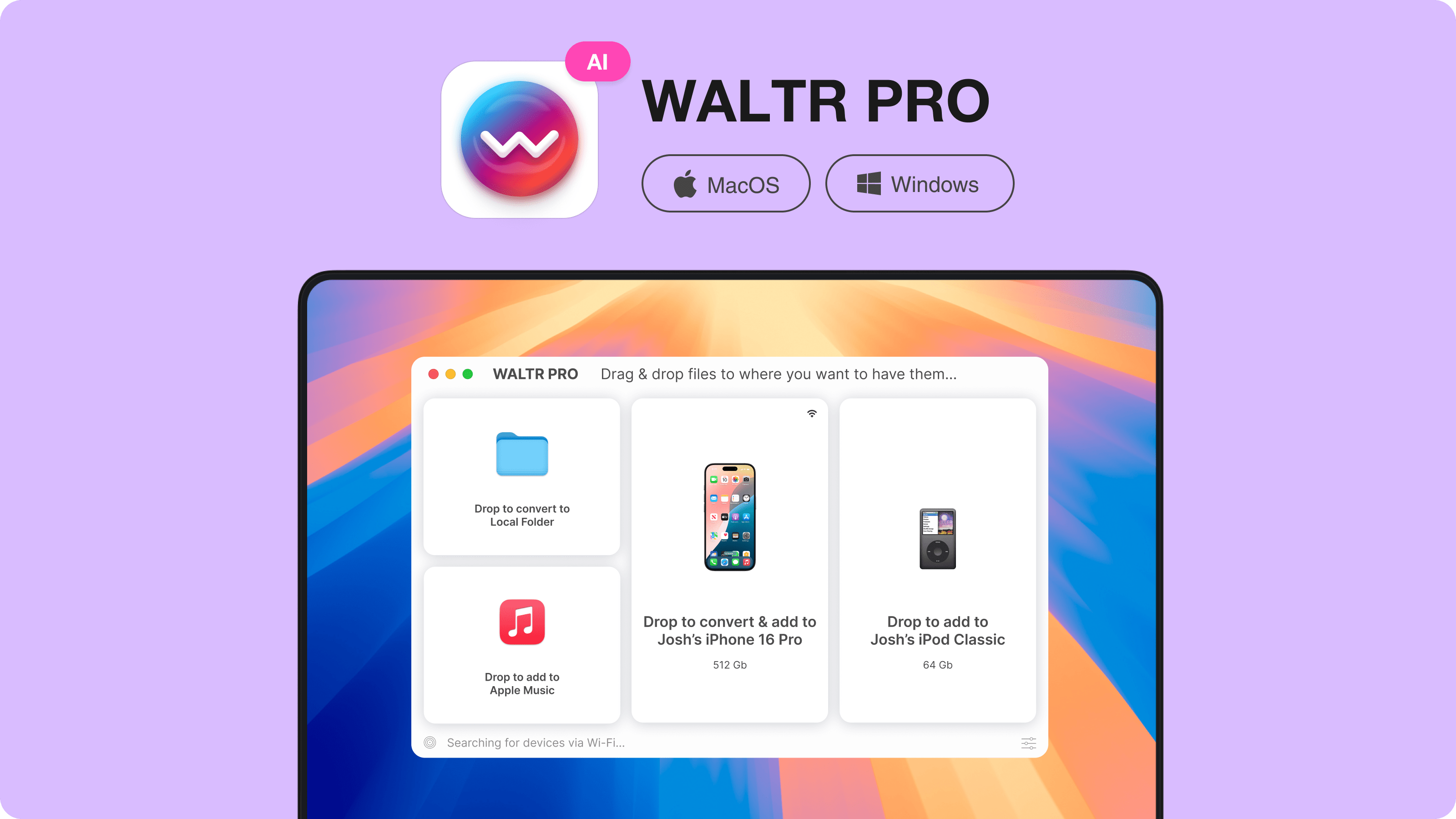
How to transfer a PDF to iPhone with WALTR PRO
- Step 1: Install WALTR PRO on your Mac or Windows PC.
- Step 2: Open WALTR PRO.
- Step 3: Connect your iPhone or iPad once with USB; use Wi-Fi later if your setup supports it.
- Drag the PDF or EPUB into WALTR PRO.
- Let WALTR PRO transfer the file.
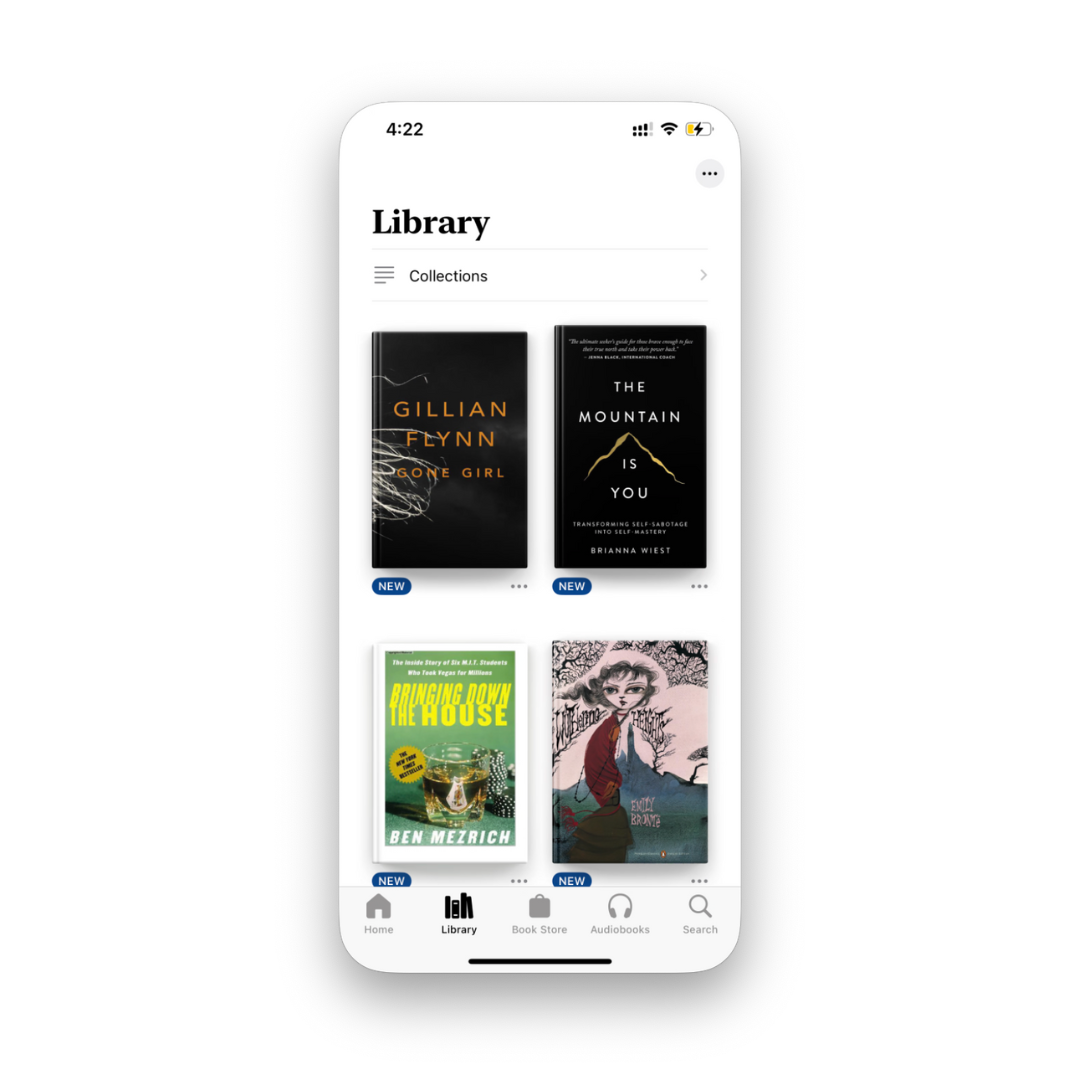
- Open Apple Books on your iPhone or iPad and check Library.
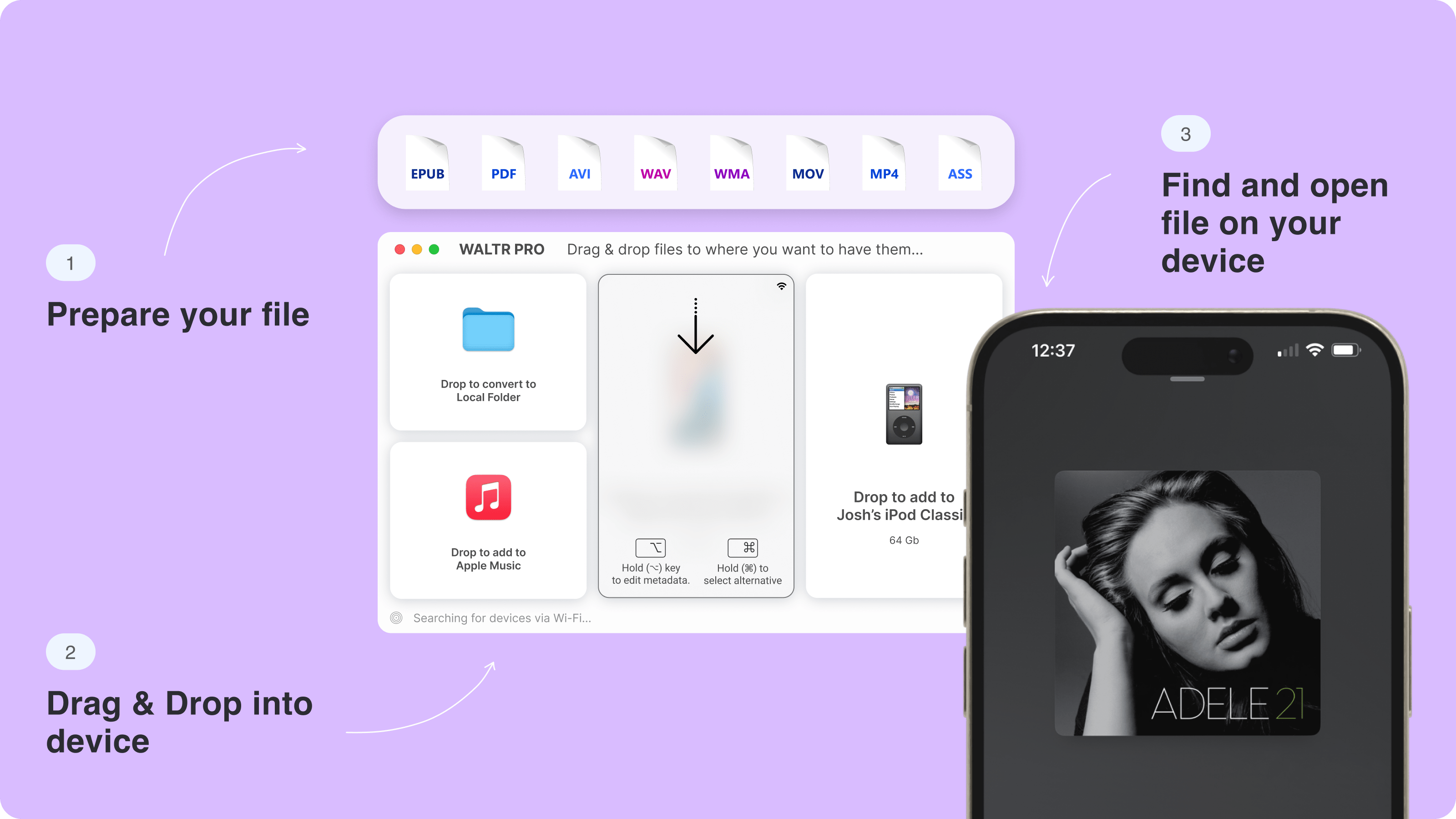
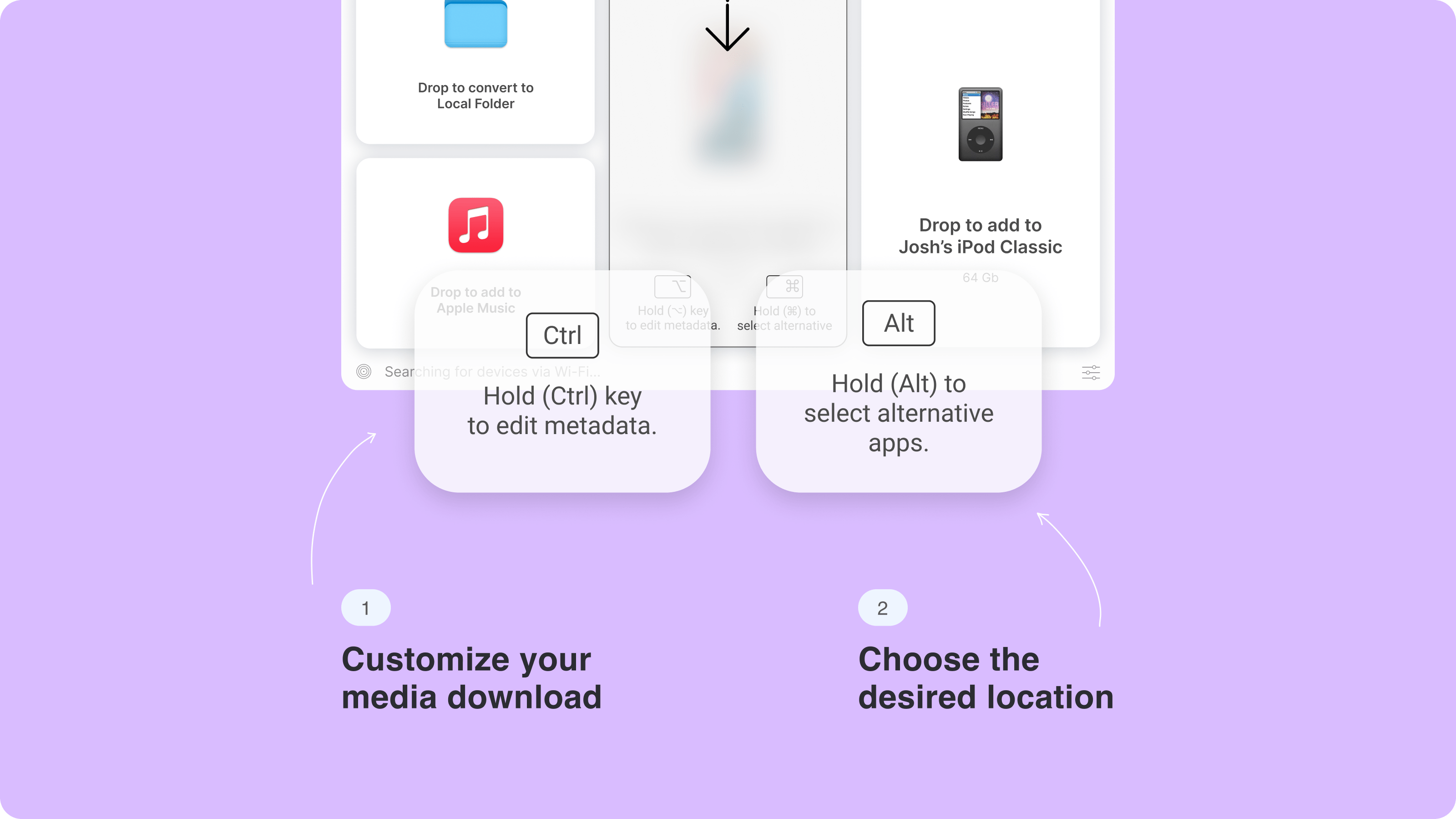
WALTR PRO is the right fit when you have a local PDF, EPUB, music file, or video file on your computer and you want it on your iPhone without Apple’s sync maze. It is not a PDF reader and it does not remove password protection or DRM. It transfers normal local files to a native destination.
WALTR PRO supported formats and destinations
File from Mac or Windows | Supported by WALTR PRO | Destination on iPhone/iPad | Important limit |
|---|---|---|---|
Yes | Apple Books Library or selected app | Does not unlock password-protected or DRM-protected PDFs | |
EPUB | Yes | Apple Books Library | DRM/store-protected ebooks may need the original store app |
M4B audiobook | Yes | Apple Books, as audiobook | Audiobooks must use .m4b to be recognized correctly |
MP3 / FLAC / AAC music | Yes | Music app | FLAC converts to Apple-compatible audio |
MKV / AVI / MP4 video | Yes | TV / Videos app | Non-native formats convert automatically; USB is better for large files |
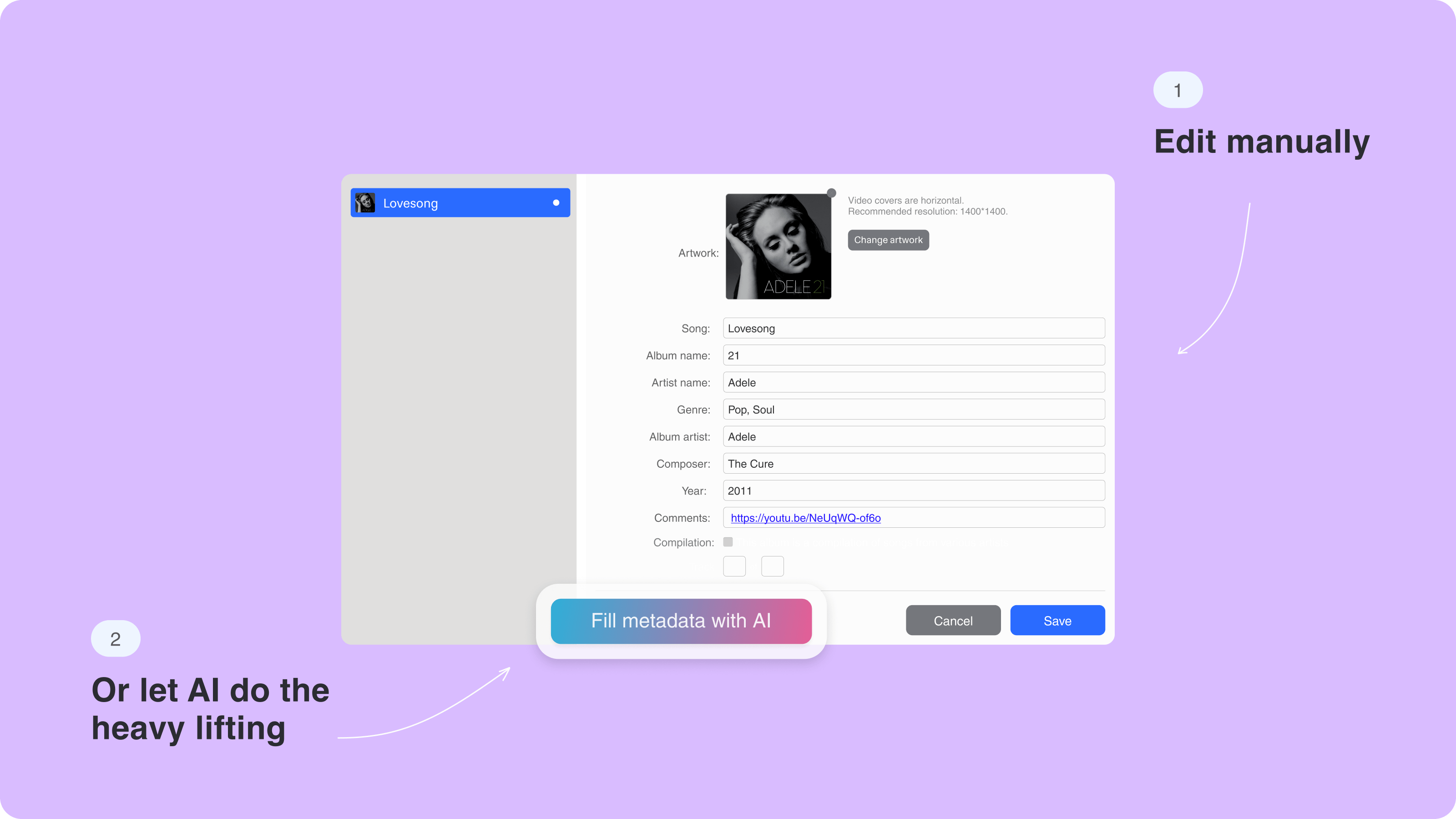
Use the free trial if you want to test the workflow first. WALTR PRO trial limitations currently describe a 24-hour trial and a Books/PDF limit of 10 files: https://help.softorino.com/help/are-there-any-limitations-in-the-trial-version-of-waltr-pro. If your whole problem is one PDF from Safari, use the native method instead.
Softorino’s file-destination help says EPUB, PDF, and M4B audiobooks appear in Books: https://help.softorino.com/help/where-to-find-transferred-files-with-waltr-pro. That makes WALTR useful for sending PDFs and ebooks from computer to iPhone without iTunes, especially on Windows.
Method 4: AirDrop PDF files from Mac to iPhone
AirDrop is fast when both devices are Apple devices and both are nearby. It does not help Windows users, but it is great for sending one PDF from a Mac to an iPhone without cables.
- Turn on Wi-Fi and Bluetooth on both devices.
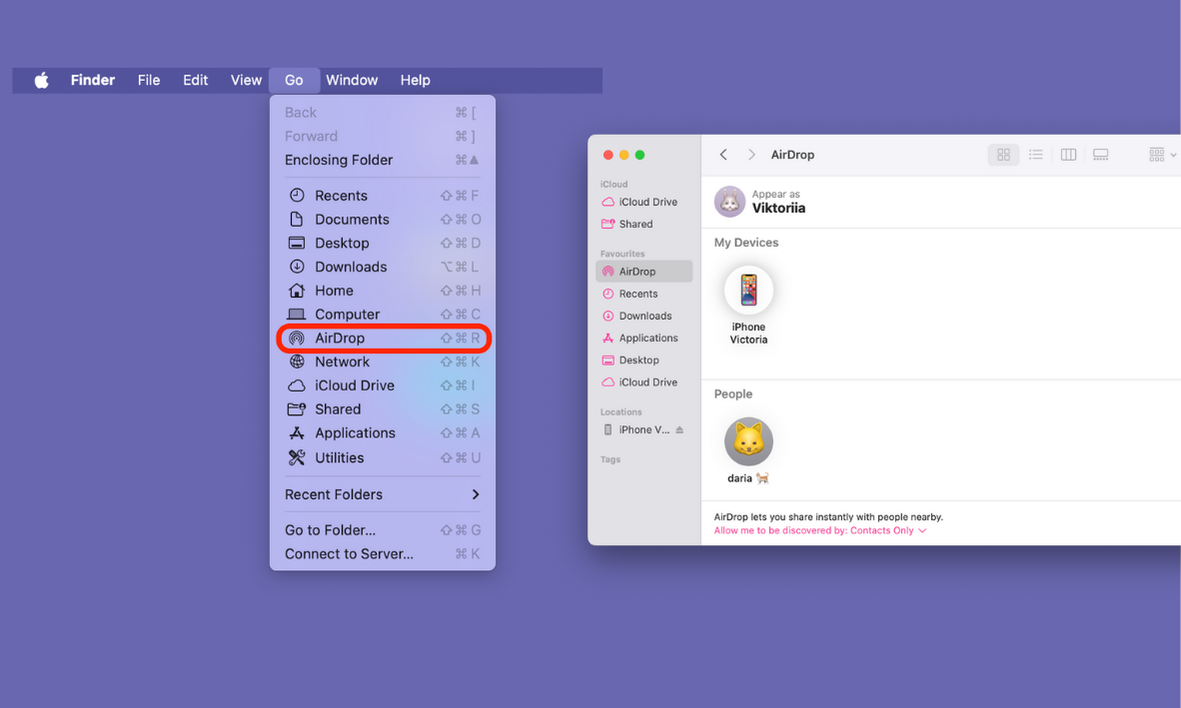
- Open AirDrop on your Mac from Finder.
- Make sure your iPhone can receive AirDrop from Contacts Only or Everyone for 10 Minutes.
- Drag the PDF onto your iPhone in the AirDrop window.
- On your iPhone, choose where to open or save the PDF.
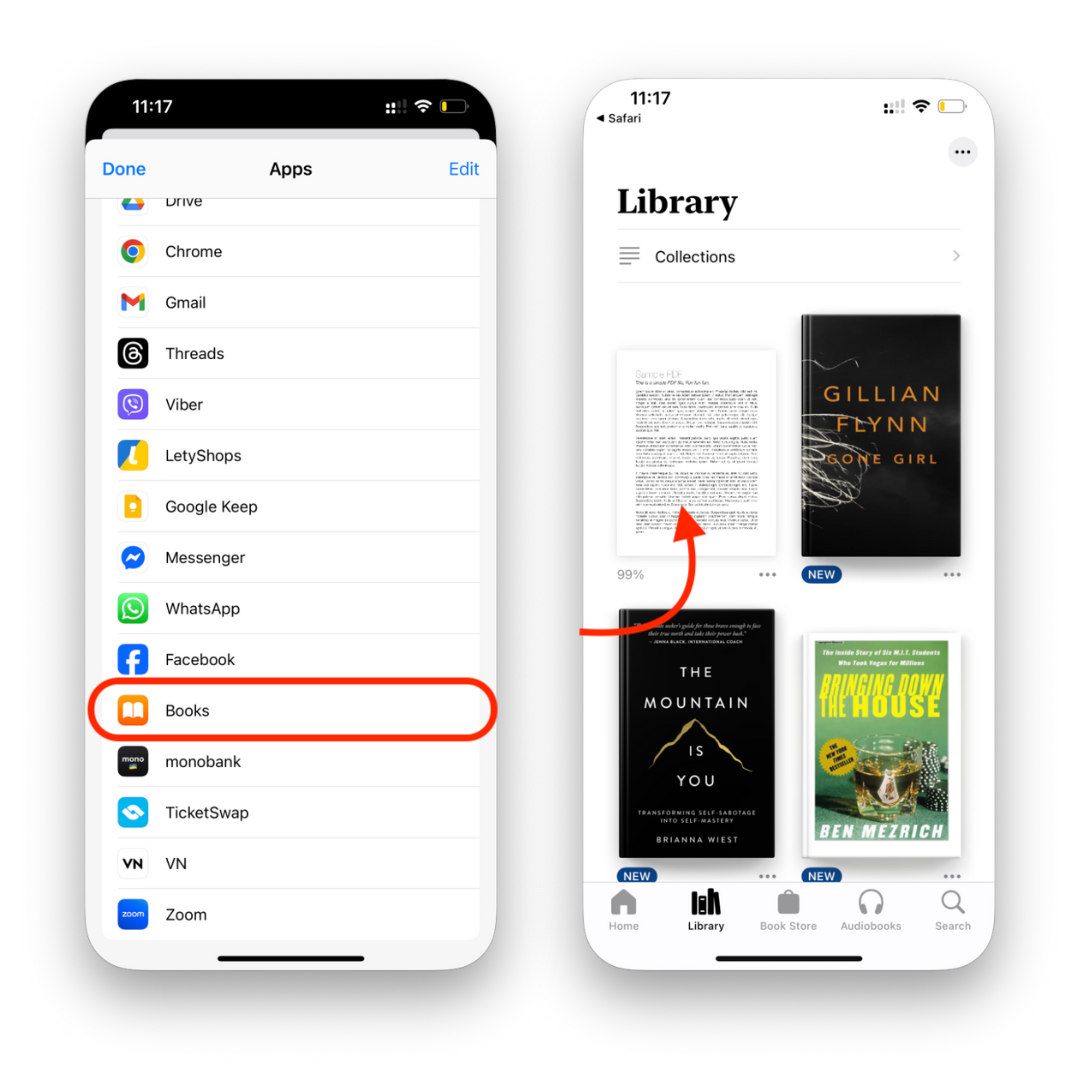
AirDrop may ask whether you want to open the file in Books, Files, or another app. Pick Files if you want folder control. Pick Books if you want to read and keep the PDF in a library. Windows users do not have AirDrop, so use iCloud Drive, email/cloud upload, or WALTR PRO instead.
Method 5: upload PDFs through iCloud Drive
iCloud Drive is the best method when you want the same PDF available on your iPhone, Mac, iPad, and sometimes Windows. It is slower than a direct transfer for large files, but it keeps the PDF in one cloud location.
- On Mac, open Finder and go to iCloud Drive.
- On Windows, use iCloud for Windows or upload through iCloud.com.
- Drag the PDF into iCloud Drive.
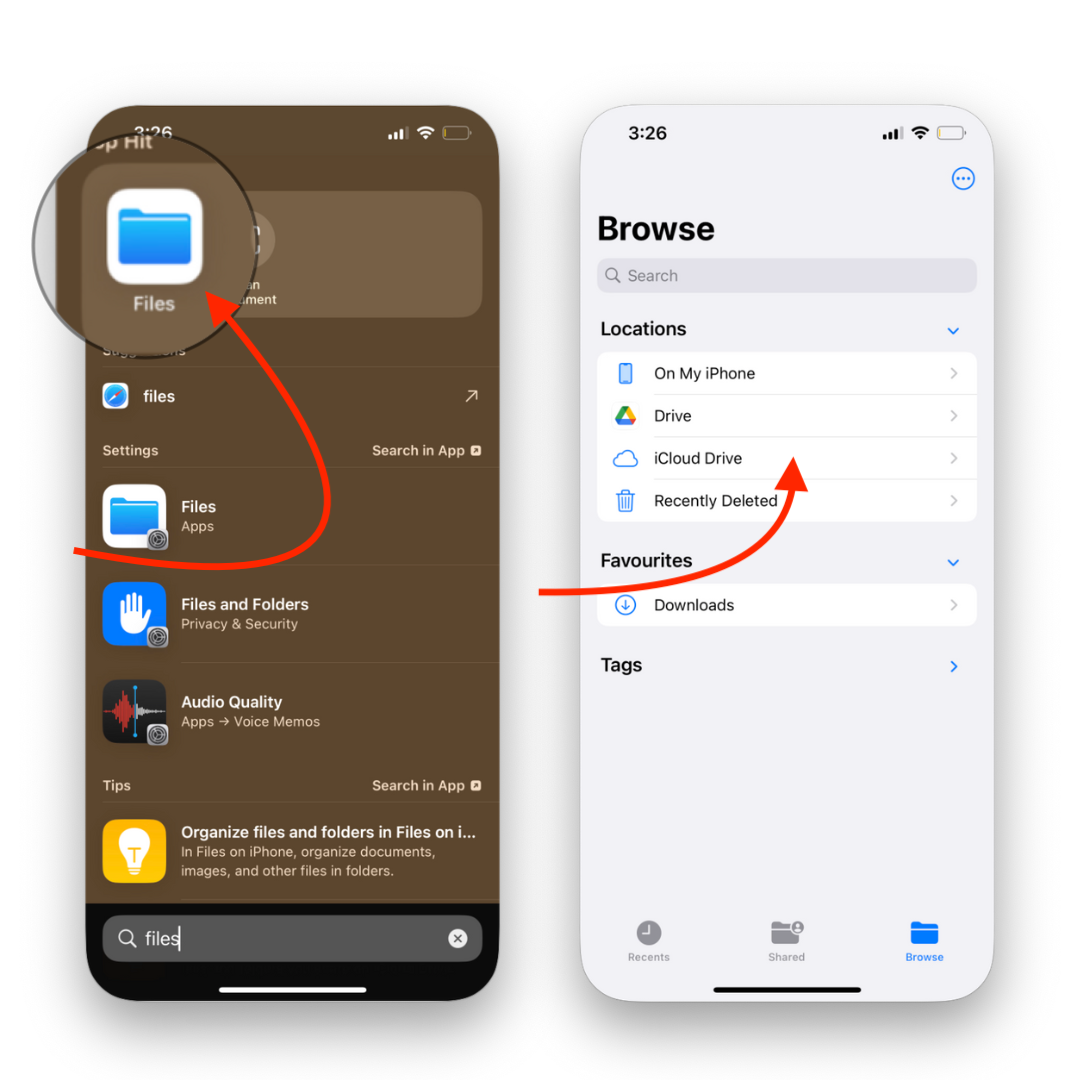
- On iPhone, open Files.
- Tap Browse, then iCloud Drive.
- Open the PDF, move it, share it, or send it to Books.
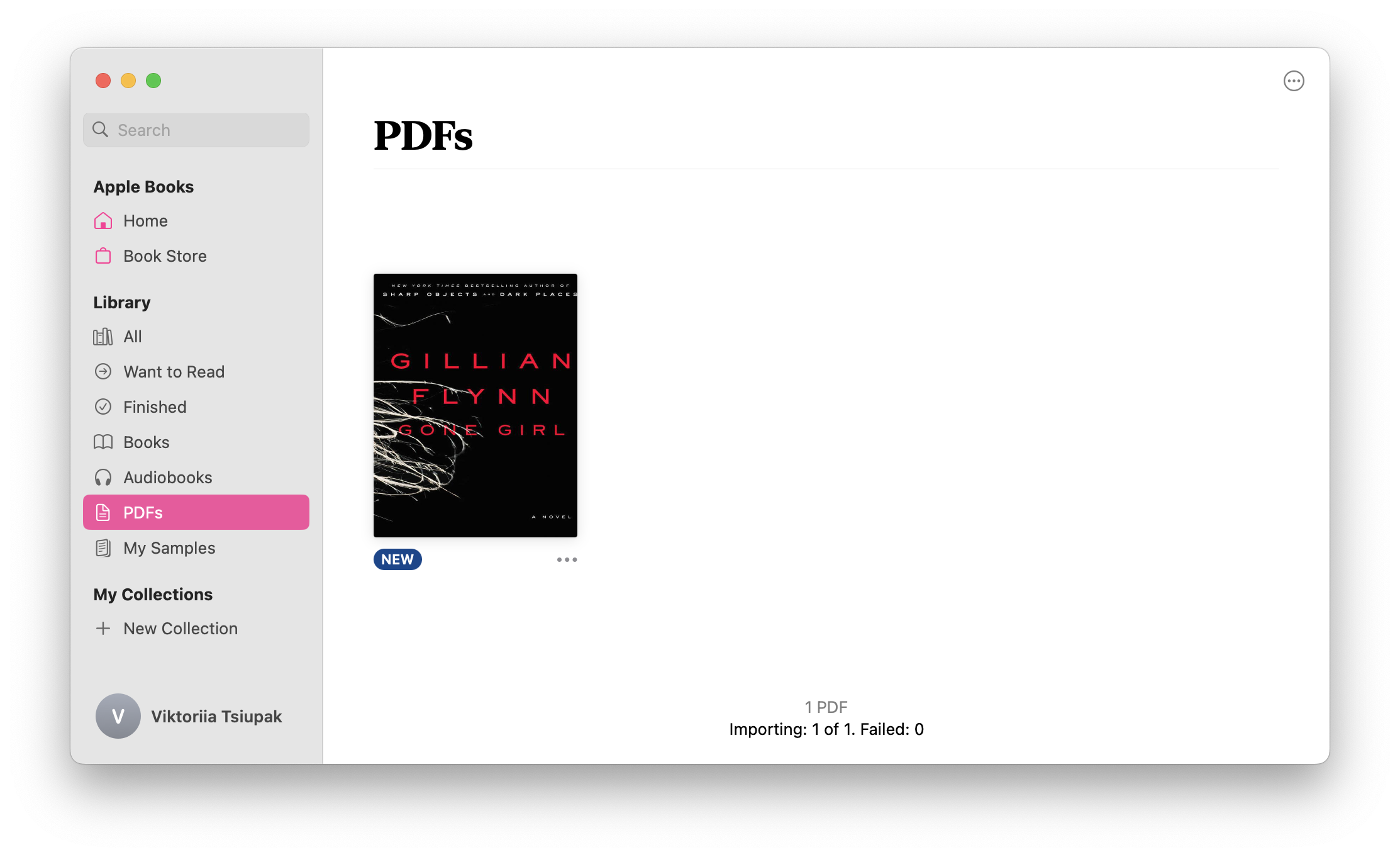
The catch: iCloud Drive uses your iCloud storage. If the PDF does not show up, check your internet connection, iCloud storage, and whether the file finished uploading. Large PDFs can take a while because iCloud is syncing, not magically teleporting.
Method 6: sync PDFs with Finder or Books on Mac
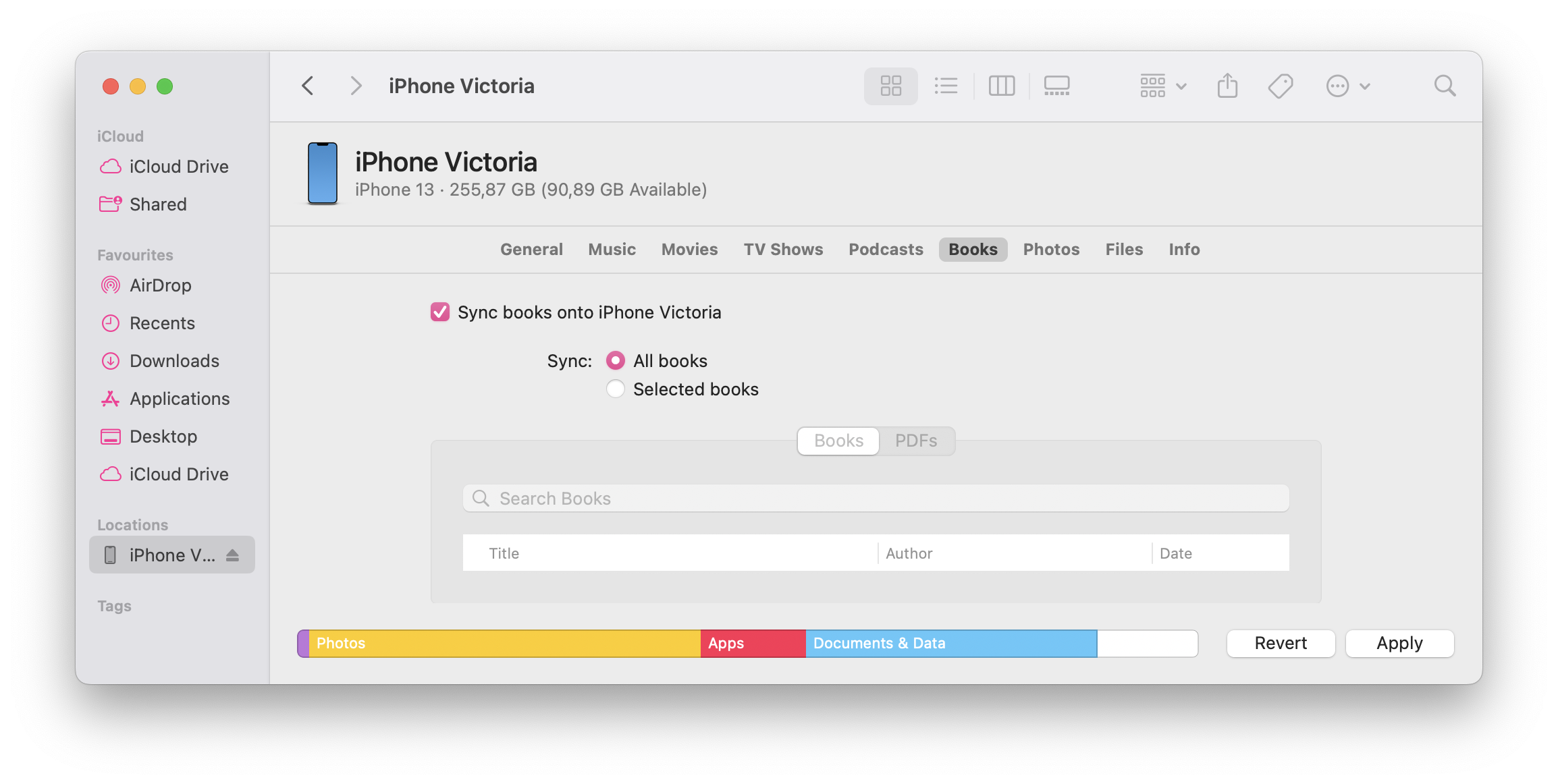
Finder and Books sync are Mac-only methods. They make sense if you already manage an Apple Books library on your Mac and want the same PDFs on your iPhone.
Finder sync on macOS Catalina or later
- Connect your iPhone to your Mac.
- Open Finder.
- Select your iPhone in the sidebar.
- Open the Books section.
- Choose the PDFs or books you want to sync.
- Click Apply or Sync.
Be careful if your iPhone syncs with another library. Finder can warn you before replacing existing synced Books content. Read that warning instead of rage-clicking through it.
Books app on Mac
- Open Books on your Mac.
- Drag the PDF into your library.
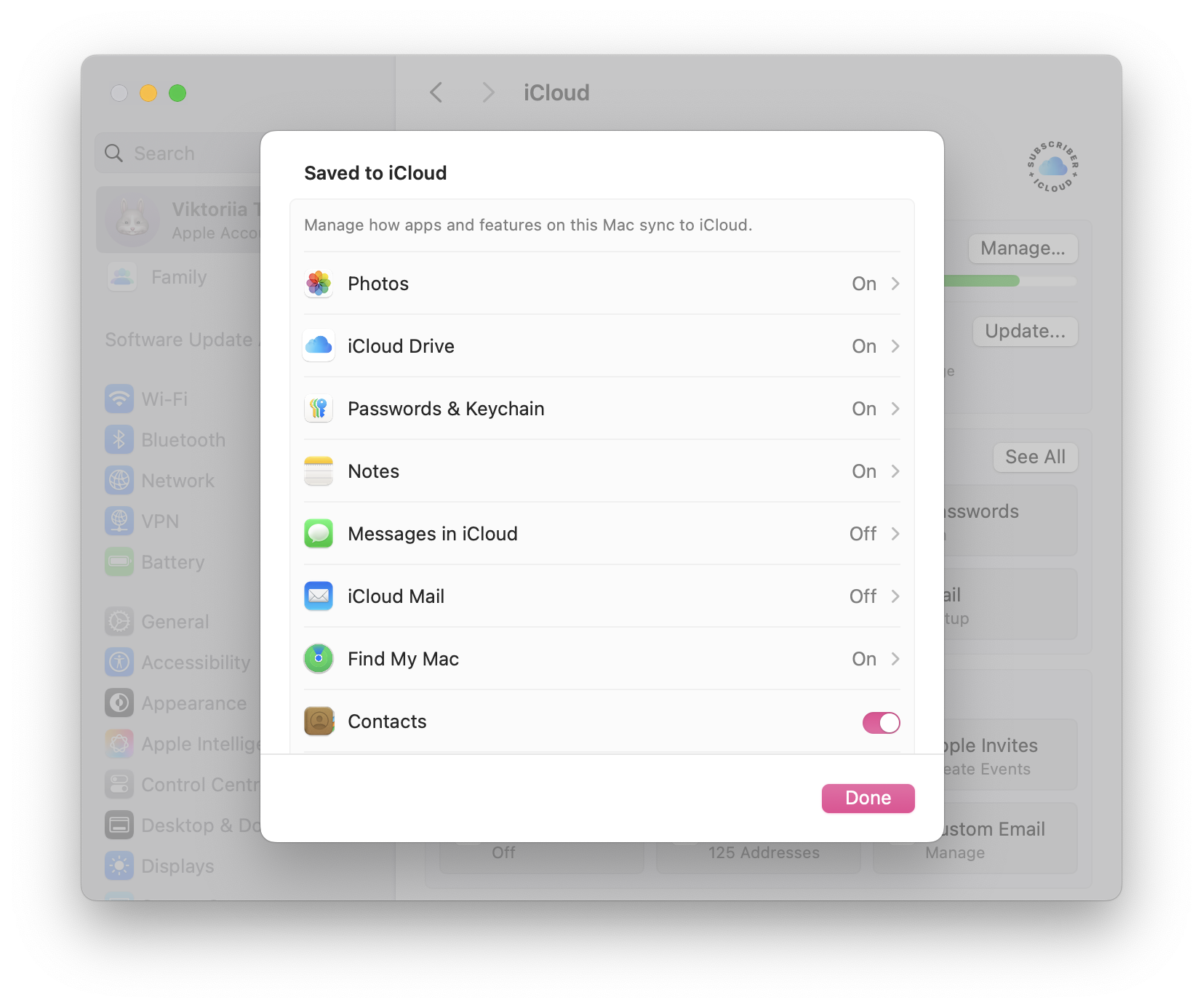
- Make sure Books sync is enabled for your Apple ID and device.
- Open Books on your iPhone and check your library.
This method is tidy for people who already use Books. It is overkill if you only need to save one PDF from Safari.
Where do downloaded PDFs go on iPhone?
Downloaded PDFs usually go to one of 5 places:
- Files > Browse > Downloads.
- Files > Browse > iCloud Drive.
- Files > Browse > On My iPhone.
- Apple Books.
- The app that opened or received the PDF, such as Gmail, Drive, Acrobat, or Messages.
Apple’s Files app guide is the first place to check: https://support.apple.com/en-us/102570. Open Files, tap Browse, then check Downloads, iCloud Drive, and On My iPhone. If you saved the PDF to Books, open Books and check Library.
If you still cannot find it, use iPhone search. Swipe down from the Home Screen and search the PDF name, the sender, or a word from the file title.
Files vs Books: which destination should you choose?
Choose Files if the PDF is a working document. Files is better for invoices, forms, receipts, school documents, shared files, and anything you may rename, move, upload, or send later.
Choose Books if the PDF is something you want to read. Books is better for ebooks, manuals, guides, long reports, and documents you want in a reading library.
Neither choice is permanent. You can open a PDF in Files, tap Share, and send it to Books later. You can also share a PDF from Books back to Files when iOS allows it for that document.
Troubleshooting: PDF will not download, open, or appear
The PDF opens but will not save
Reload the page, tap Share again, then choose Save to Files. If the PDF is inside a website viewer, look for a download button inside the viewer first.
Save to Files is missing
Swipe up inside the Share sheet. iOS often hides actions below the app row. If it still does not appear, open the PDF in Safari instead of an in-app browser.
Books is missing
Tap More in the Share sheet and search for Books. If Books still does not appear, save the PDF to Files first, then open it from Files and send it to Books.
The PDF disappeared
Check Files > Browse > Downloads, iCloud Drive, and On My iPhone. Then check Books > Library. If the file came from Gmail, Drive, Dropbox, or another app, check that app’s folder in Files.
The PDF is too large to email
Use iCloud Drive, AirDrop, or WALTR PRO. Email is a terrible file-transfer tool pretending to be a file-transfer tool. If the file is password-protected, unlock it with the password first. If the file is DRM-protected, use the original store or reader app.
FAQ
Where do downloaded PDFs go on iPhone?
Most downloaded PDFs are in Files > Browse > Downloads, iCloud Drive, or On My iPhone. If you chose Books, open Apple Books and check Library. If another app opened the PDF, check that app or use iPhone search by file name.
Should I save PDFs to Files or Books?
Save PDFs to Files for storage, folders, uploads, renaming, and sharing. Save PDFs to Books for reading and keeping documents in a library. If you are unsure, save to Files first; you can usually send the PDF to Books later.
How do I download PDF on iPhone from Safari?
Open the PDF link in Safari, tap Share, choose Save to Files or Books, pick a destination folder if needed, then tap Save. Apple documents Save to Files as the native Safari PDF path on iPhone.
How do I transfer a PDF from Windows to iPhone without iTunes?
Use iCloud Drive, email/cloud upload, or WALTR PRO. WALTR PRO is the more direct path when the PDF is already on your Windows PC: install WALTR PRO, connect the iPhone, drag in the PDF, then check Books or the selected destination app.
Can WALTR PRO send PDFs and EPUB files to Apple Books?
Yes. Softorino’s supported formats and file-location help pages list PDF and EPUB as supported Books-app formats. WALTR PRO transfers the files; Apple Books is the reader. It does not unlock DRM-protected ebooks or password-protected PDFs.
Why can’t I open a downloaded PDF?
The usual causes are an incomplete download, a bad link, a password-protected PDF, a DRM-protected file, or a third-party app hiding the saved copy. Try saving to Files again from Safari, check Downloads, then open the file with the password or original reader app if needed.
Can I AirDrop PDFs to my iPhone?
Yes. Turn on AirDrop on both devices, send the PDF from your Mac to your iPhone, then choose Files, Books, or another app when your iPhone asks where to open it. AirDrop is Apple-only, so Windows users need another method.
Final take
If the PDF is on the web, use Safari and the Share sheet. If it came by email or message, open it and save it to Files or Books. If the PDF is on your computer, use AirDrop, iCloud Drive, Finder, or WALTR PRO depending on your platform.
That is the clean split: iPhone-native for online PDFs, Files for work documents, Books for reading, and WALTR PRO for local PDFs or EPUB files already sitting on Mac or Windows.

WALTR PRO
Convert & Push Any File into Any Apple Device
